
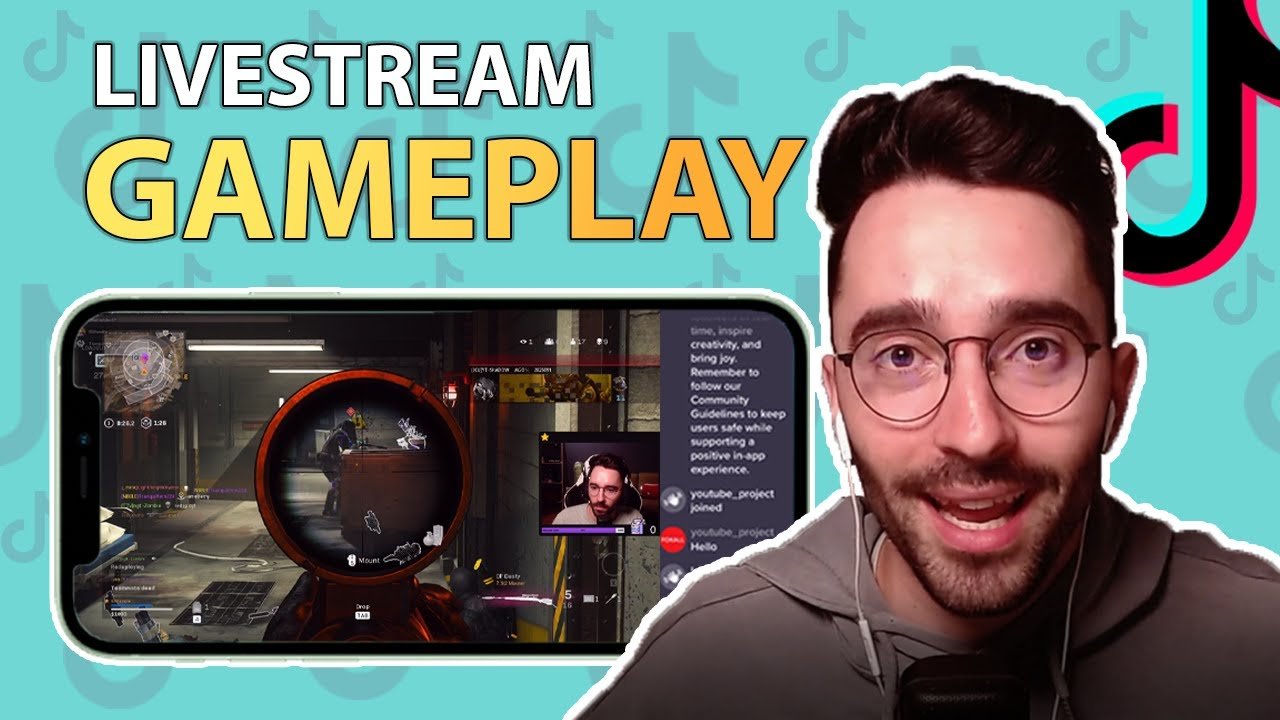
To livestream games on TikTok, you need a TikTok account with 1,000 followers, access the LIVE feature, and use a compatible mobile game or third-party software for screen capture.
Want to share your gaming skills with the TikTok world? Many people wonder how to livestream games on tiktok, and it’s easier than you might think. This guide will show you the basic steps to get your gameplay out there.
First, you will need to meet the follower requirement set by TikTok. Then, with the live feature activated, you can begin broadcasting your amazing game playing to others. So get ready to share your best moves.

How to Livestream Games on TikTok
So, you love playing games and want to share the fun with the world on TikTok? Great idea! Livestreaming your gameplay on TikTok is a super cool way to connect with other gamers, show off your skills, and maybe even make some new friends. It might seem a little tricky at first, but don’t worry! We’re going to walk through everything you need to know, step-by-step, so you can start sharing your awesome gaming moments.
Before You Begin: Things You Need
Before you hit that ‘Go Live’ button, there are a few things you need to have ready. Think of it like prepping for a big game – you need all your equipment!
TikTok Account Requirements
First things first, you need a TikTok account that meets certain requirements to go live. TikTok doesn’t let just anyone start a livestream. Here’s what you need:
- Age Requirement: You must be at least 16 years old to go live on TikTok. If you are under 18, please make sure you have your parents’ permission before starting.
- Follower Count: You typically need at least 1,000 followers to access the live feature on TikTok. If you don’t have enough followers yet, don’t worry! Keep making great videos, and you’ll reach that goal in no time. Focus on engaging with other users and posting fun content.
- Account Status: Your account needs to be in good standing with TikTok’s community guidelines. That means no breaking the rules, keep your content friendly and appropriate.
Gaming Setup Essentials
Now that your TikTok account is ready, let’s talk about your gaming setup. Here’s what you’ll need:
- Gaming Device: This could be your computer, console (like PlayStation, Xbox, or Nintendo Switch), or even your mobile phone. Make sure it’s charged and ready to go!
- Game Capture Method: How will TikTok see what you’re playing?
- Mobile Games: If you are playing on your phone, you can easily use TikTok’s screen recording feature.
- Console Games: You will need a capture card. A capture card is a small device that connects your console to your computer so you can stream your gameplay.
- PC Games: For PC games, you can use screen recording software like OBS Studio.
- Stable Internet Connection: A reliable internet connection is super important. You don’t want your stream to cut out in the middle of an intense gaming moment. Make sure your wifi or internet is solid before you go live.
- Microphone: If you want to chat with your audience during the livestream, you will need a microphone so people can hear you. You can use your headphones with mic, your phone mic, or a dedicated gaming mic.
- Headphones or Speakers: So you can hear the game sound and any alerts or notifications that might pop up.
Setting Up Your Livestream: The Nitty-Gritty
Okay, now that you have everything you need, let’s get your livestream set up!
Enabling the Live Feature on TikTok
If your account is qualified, the ‘Live’ feature will be available. To find it:
- Open your TikTok app.
- Tap the ‘+’ button at the bottom of the screen.
- Look for the ‘Live’ option at the bottom of the screen, next to the video/camera option.
- If you don’t see the ‘Live’ option, it might not be available to you yet. Check if you meet the requirements, and keep posting engaging content.
Configuring Your Stream Settings
Before you hit ‘Go Live’, you have a few options to set:
- Title: Give your stream a catchy title that lets people know what you’re playing. For example, “Playing Fortnite for Victory Royale” or “Minecraft Adventure Time”.
- Topic: Choose the appropriate game category or topic that relates to your gameplay. This helps people find your stream.
- Filters and Effects: Choose a filter or effect to make your stream visually appealing, but don’t over do it!
- Camera Position: Decide whether you want to show your face or just focus on the gameplay. You can switch between different camera angles if you want to change it up mid stream.
Connecting Your Game to TikTok
The specific steps for connecting your game will depend on the type of game you’re playing. Let’s break it down:
Mobile Games:
For games you are playing directly on your phone, you can use TikTok’s built-in screen recording feature.
- Start the TikTok live process by going to ‘Live’ on TikTok.
- Open your game as normal.
- When ready, start your Live video and you will be able to show your phone’s screen.
- Start playing your game like you normally would.
- Your viewers will see everything on your screen as you play.
Console Games (PlayStation, Xbox, Nintendo Switch):
This is where a capture card becomes essential.
- Connect your console to your capture card using HDMI cables.
- Connect your capture card to your computer using USB.
- Open your streaming software, like OBS Studio, on your computer.
- Add your capture card as a “source” in OBS. This lets the software grab the video from the capture card.
- Add your webcam as a video source in OBS (if you will use it). Also, add your microphone as a source to capture your voice.
- Configure the video settings (like resolution and frame rate) to make it best for you.
- In OBS, choose to show your screen.
- Then copy the “stream key” provided by the TikTok app to OBS Studio, and use the “Custom Server” option in the OBS Studio output setting.
- Go live on your TikTok app as normal.
- Now your live stream on tiktok will show your game.
PC Games:
If you are playing on your computer, you can use screen recording software like OBS Studio.
- Download and install OBS Studio (or other similar software) on your computer.
- Open OBS and add your game as a “source”. This tells OBS what game window to capture.
- Add your webcam as a video source in OBS (if you will use it). Also, add your microphone as a source to capture your voice.
- Configure your video and audio settings to your liking.
- In OBS, choose to show your screen.
- Then copy the “stream key” provided by the TikTok app to OBS Studio, and use the “Custom Server” option in the OBS Studio output setting.
- Go live on your TikTok app as normal.
- Now your live stream on tiktok will show your game.
Important Note: Using other software, like OBS Studio, to stream on TikTok sometimes involves copying and pasting a “stream key.” This is a special code given to you by TikTok that tells the software where to send your video. Every streaming platform has these stream keys. The stream key is usually located in the live settings or options on your tiktok account or app.
Going Live: Tips and Tricks
Now it’s time to shine! Here are some pro tips to make your TikTok gaming livestreams awesome:
Engaging with Your Audience
A big part of livestreaming is connecting with your viewers. Here’s how:
- Say Hello: Welcome viewers as they join your stream. Read out their names or comments.
- Answer Questions: If viewers ask you questions, take the time to answer them. It shows you care about them and what they think.
- Encourage Interaction: Ask questions, hold polls, or ask for suggestions on what to do next in the game.
- Be Positive: Keep your energy high and stay friendly. A positive attitude is contagious!
Making Your Stream Fun and Interesting
No one wants to watch a boring stream. Make your streams engaging with these ideas:
- Show Your Personality: Be yourself! Let your viewers get to know you and your style.
- Use Humor: Crack jokes and make people laugh.
- Play Music: Keep some music playing while you game to set the vibe (be careful to avoid copyright issues, use copyright-free music).
- Be Creative: Come up with unique themes, challenges, or goals for your stream.
- Keep it Moving: Be dynamic. Don’t just sit there silently and play the game. Describe what you’re doing, what you’re thinking about, and share your reactions.
Technical Tips
Make sure your stream is running smoothly. Here’s how:
- Test Your Setup: Always do a test stream before going live for real. Make sure everything is working.
- Monitor Your Stream: Keep an eye on your stream quality (audio and video).
- Adjust Settings: If your stream is lagging or the quality is bad, try lowering the video quality settings in your streaming software.
- Stay Hydrated and Take Breaks: Livestreaming can be tiring. Remember to drink water and take short breaks.
Staying Safe While Streaming
Safety is super important when you’re online. Remember these tips:
- Don’t Share Personal Information: Never share your address, phone number, school, or other private information during your stream.
- Be Careful with What You Say: Don’t say anything that could make you or your viewers uncomfortable.
- Moderate Your Chat: Have moderators in your chat who can delete inappropriate comments or ban users who break the rules.
- Trust Your Gut: If something feels wrong, it probably is. Don’t be afraid to end your stream if you feel uncomfortable.
Analyzing Your Livestream Performance
After your stream is done, take a look at how it performed. This will help you make your next stream even better.
- View Count: How many people watched your stream?
- Likes and Comments: Did viewers engage with your stream?
- Follower Growth: Did you gain any new followers from your stream?
- Areas to improve: Are there parts of the stream where viewers didn’t engage with your stream? If so, why do you think this was the case?
Use this information to make better content and engage viewers more in the next time.
Remember to use popular hashtags for your game, and be creative with your stream to attract more viewers!
Livestreaming games on TikTok can be an awesome experience. It allows you to interact with other gamers and build a community around your game. If you follow the steps and tips given here, you should be able to have a successful and fun live stream.
How To Live Stream Mobile Games On TikTok – Full Guide
Final Thoughts
To begin, you need a TikTok account with 1,000 followers, and then activate the LIVE feature. Next, use a third-party application or your phone’s built-in function to capture your gameplay. Configure your settings for best quality.
Then, select TikTok as the destination for your broadcast. Go live and engage with viewers. Remember, consistent, high-quality content boosts your audience.
In short, to understand ‘how to livestream games on tiktok’, start with requirements, get gaming capture setup, select tiktok, then simply broadcast and actively engage with audience.

