
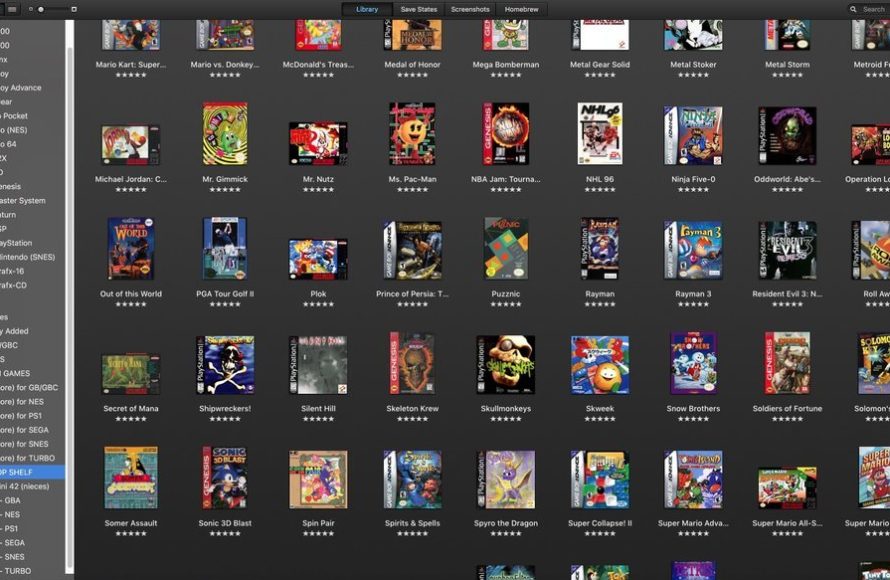
To load games onto OpenEmu, simply drag and drop your ROM files directly into the OpenEmu window or use the ‘Import ROMs’ option in the File menu.
Want to revisit classic console experiences? OpenEmu makes it simple to play those old favorites, but the first step is knowing how to load games onto OpenEmu. It’s a quick process that will get you gaming in no time.
You can easily add games by locating your ROM files, then either dragging them to the OpenEmu library, or by using the application’s built in import function. OpenEmu automatically organizes your collection once you add games, which makes browsing very easy.

How to Load Games onto OpenEmu
Getting your favorite classic games running on OpenEmu might seem tricky at first, but it’s actually quite easy once you know the steps. Think of OpenEmu as a magical box that can play many different types of old video games. To get those games into the box, you need to know where to find them and how to make OpenEmu recognize them. This section will guide you through the process, explaining everything in a simple way.
Understanding ROMs and Game Files
Before we begin loading games, it’s really important to know what we’re actually dealing with. You might hear the term “ROM” a lot, and that’s what we use for games on OpenEmu. Let’s talk a bit about what a ROM actually is.
What is a ROM?
A ROM file is basically a digital copy of a game cartridge or disc. Imagine taking a game like Super Mario Bros. and making a digital image of it. That digital image is a ROM. OpenEmu needs these ROM files to play games because it can’t use the original cartridges or discs directly. It’s like needing a picture of a real book so you can read it on your computer. So, you will need a ROM copy of the game to play on OpenEmu.
Where to Find ROMs
Finding ROMs can be a bit tricky, and it’s essential to do it legally and responsibly. It’s important to understand that downloading ROMs for games you don’t own a physical copy of can be a copyright violation. This is important and should always be kept in mind. We recommend getting ROMs of games you already own to be in the clear. If you’re thinking of getting ROMs, here are a few general rules.
- Your own games: You can make your own ROM files from games you already own. This is perfectly legal, but it does require the correct tools and knowledge of how to make a rom.
- Public Domain or Freeware Games: There are many games that are considered public domain or freeware. They can be downloaded legally from different sites. These are games that are typically free and you can have fun playing them without worrying.
- Internet Archives: The Internet Archive is an online library which sometimes offers free games that can be played on different emulators.
Important: Always avoid sites that promote the illegal downloading of ROMs and any other pirated content. It’s best to obtain your game ROMs through legal means.
Preparing Your Games for OpenEmu
Once you’ve got your game ROMs, we need to make sure they’re ready for OpenEmu. It’s a simple process to prepare your ROMs, but a crucial step in getting the process right.
Checking File Formats
ROMs come in different file formats. Some popular ones that work with OpenEmu include:
- .zip
- .smc
- .sfc
- .nes
- .gb
- .gba
- .iso
OpenEmu is very good at handling many different file types, but knowing the general file type is always good. Sometimes, ROMs are stored in zip files, which is convenient because the emulator can usually read them just fine without needing to unzip them.
Organizing Your Games
Keeping your ROMs organized is important, especially if you have lots of games. Here is a simple method to keep your games organized. For example, create folders for each console in your collection, and then organize game ROMs in those folders. Example folders could be called “Nintendo”, “Super Nintendo”, “Gameboy”, “PlayStation”, etc. This makes it easier to find games and makes OpenEmu much more manageable.
Loading Your Games into OpenEmu
Now we’re at the fun part – putting games into OpenEmu. There are several ways to do this, but they all boil down to telling OpenEmu where your game files are.
Method 1: Drag and Drop
The simplest way to load games is by dragging and dropping them. Here’s how:
- Open OpenEmu: Start by launching the OpenEmu app on your computer.
- Open the Game Library: Open your Game Library inside of OpenEmu. You should see the game consoles on the left side of your screen.
- Locate Your ROM Folder: Open the folder where your ROM files are stored.
- Drag and Drop: Select the game or game folder you want to add, and drag them into the game library window on OpenEmu.
OpenEmu will automatically import your game and place it under the correct console. It’s as simple as that.
Method 2: Import from the File Menu
Another method to load your games into OpenEmu is through the “Import” menu. Here is how to load your games by importing them:
- Open OpenEmu: Start by launching the OpenEmu app.
- Go to File > Import: On the top menu of the OpenEmu app, click on “File” and then select “Import.”
- Select ROM Folder or ROM: In the window that opens, browse to the folder with your ROMs or select an individual ROM.
- Click “Open”: Once you’ve selected your file, click “Open.”
OpenEmu will then take the ROM and place it in your game library. The “Import” option is particularly useful when you have a very large collection of games you want to add.
Method 3: Automatic Importing
OpenEmu can be set to automatically watch a folder for new games. Here’s how you set that up:
- Open OpenEmu Preferences: Click on “OpenEmu” on the top left menu and then select “Preferences”.
- Click the Library Tab: At the top of the preferences menu, choose the “Library” tab.
- Select a Game Folder: Click the “+” button under “Game Library Folders.”
- Choose Your Folder: Pick the folder where your games are stored, and then click “Select”.
Now, any new games you place in the folder will be automatically added to OpenEmu. This is a convenient way to make sure your game library stays updated.
Troubleshooting Common Issues
Sometimes, things might not work exactly as planned. Here are some typical problems and solutions:
Game Not Showing Up
If a game doesn’t show up in OpenEmu, try these steps:
- Check the File Format: Make sure the file format is supported by OpenEmu. A good place to check is the documentation for the OpenEmu system.
- Try a Different Import Method: If drag and drop failed, try using the import menu.
- Verify the ROM is Good: In some cases, the ROM may be corrupted. Check that the game rom is properly downloaded, try downloading it again from a trusted source.
Game Won’t Start
If a game appears but won’t start, it could mean a few things:
- BIOS Files: Some game systems like the PlayStation need specific BIOS files to work. Make sure you have these in the proper location for OpenEmu.
- System Settings: Check the OpenEmu settings for the system you are trying to play. Make sure the system is set up properly, including its controller setup.
- Update OpenEmu: Keep your version of OpenEmu updated, as updates often fix bugs and improve compatibility.
Controller Problems
If your controller isn’t working, here’s how to fix it:
- Check Controller Connection: Make sure your controller is properly connected to your computer.
- Controller Settings: Go into OpenEmu preferences and look at the controller settings. You may need to manually assign each button to a function.
- Try Another Controller: Try another controller if you have one available to see if the issue is with the controller you are using.
Tips for a Better OpenEmu Experience
Here are some tips for making your OpenEmu experience much better
Using Save States
Save states let you save the game at any time and return to it later. This can be really helpful, especially for games that are difficult. Here is how to use them.
- Saving: During gameplay press Shift + F7 to save a state.
- Loading: press F7 to load your last save state.
Make sure to use these functions properly to make the most of them in your games.
Customizing Controls
You can change the button mappings in OpenEmu. Go into the preferences menu, and then controller settings, to customize your button layout. This is really good for making the game play how you like it.
Exploring OpenEmu’s Settings
Spend some time browsing the OpenEmu settings. There are many options to make the program work just the way you want it. Here are some settings you should check.
- Display Settings: You can change the display settings to improve game picture quality, like aspect ratios and shaders.
- Audio Settings: Here you can adjust the audio settings.
- Core Settings: Some games will have core settings in the preferences menu which can help fix minor problems.
Loading games onto OpenEmu is very simple once you understand the process. This guide gives you all the tools you need to play your favorite classic video games. Always make sure you get your games legally, and don’t be afraid to try different settings within OpenEmu to make your experience even better. Now, go enjoy those games!
OpenEmu Multi-System Emulator Setup Guide for Mac 2024
Final Thoughts
To quickly load games, locate your ROM files. Drag and drop these files directly onto the OpenEmu window. OpenEmu automatically recognizes and sorts most supported game formats. Ensure your files are in compatible formats for the desired system.
That’s how to load games onto OpenEmu. The process is simple and quick to get your retro game library going. Remember that acquiring ROMs must be done responsibly, always be mindful about where you find files. This straightforward method ensures you can jump into playing your favorite classics quickly.

