
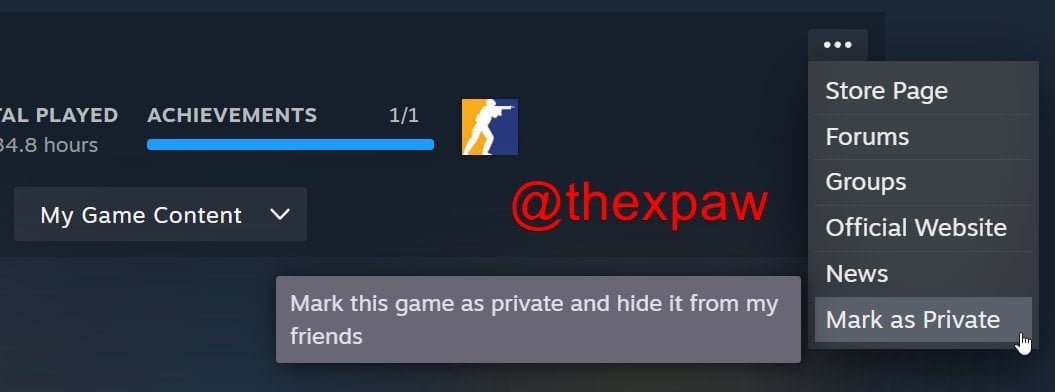
To mark a game as private on Steam, you need to navigate to your game library, right-click the specific game, select “Manage,” then choose “Mark as Private.”
Ever feel like keeping your gaming habits a secret? Sometimes, you just want to enjoy a game without anyone knowing what you’re playing. It’s surprisingly simple to control who sees your game activity on Steam. This blog post will guide you on how to mark a game as private on Steam, giving you complete control over your privacy settings.
It only takes a few quick steps. You can easily adjust your visibility preferences for individual games. Having this control enhances your gaming experience, allowing you to play when and how you want.

How to Mark a Game as Private on Steam
Ever wanted to keep your gaming habits a little more secret? Maybe you’re playing a game you’re not ready to share with your friends, or perhaps you just want a little privacy. Steam, the popular platform for playing PC games, lets you do just that. You can hide your game activity from your friends and the wider Steam community. This article will show you how to make your games private. It’s like having a secret gaming lair, and we’ll guide you every step of the way.
Why Make Your Games Private?
There are lots of good reasons why someone might want to hide their game activity on Steam. Let’s take a look at some of them:
Privacy Concerns
Sometimes, you just want to keep your gaming life to yourself. Maybe you are trying out a new genre or revisiting an old favorite and you are not in the mood to have your friends seeing what you are playing. Keeping your games private provides a layer of separation. It allows you to enjoy your games without feeling like you are being watched. You can play in peace without needing to explain your choices.
Avoiding Spoilers
Imagine you are playing a game with a great story, full of twists and turns. The last thing you want is your friends seeing your progress and accidentally giving away a big surprise. By marking your game activity as private, you can explore the game on your own terms, at your own pace, without running the risk of having someone spoil a major plot point or a fun hidden element. Keeping a game private avoids any unwanted hints about what might happen next. This ensures that you experience the full thrill of the game.
Trying New Games
Maybe you’re experimenting with different types of games and do not want everyone to see what you’re trying. You can play new genres without anyone knowing until you feel comfortable sharing your experience. It’s a great way to explore new tastes without having to deal with unwanted questions. It’s your personal journey to play games, and making them private lets you have fun without any added pressure.
Keeping a Low Profile
Some players simply prefer to keep their gaming activity under wraps. They might be busy with other things and don’t want to give the impression that they’re constantly online. Marking games as private helps you control your online presence on Steam. It’s a straightforward way to manage what others know about your gaming habits. This option is perfect for individuals who value their privacy and want to manage their online footprint carefully.
How to Make Your Games Private
Now, let’s get to the important part: how to actually hide your games on Steam. You have a few different ways to do it, so pick the one that works best for you.
Changing Your Profile Privacy Settings
This is the main way to control who can see your game activity. These settings control who sees all the details about your profile, including which games you are playing. Here’s how to do it:
- Open the Steam client on your computer.
- Click on your profile name at the top of the screen and select “Profile.”
- Click on “Edit Profile” on the right side of your screen.
- Select “Privacy Settings” from the menu.
- Under the “My Profile” section, look for “Game Details.”
- Click the dropdown menu and choose “Private”.
- You can also choose “Friends Only” if you want to let your Steam friends see your game activity but not the rest of the community.
- Click on “Save” when you’re done, located at the bottom.
Note: Changing the “Game Details” setting to “Private” will hide your entire game library from view. Your friends and others will not be able to see the list of games you own, what games you are currently playing, and your playtime for each game.
Individual Game Privacy
If you don’t want to hide your entire library, but still want to keep some specific games a secret, you can also do that. This method gives you more control over which game is shown.
Hiding a Game From Your Library
Here’s how to hide an individual game from your library:
- Open the Steam client.
- Click on “Library” to view your games.
- Find the game you want to hide.
- Right-click on the game title, a dropdown menu appears.
- In the menu, hover over “Manage.”
- Click on “Hide this game.”
This makes the game disappear from your main library view. It won’t show up when your friends are looking at your library either. You can still play the game – it’s just hidden.
Unhiding a Game
If you decide you want to show your hidden games again, here’s what to do:
- Open the Steam client.
- Click on “View” at the top of the screen.
- Select “Hidden Games.”
- You’ll see the list of games you have hidden.
- Right-click on the game you want to unhide.
- Click on “Remove from Hidden.”
The game will now appear in your normal library again. Everyone can see that you have that game.
Using the “Invisible” Online Status
Another useful tool is Steam’s online status. You can use it to show as invisible to everyone and therefore won’t show your friends that you’re playing a game even if you are. This doesn’t make your games private, but it hides the fact that you are actively playing.
How to go Invisible
Here’s how you can set your status to “Invisible”:
- Open the Steam client.
- Click on “Friends” at the top menu bar.
- Click on the downward arrow beside your profile name (it’s near the top of the friends list).
- Select “Invisible.”
Now you’ll appear offline to everyone even when you are gaming. This option is handy if you want to play without interruption or without people knowing you are online. But people can still see what you have been playing if they check your game activity via profile page or by any other means.
What Happens When a Game is Private?
When you mark a game as private on Steam, here’s what changes:
- Your Game Library: When your profile’s game details are private, your game library won’t be visible to others. They can’t see the list of games you own.
- Game Activity: Friends won’t see what games you’re currently playing.
- Playtime: People can’t see how many hours you’ve spent in a game.
- Achievements: Your achievements will not be visible to others unless you choose a “Friends Only” or “Public” option for your game details, they remain hidden.
- Screenshots and Artwork: If you uploaded screenshots or artwork for a private game, that will still be visible to anyone who has a link to it, unless you also set them to private.
- Profile: Other Steam users won’t be able to see which games you play, but they can see your general profile like your avatar and the name.
When to Use Each Method
It can be confusing which method is best for each situation. Here is the short breakdown:
Use Profile Privacy Settings If:
- You want to hide your entire game library.
- You want to keep all your games private.
- You want a general blanket privacy.
Use Individual Game Hiding If:
- You want to keep certain games private but not your entire library.
- You want to explore some new games without anyone knowing.
- You want a bit more granular control over the privacy of your games.
Use “Invisible” Status If:
- You want to appear offline to your friends while still playing.
- You want to play without being disturbed.
- You want to play without showing you are online, without hiding your game library.
Additional Tips
Here are some more tips to keep in mind when managing your game privacy on Steam:
- Review Privacy Settings Regularly: Sometimes Steam updates its privacy options. It’s a good idea to check your settings now and then to make sure they’re still how you want them.
- Think About Sharing Content: Even if your game library is private, content you share, like screenshots or game reviews, can be seen by others. Set privacy options for those content separately.
- Friends Can Still See Some Details: Even when your profile is set to private, your friends might be able to see some limited activity on their Steam Activity feed. This is a summary of playtime and other game details. If you want to be totally private, use the “invisible” setting too.
- Double check Settings: Always make sure you have saved your privacy changes correctly. Sometimes clicking “save” is not enough. check the settings again to make sure changes have taken place.
- Game Specific settings: Some games have their own privacy settings inside the game itself. Be aware that those settings are different from Steam settings.
By understanding how to use these privacy settings, you can control exactly how much information about your gaming habits you want to share with the world. It is your decision to make. Whether you’re looking to prevent spoilers, explore new games in secret, or simply keep your gaming life private, Steam provides the tools you need.
Managing your Steam game privacy is pretty easy once you know where to look. You can tailor your settings to perfectly suit your needs and enjoy your games however you like. Have fun and game on!
How to Hide Embarrassing Steam Games from Friends🔒Mark Steam Game as PRIVATE 2024
Final Thoughts
To mark a game as private on Steam, simply navigate to your library, find the game, and use the manage option. Select “manage,” then “hide this game.” This action prevents others from seeing your play activity.
You must remember that hiding a game applies only to your activity feed. Your friends still see your total playtime and achievements in the game. This only applies to how you appear on the friends list and profile.
So, in summary, this process details how to mark a game as private on Steam. This simple setting gives you control over what others see regarding your gameplay. It allows you to maintain privacy over the games you enjoy.

