
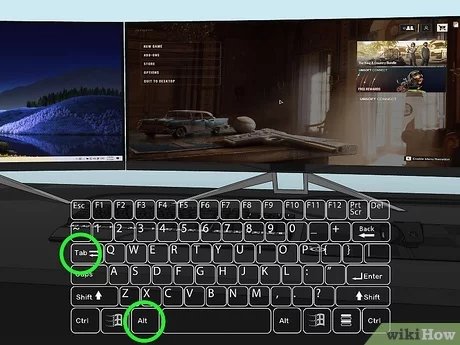
Press the Windows key + Shift + Left/Right arrow keys to quickly move a full screen game to another monitor.
Ever been engrossed in a game, only to realize it’s on the wrong screen? It can be quite frustrating, I know. Switching your attention back and forth or constantly minimizing the game impacts the flow. So, how to move a full screen game to another monitor becomes important. This simple keyboard shortcut will save you time.
Using the Windows key combination lets you swiftly transfer the game without a hassle. Now, you can enjoy gaming on your desired display and have that smooth experience.

How to Move a Full Screen Game to Another Monitor
Playing games on multiple monitors is awesome! It’s like having a super-wide view of your game world. But sometimes, your game starts up on the wrong screen. Maybe you want to play on your big monitor instead of your smaller one. This can be a bit tricky, especially when the game is in full-screen mode. Don’t worry; we’ll walk through the easiest ways to move your games between monitors.
Understanding Full-Screen Mode and Monitors
First, let’s talk about what makes this a challenge. Full-screen mode is designed to take over your entire display. It makes the game look great, but it can also lock the game to a specific monitor. Your computer thinks that the game is its only job, and it doesn’t want to share with other monitors easily. That’s why you can’t just drag the game window like you would with a web browser.
Think of your computer screen as a house. You have the main front door, which is your main monitor. When a game opens in full screen, it’s like the game taking over the whole house. To move it to a different house (another monitor), you need to know the special doorways.
Primary and Secondary Monitors
Computers have a main monitor (called the “primary” monitor) and any other monitors are considered secondary. Your computer usually puts the game on the primary monitor when it starts. This setting can be changed in your computer’s display settings. This setting is important because sometimes, moving games involves changing which monitor is primary.
Quick Ways to Move a Game: Keyboard Shortcuts
The fastest way to move a game is usually by using keyboard shortcuts. These shortcuts are like magic keys that tell your computer what to do.
The Windows Key + Shift + Arrow Keys
This is a very popular method and works for many games. Here’s how to use it:
- First, make sure your game is running in full screen.
- Press and hold the Windows key (that’s the one with the Windows logo).
- Also press and hold the Shift key.
- Now, tap the left or right arrow key (depending on which monitor you want to move the game to).
- Keep tapping the arrow key until the game appears on the monitor you want.
For example, if your game is on your left monitor and you want to move it to your right monitor, press Windows key + Shift + Right Arrow key. If the game does not move, try pressing it again. Keep repeating the press of left or right arrow key with windows and shift key until you have the desired result.
Alt + Enter: Windowed Mode to the Rescue
Sometimes, the above shortcut doesn’t work because the game is too locked into full-screen mode. If that happens, try this:
- While the game is running, press Alt + Enter at the same time. This should switch the game to windowed mode.
- Now, you can drag the game window to the monitor you want.
- After moving the game to the correct monitor, you can press Alt + Enter again to return to full-screen mode on the new screen.
Switching to windowed mode temporarily allows the game to act like any other window on your desktop. This makes it easy to move to your desired monitor. You may have a border around the window now, but once you’re happy with the positioning you can make it full screen on that screen with Alt + Enter.
Using Display Settings to Control Monitor Preferences
If the keyboard shortcuts don’t work, or you want to make the change a more permanent one, you can change your display settings. These settings tell your computer which monitor is the main one.
Accessing Display Settings in Windows
- Right-click on your desktop.
- Select “Display settings.” A window with information about your monitors will appear.
- You’ll see boxes representing each of your monitors. Click on the monitor you want to be the main monitor.
- Scroll down and look for an option that says “Make this my main display” or similar.
- Check the box next to it and apply.
Now, whenever you start your games, they will open on this main monitor. If the setting was already correct, there may be other issues causing it to default to a different monitor, that we’ll cover next.
Rearranging Your Monitors in Display Settings
In the Display Settings, you can also rearrange the boxes representing the monitors. This makes the cursor move from one monitor to another in the direction that makes sense for you. For example, if your monitors are side-by-side, you can drag the boxes in the display settings to match the physical layout of your monitors. This can help make the Windows key + Shift + Arrow Key method move the game to the correct monitor intuitively.
Selecting Different Monitor as Display in Specific Games
Some games allow you to select a specific monitor on which you want to display the game. This can usually be found inside game’s options menu. If that is the case then you can select which monitor to display the game on, from there. This means that the game will always appear on that monitor whenever you start it, unless you change the setting.
Troubleshooting Common Issues
Sometimes things don’t work perfectly the first time. Here are some common problems and how to fix them:
Game is Still Opening on the Wrong Monitor
If your game still insists on opening on the wrong monitor, even after you’ve changed display settings, try these steps:
- Restart the game and your computer: Sometimes a simple restart is all you need.
- Check the game’s settings: Look inside the game for a display option that allows you to choose which monitor to use.
- Update graphics drivers: Outdated graphics drivers can cause problems. Make sure you have the latest drivers for your video card. You can do this by visiting the website of your graphics card manufacture (Nvidia, AMD, Intel), downloading the installer, and then running it.
- Try different display modes: Experiment with different display modes in your game settings, like windowed, borderless windowed, or full-screen, as it may help with better display. Then try to move the game after using those display modes.
Game is Frozen or Buggy When Moving Monitors
If your game freezes or starts acting strange when you try to move it, here’s what to do:
- Close and restart the game: Sometimes the game is having a temporary glitch.
- Make sure you have enough RAM: The game might be using a lot of your computer’s memory. Close any other programs that you’re not using.
- Check your computer’s specifications: Make sure your computer can handle the game’s requirements. If your computer doesn’t meet the minimum or recommended requirements for the game, you might face problems.
- Reduce graphic quality in the game: If your computer struggles to run the game on higher graphic settings then reduce them to low.
Game Doesn’t Support Multiple Monitors
Some older games were not made with multiple monitors in mind. In this case you may not be able to move them to other monitors easily. In this instance the only solution might be to make the screen where the game defaults to as your primary monitor.
When All Else Fails: Game Specific Solutions
Sometimes, games have their own quirks. If none of the above steps work, it’s worth searching online for solutions specific to your game. Here’s how:
- Use search engines: Search on sites like Google or Bing by typing “[game name] move to another monitor”.
- Check online forums: See if other players have had the same issue and found a fix. You can search on online gaming forums like Steam forums, Reddit subreddits about that specific game and more.
You might be surprised how many people have faced the same problem and found a solution. Remember to be patient and persistent!
Moving a full-screen game to another monitor doesn’t have to be frustrating. By understanding how your computer and games work, you can easily switch between screens. Remember the shortcuts, try the display settings, and don’t hesitate to look for game-specific fixes if you need them. Happy gaming!
How To Move Full Screen Game To Other Monitor – Full Guide
Final Thoughts
Moving a fullscreen game often involves using Windows key + Shift + Arrow keys. This forces the game to shift between displays. You can also try the game’s graphic settings for display options.
Alternatively, try using Alt + Enter to switch from fullscreen to windowed mode. Then, drag the window to the desired monitor and re-enable fullscreen. That’s essentially how to move a full screen game to another monitor. The key is experimenting with each method.

