
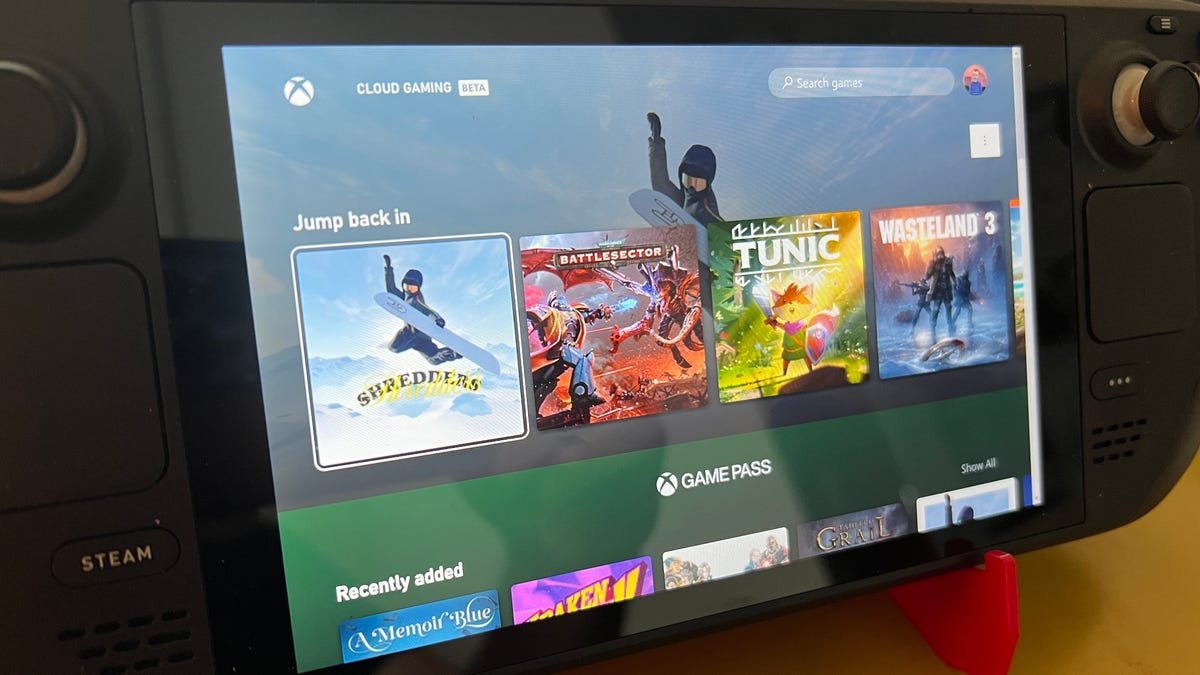
Yes, you can play Game Pass games on Steam Deck, but not natively. You’ll need to use cloud gaming via Xbox Cloud Gaming (xCloud) through a web browser.
So, you’re wondering, can you play Game Pass games on Steam Deck? It’s a popular question, considering the portability of the Steam Deck and the massive library of games offered by Game Pass. The short answer is yes, it is possible to get your hands on those titles.
However, it’s not quite as simple as installing a program. You won’t be directly installing the games. Instead, you’ll access Game Pass through cloud gaming.

Can You Play Game Pass Games on Steam Deck?
So, you’ve got your shiny new Steam Deck, and you’re loving playing all those amazing Steam games. But then you think, “Hey, what about Xbox Game Pass? Can I get those games on this thing too?” It’s a great question, and lots of people are asking it! The good news is, yes, you absolutely can play Game Pass games on your Steam Deck, but it’s not quite as simple as just installing an app. Let’s explore how it all works.
Understanding the Options
There are two main ways to get your Game Pass fix on the Steam Deck: using Xbox Cloud Gaming (also called xCloud) or installing Windows and running the Xbox app directly. Each method has its pros and cons, and the best choice for you will depend on what you value most. Let’s break down each one.
Xbox Cloud Gaming (xCloud): Playing Remotely
Xbox Cloud Gaming lets you play games by streaming them over the internet. Instead of your Steam Deck running the game itself, it sends your controller inputs to a powerful server that’s actually running the game. The server then sends a video stream of the game back to your Steam Deck. It’s like watching a movie that you can control!
How it Works
- Subscription Needed: You will need an Xbox Game Pass Ultimate subscription because it’s the tier that includes cloud gaming. A regular Game Pass subscription does not include the cloud service.
- Web Browser Required: You’ll access xCloud through a web browser on your Steam Deck, typically using Google Chrome or Microsoft Edge.
- Internet Connection is Key: Because the games are streamed, a fast and stable internet connection is a must. If your Wi-Fi is slow or drops out, the game will not play very smoothly.
- No Install Required: You do not need to install the games on your Steam Deck. The server does all the heavy lifting!
Advantages of xCloud
- Ease of Use: Setting it up is pretty simple. You just need to open a web browser, log in to your Microsoft account, and start playing.
- Saves Storage Space: Since you’re streaming, the games don’t take up any space on your Steam Deck’s hard drive. This is great if you have a smaller Steam Deck model.
- Play Anywhere (with Wi-Fi): You can play your Game Pass games on your Steam Deck almost anywhere you have a good internet connection.
Disadvantages of xCloud
- Internet Dependent: A poor internet connection means a poor gaming experience. Expect lag, stuttering, or low visual quality if your internet isn’t up to par.
- Latency: Even with a good connection, there can be a small delay between your controller inputs and what you see on the screen. This isn’t a big deal for some games, but it can be noticeable in fast-paced titles.
- Graphics Quality: The visual quality of the games is generally good, but sometimes, it may not be quite as sharp as playing a game directly installed on your Steam Deck.
Installing Windows: Running Games Natively
The second way to play Game Pass games on your Steam Deck is a bit more involved but can provide a better overall experience. This method involves installing Windows directly onto your Steam Deck. This will allow you to use the Xbox app the same way you do on a normal Windows PC. This approach requires a bit more technical know-how but allows for playing Game Pass titles directly from your hardware.
Why Install Windows?
When your Steam Deck is running SteamOS, it is a special version of Linux. Linux is different than Windows, and most Game Pass apps are designed only for Windows. By installing Windows, you will gain access to all those programs.
How to Install Windows on Steam Deck
Installing Windows onto your Steam Deck is a moderately involved process that requires some technical skill. Here’s a basic overview, but it’s strongly recommended to refer to online guides and tutorials specific to your exact model of Steam Deck for step-by-step instructions. It’s not difficult, but it has quite a few steps and should be followed carefully.
- Prepare a USB Drive: You’ll need a USB drive with at least 8 GB of storage to create a bootable Windows installer.
- Download the Windows ISO: Download the Windows operating system file from the Microsoft website.
- Create a Bootable USB Drive: Use a tool like Rufus to create a bootable USB installer.
- Boot From USB: Change your Steam Deck to boot from the USB drive rather than its normal operating system.
- Follow the Windows Installation Steps: Proceed through the usual Windows setup process.
- Install Drivers: After Windows is installed, you’ll need to manually install specific drivers for the Steam Deck, such as those for the touch screen and controller.
Advantages of Installing Windows
- Better Performance: Games typically run smoother and look better because they’re running directly on the device instead of being streamed.
- Lower Latency: There’s less input lag, making fast action games more responsive.
- No Internet Dependency: As long as the game is downloaded, you can play without an internet connection.
Disadvantages of Installing Windows
- Complex Setup: Installing Windows is more involved than using xCloud and requires some technical experience and patience.
- Possible Storage Issues: Game install sizes can be large, and it is possible to run out of storage space on the Deck.
- Dual Booting: You will need to pick to use either SteamOS or Windows every time you turn on your Deck.
- Compatibility Issues: There is a chance that a Game Pass title may not work well, or at all, on Windows when installed on a Steam Deck.
- Steam Deck Functionality: Some Steam Deck features that are tightly linked to SteamOS may not function properly with Windows.
Which Method Should You Choose?
So, which approach is better? Let’s compare the two methods side-by-side:
| Feature | Xbox Cloud Gaming (xCloud) | Installing Windows |
|---|---|---|
| Ease of Setup | Very Easy | More Complex |
| Internet Required | Yes | No (After Download) |
| Storage Usage | Low (No Game Installs) | High (Game Installs) |
| Performance | Good, Dependent on Internet | Better, No Streaming |
| Latency | Higher, Possible Lag | Lower, More Responsive |
| Offline Play | No | Yes (If Downloaded) |
If you just want to quickly access Game Pass games without much effort, xCloud is a very good option. It’s perfect for times when you don’t mind the occasional internet hiccups and just want to get in a quick gaming session. However, if you’re looking for the highest level of performance and want to play games without relying on an internet connection, installing Windows is the better option. It’s more complicated, but you’ll get to play the games just as if they were on a typical PC.
Tips for a Better Game Pass Experience on Steam Deck
No matter which way you choose to play your Game Pass games on Steam Deck, here are a few tips to help ensure the best experience:
- Have a Stable Internet Connection: This is essential for cloud gaming. If you are using Wi-Fi, make sure you are close to your router. You should try to get a stable download and upload connection.
- Update Your Drivers (If Using Windows): Make sure all the hardware drivers are installed to keep everything working well.
- Adjust Graphics Settings: If the game looks choppy on your Windows installation, try turning down some graphic options.
- Use a Good Controller: While the Steam Deck controls are great, having an Xbox Controller can give you the same feeling as playing a normal Xbox game.
- Keep the Steam Deck Cool: If you are playing demanding games, try not to cover any of the air vents so the Steam Deck does not overheat.
The Future of Game Pass on Steam Deck
As time moves forward, we can expect that the ways to get Game Pass working on a Steam Deck will become more refined and streamlined. Microsoft and Valve are very aware of the demand for getting these two systems to work together as well as possible. It is possible that we might see some official support or an Xbox Game Pass app for SteamOS sometime in the future. But for now, you have the choice of streaming with Xbox Cloud Gaming or installing Windows. These both work really well and let you get the best of both worlds. We will keep you updated if anything new comes up!
So, there you have it! Playing Game Pass games on your Steam Deck is not only possible, it’s also a fantastic way to experience a huge library of games on the go. Whether you prefer the simplicity of xCloud or the performance of Windows, you’re sure to have many hours of entertainment.
Xbox Games on Steam Deck with Game Pass! EASY SETUP for Xbox Cloud Gaming
Final Thoughts
Yes, you can play Game Pass games on Steam Deck. You achieve this primarily through cloud gaming via Xbox Cloud Gaming. This method allows you to access a vast library of titles on your handheld.
You need a solid internet connection for smooth gameplay. The performance depends mostly on your network speed. You do not install games directly on the deck using this method, so its storage is not directly impacted.
Therefore, the question, ‘can you play gamepass games on steam deck,’ is certainly answered with a yes. However, keep in mind, this process requires internet, and your enjoyment heavily relies on a good, stable connection to enjoy Game Pass games.

