
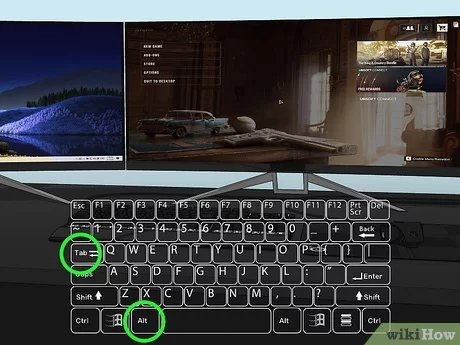
To move a game from one monitor to another, use the Windows key + Shift + Left/Right arrow keys. This quickly shifts the active game window between your displays.
Ever found your game stuck on the wrong screen? It’s a common frustration. Knowing how to move a game from one monitor to another is actually quite simple. No need to close and restart or adjust settings each time.
This method allows for smooth and quick swapping. Enjoy your gaming experience across multiple monitors without hassle. A simple key combination is all you need for effortless transitions.

How to Move a Game from One Monitor to Another
Ever had that moment when your awesome game pops up on the wrong screen? Maybe you have a cool multi-monitor setup, and your game decided to hang out on your work monitor instead of your main gaming display. It happens to the best of us! Moving a game from one monitor to another might seem tricky, but it’s often easier than you think. This guide will show you all the different ways you can get your game where you want it, whether you’re using a Windows PC or a Mac.
Understanding Why Games Appear on the Wrong Monitor
Before we dive into moving games, it’s helpful to know why this happens in the first place. Most of the time, your computer remembers which monitor was the ‘main’ one when you last played. Sometimes, your game just picks a monitor to start on randomly, especially if you’ve recently added or changed your monitor setup. Here are a few common culprits:
- Main Display Settings: Your computer has a ‘main’ display set in its settings. This is usually where new windows and programs open. If the game isn’t remembering its previous position, it might just default to this main display.
- Game Configuration: Some games save which monitor they were last played on. If this setting gets messed up (like after a game update), they might not open on the right screen.
- Recent Monitor Changes: If you just hooked up a new monitor, or changed which screen is your main one, the game might be confused. It hasn’t had a chance to learn the new setup yet.
- Fullscreen vs. Windowed Mode: Games that run in full-screen mode usually remember which monitor they were on. Windowed games, on the other hand, may be more prone to opening in unexpected places.
Simple Ways to Move a Game
Let’s jump into how to move those stubborn games! Here are the most common and easy methods you can try right now.
Using Windows Key + Shift + Arrow Keys
This is the most basic, and most useful, method for quickly switching a window between screens, including your games. Here’s how it works:
- Make sure your game is running. It doesn’t matter if it’s fullscreen or windowed.
- Select your game’s window. Just click on the title bar of the game (the top part of the window).
- Press the Windows key (the key that looks like the Windows logo) at the same time as the Shift key and either the right or left arrow key.
The game’s window should quickly jump to the next monitor in that direction. You might need to press this combo a few times to move it all the way across if you have multiple displays. This method works for most programs, not just games. Try it with a web browser window as well!
Dragging the Game Window
If the key shortcut isn’t working, or if you want to move your game slowly, you can drag the game to a new monitor using your mouse. This works best with games that are in windowed or borderless windowed mode, because you can click on the window title bar. If your game is in full screen, try using the other methods first.
- Make sure your game isn’t in full-screen. If it is, change it to windowed or borderless windowed in the game settings.
- Click on the game’s window title bar. The title bar is the top bar of the game window where the name of the game is.
- Hold down the left mouse button while still on the title bar and drag the game’s window to the screen you want it on. Just drag the game off the side of the screen onto the next monitor.
This method is easy but might not be ideal for fast-paced games, as you’ll need to leave the game itself for a moment to do the dragging.
Moving Fullscreen Games
Fullscreen games can be a little more stubborn to move, because they use all of the screen and might not show the title bar. But don’t worry, we have got you covered.
Temporarily Switching to Windowed Mode
Sometimes, switching a game temporarily to windowed mode will let you use our earlier methods. Here is how to do it:
- Go to the game’s settings menu. You can usually find this in the main menu when the game starts up, or by hitting the “Esc” key during gameplay.
- Look for display settings. It may be called “Graphics,” “Video,” or “Display”.
- Change the display setting from “Fullscreen” to either “Windowed” or “Borderless Windowed”.
- Use the Windows Key + Shift + Arrow Keys (from earlier) to move the game to the correct screen. Once it’s there, you can usually change the setting back to full screen, if you want.
If you are having trouble finding the display setting, try checking the game’s manual or online guide for the specific steps.
Using the Game’s Configuration Files
Some games save display settings in files outside the game. You can usually find these files in a folder named after your game in your “Documents” folder. For most people it will be located on the “C” Drive. These files usually look like “.cfg,” “.ini,” or “.json” files. Here’s the process (carefully!):
- First, make sure your game is completely shut down.
- Find the game’s config file. Look in your “Documents” folder, usually in a subfolder named after the game. If you cannot find it, try doing a search for “config” file that has name of your game. The full name may vary, such as “game.cfg” or “settings.ini” etc.
- Open the file with a text editor. Right-click on the file, select “Open With”, then pick “Notepad”.
- Look for display or monitor settings. Look for phrases like “monitor”, “screen”, “display”. It might be saved as a number, like “1” or “2”, or even as an actual monitor name.
- Change the number to correspond to the monitor you want to play on. If you are unsure which screen is which number, try switching them and then seeing what happens when you start the game.
- Save the file. Click “File” then click “Save”.
- Start your game again. It should now be playing on the screen that you picked.
Important Note: Make sure you don’t change or remove anything else from these files unless you know exactly what you are doing. Changing the wrong settings can sometimes stop a game from working right. If you aren’t comfortable with this method, stick to the previous methods or ask for help from a computer-savvy friend or family member.
Setting Your Default Monitor
Sometimes the simplest solution is to just set the monitor you want to game on as your primary monitor. By setting it as the main monitor, it will likely be the screen that the games go to by default. This is an easy, permanent solution, and here’s how to do it on Windows:
Changing Your Primary Monitor on Windows
- Right-click on your desktop background. Just right-click on an empty area of your screen.
- Select “Display Settings.” You might also see it called “Screen Resolution” on older Windows versions.
- Select the monitor that you want to be your main display. Click on the image of the monitor in the display settings that you want to be your main one.
- Scroll down to the “Multiple displays” section.
- Check the box that says “Make this my main display”. This sets the selected monitor as your primary one.
- Click the “Apply” button.
Now, your game should normally open on this monitor. If you change your mind later, simply repeat these steps, but choose a different monitor.
Dealing with Specific Game Issues
Games that don’t remember monitor settings
Some games just don’t seem to want to remember your settings. If your game keeps opening on the wrong monitor, try these extra steps:
- Run as Administrator: Sometimes, running a game as an administrator can help it save your settings. To do this, right-click on the game’s shortcut, then select “Run as administrator”.
- Update Graphics Drivers: Having out-of-date graphics drivers may sometimes cause these problems. Make sure you have the latest drivers. You can usually find these on the manufacturer’s website (Nvidia, AMD, Intel).
- Try Borderless Windowed Mode: Some games work better with monitor settings when in borderless windowed mode, compared to full screen mode.
Using External Tools
If all else fails, there are also small helpful programs which can help you move your games. A few of these may include:
- DisplayFusion: This is a paid program but it gives you many options for managing multiple monitors, including easy options for moving game windows, and can let you assign hotkeys to specific monitors.
- Dual Monitor Tools: This is a free program that can do many similar tasks. It can help with moving windows and setting up hotkeys for quickly switching monitors.
Troubleshooting
If you have tried everything but you are still having problems, here are a few things that you can check to try and see what is happening:
- Check Your Monitor Connections: Make sure all your monitor cables are securely plugged into your computer. Sometimes a loose connection can cause issues.
- Restart Your Computer: It sounds obvious but sometimes a quick restart can resolve many of the issues with settings.
- Update Windows: Make sure your computer has the latest updates installed, as this can sometimes fix known issues related to display settings.
- Ask for Help: If you are still unable to fix the issue, do not hesitate to seek help from computer forums, or call your friend or family member to help you solve this problem.
Moving games between monitors shouldn’t be a frustrating experience. By using these easy methods and tips, you will be able to quickly get your games playing on the screen that you want, so you can get back to playing!
How To Move Full Screen Game To Other Monitor – Full Guide
Final Thoughts
To move a game, quickly use Windows Key + Shift + Left/Right arrow. This shortcut instantly shifts the game window between displays. Alternatively, drag the game window using your mouse. Simply click and move the window to the desired monitor.
For fullscreen games, you might need to switch to windowed mode. Then, you can move the window as usual. Remember that some games have specific display settings within the game menu. Adjusting those settings also helps with ‘how to move a game from one monitor to another’.

