
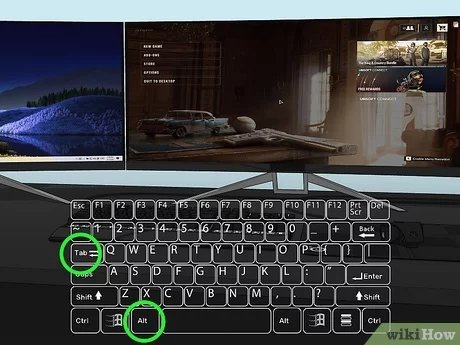
To move a fullscreen game to another monitor, use the Windows key + Shift + arrow key (left or right) to quickly shift the game between displays.
Ever found yourself wanting to shift that intense gaming session to a different screen? Perhaps you want the game on the bigger monitor or just need to change your workspace. Understanding how to move fullscreen game to another monitor can feel tricky, but it’s actually quite simple.
We’ll show you a quick method that utilizes a handy keyboard shortcut. This way you can switch your game between screens in a matter of seconds.

How to Move Fullscreen Game to Another Monitor
Ever been in the middle of an epic game, only to wish it was on the bigger screen? Or maybe you want to use your main monitor for work while your game plays on a second screen. Moving a fullscreen game to another monitor might seem tricky, but it’s usually easier than you think. Let’s explore the different ways you can get your game playing exactly where you want it.
Understanding Fullscreen Mode
Before we jump into the how-to, let’s understand what “fullscreen” actually means. When a game runs in fullscreen mode, it takes over your entire screen. It doesn’t have the window borders or title bar you see with other applications. This mode often makes games run smoother, but it can also make it a bit more difficult to switch the game from one monitor to another. Think of it like putting on a pair of super cool virtual reality goggles; you can see only what’s in front of you.
Why Fullscreen Can Be Tricky
The reason fullscreen games don’t easily move between monitors is because they’re programmed to work with one specific display at a time. Your computer usually has one screen set as the “primary” display. Many games automatically start up on that primary monitor. The game directly tells the graphics card to put the game on one screen and doesn’t always provide a simple way to change which screen it uses while running. This is done for optimization to reduce frame drops while gaming.
Easy Ways to Shift Your Game
Now, let’s get into the fun part – actually moving the game! There are a few methods you can use, and we’ll go through the easiest ones first.
Using Windows Key + Shift + Arrow Keys
This is often the quickest and simplest method. If your game is in fullscreen mode, try this:
- Start your fullscreen game.
- Press the Windows key (the key with the Windows logo) + the Shift key at the same time.
- While holding both keys, press the left arrow key or the right arrow key. This will attempt to shift the game to the next monitor.
The direction the game moves depends on how your monitors are arranged. This trick usually works well, but it’s not perfect. Some games might not respond to this method or might flicker when you move them.
Changing Display Settings
Another useful way is to change your display settings. This might be more effective for some games. Here’s how you can do it:
- Right-click on your desktop and choose “Display Settings”.
- You will see a visual representation of your monitors. Click on the monitor where you wish the game to display.
- Scroll down to the “Multiple Displays” section. Select the option that says, “Make this my main display”.
- Now launch the game again. It should appear on the monitor that’s set as the main display.
- Once your game is running on the desired monitor, you can go back to display settings and revert your primary monitor to what it was.
This method works because many fullscreen games default to launching on the primary display. It essentially fools the game into launching on the second monitor. The change on the screen will be minimal when you set it back to what it was.
Switching to Windowed Mode or Borderless Windowed Mode
Fullscreen might give you the best performance, but sometimes moving a window is more straightforward. Here’s how you can temporarily change your game’s display mode:
Most games offer display options within their settings menus. Look for options like:
- Windowed: This puts the game in a regular window, which you can move like any other application.
- Borderless Windowed: This displays the game as a window that covers your whole screen but doesn’t lock it down like true fullscreen mode. This mode is similar to fullscreen mode but allows the game to be moved between monitors.
Here’s a step-by-step guide on how to use windowed mode:
- Start your game.
- Go to the game’s settings menu. This menu is usually found in the main game menu, or it might be under “Options”, “Graphics,” or “Display”.
- Find the display settings. Look for a setting that says “Display Mode,” “Window Mode,” or something similar.
- Select either “Windowed” or “Borderless Windowed.”
- Apply the changes and the game should go into your selected windowed mode.
- Move the window to another monitor.
- Switch to fullscreen mode again in the setting if that is what you prefer.
The game will usually restart after changing the screen mode, so you might need to restart your game after this change.
Using Game-Specific Settings
Some games have built-in options to select which monitor they use. This is the ideal solution because it’s designed by the game’s creators. Here’s what to do:
- Start the game.
- Go to settings, the same place you looked for the windowed mode.
- Look for any setting that specifically mentions “Monitor,” “Display,” or “Output.”
- Choose the monitor that you want the game to use. The game may or may not restart for the changes to apply.
Not all games offer this, but it’s worth checking. If you see a specific monitor selection option, it’s usually the easiest method. It will save your settings and make it more convenient to play on the desired screen next time.
Troubleshooting Common Problems
Moving games to different monitors doesn’t always go smoothly. Here are some common issues and how to address them.
The Game Doesn’t Move
If Windows Key + Shift + Arrow isn’t working, and the display settings don’t help, it’s possible the game might not allow the move.
- Try windowed mode first. If you can’t move it in fullscreen, windowed mode is usually a workaround. After moving the window, you can revert to fullscreen or the borderless windowed mode, if the game supports it.
- Update graphics drivers. Outdated graphics drivers can cause all sorts of strange display issues. Make sure yours are updated by visiting the graphics card manufacturer website.
- Check game settings. The game may only allow displaying on one monitor. Check all the display and graphics options of the game.
The Game Screen is Flickering
When you change screen modes, or shift a game from one monitor to the next, it can sometimes cause the game screen to flicker.
- Try changing the screen refresh rate. Go into your computer display settings and check the refresh rate settings. Sometimes changing this setting might fix the flickering issue.
- Restart your game. After changing any settings, restarting the game can help resolve some of the display issues.
The Game Doesn’t Look Right
Sometimes, a game might look stretched or distorted when moved to a different monitor, usually because of different resolutions. Here’s how you can solve this:
- Check resolution settings. Make sure the game’s resolution matches your monitor’s resolution, or is at the native resolution of the screen. The game may need to be restarted after these changes.
- Windowed/Borderless Mode can help. Sometimes windowed or borderless windowed mode can correct the way it displays, especially if fullscreen is acting strangely on the second monitor.
Tips for a Smooth Multi-Monitor Gaming Experience
Moving a game is one thing; making sure it plays well on a different screen is another. Here are a few tips to make your multi-monitor gaming experience better:
- Use the right cables. HDMI or DisplayPort cables offer the best picture and refresh rates, which is important for gaming.
- Keep your drivers updated. As we mentioned before, keep your computer’s graphics drivers updated so your games run smoothly on all screens.
- Don’t forget to organize your desktop. Have your monitors positioned in your settings to correspond to your physical setup.
By following these guidelines, you can be set to enjoy your favorite games across multiple monitors. It can really change the gaming experience.
Moving a fullscreen game to another monitor isn’t as complicated as it might sound. By using the tips discussed, such as changing display settings, using keyboard shortcuts, and switching to windowed mode, you should be able to enjoy games on your desired display. Remember to always check the game settings as well, and you can enjoy a better gaming setup.
How To Move Full Screen Game To Other Monitor – Full Guide
Final Thoughts
In conclusion, quickly move a fullscreen game to another monitor by using the Windows key + Shift + arrow keys. This method usually shifts the active application to the chosen display. Alternatively, changing the game’s display setting within its options menu is a good choice if that option is available. These methods address how to move fullscreen game to another monitor efficiently.

