
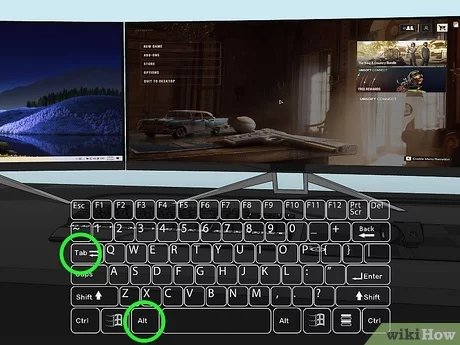
To move game screen to another monitor, use the Windows key + Shift + Left/Right arrow keys. Alternatively, configure display settings in your operating system.
Ever found yourself wanting to play a game on a bigger or different screen? It’s a common desire when you have multiple monitors. Knowing how to move game screen to another monitor can make gaming sessions much more enjoyable. This short guide provides the quick tips you need for the switch. Let’s get that game moved!

How to Move Game Screen to Another Monitor
Playing games is super fun, especially when you can see everything clearly on a big screen. But what if you have two monitors and want to move your game from one to the other? Maybe you want a bigger view on your main screen or just want to keep chatting on one while gaming on the other. Don’t worry; it’s easier than you think! This article will walk you through different ways to switch your game display between monitors, so you can get back to playing without any hassle.
Understanding Display Settings
Before diving into the methods, let’s quickly understand how your computer handles multiple monitors. Your computer sees each monitor as a separate display, and you can choose how these displays work together. This is usually configured in your operating system’s display settings. Think of it like having different canvases for your computer to paint on. You can have them all show the same thing (mirrored displays), or treat each one like its own separate working area (extended displays). The settings you choose will impact how you move your game between screens.
Primary vs. Secondary Monitors
One important thing to know is the difference between your primary and secondary monitors. Your primary monitor is usually the one where your desktop icons and taskbar appear when you first turn on your computer. Games often start on the primary monitor automatically. You can change which screen is your primary in your display settings. Knowing which monitor is set as your primary will help you understand how to move the game screen.
- Primary Monitor: This is your computer’s main display. Think of it as the default monitor.
- Secondary Monitor: Any other monitor connected to your computer becomes a secondary monitor.
Display Modes
Here’s a little about different display modes you might see in your settings:
- Duplicate/Mirror: Both monitors show the exact same thing. This is good for presentations, but not ideal for gaming if you want different things on different screens.
- Extend: Your monitors act as one big screen, allowing you to drag windows (including games) from one screen to the other. This is typically the best for gaming on one monitor while doing other things on another.
- Show only on 1 (or 2, etc.): Only one of your monitors is active, and the other one is turned off.
Moving Games with Windows Settings
Windows offers a straightforward way to manage your displays, making it easy to shift game windows between screens. Here’s how you can do it:
Accessing Display Settings
First, you need to get to the display settings. Here are a few ways to access these important settings:
- Right-Click on Desktop: Right-click on an empty area of your desktop and then click ‘Display settings’.
- Through the Start Menu: Click the Start Menu and then the gear icon (Settings). Click on ‘System’ and then ‘Display’.
Now you have the main menu where you can see and modify your display settings. You’ll see representations of all your monitors, usually labeled ‘1’, ‘2’, etc. You can move these around to match your physical setup, which also modifies the way your screen behave, so if you have one monitor on your left and one on the right, you should change them in display settings to match your needs.
Using the Extend Display Mode
The ‘Extend’ mode is your friend when you want to move a game window to another monitor. Here’s how to set it up (if you haven’t already):
- In display settings, find the ‘Multiple displays’ section.
- Choose ‘Extend these displays’ from the dropdown menu.
- Click ‘Apply’ to save the changes.
Once you’ve enabled ‘Extend’ mode, your monitors act as one big workspace. You can drag your game window from one screen to the other like you would any other window.
Using the Windows Key + Shift + Arrow Key Shortcut
This is the fastest and easiest way for many users. Here’s how to use the shortcut:
- Make sure your game is running and not in full screen mode. If your game is full screen mode you must make it windowed mode for this shortcut to work.
- Click on your game window to select it.
- Press the Windows key + Shift key + Left or Right arrow key. This will instantly move the game window to the next monitor.
Keep pressing the arrow keys while holding down the Windows and Shift keys to move the window across all of your connected screens.
Moving Games in Fullscreen Mode
Sometimes, games run in ‘fullscreen mode’, which means they take over the entire monitor. This can make it trickier to move to another display. However, there are ways around this, too:
Switching to Windowed Mode
The first step is to switch your game from fullscreen mode to windowed mode or borderless windowed mode. Most games have this option in their settings. Here’s how you generally find it:
- Open your game.
- Go to the game’s ‘Settings’ menu.
- Look for a section labeled ‘Graphics,’ ‘Video,’ or ‘Display.’
- Find an option to change the ‘Display Mode’ and select ‘Windowed’ or ‘Borderless Windowed’ instead of ‘Fullscreen’.
- Save the changes in the game settings.
Once your game is in windowed or borderless windowed mode, you can use the Windows key + Shift + arrow key shortcut to move it. It will then play the game in the new monitor. Remember to save the change in settings when your are done, for next time you use it.
Using Game Settings
Some games let you select which monitor to display on directly in their settings menu. Check your game’s settings; you might see an option labeled ‘Display Monitor’ or ‘Output Monitor’. You can select the monitor from a dropdown menu in that section if your game has such settings. This is more convenient than switching to windowed mode if that setting is available in your game.
Specific Game Considerations
The process of moving a game to another monitor can vary depending on the game you are playing. Some games are more flexible when it comes to display settings than others, so you might need to tweak the process. These are some important considerations to be mindful of.
Older Games
Older games might not have built-in support for multiple monitors. You might have to force them into windowed mode using their config files or third-party tools to enable a smooth experience on your different monitors, but they can also have display settings that can work with multiple monitors. It depends on the game.
Games with Borderless Windowed Mode
Many newer games support borderless windowed mode, which looks like fullscreen, but acts like a window. This is often the best option because you still get the immersive experience of fullscreen, but you can easily switch the game to other screens as well. You can move it just like a normal windowed application. So, try this mode if your game offers it.
Troubleshooting Common Issues
Sometimes, moving your game to another monitor doesn’t go as smoothly as planned. Here are some common problems and how to fix them:
Game Doesn’t Appear on the Correct Monitor
If your game isn’t appearing on the monitor you want, make sure the display mode is set correctly. If the game is in full screen mode, switch to windowed or borderless windowed mode. Double-check your primary display to see if the game opened on the primary by accident. Sometimes the game window can also open in other monitors in a minimized state.
Game is too Big or Small
If your game window is too big or small on the new monitor, it could be that your monitor resolution is different from the other one. You can fix this by setting the correct resolution in the game’s display settings. If you are using windowed mode, you can also use the edges of the window to drag and make the window bigger or smaller. Make sure to match your resolution in the game’s settings with your monitor’s native resolution for the best visuals. This will reduce distortion.
Game is Lagging or Running Slowly
If your game slows down after moving it to the new screen, it could be due to differences in monitor resolutions, or your video card struggling to render the game on that specific screen. Close unnecessary applications running in the background. Check the game’s graphics settings and lower the quality if needed to help the performance improve. Update your computer’s graphic drivers, as this could be the cause too. If you are using integrated graphics, playing games on multiple monitors at the same time could cause more lag and performance problems.
Using Third-Party Software
While Windows settings usually do the job, there are also some tools that can help manage your display setups better. These tools are usually more advanced and can be useful for more unique setups or for users who want to streamline their experience.
DisplayFusion
DisplayFusion is a popular third-party application that provides advanced monitor management. It gives you fine-grained control over your display settings, such as custom monitor profiles, hotkeys for moving windows, and more. This software can be incredibly helpful for anyone with complex multi-monitor setups. It also helps users manage the programs that load on each screen at the beginning of the windows session.
Actual Multiple Monitors
Actual Multiple Monitors is another popular program that makes handling multiple monitors simpler. With it, you can customize how your monitors work together, and the software offers a variety of tools for moving windows between screens, including options to create virtual desktops. It offers a lot of features and options, and can be helpful for anyone who needs to get the most out of multiple screens.
Shifting your game window to a different monitor can seem challenging at first, but with the right methods and settings, it becomes an easy task. Whether you prefer to use Windows’ built-in tools or an advanced third-party application, moving your game between screens becomes smooth. Make sure to always save the settings in your game’s menu when you are done tweaking, so you can load your favorite configuration when you open it again. Remember to experiment with these different approaches to find what suits your game setup the best and enjoy all your monitors!
How to Move a Fullscreen Game Window to Another Monitor in Windows 10 [Tutorial]
Final Thoughts
Moving a game screen typically involves display settings. Access your operating system’s display options, identify the desired monitor. Then, set that monitor as your primary display.
Alternatively, some games offer a screen selection option within their settings. This allows you to directly choose which monitor the game window should appear on.
In essence, you can easily handle how to move game screen to another monitor by changing system display settings or using in-game monitor selection features.

