
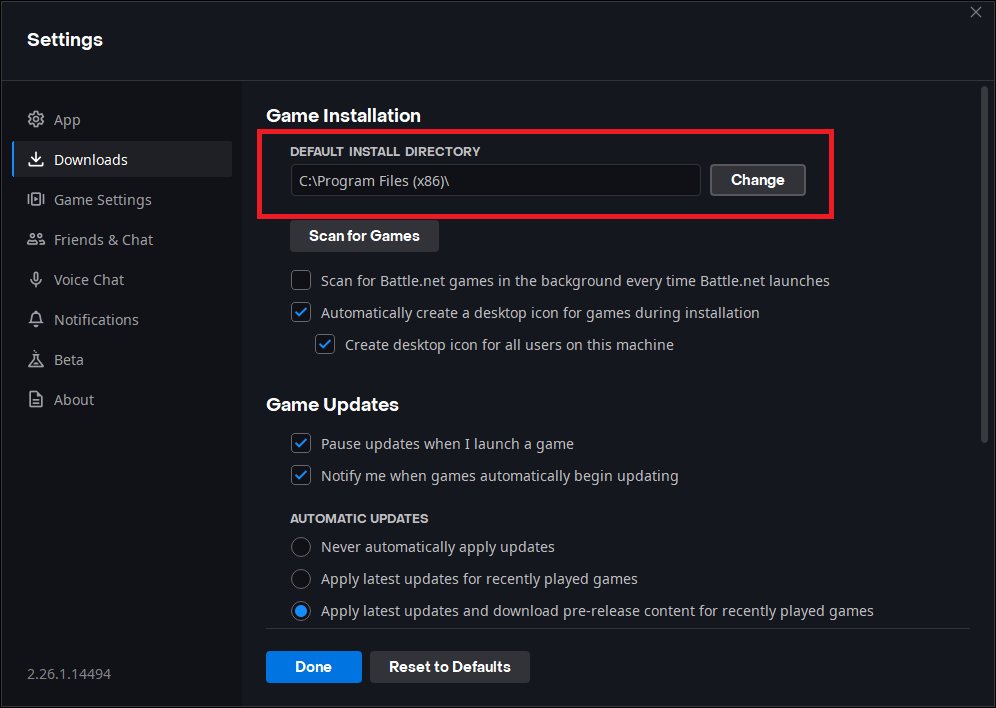
To move a game to another drive, you typically use the game launcher’s settings or the operating system’s app management tools to relocate the installation files.
Running out of space on your primary drive can be frustrating, especially when you want to install a new game. A common solution involves shifting your existing games to a different location. Many people wonder how to move game to another drive effectively, without causing problems. This guide offers practical steps you can take.
It’s often easier than you think to transfer game files. These simple methods can free up space and allow you to keep enjoying your gaming library on any of your drives. By following a few steps, you can avoid having to reinstall everything from scratch.

How to Move Game to Another Drive
Running out of space on your computer’s main hard drive can be a real bummer, especially if you love playing video games. Those awesome games can take up a lot of room! Luckily, you don’t have to delete your favorites or buy a whole new computer. You can move your game to another hard drive or storage device. This means you can keep playing without the headache of managing storage, and it’s often simpler than you think. Let’s learn how to get those games moved.
Why Move Your Games?
Before we dive into the how-to, let’s talk about why you might want to move your games in the first place. There are several good reasons. Maybe your main drive (usually your C: drive) is getting full. Or, perhaps you have a new super-fast SSD that you want to use for your most-played titles. Moving games can also help with overall computer performance if your primary drive is crowded. Here’s a few more reasons:
- Free Up Space: Games can be huge, and moving them clears up space on your main drive for other things, like your operating system and important files.
- Improve Performance: If your main drive is slow or full, moving games to a faster drive can make them load quicker and run smoother.
- Organize Your Storage: Some people like to keep their games separate from other files for easier management.
- Future-Proofing: If your games library is increasing in size, transferring them will prevent storage space issues in the future.
Different Ways to Move Games
The methods for moving games differ slightly based on where you bought them. Some methods work directly within the game platform itself, while other methods require moving game files manually. Here’s the most common approaches:
Moving Games Through Steam
Steam is a very popular place to buy and play PC games. They made it quite easy to move games to different drives. Here’s how you do it:
- Open Steam: Start up the Steam application.
- Go to Settings: Click on “Steam” in the top left corner, then select “Settings”.
- Storage Tab: In the settings window, click on “Storage” on the left side.
- Add a new storage: You will see where your games are installed. Now click on the “+” symbol just below the heading to add the new storage location. Choose the new drive you want to use.
- Move the games: Select the drive where your game was located. Then, select the game(s) you want to move and then click the “Move” button.
- Wait: Steam will now begin moving the game files. This may take a little bit of time depending on the size of the game.
Moving Games Through Epic Games Launcher
The Epic Games Launcher also provides its own method for moving games, much like Steam. Here’s how to do it:
- Open the Epic Games Launcher: Start the launcher application.
- Go to Library: Select the “Library” option on the left side.
- Find your game: Click the three dots next to the game you want to move.
- Select the option to move: Choose “Uninstall” from the menu. When you are uninstalling, launcher will ask you for the new drive to install to. select the new drive.
- Reinstall the game: Since you just uninstalled, you will have to install the game back. Click on the game and click install. when you do it, it will re-install the game at the new location.
Moving Games Through Origin (EA App)
The EA App (formerly Origin) also allows you to move games using the following method:
- Open the EA App: Start the EA App on your computer.
- Go to Library: Click on “My Collection” on the left side.
- Select your game: Find the game you wish to move in your library. Click on the three dots next to the game title.
- Choose the move option: Click “Move” from the dropdown menu.
- Choose a location: Select your new desired drive and click “Move.”
Moving Games Through GOG Galaxy
For those of you using GOG Galaxy, moving your games is fairly straightforward. Here’s the procedure:
- Open GOG Galaxy: Launch the GOG Galaxy application on your computer.
- Select the game: Find the game you wish to move from the library. Click on the game to show the game’s detail page.
- Click the options: Click on the “settings” icon at the top of the page.
- Manage installation: From the dropdown, select “Manage installation”. After, select configure.
- Change installation path: Change the “Installation folder” to the new path. The app will move the game files to that new location.
Moving Games Manually
Sometimes you might need to move your games manually, particularly if they’re not on a major platform or if you want complete control. This involves copying the game folder and then updating any shortcuts or launchers you may have created. Here’s how to do it:
- Locate the game folder: Use file explorer to find the folder where the game is installed. This is often in “Program Files” or “Program Files (x86)” or “Users/[Your User Name]/AppData”. Check the game’s documentation if you are unable to find it.
- Copy the folder: Right click on the game folder and choose “Copy”.
- Paste it to the new drive: Go to your new hard drive, and paste the folder. Wait till the copy process is complete.
- Update shortcuts: If you have any shortcuts to the game, you will need to update these, so they point to the correct location on the new drive.
- Testing the move: Make sure to test the game. Run it using the new shortcut and make sure the game runs normally. If it does not, you will have to look for support and troubleshooting for the particular game.
Important Considerations when moving games
Moving your games may sound simple, but there are some points to keep in mind to avoid issues.
- Check Storage Space: Make sure that your new drive has enough space to hold the game. Double-check to be certain you have sufficient space before starting the move process.
- Backup Game Saves: It’s a very good idea to backup your game save data before making any changes to the files or moving the games. Save files are usually located in the “Documents” or “User/[Your User Name]/AppData” folder. Copy this folder to a safe location.
- Check for Compatibility: In most cases, this is not a problem, but some older games or specific drivers may not function as well on different drives. Check the game’s forums for any issues.
- Internet Required: Some methods require you to download the game again. Be sure to check and make sure the new location is correct before downloading it again. This might take some time for downloading depending on the size of the game.
- Game files: If you are moving games manually and not with launchers, then be sure to move all the necessary game files from old folder to new location. Not moving all the files, could result in errors during the game play.
Troubleshooting Common Issues
Sometimes, things don’t go as planned. Here are some typical issues you might encounter, and ways to fix them:
Game Won’t Launch After Moving
- Verify game files: Using your gaming platform, go to the game settings and choose the option to verify the files, this will help with any corrupted files.
- Check shortcuts: Ensure that shortcuts on the desktop or start menu point to the new folder.
- Run as Administrator: Sometimes launching the game as an administrator might resolve the issue. Right-click on the game executable and select “Run as administrator”.
Game Saves Lost
- Restore backup: Restore your game save backup into their correct location.
- Check cloud saves: Some game saves may have cloud backups, you can use this to restore your game saves.
- Check documents folder: The game save files can be sometimes located in the “Documents” folder or in a folder within “User/[Your User Name]/AppData” folder.
Slow Performance After Moving
- Check drive speed: Ensure the new drive is fast enough. An SSD will perform much better than a traditional hard drive.
- Update drivers: Check for the most updated drivers for your video card and other computer components.
- Close other apps: Other apps that are running in the background might be impacting the game’s performance. close all unnecessary apps and then try playing the game.
By keeping these points in mind, you will get the best performance from your games after moving them to a new location.
Moving games to a different drive is a practical solution to managing storage on your computer. Whether you’re freeing up space, improving performance, or just organizing your files better, the methods discussed here will get your favorite games moved without trouble. Now, go forth and game on!
How To Move Steam Games to Another Hard Drive (2023 Tutorial)
Final Thoughts
Moving games to another drive involves several simple steps. You can use Steam’s built-in feature or utilize Windows settings for non-Steam titles. The process generally includes selecting the game, then specifying a new install location.
Remember to check for sufficient space on the destination drive before initiating. Once complete, verify game functionality. Thus, that’s precisely how to move game to another drive. This action helps with drive management.

