
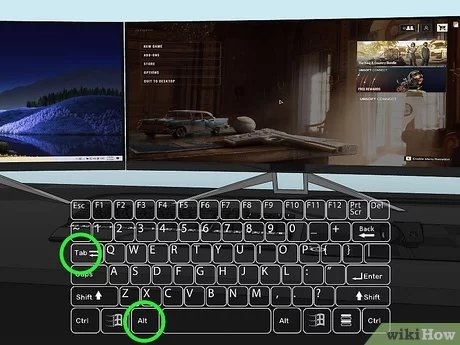
To move a game to a different monitor, use the Windows key + Shift + arrow key combination. Alternatively, check the game’s display settings.
Ever had that moment? You’re immersed in your favorite game, then decide you’d rather play on a different screen. Maybe you have a big monitor or a better one on the side and you are curious about how to move game to different monitor. It can feel frustrating when you’re stuck, but it’s surprisingly simple.
The usual way involves a quick keyboard shortcut, but specific game settings also hold the key sometimes. This quick tip lets you switch your gameplay experience instantly.

How to Move a Game to a Different Monitor
Okay, so you’ve got a cool game going on, but it’s showing up on the wrong screen. Maybe you have a super awesome gaming monitor you want to use, or maybe you just want to chill out on the big TV in the living room. Whatever the reason, moving your game from one monitor to another can sometimes feel like a puzzle. But don’t worry, it’s not as tricky as it seems! Let’s explore all the easy ways you can switch your game display to the monitor you want.
Understanding Display Settings
Before we jump into specific methods, let’s talk a bit about how computers handle multiple screens. Your computer thinks of your monitors as a single, extended desktop. This means it sees all your screens as one giant work area. When you open a game, it usually appears on the main display. To move the game around, you need to understand these basics:
Primary Monitor vs. Secondary Monitors
Your primary monitor is like the boss monitor. It’s usually the one where your taskbar, icons, and most new windows show up. The other monitors are called secondary monitors. When you want a game to pop up on a different monitor, you’re telling your computer to move it from the primary screen to a secondary screen.
Display Modes
Games can run in different display modes, and these modes affect how easy it is to move them between monitors:
- Full Screen: In full screen mode, the game takes up the entire monitor. Moving a full screen game is trickier than other modes.
- Windowed Mode: In windowed mode, the game plays inside a window, just like your browser or any other application. This makes it easier to move the game.
- Borderless Windowed Mode (or Fullscreen Windowed): This mode looks like full screen, but the game is technically running in a window. This offers the advantage of being able to move it like a windowed game while still having a full screen feel.
Simple Ways to Move a Game
Now that we’ve got the basics down, let’s look at the easiest ways to get your game onto the right screen.
Using the Windows Key + Shift + Arrow Keys
This is a super quick and easy way to move any window, including games running in windowed or borderless windowed mode. Here’s how it works:
- Start your game.
- If it’s not already in windowed or borderless windowed mode, adjust the game settings to switch to one of these modes. You can usually find this in the game’s video or graphics settings.
- Press the Windows key + Shift key + the Left or Right arrow keys. The arrow key you press will move the window to the next monitor in that direction. Keep pressing the keys until the game shows up on the monitor you want.
Dragging the Game Window
This is another simple method that works best for games in windowed or borderless windowed mode.
- Open your game.
- If it’s in full screen mode, adjust the game settings to switch to windowed or borderless windowed mode.
- Click and hold the title bar of the game window. This is the bar at the very top of the game window where the game name is usually displayed.
- Drag the game window across to the monitor you want.
- Release the mouse button when the game is on the correct monitor.
Changing the Primary Monitor in Windows Settings
If you want the game to always open on a certain monitor, you can change which monitor is set as your primary display. This is a more permanent solution, but it might be handy if you constantly use a particular monitor for gaming.
How to Change Your Primary Monitor (Windows 10 and 11)
- Right-click on your desktop.
- Select “Display settings.”
- You’ll see squares representing your monitors at the top of the settings page. Click on the monitor you want to use as your primary monitor.
- Scroll down to the “Multiple displays” section.
- Check the box next to “Make this my main display”.
- Click “Apply” to save the changes.
Now, new applications, including games, should open on the monitor you’ve selected as the main display.
Using Game Settings
Some games let you choose which monitor to display on directly within their settings. This is usually the simplest method when available.
How to Find Monitor Selection Settings in Games
The location and name of these settings can vary by game, but here’s what to look for:
- Go into the game’s settings or options menu.
- Look for video or graphics settings.
- You might see a dropdown menu or a setting labelled “Monitor,” “Display,” or something similar.
- Select the correct monitor from the list.
- Save the changes in your game settings.
Dealing with Full Screen Games
Moving a game in full screen mode is often trickier because the game “locks” onto the display. However, here are some methods that frequently work:
Switching to Windowed Mode Temporarily
The most reliable method to move a full screen game is to switch it to windowed mode, move it, and then switch back.
- If possible, open the game’s settings and switch it to windowed mode or borderless windowed mode.
- Move the window using the Windows key shortcut or dragging.
- If desired, switch back to full screen mode in the game’s settings. Sometimes, the game will remember which monitor it was moved to.
Using Alt + Enter
Sometimes, you can quickly toggle between full screen and windowed mode by pressing the Alt + Enter keys. This can be a quick way to move the game. Here’s how:
- Launch your game.
- If it’s in full screen, press Alt + Enter. This will often switch it to windowed mode.
- Use the Windows key method or dragging to move the game window to the desired monitor.
- Press Alt + Enter again to switch back to full screen on the new display.
Using Game Specific Hotkeys or Settings
Some games have a specific hotkey or a setting within the game to move to a different monitor. These hotkeys are usually mentioned in the game’s manual or within the game’s menu. Here’s what to do:
- Check the game’s documentation or options menu for any hotkeys or monitor-switching settings.
- If the game has such a feature, use it to switch displays easily.
Troubleshooting Common Problems
Even with the methods above, sometimes you might run into issues. Here are some common problems and how to fix them:
Game Opens on the Wrong Monitor Every Time
If the game keeps opening on the wrong monitor, try these:
- Make sure the monitor you want to use is set as the primary display in Windows settings.
- Check for monitor specific settings in the game itself.
- Make sure your graphics drivers are up to date. Outdated drivers can cause monitor detection issues.
Game Moves Off-Screen
Sometimes a game window might move off-screen, making it seem like it’s disappeared. If you can’t see a corner of the window to drag it, follow these steps:
- Press Windows Key + Shift + Left/Right Arrow keys. This might bring the window back onto your visible screens.
- If that does not work, press Windows Key + P and select the ‘Extend’ option if it’s not already selected. This will ensure all monitors are enabled.
- If the issue still persists, try temporarily disconnecting additional monitors so that the window is forced onto your remaining screen, then try the steps again.
Game Freezes or Crashes When Moving Monitors
If the game freezes or crashes when moving it, it is often due to graphics conflicts. Try these solutions:
- Make sure your graphics card drivers are up to date.
- Try running the game in a different display mode (windowed or borderless windowed) and then moving it.
- In some instances, this may be a graphics compatibility issue. If this is the case, try reducing the games resolution in settings and running again.
Using Multiple Monitors with Different Resolutions
If you have monitors with different resolutions, it can sometimes cause scaling or display issues when moving a game. Here are some tips:
- Try making sure all your monitors have a similar resolution if your computer is having problems when moving a window across different resolutions.
- Experiment with different display modes (windowed, borderless windowed) to see which works best for your setup.
- Update your graphics drivers, as mentioned before, as well as your monitors drivers.
Third-Party Tools
While Windows and game settings usually suffice, there are third-party tools available that can help manage window movement, especially for more complex setups. These programs offer more customization options and hotkey functionality. A search online for “monitor management software” will return many options.
Moving a game to a different monitor might seem like a small thing, but it can really affect your gaming setup. Whether you’re going from one monitor to another or are setting up a triple-screen display, understanding these methods can help you game in comfort and peace. Don’t hesitate to experiment with different modes and methods until you discover what works for your setup. Happy gaming!
How To Move Full Screen Game To Other Monitor – Full Guide
Final Thoughts
To summarize, moving your game involves adjusting display settings in Windows or the game’s graphics options. This simple adjustment will shift the active window. Sometimes you might need to switch between windowed and fullscreen modes.
The process is usually straightforward. You primarily use the operating system or game menus for this purpose. Understanding these steps makes how to move game to different monitor quite simple. Remember to save the changes after you apply them.

