
Moving games from one drive to another generally involves using the game client’s built-in move option or manually copying the game files and then updating the client’s game location settings.
Running out of space on your primary drive is a common problem, especially for gamers with large libraries. You might be wondering how to move games from one drive to another without losing progress or reinstalling everything. Thankfully, the process is often simpler than you think. The solution mainly involves using the game platform or application move feature or a manual copying process.

How to Move Games from One Drive to Another
So, you’ve got a bunch of awesome games, but your computer’s hard drive is starting to feel a little cramped, like a toy box overflowing! Or maybe you just bought a super-fast new solid-state drive (SSD) and want to load your games there for faster loading times. Whatever the reason, moving games to a new drive is something many gamers face, and it might seem a bit tricky, but it’s actually quite simple once you know how. In this article, we’ll show you all the different ways to transfer your game files so you can get back to playing! We’ll cover everything from using built-in tools from platforms like Steam, Origin, and Epic Games, to manually moving files and some tips for when things get a little bumpy. Let’s dive in!
Understanding Why You Might Want to Move Games
Before we get into the how-to, let’s think about why you’d even want to move your games in the first place. There are a few good reasons why this might be something you are looking to do:
Freeing Up Space
This is the most common reason. Games these days can be huge, sometimes taking up 50 or even 100 gigabytes of space! If your main drive is getting full, it can slow down your whole computer. Moving some of the larger games to a secondary drive will help make space for other files.
Faster Loading Times
If you’re using an older mechanical hard drive (HDD), loading times for games can be painfully slow. Modern solid-state drives (SSDs) can load games much faster. If you’ve added an SSD to your computer, moving your most-played games there is a great way to improve your gaming experience. It reduces waiting time and let you jump into action quicker.
Organizing Your Data
Some people simply prefer to have their games on a separate drive for organizational purposes. It can help to keep things tidy and makes it easier to back up your games separately. Plus, if you ever need to reinstall your operating system, your games will be safe on a separate drive.
Moving Games Through Game Launchers
Most popular gaming platforms provide built-in features to help you easily move your games. Here is how you can transfer games through some of the popular launchers:
Moving Games with Steam
Steam is very popular and makes moving games pretty straightforward. Here’s what you do:
- First, open the Steam client and log in.
- Go to ‘Steam’ in the top left corner and click ‘Settings’.
- Click on the ‘Downloads’ tab.
- Click on the ‘Steam Library Folders’ button.
- Click on ‘Add Library Folder’ to create a new library folder on your desired drive if one doesn’t exist.
- Choose your new location for games.
- Now, go back to the main Steam window.
- Right-click on the game you want to move.
- Click on ‘Properties’.
- Select the ‘Local Files’ tab.
- Click on the button labeled ‘Move Install Folder’.
- Choose your desired new Steam Library folder from the drop-down menu.
- Click ‘Move Folder’, and Steam will begin the process.
Steam will then move all the game files to the new location. It handles all the file transfers and updates for you. It will also keep track of where the game is moved and will not show any errors when you try to play the game.
Moving Games with the Epic Games Launcher
The Epic Games Launcher also provides a simple way to move games to another drive:
- Open the Epic Games Launcher and sign in.
- Go to your ‘Library’.
- Click on the three dots (…) next to the game you want to move.
- Click ‘Uninstall’. Don’t worry, we’re not getting rid of the game just yet.
- After the game is uninstalled, Click on the game to install again
- Choose the new location on the new drive using the browse option during the installation.
- The launcher will begin to reinstall and detect the existing files automatically, move the necessary files to the new location and verify and complete the process.
The Epic Games Launcher might re-download some files to verify, but this method is usually faster than a full reinstall.
Moving Games with the EA app (Origin)
The EA app (formerly Origin) handles moving game files in a similar manner:
- Open the EA app and sign in.
- Go to your ‘Library’.
- Click on the three dots (…) on the game you want to move.
- Click on the ‘Move’ option.
- Select the destination folder you want to move the game to.
- Click ‘Move’ to start the process.
EA App will now begin moving your game to the selected location.
Moving Games with Battle.net
Battle.net, used for Blizzard games like Overwatch and World of Warcraft, also makes moving games easy:
- Open the Battle.net app and log in.
- Select the game you would like to move from the list of installed games.
- Click on the cogwheel icon (settings) next to the “Play” button.
- Select “Game Settings.”
- Under “Game Install Location” select “Change Folder.”
- Choose the new location for your game on the desired drive.
- Click on “Move”.
Battle.net will transfer the files and ensure the game works from its new home.
Moving Games Manually (When Launchers Don’t Help)
Sometimes you may need to move game files manually. This could be for games that don’t use a dedicated launcher or for older games with very simple file structures. Manual moving can be a bit more complicated, but it is still achievable. Here’s how you can do it.
Finding Game Files
First, you need to find the game’s installation folder. Usually it will be located in the following locations:
- Windows: C:\Program Files or C:\Program Files (x86)
- Steam: C:\Program Files (x86)\Steam\steamapps\common
- Epic Games Launcher: The path you chose when you first installed the game
- Origin (EA App): The path you chose when you first installed the game
- Battle.net: The path you chose when you first installed the game
If you are having trouble finding the installation folder you can try one of these steps:
- Check the game’s shortcut: Right click the game shortcut then click ‘open file location’, to go to the location of the game executable file.
- Check the installation settings in the game launcher.
Once you’ve found the main game folder, make sure you know where that is because you will need this to move the game to a new location.
Copying Files to a New Location
Now, follow these steps:
- Navigate to the game’s folder you found in the previous step.
- Copy (Ctrl + C) the entire game folder or cut (Ctrl + X) the entire game folder.
- Navigate to the new drive, and paste the game folder to the new location (Ctrl + V).
Note: Copying keeps the original files in place, while cutting removes the original files. If you cut the files, the original location won’t have the game any more.
Creating a New Shortcut
After moving the game files, the old shortcuts may not work, you will have to make a new shortcut. Here is how to do it:
- Navigate to the game’s new folder on your new drive.
- Find the game’s main executable file (.exe).
- Right click the executable file and go to send to and click on ‘Desktop (Create Shortcut)’.
- If you do not want the desktop shortcut you can choose ‘pin to start’ or ‘pin to taskbar’ instead.
You can now start your game from the new location. Make sure you update all shortcuts, as the old ones will not work anymore.
Dealing with Save Games
One important thing to remember with manual moves is that save games are usually not in the main game folder. So you may have to move them manually as well. If you do not know where your save games are located you can:
- Search online using the game’s name to find where it stores its save files.
- Check the ‘Documents’ or ‘AppData’ folder, these are the common locations for saves files.
Move or copy the folder containing save files to the corresponding folder in the new location, so that you can continue your game from where you left off.
Troubleshooting Common Issues
Even with careful planning, things can sometimes go wrong when moving games. Here are some common issues and how to fix them:
Game Not Launching
If the game does not launch after moving, here is what you should try:
- Check the shortcut: Make sure you have updated the shortcut to the correct game’s new location.
- Run as administrator: Try running the game as administrator, right click the executable file and choose “run as administrator.”
- Reinstall: If nothing else works, you may need to reinstall the game using the launcher.
Corrupted Files
Sometimes during the move, files can get corrupted, resulting in the game crashing or not running properly. If you think the files may be corrupted here are the things to do:
- Verify Integrity: If the game was moved using a launcher, use the launcher’s file verification option, which will scan and replace any corrupt or missing files, for steam for instance, you can find the ‘verify integrity’ option under the properties of the game, Local files Tab.
- Reinstall: If verifying does not work, you might have to reinstall the game.
Lost Save Games
If your save games have not moved properly you can copy them manually. Search for the game’s name online and find where the save files are stored. You can copy them to the new location. Be sure to back up your saved files before doing this in case of a mistake.
Not Enough Disk Space
Make sure you have enough free space on the drive you’re moving the game to, if not, you can free up space on the drive first, or move games to another drive that has more available space.
Tips for Moving Games
Here are some general tips to keep in mind when moving games.
- Plan ahead: Check the size of the game and ensure you have enough free space on the target drive.
- Backup before moving: Make a copy of important game save files before making any changes.
- Use launchers when possible: Whenever possible, use the game launcher’s built in option to move games, as they will automatically handle most of the issues and you don’t have to worry about them.
- Test it out: After moving the game, make sure you can launch the game without issues and that your saves are still working.
- One at a time: Don’t try to move all your games at once, move one game at a time, test that game to make sure it is working, and only then move on to the next.
- Update shortcuts: Double check that you have all your game’s shortcuts updated after the move, so you can launch the game without any problems.
Moving your games to a different drive doesn’t have to be something difficult. With launchers having built in options, it makes the process pretty simple. When you need to manually move game files it’s important to pay attention to every step. By following the steps above and addressing the common issues that may occur, you can ensure that all of your games are safely moved to their new home, without any problems. Now you can enjoy your favorite games with faster loading times and more space on your main drive!
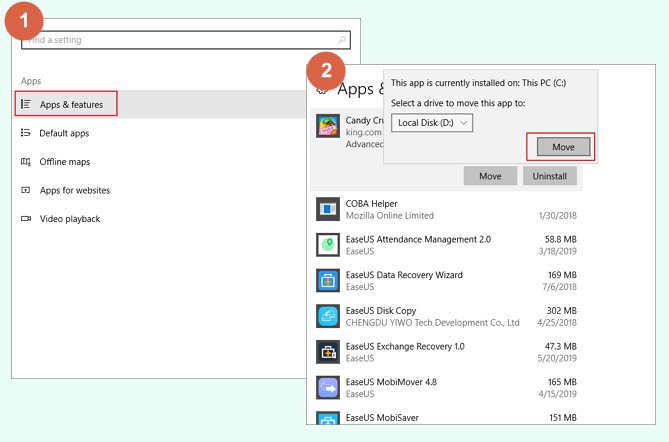
Move installed software / Game to another drive in Windows 10/11
Final Thoughts
Moving games is straightforward. You can use Steam’s built-in feature or utilize Windows settings for other platforms. Both methods efficiently transfer game files without causing issues. This helps save space and organize your game library.
Remember to verify the game integrity after the move. This step ensures everything copied correctly and that the game runs perfectly. Knowing how to move games from one drive to another is essential for managing storage. This process lets you fully optimize your gaming setup.

