
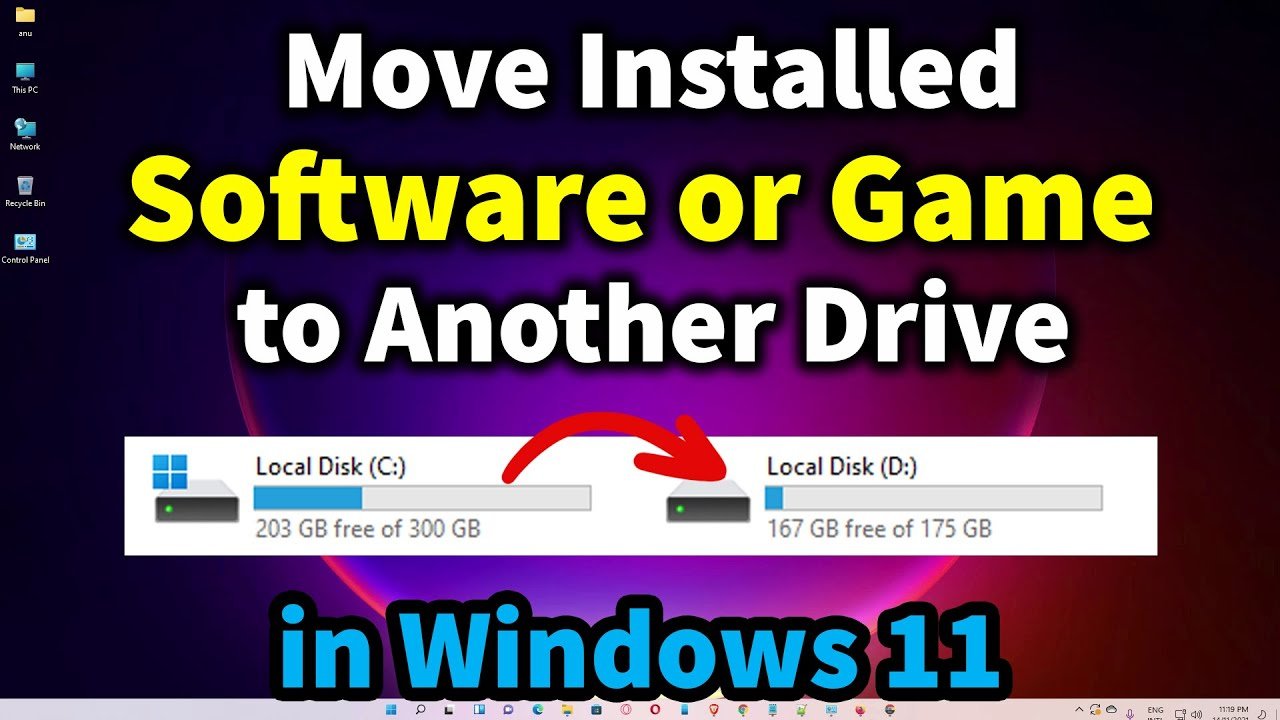
Moving games to another drive in Windows 11 is done through the Settings app by navigating to Apps, then Installed Apps, selecting the game, and choosing ‘Move’.
Running out of space on your primary drive? It’s a common problem, especially with today’s large game installations. You’re probably wondering how to move games to another drive windows 11, without needing to reinstall everything. This guide will quickly explain the simple steps for doing so using built-in Windows settings. Shifting your game library becomes straightforward with this method.

How to Move Games to Another Drive Windows 11
Okay, so you’ve got a ton of cool games on your computer, and maybe your main drive is starting to feel a little cramped. You need more space! Good news, you can move your games to a different drive on your Windows 11 computer. It’s like moving your toys to a bigger toy box! This article will walk you through all the different ways to move your games, so you can keep playing without any problems. It might seem a little tricky at first, but don’t worry, we’ll take it step by step, and you’ll be a game-moving pro in no time. Let’s jump right in and make sure your games have plenty of space to live!
Why Move Games to a Different Drive?
Before we get into the “how,” let’s talk about the “why.” Why would you want to move your games anyway? Well, there are a few great reasons.
Running out of Space: This is probably the most common reason. Your main drive (usually your C: drive) where Windows is installed, can fill up quickly with games, especially big ones! When that happens, your computer might slow down.
Better Performance: Sometimes, having your games on a separate drive, especially a fast one like an SSD (Solid State Drive), can make them load and run smoother. Think of it like a super-fast race track for your game.
Organization: Keeping your games on a dedicated drive can help you keep things organized. It makes it easier to find your games and manage them.
Keeping C: Drive Clean: Windows needs space on your C: drive to run smoothly. Moving games helps ensure your operating system has the breathing room it needs.
So, moving games isn’t just about having more room; it’s about making your whole computer experience better. Now that you know why, let’s get to the fun part – actually moving those games!
Moving Games Through Windows Settings
The easiest way to move some games, especially those downloaded from the Microsoft Store or Xbox app, is through your Windows settings. This method is generally safe and very simple.
Step-by-Step Guide:
- Open Settings: Click the Start button (the Windows logo) and then click on the “Settings” icon (it looks like a gear).
- Go to Apps: In the Settings window, click on “Apps.” Then, select “Installed Apps” on the right side.
- Find Your Game: You’ll see a list of all the apps and games you have installed on your computer. Find the game you want to move. You can scroll through the list or use the search bar at the top to find it quickly.
- Click the Three Dots: Once you find the game, click the three dots next to its name. This will open a small menu.
- Select “Move”: In the menu that pops up, click on the “Move” option.
- Choose the New Drive: A new window will appear, asking you to pick the new drive where you want to move the game. Click the dropdown menu and select the drive you want to use. Make sure the drive has enough space for the game.
- Click “Move”: After you’ve picked the drive, click the “Move” button. Windows will now start moving the game to the new location.
- Wait and Be Patient: The moving process might take some time, especially for big games. Don’t turn off your computer or mess with anything while it’s moving. You’ll see a progress bar, showing you how much is left.
- Done!: When the progress bar disappears, it means your game has been moved successfully. You can now play it from its new location!
This method is perfect for Microsoft Store games, but it might not work for games downloaded from other platforms, like Steam, Epic Games, or GOG. For those, we have other methods.
Moving Games from Steam
Steam, the popular gaming platform, has its own way of moving games, and it’s pretty straightforward. It keeps track of where your games are located, so it knows how to find them even if they move!
Moving Games Within Steam:
- Open Steam: Start by opening the Steam client.
- Go to Library: Click on the “Library” tab at the top of the Steam window. This is where all your games are stored.
- Find the Game: Find the game you want to move in your library. You can scroll through the list, or use the search bar to locate it faster.
- Right-Click the Game: Right-click on the game’s name in your list. A menu will appear.
- Select “Properties”: In the menu, click on the “Properties” option.
- Go to “Installed Files”: In the Properties window, click on the “Installed Files” tab on the left side.
- Click “Move Install Folder”: Under “Installed Files”, you’ll see a button that says “Move Install Folder.” Click it.
- Choose the New Location: A new window will open, letting you select the new folder on another drive where you want to move the game. If the drive doesn’t already have a Steam library, you will be prompted to create one. Simply select the desired drive, and click “Add”
- Select the Library Folder: From the dropdown choose the new drive, now select the newly created folder or an existing one in that drive.
- Click “Move”: Once you have selected the folder, simply click move to move your game.
- Wait and Watch: Steam will begin moving the game. This could take a while for large games. You will be able to track the progress.
- Play Your Game: When the process completes, the game will be moved and accessible from the new location, and you can enjoy it from your new drive!
Using the Steam client for moving your games keeps the game data intact and updates Steam’s settings to reflect the new location of the game. This means you won’t encounter any issues later.
Moving Games from Epic Games Launcher
Just like Steam, the Epic Games Launcher also has its built-in tool to move games. This method is very similar to Steam’s, so if you’ve mastered one, you’ll easily conquer the other.
Moving Games from Epic Games:
- Open Epic Games Launcher: Launch the Epic Games Launcher on your computer.
- Go to Your Library: Click on “Library” in the left sidebar.
- Find the Game: Look for the game you wish to move. You might need to scroll down or use the search box to locate it quickly.
- Click the Three Dots: Once you find your game, click the three dots (the “more actions” menu) below the game’s picture.
- Select “Uninstall”: In the menu, you’ll see the “Uninstall” option. Click on it. Don’t panic, you are not deleting the game.
- Install Game Again: Once you’ve uninstalled, click on the game again to start the install process. Epic Games will ask for the location, simply select the drive where you want to move the game.
- Choose the New Location: Epic Games will show a new window. Here, select the drive you want to move the game to. Make sure that it has enough storage for the selected game.
- Install Again: Click on “Install” and the game will start the reinstallation process on the selected drive.
- Wait for it: Depending on the size of the game, and the speed of your drive this may take some time. But when completed, your game will be accessible on the new drive.
This way, Epic games takes care of the rest. The game is fully moved and you are ready to play again!
Moving Games from GOG Galaxy
GOG Galaxy, just like other launchers, also provides a way to move games within the client. It’s designed to make managing your games easy, regardless of where you got them from.
How to Move Games with GOG Galaxy:
- Open GOG Galaxy: Start GOG Galaxy application on your computer.
- Go to the Games Tab: Click on “Games” tab, normally located on the left menu.
- Select the Game: Find the game that you would like to move. Scroll down to find your desired game, or simply search it.
- Click on the “Manage” Button: Once you’ve found your game, select it, then click on the “Manage Installation” button (it looks like a gear) on the top.
- Choose “Manage” then “Configure”: From the drop-down menu, select “Manage”, then select “Configure”.
- Go to Installation Tab: In the “Configure” tab, click on the “Installation” tab.
- Change the Installation Path: Click on the “Installation Folder” dropdown menu and select the new location for your game.
- Click Save: After you’ve selected the new location, simply click on “Save” button.
- Wait for the Process: Galaxy will now begin the process to move your game to its new location. Depending on the size of the game, this may take a while.
- Play From New Location: Once the move is done, your game will be available at it’s new location and you can enjoy your game again!
The process is pretty simple, and it takes away the hassle of handling the files manually. This way your game is always ready to go, at any desired location!
Manually Moving Game Files (Advanced)
Now, let’s talk about a more “hands-on” approach: manually moving game files. This method is trickier and you have to be extra careful. It works for games not tied to a launcher, or if the methods above don’t quite work.
IMPORTANT: Before you start, please note that this method can cause issues if not done correctly. Make sure to back up your game data before proceeding!
Step-by-Step Guide to Manual Game Moving:
- Close All Programs: Make sure the game you want to move is not running. You also should close any game launchers (like Steam, Epic, etc.) as well.
- Locate Your Game Files: Find the folder where your game is installed. This is where all the game’s files are located. For example if your game is located in C:\Program Files (x86)\MyGame, that is your game folder.
- Copy (Don’t Cut) the Game Folder: Now, right click on the game folder and select “Copy.” DO NOT SELECT CUT!.
- Go to the New Drive: Go to the drive where you want to move the game. This could be an external hard drive or a different drive on your computer.
- Paste the Game Folder: Once you’re in the new drive, right click, and select “Paste.” This will start copying the game files to the new location. This could take a while, depending on how big the game is.
- Test the Game: Once the copy is done, you should test the game. Make sure that the game works at the new location. You might have to run the game’s executable file (.exe) from its new location.
- Delete Files From Original Location: After confirming everything is working fine in its new location, you can safely delete the files from the original location, if you want to free up the space there.
- Handle Shortcuts: Sometimes, game shortcuts won’t work after moving the game files manually. If your desktop shortcuts, or Start Menu shortcuts don’t work anymore, delete them. Create a new shortcut from the executable file from your new game location.
This method requires some careful handling, but once you understand where files are located, it is not as difficult as it sounds. Just be careful to backup the data!
Troubleshooting Common Issues
Sometimes, moving games might not go as smoothly as we’d like. Here are some common problems and how to handle them:
Game Won’t Start After Moving:
Solution: Make sure the game’s executable file (.exe) is set up correctly on the new drive. Also, check if there are any other specific requirements.
Game Launcher Can’t Find Game:
Solution: If you moved the game manually, try to locate the game from your launcher. Normally it will ask you to point where the game is. If this option is not available, try uninstalling, then reinstalling the game in the new location.
Moving Process is Too Slow:
Solution: Copying big files can take a while, especially to a slower drive. If you’re copying to an external drive, a USB 3.0 connection would be faster than USB 2.0.
Error Messages:
Solution: Error messages are your best friend in this process. Take a moment to read the error messages, most of the times they will tell you what the problem is.
Game Save Files:
Solution: In some cases save files are stored in separate locations from the main game. Usually in your “Documents” folder, or “Appdata” folder. It is always better to search online about the location of the save files before moving the game and move them accordingly if needed.
Corrupted Game:
Solution: Sometimes the game may be corrupted because of interruptions during moving. If a game does not work after moving, try again, and verify that everything is working before deleting the files from original location.
If none of the troubleshooting methods fix your issues, you can always try to ask online communities or contact the game’s support team for further assistance.
Moving games to another drive in Windows 11 is a great way to free up space, improve performance, and keep your computer well-organized. Using the built-in features of Windows and gaming platforms makes the process easier and more secure. Whether you use the Windows Settings, Steam’s tool, or Epic’s moving feature, or even the advanced manual method, you have the ability to move your games to new locations, and enjoy them again! Just remember to be careful, patient, and enjoy your games with a lot of free space.
Move installed software / Game to another drive in Windows 10/11
Final Thoughts
Moving your games to a different drive in Windows 11 is simple. You can use the built-in settings to transfer the game files. This frees up space on your primary drive. The process is quite straightforward.
Using this method, you avoid needing to reinstall games. This saves valuable time and effort. The steps are quick to follow. This method allows for easy game management.
Remember, using these methods you learned how to move games to another drive windows 11. You now have more flexibility in where your games are stored.

