
To move a Steam game to another monitor, simply use the Windows key + Shift + arrow key combination. This will shift the game window between your displays.
Ever found yourself wanting to enjoy your favorite Steam game on a different screen? It can be frustrating when the action is stuck on the wrong monitor. Knowing how to move a Steam game to another monitor can vastly improve your gaming experience.
We’ve all experienced the situation where a game opens on the monitor we least desire. Thankfully, shifting the display is a very simple process. This quick tip will solve the problem for you.

How to Move a Steam Game to Another Monitor
Playing games on your computer can be super fun, especially with Steam. Sometimes, you might have more than one monitor and want to move your game to a different screen. Maybe you want to watch a video on one screen while gaming on another, or perhaps you simply prefer a different display for a specific game. Don’t worry, it’s easier than you might think! Let’s explore how to move your Steam games around to different monitors.
Understanding Monitor Configurations
Before we jump into moving games, it’s good to know a little bit about how your computer sees your monitors. Your computer sees each monitor as a separate display, and they’re all given a number, often called a display ID. Usually, your main monitor is set as the primary display, and it’s where your Windows taskbar and most programs start. Here’s how to check your monitor setup:
Checking Your Monitor Setup in Windows
Follow these steps to see how your computer is set up:
- Right-click on your desktop (any empty space).
- Choose “Display settings”.
- You’ll see pictures of your monitors with numbers on them. This is how your computer understands your monitor arrangement.
- If you have multiple monitors, you might need to click the “Identify” button to see which monitor is which. A number will briefly appear on each screen to help you tell them apart.
- You can drag the pictures of monitors around to match their actual physical layout. This will change how your mouse travels across the screens.
- The “Make this my main display” checkbox lets you choose which monitor is the primary screen. If a game is starting on the wrong monitor, setting your desired monitor as the “main display” might help.
Knowing your monitor setup is the first step to moving your games around effectively. Now, let’s look at specific ways to move your games.
Quick Methods to Move a Game Window
Sometimes, moving a game is as simple as dragging the game window, but that doesn’t always work. Here are a few quick and common ways to move your game:
Dragging the Game Window
This is the easiest method and works for windowed games:
- Make sure the game is in windowed mode (not full screen). You can usually change this in the game’s settings.
- Click and hold on the very top of the game window (the title bar where the game’s name is).
- Drag the game window to the monitor where you want it.
Using the Windows Key and Shift Key
A fast way to move a game that is in windowed mode is using your keyboard shortcut.
- First, ensure your game is running in windowed mode or windowed borderless mode.
- Click on the game window you want to move so it is the current program.
- Press the Windows key (the key with the Windows logo) + Shift + Left or Right arrow keys. This should move the current program to the next monitor, left or right of the one that game is currently on.
Changing Game Settings to Control Display
Many games have settings that allow you to directly choose which monitor to display on. This is the most reliable method, and here’s how you can usually do it.
Accessing Game Settings
The location of these settings can vary by game, but it’s usually found in the settings menu, which is located on the game’s menu or options. Look for words like “Graphics”, “Display”, or “Video”.
Finding the Display Options
Once you’re in the graphics settings, look for options like:
- Display Mode: This might have options like “Windowed,” “Full Screen,” or “Borderless Windowed.” Choosing “Windowed” is often necessary to move the window to another screen. “Borderless Windowed” will usually look like full screen but behaves like a window.
- Monitor/Display Selection: Some games will have a drop-down menu or list that lets you pick the monitor you want to play on. The monitors may be labelled by their number (1, 2, 3), by their name, or both. Choose the monitor you want the game to display on.
Example: Changing Display Settings in a Hypothetical Game
Let’s imagine you’re playing “Adventure Quest 2”. Here’s how you might change the settings:
- Start “Adventure Quest 2”.
- Go to the main menu and click “Options.”
- Click on the “Graphics” tab.
- Find the “Display Mode” option and choose “Windowed.”
- Under the “Display Monitor” option, choose “Monitor 2” or “Your monitor name” if there is a drop down menu.
- Click “Apply” or “Save Changes.”
Now the game should appear on the second monitor and if the game does not have a “display monitor” option, you can move the game window to the monitor you want.
When Full Screen Games Cause Trouble
Sometimes, full screen games can get stuck on one monitor and refuse to move. Here are some things you can try when games act up.
Switching to Windowed Mode Temporarily
If the game settings allow you to change to Windowed mode or Borderless Windowed mode, that is a great first step to try to move the game window and then switch back to full screen mode on your desired monitor. Sometimes games get stuck in full screen mode on a single monitor. Changing to another mode, moving the window, then changing back to full screen sometimes fixes this.
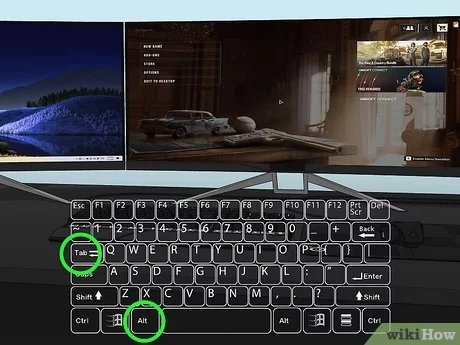
Alt + Tab and Window Management
If you are stuck on a game in full screen mode, this option can help.
- Press Alt + Tab to cycle through open windows, including the game. This can help to bring the game window to the front, and it will often switch your primary monitor to the game if it isn’t already.
- Once the game is the current window, try to move the window using the methods discussed.
Using Game Launch Options
Steam provides a way to add launch options, which are commands that the game uses when it starts. You can force the game to start on a specific monitor. Here’s how:
- Go to your Steam Library.
- Right-click the game you want to move to another monitor and select “Properties”.
- Find the “General” tab of the pop up menu.
- At the very bottom, you will find a text box called “Launch Options.”
- Here, you can add commands to make the game start on a specific monitor. For example, to run it on your second monitor, you can type “-adapter 1”. Monitor 1 is always your primary monitor, and monitor 2, is your second, monitor 3 is your third, and so on.
- Close the properties window and then launch the game, and it will attempt to start on the monitor you have selected using the launch option. If you want to revert, you need to delete the launch option you previously added.
Using Windowed Full Screen Modes
Some games have an option for windowed borderless, this allows the game to look like full screen, but it behaves like a window. You can often move a game in this state with shortcuts like Windows Key + Shift + Arrow Keys. This mode can work best for playing your game on the monitor you want it to be on.
Adjusting Windows Display Settings
Sometimes, if the display settings are having issues, or the game is having issues with how your computer recognizes the monitors, you might need to make changes in Windows to correct issues with the display settings.
- Open “Display Settings” by right clicking the desktop and clicking “Display Settings”
- Adjust the display layout, or identify the displays using the “Identify” button.
- Try making another monitor your primary monitor, to try to get the game to launch on that monitor.
Troubleshooting Common Problems
Even with all these tips, you might still encounter some issues. Here’s how to tackle them:
Game is Sticking on the Wrong Monitor
If you’ve tried all of the above options and the game still launches on the wrong monitor, try these methods:
- Double check the game options, specifically look for the monitor or display selector in the graphics menu.
- Restart the game.
- Restart Steam.
- Restart your computer.
- Try updating your graphics drivers, out of date drivers can cause this issue.
Game is Crashing After Moving
Games can sometimes crash if there are issues with the game moving to a new monitor. This can happen if the game struggles with display resolution or refresh rates.
- Try making the displays the same refresh rate.
- Try making the displays the same resolution.
- Update your display drivers.
- Change your window mode to full screen or borderless full screen mode.
- Try other methods to move the window such as Windows Key + Shift + Arrow Keys.
Incorrect Resolution or Scaling
If the game window looks too big, too small, or blurry on a different monitor, here’s what to do:
- Check the game’s settings for resolution or scaling options, often within the game’s display or video settings. If the game setting doesn’t work, try the following options.
- Adjust the resolution of the monitor the game is currently on.
- Make sure the game’s resolution matches the monitor’s recommended resolution.
- You can try adjusting display scaling in your Windows “Display Settings” menu.
Game Doesn’t Recognize the Second Monitor
Sometimes, the game might not recognize your second monitor at all. If your Windows display settings do not show multiple displays, or have not been correctly set, games will also not recognize the second monitor.
- Make sure the second monitor is plugged in properly and that your Windows operating system correctly recognizes the second monitor in “Display Settings”.
- Update display drivers if needed.
- If the game doesn’t have display options, try running the game in windowed mode and then try to move the window.
Tips for Multiple Monitor Gaming
Playing games on multiple monitors is pretty cool, but there are a few extra things to think about:
Match Monitor Resolutions and Refresh Rates
For the best experience, try to set the resolution and refresh rates of all your monitors to be the same or similar. This can reduce weird issues with the game, and give a better overall experience.
Use Mouse-Locking Tools
In some multi-monitor setups, your mouse cursor might move off the game screen. You can use tools or software that lock the mouse cursor to the game window so the cursor doesn’t get lost on the wrong screen. Some games have this setting built in.
Consider Borderless Windowed Mode
Many gamers prefer playing in borderless windowed mode when they have multiple monitors. This mode allows you to quickly switch between game screens and other applications, it generally looks like full screen, but works like a window.
Moving your Steam games to a different monitor can seem a bit tricky at first, but with a little practice, you’ll be swapping screens like a pro. Remember to start by checking your Windows display settings, and explore the different options in the game’s menu. Use shortcuts such as Windows Key + Shift + Arrow keys, or add launch options to force the game to launch on a specific display. Most importantly, don’t be afraid to experiment until you find the setup that works best for you. Happy gaming!
How to Open Game on Second Monitor on Steam (Full 2024 Guide)
Final Thoughts
To quickly move your Steam game, use Windows key + Shift + Left/Right arrow. This keyboard shortcut shifts the game window between monitors. Alternatively, adjust display settings in Windows to set the desired primary screen.
You can also utilize the game’s own display options, if available, for monitor selection. These options provide settings within the game menu, letting you control monitor output. How to move Steam game to another monitor becomes very easy this way. Remember, proper display configuration often resolves this quickly.

