
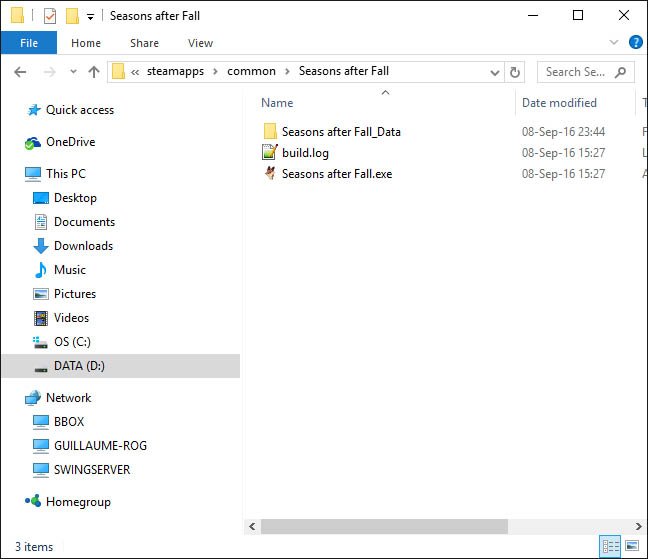
To open game files, you typically need the specific game itself or a compatible program designed to read those particular file types.
Ever stumbled upon a mysterious game file and wondered what it contained? Many people grapple with understanding how to open game files, and it can feel frustrating. These files hold the key to your game’s content, from levels and characters to textures and sounds.
You might encounter a variety of file extensions, each requiring its own approach. Some are specific to a single game, while others are more general. We’ll explore the common ways to access these files and get you started.

How to Open Game Files
Have you ever wondered what’s inside those game files you see on your computer? Maybe you want to change a character’s skin or take a peek at the game’s artwork. Opening game files can seem tricky, like entering a secret code. But don’t worry, it’s not as hard as it looks! This guide will show you the different kinds of game files and how to open them safely. We’ll also talk about why you might want to open them and what to watch out for.
Understanding Game File Types
Before we dive in, it’s helpful to know that game files come in many different forms. Each type of file has a specific purpose and needs a certain program or method to open it. Think of it like having different kinds of keys for different locks. Let’s look at some common types:
- .zip and .rar files: These are like folders that hold many files inside. They’re often used to compress or shrink the size of files, making them easier to download.
- .exe files: These are programs that start the game or install it on your computer. They are usually the primary way to run games on Windows.
- .pak files: These files often store the main game data, including textures, models, and sounds. They are specific to many game engines.
- .cfg files: These are configuration files that store settings like graphics, controls, or sound options. They are plain text and you can view them with a text editor.
- .sav files: These hold your game progress, like which level you’re on or how many points you have.
- Image files (.png, .jpg, .dds): These are pictures used in the game. You can open them with an image viewer or editor.
- Sound files (.mp3, .wav, .ogg): These are the game’s music and sound effects. A media player can open these.
- Model files (.obj, .fbx, .blend): These files contain the 3D shapes of characters, objects, and environments. These file types usually require specialized 3D programs to view properly.
Why Open Game Files?
People open game files for different reasons, let’s explore some:
- Modding Games: Modifying a game means changing things like the characters’ appearance, the level design, or even the game’s rules. To do this, you’ll need to open and edit the game files.
- Creating Custom Content: If you are a creator you might want to make new levels, characters, or items for your favorite game. This also requires getting to know the game’s files.
- Extracting game assets: This involves getting the textures, audio files or models out of the game to use for your own projects.
- Troubleshooting issues: If your game isn’t working right, you might need to look at the configuration files (.cfg) to see if there’s a setting that’s causing a problem.
- Curiosity: Some people just enjoy exploring the inner workings of games to see how they are built.
Opening Compressed Game Files (.zip and .rar)
Many game files are compressed into archives, like .zip or .rar files. Think of these as a suitcase that holds many files inside. To see what’s inside, you need a program that can “unpack” or “extract” them.
Using File Explorer (Windows)
If you have a zip file on Windows, here’s how to open it:
- Find the file: Locate the .zip file you want to open on your computer.
- Right-click: Right-click on the file. A menu will pop up.
- Select “Extract All…”: In the menu, choose “Extract All…”.
- Choose a location: A window will appear, asking where you want to save the unzipped files. Pick a folder on your computer.
- Click “Extract”: After choosing your location, click the “Extract” button. Windows will unpack the files, and you can now see them in the folder you picked.
Using Third-Party Programs (7-Zip, WinRAR)
For other file types like .rar or if you need more advanced features, third-party programs are available. These free and paid tools can help you manage compressed files.
7-Zip: A free and open-source program that can open many kinds of archives. To use it, install 7-Zip, find the file, right-click it, and select 7-Zip. Choose “Extract Here” or “Extract To…” to unpack the contents.
WinRAR: A popular program, but it is paid. It works the same way, you right-click on the file and select options to extract the content to a folder.
Accessing Game Data Files (.pak)
.pak files are very common in games. These files store various types of game data. Opening and accessing the files inside a .pak can be tricky, as they are not always standard archive files. Here’s what you need to know:
Using Game-Specific Tools
Sometimes, game developers provide tools to access the .pak files of their games, often called “extractors” or “un-packers.” These tools are created specifically to deal with a specific game’s .pak format. You will often find them in modding communities or forums related to that game.
Using Generic .pak Extractors
Some programs are designed to handle various types of .pak files. These extractors attempt to read the files using common formats. However, it is not always guaranteed that every .pak file will be readable using these generic tools. Research which tools would be suitable for the game you want to mod, read the user reviews and discussions.
Understanding File Structure
Even after extracting a .pak, you’ll probably see a lot of folders and files, organized in a way that makes sense to the game engine. Understanding this file structure is important if you want to make changes to the game effectively.
Working with Configuration Files (.cfg)
Configuration files, usually with the extension .cfg, store the game’s settings. These are usually plain text and can be opened and edited using basic text editors.
Using Notepad (Windows)
Notepad is a simple text editor that comes with Windows. Here’s how to use it:
- Find the file: Locate the .cfg file you want to edit.
- Right-click: Right-click on the file.
- Choose “Open with”: Click “Open with” in the menu.
- Select Notepad: Choose Notepad from the list. If it’s not there, click “More apps” and find it.
- Make changes: The .cfg file will open in Notepad. You can change the values for different settings. Make sure to only change what you understand and always make a backup of your file before making any changes.
- Save: To save your changes, go to “File” and click “Save.”
Using Other Text Editors
If you need more advanced features, you can use other free text editors like Notepad++. These editors also allow you to view the configuration files and make changes.
Editing .cfg Files Carefully
Be careful when making changes to a .cfg file. If you change something incorrectly, your game might not work right. It’s a good practice to make a copy of the original file before you edit it. You can then restore the original file if things go wrong.
Opening Image Files ( .png, .jpg, .dds)
Games use many image files for textures, icons, and other graphics. Here is how you can open some of the more common game image types:
Using Standard Image Viewers
Most operating systems come with a built-in image viewer that can open .png and .jpg files. For example, Windows has the Photos app and macOS has Preview. Just find the image file on your computer and double click it to open it with the default image viewing application.
Using Image Editors
If you need to edit images or open more complex formats, you will need image editors. Some good options include:
- GIMP: A free, open-source image editor that is a great option for more advanced editing tasks.
- Paint.NET: Another free option that is very easy to use.
- Adobe Photoshop: A paid, professional-level image editor.
Opening DDS Files
DDS is a special format that is commonly used for texture files. Sometimes the default image viewers cannot open this file format. Use an image editor like GIMP to load this file type. GIMP might need a plugin to view .dds files. You can search online for GIMP .dds plugin to install the appropriate plugin.
Listening to Game Sound Files (.mp3, .wav, .ogg)
Games often have lots of audio files, like music and sound effects. Here is how you can listen to them:
Using Media Players
Most media players can handle common audio files like .mp3 and .wav. Windows Media Player, VLC, or iTunes can open these files. Just locate the file and double click it to open it in your chosen media player.
Opening Ogg Files
Ogg is a very common sound format used in games. Sometimes your default media player might not support this format. VLC Media Player can usually open these files. Alternatively, you can use an online converter to convert .ogg to .mp3 or .wav if necessary.
Working with 3D Model Files (.obj, .fbx, .blend)
If you want to view or edit 3D models in games, you’ll need a 3D modeling program. These file types store the 3D shapes of objects, characters, and environments.
Using Blender
Blender is a free, open-source 3D creation suite that supports a lot of different file formats, including .obj, .fbx, and .blend. To open the files, install Blender, and navigate to File and select open or import, choose the file you want to open.
Other 3D Programs
Other popular 3D programs you can use are Autodesk Maya, Autodesk 3ds Max and Cinema 4D. These are all paid software.
Understanding 3D Model Structure
3D models are composed of shapes, textures and materials. Make sure to import all the relevant materials when importing the model to ensure they look correctly in the 3D software. These programs usually have an option to import textures, if the files are not imported automatically.
Important Tips and Precautions
Before opening and modifying game files, here are a few important points to consider:
- Backup your files: Before changing any game files, create backups of the original files and folders. If something goes wrong, you can replace the altered files with the original ones.
- Use trusted sources: If you are downloading tools or files from the internet, make sure to use trusted websites, like official forums. This helps you avoid getting viruses or malware.
- Be careful with online guides: Not all online guides are correct or up-to-date. Verify the information from various sources and be careful when following instructions.
- Respect copyrights: Modifying game files for personal use is usually acceptable, but distributing modified files without permission might break copyright laws.
- Understand the risks: Changing game files can sometimes cause problems with your game. Be prepared for potential game issues and always back up your files.
Opening game files may seem complicated, but with the right tools and approach, you can explore the inner workings of your favorite games. Remember to always work carefully, backup your files, and respect copyright laws. Have fun on your game modding adventures!
How to Find Steam Game Files on Windows 10 or 11 PC
Final Thoughts
Opening game files often requires specific tools. You need to identify the file extension, like .zip or .rar. After identifying it, use the corresponding program such as a file archiver. Some games use custom formats.
If that’s the case you may need a special modding tool or a game-specific editor. Research your game’s file types to learn the proper way to access the game data. Successfully opening a game file sometimes involves these steps.
These steps cover the core of how to open game files. You will often need to research the specific file format involved. Understanding your file’s format will help you access the data easily.

