
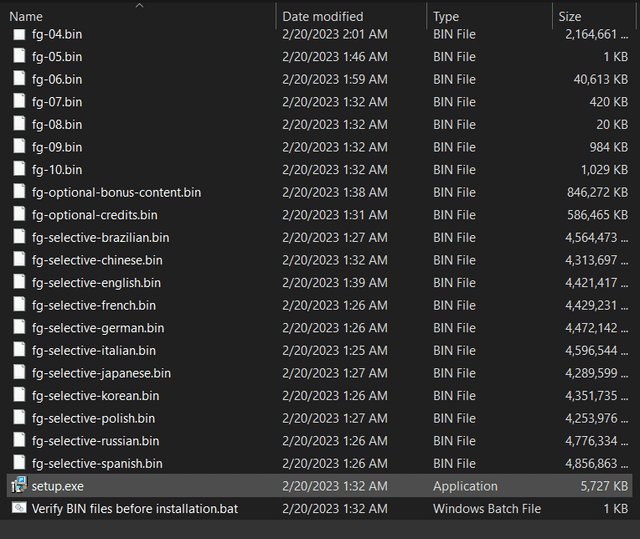
To open a game from FitGirl, you must first extract the downloaded files using a program like 7-Zip or WinRAR, then run the setup.exe file and follow the on-screen prompts to install the game.
Have you ever downloaded a game from FitGirl Repacks and then felt a bit lost on what to do next? It’s quite common. Many find the compressed files a bit intimidating initially. We will make it very simple for you to understand how to open game from fitgirl, and get you gaming in no time.
This guide will quickly walk you through the steps needed to install your desired games. It is much simpler than you might think. You will be enjoying your game shortly.

How to Open Game from FitGirl Repack
Okay, you’ve downloaded a game from FitGirl, and now you’re probably wondering, “How do I actually start playing it?” It’s a common question, and thankfully, it’s not too hard to figure out. FitGirl repacks are compressed versions of games, meaning they take up less space. Because of that compression, there’s a special way to get them up and running. This guide will walk you through each step, so you can get to gaming quickly. Let’s dive in and see what you need to do!
Understanding FitGirl Repacks
Before we jump into the “how-to,” let’s understand what FitGirl repacks actually are. Imagine you have a giant box of building blocks. A FitGirl repack is like taking all those blocks, smashing them together tightly, and putting them in a much smaller box. When you get this smaller box, you need to put the blocks back together again in the right way before you can build anything.
FitGirl takes large game files and compresses them really well. This compression makes them smaller to download, which is awesome if you have slow internet or not a lot of space on your computer. However, because the game files are compressed, you can’t just click on an icon and play. You need to install the game using the files you downloaded from FitGirl.
Checking System Requirements
Before doing anything, make sure your computer can even run the game! FitGirl usually provides a link to the game’s official system requirements. You’ll need to know how much space the game needs, how much RAM you have, what graphics card you use, and what operating system your computer runs on. This is essential to make sure the game will run smoothly, or at all.
Here’s a simple checklist:
Operating System: Is your computer running the version of Windows (or other OS) the game needs? (e.g., Windows 10, Windows 11)
Processor: Does your computer have a powerful enough CPU (like Intel i5, Ryzen 5, or better)?
RAM: Does your computer have enough memory (usually measured in gigabytes or GB)?
Graphics Card: Do you have a graphics card that is good enough to handle the game? (e.g., NVIDIA GeForce GTX, AMD Radeon RX)
Storage Space: Do you have enough free space on your hard drive to install the game?
If your computer does not meet the minimum requirements, the game may not work properly, or at all. It is always best to check it, before beginning the installation process.
Downloading the FitGirl Repack
Okay, you’ve checked the system requirements, and your computer is good to go. Now, let’s download the game. FitGirl repacks are usually found on torrent websites or through direct download links. This is the initial step toward installing the game.
A few things to keep in mind while downloading:
Use a good Torrent client: Applications like qBittorrent are free and easy to use.
Check for comments: Look at the comments on the download page for warnings, extra steps, or any issues reported by other users.
Verify the Files: After downloading, some websites offer hash codes that you can use to verify your download is correct. A damaged download can cause problems later.
Once your game is fully downloaded, it’s time to install it. The downloaded files will usually be in .iso or .rar format. These types of files need special programs or steps to open, so we will cover it in the next section.
Preparing the Files – Extracting or Mounting
After the download, your files will probably be inside a ZIP or RAR file (or as an ISO file). These files are like compressed containers, and we have to open the containers. If you have an ISO file, you must either “mount” it, or extract it. If you have a RAR file, you will only have to extract it.
Here is how to deal with both file types:
Working with .rar Files
Using WinRAR or 7-Zip: WinRAR and 7-Zip are programs that can extract .rar files.
If you don’t have WinRAR or 7-zip, download and install it first. These tools are free.
Right-click on the .rar file you downloaded.
Choose “Extract Here” or “Extract to \[folder name].”
Wait for the files to be extracted into a new folder.
Working with .iso Files
Mounting the ISO file
On Windows 10 and above, you can mount an ISO file simply by right clicking on it and selecting mount. This will make it work like a real CD or DVD drive.
When mounted, the computer will think it is actually a DVD drive with the contents of the ISO file.
Extracting the ISO file
If for some reason the mounting method doesn’t work, or you’d prefer to extract the contents of an ISO file, you can use either 7-Zip or WinRAR to extract the contents just like you would with a RAR archive. Simply right-click the ISO and select either “extract here”, or extract to [folder name].
Once the extraction or mounting is done, you’ll have all the game installation files in a regular folder, ready to use. Now is a good time to keep your files organized. Move all the files into their own game folder. This way you don’t accidentally mix them up with other files on your computer.
Running the Setup File
Inside the extracted folder, you’ll find the setup program. This is usually called setup.exe or install.exe, though sometimes it can have a different name. Locate this file. The setup program will guide you through the game installation process.
Here’s how to run the installer:
Right-click the setup file: Find the setup.exe file and right-click on it.
Run as administrator: Choose “Run as administrator.” This gives the installer permission to make changes to your computer. It’s a good idea to do this every time.
Follow the instructions: The installer will take you through a series of steps. You will have to agree to the terms and conditions, choose the location where the game will be installed, and select other necessary options.
Choose install location: When asked, select where you want to install the game. A good place is your main drive (usually C:\), in a folder labeled Games, so it’s easier to find.
Check additional options: The installer may ask if you want to install extra things like DirectX or Visual C++ Redistributables. You usually want these, so it’s generally best to leave them ticked.
Wait for installation: The installation process can take some time. This can be anywhere from a few minutes to a few hours, depending on the game and the speed of your computer. Be patient and don’t interrupt it.
Post-Installation Steps
Okay, the installation is complete! Congratulations, you’re almost ready to play. Sometimes, you have to do a few more things before launching the game.
Here are some common post-installation steps:
Applying the Crack
Check for crack files: After the installation, some FitGirl repacks need a ‘crack’. A crack is a special file that allows the game to work without the original CD or DVD.
Copy the crack files: The crack files are usually located in a folder called “Crack” or something similar.
Paste into game folder: Copy all the files in the “Crack” folder and paste them directly into the folder where you installed the game. Overwrite the original files if asked. This step is very important. Without the proper crack, the game might not start.
Installing Missing DLL Files
Check for Error Messages: If the game doesn’t start and you see an error about a missing .dll file, you need to find the missing file and install it.
DLL Fix Programs: There are programs online that help install missing DLL files, but make sure to be careful to avoid malware and viruses. Also, some installers have an option to install DLL files automatically during the installation process.
Installing Extra Software
DirectX and Visual C++: Sometimes the game might need other programs like DirectX or Visual C++ Redistributables. Make sure you install these if the setup program didn’t install them for you automatically.
Starting the Game
You have installed the game, and applied the crack if needed! Now, let’s play!
Here’s what to do:
Find the game’s EXE file: Go to the game’s installation folder. Locate the main application or executable file. It usually has the same name as the game and will end in “.exe”.
Double-click to launch: Double-click the executable file to launch the game. If the game does not start properly, right-click on the executable file and choose “Run as administrator”.
Enjoy: The game should start! Take a break and enjoy playing the game you worked so hard to install.
Troubleshooting Common Issues
Sometimes things don’t go exactly as planned. If you run into problems, don’t panic. Here are some common issues and how to fix them:
Game won’t start: Try running the game as an administrator, or make sure the crack is applied correctly.
Missing DLL file error: Reinstall the game and ensure all optional software (DirectX and Visual C++) are installed.
Installation issues: Try downloading the files again and be sure your computer meets the game requirements.
Antivirus interference: Antivirus software can sometimes incorrectly mark files as harmful. You might need to temporarily turn off your antivirus while installing and then add the game folder as an exception.
Black screen: This could mean that your graphics card is not compatible, or that your graphics card drivers are not up to date. Try updating your graphics drivers.
Crashing: Ensure you are not running any other programs that might interfere with the game and make sure all the system requirements are met.
Sound issues: Try updating your audio drivers, and make sure your speaker or headphones are plugged in correctly.
Tips for a Smooth Experience
Here are a few extra tips for a smoother experience:
Keep things organized: Create a folder specifically for games and install all your games in this folder.
Check for updates: Sometimes there are patches or fixes for games. It’s a good idea to check for them.
Use trusted sources: Download FitGirl repacks only from trusted sources to avoid malware and viruses.
Be patient: Installation can take time, especially for larger games. Be patient and don’t interrupt the process.
Read comments: Read other people’s comments about the game on the download page. If they have suggestions, you can also try them.
Opening a game from a FitGirl repack can be a little tricky, but if you follow these steps, you will have the game up and running in no time. Remember to check system requirements, download from a good source, be careful with your installation, and be patient during the process. Happy gaming!
How to make game installation faster (fitgirl)
Final Thoughts
To play your FitGirl repack, first locate the game’s installation folder. Then, find the executable file (.exe). Double-click it to launch the game.
Remember that sometimes, you may need to run the executable as administrator. This action grants the game necessary permissions.
Finally, regarding ‘how to open game from fitgirl’, the process is generally this straightforward: locate, execute, and, if needed, run as administrator. It is important to follow all install instructions.

