
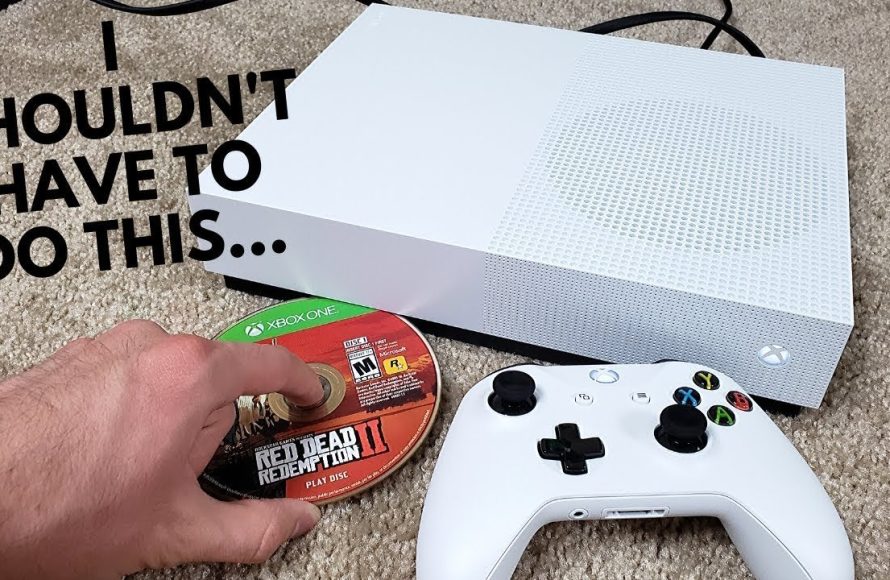
Simply insert the game disc into the disc drive of your Xbox One; the console will then automatically recognize and start the game.
Remember those days of eagerly awaiting new game releases, only to rush home and pop the disc into your console? Well, that feeling is still very much alive with the Xbox One. If you’ve got a physical copy and want to know how to play a game disc on Xbox One, it’s incredibly simple.
The process is fairly straightforward. You just need to insert the game disc correctly into the console’s disc drive, which the system handles the rest. Your game will load, and you’re ready for your gaming adventure.

How to Play a Game Disc on Xbox One
Ready to jump into your favorite Xbox One game? It’s super easy to get started playing a physical game disc. This guide will walk you through every step, so you can get back to gaming in no time. We’ll cover everything from inserting the disc to troubleshooting common problems you might encounter. So, grab your game, let’s get going!
Inserting the Game Disc
First things first, you need to put the game disc into your Xbox One. Here’s how:
Locate the Disc Drive
The disc drive is the slot on the front of your Xbox One. It’s usually on the left side of the console and has a small symbol that looks like a disc above it.
There are different models of the Xbox One, but the location of the disc drive is almost always at the same place. If you are having trouble finding your disc drive, make sure to check the official Xbox documentation.
Insert the Disc Correctly
Hold your game disc so that the picture is facing up, and the label side is facing you. Gently slide the disc into the disc slot. You don’t need to push it hard; the Xbox One will pull it in the rest of the way. Don’t force it. If the disc doesn’t slide in easily, check to be sure you have the label side facing the right way.
You’ll hear a little whirring sound as the Xbox reads the disc, that’s a sign that the game disc is successfully inserted. After inserting the disc, you will probably see the game appear on your screen. If not, then no worries, just continue reading!
Starting the Game
Now that your disc is in, it’s time to start playing! Here are the next steps:
Selecting the Game
After your Xbox reads the disc, the game title should appear on your home screen. You might see a big tile with the game’s logo, or you might see it in the “My Games & Apps” section. Use your controller to select the game tile. Usually, you press the ‘A’ button on your controller to make this selection.
Installing the Game (If Needed)
Sometimes, when you insert a game disc for the first time, your Xbox will need to install some files to your console. This process can take a little while, so be patient. You’ll see a progress bar on your screen to show how far along the installation is. The Xbox One needs to download/copy some of the game files from disc to your hard drive so that the game runs smoothly. This is a common step and not a problem.
Installation time varies depending on the game size and your internet connection speed. You can usually continue to use your console to perform other tasks while installation is taking place, however, your game won’t start until the installation is completed.
Launching the Game
Once any needed installation is finished, the ‘Start’ or ‘Play’ button will become available. Select that and the game will begin to play. Congratulations, you’re now playing your game on Xbox One! Enjoy.
Managing Game Discs
It’s good to know how to manage your game discs once you’re done playing or if you want to switch to a different one. Here’s what you need to do:
Ejecting a Game Disc
To remove the game disc, you’ll need to use the eject button. It’s usually a small button with a triangle icon located just below the disc drive on your console. Press the eject button and the game disc will pop out of the drive. Make sure to store the game disc safely in its case so it won’t get scratched.
Alternatively, you can eject the disc by going to the home screen, selecting the game tile and selecting the “eject disc” option in the options menu. You can access the options menu for the game tile by pressing the menu button on your controller.
Switching Games
To switch to a different game, you need to eject the current game disc first. After ejecting, insert the new game disc. Then, follow the steps outlined in the ‘Starting the Game’ section above to play your new title.
Troubleshooting Common Issues
Sometimes, things don’t go as planned. Here are some common problems you might run into and how to fix them:
Disc Not Reading
If your Xbox One isn’t recognizing the disc, here are some things you can try:
- Make sure the disc is inserted correctly.
- Check the disc for any scratches, smudges, or dirt. Try cleaning it gently with a soft cloth.
- Try inserting another game disc. If the other disc works, your game disc might be damaged. If other disc don’t work then the issue is with your Xbox One console.
- Restart your Xbox One.
- If the issue persists, you may want to contact Xbox support, or look for online guides for your issue to be fixed.
Game Won’t Install
If the game gets stuck during installation, here are a few things to try:
- Restart your Xbox One.
- Make sure you have enough free storage space on your console’s hard drive. You might need to delete some old games or apps to make room. Go to Settings > System > Storage and check your storage space usage.
- Check your internet connection. A slow or unstable internet connection can sometimes interfere with the installation process.
- Try ejecting the disc and reinserting it.
If the installation problems continue, reach out to the game manufacturer for additional help.
Game Freezing or Crashing
If your game is freezing or crashing, try these troubleshooting steps:
- Close the game completely and then restart it.
- Make sure your Xbox One is up to date with the latest system software. Go to Settings > System > Updates to check.
- Try clearing the console’s cache. To do this, press and hold the power button on your Xbox One for 10 seconds until the console completely shuts down. Then, unplug the power cord from the back of the console for 30 seconds. Finally, plug everything back in and turn the Xbox One back on.
- If the issue persists, the game disc could be defective or the problem could be related to a bug in the game. Always check the official website of the game for any fixes available for your problem.
Disc Drive Problems
If your Xbox One has trouble inserting or ejecting discs, here are some steps to follow:
- Make sure nothing is blocking the disc slot.
- Try restarting your console.
- Make sure that the disc you are trying to insert is an Xbox One compatible disc. Older Xbox discs will not work.
- If the issue persists, your disc drive may have a mechanical issue and may need professional repair.
Keeping Your Discs Safe
Game discs can get damaged if you are not careful, which would make your game unplayable. Here are some tips on keeping them safe:
- Store game discs in their original cases to protect them from scratches and dust.
- Always handle game discs by the edges. Avoid touching the shiny part of the disc.
- Keep the game discs in a safe location that is away from heat sources and direct sunlight. Extreme temperatures can cause disc damage.
- Keep the game discs in a safe place, away from children.
Understanding Xbox One Game Disc Regions
It’s important to note that some games might have region locks. This means that a game disc bought in one region might not work on a console from a different region. Most game discs are region-free these days, but it’s still good to be aware of this to avoid problems. A game disc box will usually have some indicators regarding its region.
Using Digital Games
In addition to using physical game discs, you can also play games digitally on your Xbox One. You can buy and download games directly from the Microsoft Store. Digital games don’t need discs, making it very convenient to use. To play a digital game, you need to download and install the game on your Xbox One. After that, you can launch the game from your library.
Playing games on your Xbox One can be a lot of fun, whether you prefer physical discs or digital copies. Knowing how to insert a game disc, start a game, and fix any issues will help you to enjoy your games smoothly and without any interruptions. Follow the steps in this guide, and you’ll be gaming like a pro in no time!
By keeping your game discs safe and learning the ins and outs of using your Xbox One, you are sure to have a fantastic gaming experience. Remember that, if you ever run into a problem, there are plenty of resources available to help you get back to gaming. Happy gaming!
How To Install Play Disc Games on Xbox One S!
Final Thoughts
To play, insert the game disc into your Xbox One console. The system will then read the disc. If it’s your first time playing this game, it will install.
The installation process may take a bit. Once it finishes, the game will be ready to play. Then, you select the game from the menu.
Enjoy your gaming experience! Remember that how to play a game disc on xbox one is a simple process. Following the steps, you will begin playing your chosen disc with ease.

