
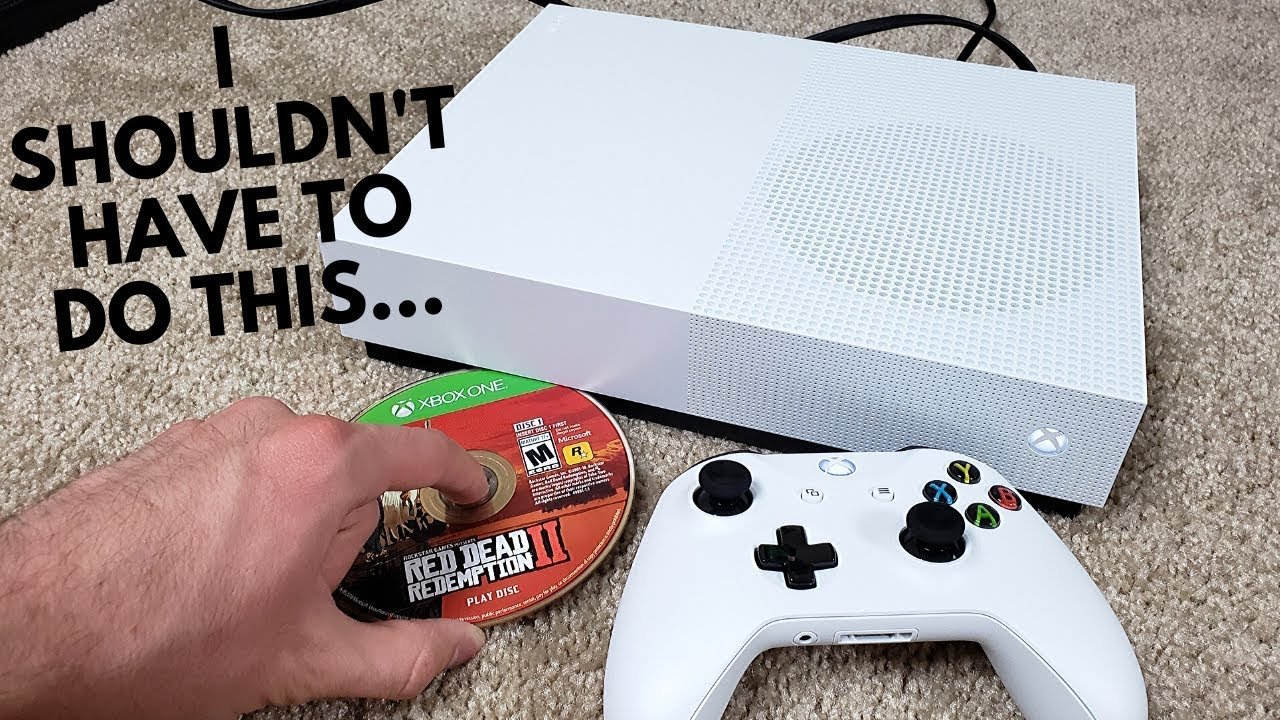
Insert the game disc into the Xbox One console’s disc drive. The console will then read the disc and prompt you to install or play the game.
Have you recently picked up a new physical copy of a game? You’re likely wondering how to play a game on Xbox One with disc. It’s actually quite a straightforward process. This article guides you through the steps.
First, simply locate the disc drive on your Xbox One. Then, insert your game disc. The console will handle the rest of it.

How to Play a Game on Xbox One With Disc
So, you’ve got your shiny new (or maybe not-so-new) Xbox One game disc and you’re itching to play. Great! Getting a game started with a disc is actually pretty easy, but there are a few things to know to make sure everything goes smoothly. Let’s break it down, step-by-step, so you can get to gaming in no time.
Getting Ready to Play
Before you even think about putting the disc into your Xbox, there are a couple of quick checks to do. This will save you some frustration later.
Checking Your Xbox One
- Power it on: First things first, make sure your Xbox One is actually turned on. You’ll see the Xbox logo light up on the console itself and your TV screen should display the Xbox dashboard.
- No other games in the drive: If there’s already a disc inside, you need to take it out. The Xbox One can only play one disc at a time. You can eject the disc by pressing the eject button (it’s a small button with an arrow above a line) next to the disc drive.
- Controller is connected: Ensure your controller is turned on and connected to your console. This is usually done by pressing the Xbox button on the controller.
Once you’ve done these checks, you’re ready to move to the next part. You also might want to find your game case so you can see the cool cover art while you’re playing. Or, you can read the game’s manual to see some extra information.
Inserting the Game Disc
Now, for the most important part, inserting the disc correctly. It’s a simple thing, but it needs to be done the right way.
How to Insert the Disc
The Xbox One disc drive is designed to be easy to use, but here’s how to insert a game disc.
- Find the Disc Drive: Look for the slot on the front of your Xbox One console. It’s typically on the left side when looking directly at the console.
- Position the Disc: Hold the disc so that the picture or label on the disc is facing up and towards you.
- Gently Slide it In: Carefully slide the disc into the slot. The Xbox One will pull the disc in the rest of the way. Don’t push it hard, just guide it in.
You’ll hear a gentle whirring sound, which means the Xbox One is reading the disc. After a few moments, the game tile should appear on your Xbox dashboard. If this doesn’t happen, double-check that the disc is correctly inserted and also check that there is not anything blocking the disc drive slot.
Now we’ll look into what happens next after you insert the game.
Starting the Game and Installation
What happens after the disc goes in? It might not start playing right away. There’s a little more to it.
Game Installation
Many Xbox One games require an installation process. This means they copy a bunch of data from the disc to the Xbox One’s hard drive. This lets games load faster and usually makes them play better. Here’s what to expect:
- Installation Begins: Once the console recognizes the disc, it might start installing the game. You will see a progress bar on the screen showing how far along it is.
- Patience is Key: Installation times can vary. Some games might install very quickly, and some could take a very long time. It’s best not to interrupt the process and wait for it to complete. During this time, you will see a message like “installing” or similar.
- You Can Sometimes Play Sooner: For some games, you can play them before the entire game installs. The game will start with only basic play, and more will be added as the install progresses. Usually, you’ll see a prompt to let you know when it’s ready to start playing.
Launching the Game
Once the installation is done, you’re ready to go! Here’s how you usually get the game going:
- Find the Game: Use your controller’s thumbstick or directional pad to navigate through your Xbox dashboard. Find the game tile for the disc you put in. It might be the most recent game you have used.
- Select the Game: Press the ‘A’ button to select the game.
- Game Starts: The game should then start loading. You may see the game’s logo, developer logo, and then the main menu. You are now officially playing the game!
Sometimes a game might need an update right after installation. This is normal, and you usually just need to let it download and install the update before you can play.
Troubleshooting Common Issues
Even though it’s easy to play games with discs, things can sometimes go wrong. Let’s look at some of the most common problems you might face and some simple solutions.
Disc Not Recognized
Sometimes the Xbox One may not recognize a disc. Here are some reasons why this may happen:
- Dirty or Scratched Disc: Check your disc. If it’s dirty or covered in smudges, gently clean it with a soft, lint-free cloth, wiping from the center out towards the edge. Scratches might prevent the disc from reading correctly, sometimes these scratches can be fixed at a store with specific machine, other times it can’t.
- Wrong Disc Type: Make sure that the disc is a real Xbox One game and not something else like a DVD or Blu-ray.
- Console Issue: If you have tried multiple discs that your Xbox doesn’t recognize, it could be the drive itself. You may have to contact Xbox customer support for help with that.
Installation Problems
Sometimes, the game may not install properly. Here is what to do when this happens.
- Check Disc: If the game doesn’t install, it may be that the disc is damaged or very dirty. Try cleaning the disc to see if it works after that.
- Clear Cache: Sometimes, the console’s cache can cause problems. To clear your Xbox One’s cache, press and hold the power button on the console until it shuts down. Wait a few seconds and then turn it back on.
- Restart: Sometimes, a simple restart of the Xbox One can fix installation problems. Restart the console and try again.
Game Freezes or Glitches
Sometimes a game can freeze or glitch while you are playing. Here are a few things that you can try to fix this issue.
- Restart the Game: You should try to close out the game and then start it again. This will sometimes fix a glitch in the game.
- Update the Game: If you don’t update your game to the latest version, it may experience glitches. Make sure that you update the game.
- Console Restart: You can also restart your whole Xbox console as well. This might fix problems with the console.
Disc Gets Stuck
The Xbox One disc drive is designed to smoothly eject discs, but sometimes it might get stuck. Here are some fixes.
- Eject Button: Try pressing the eject button a few times. Sometimes, it just needs a little extra push.
- Manual Eject: There’s usually a small pinhole near the disc drive. You can use a straightened paperclip to gently push it in, which will manually eject the disc. However, be careful and gentle when doing this. Consult your console manual for the exact location.
If you continue to have trouble with these fixes, you may have to contact Xbox Support for additional help.
Understanding Game Updates and DLC
Games are always changing and getting better. That’s why it is important to understand how updates and DLC work.
Game Updates
Game developers are constantly working to make the game experience better. They do this by releasing updates that fix bugs and improve gameplay.
- Automatic Updates: Usually, your Xbox One will automatically download and install updates for games when they become available.
- Check for Updates Manually: If you’re not sure if your game is up-to-date, you can manually check for updates. Go to the game tile, press the menu button on your controller (the button with three lines), and select “Manage game & add-ons,” and then you can select updates to check for updates.
- Install Updates: If an update is available, follow the prompts on your screen to install it.
Downloadable Content (DLC)
DLC is extra content that you can get for your games. It can be new levels, characters, items, and other things.
- Purchasing DLC: You can purchase DLC from the Xbox Store.
- Installing DLC: Once purchased, the DLC will usually automatically download and install to your console.
- Accessing DLC: You usually find your DLC content when you start up your game. It will be in the game’s menu or available within the game world.
Taking Care of Your Game Discs
Game discs are like little CDs and they need to be treated with care. Here are some tips to keep your game discs in good condition.
- Handle with Care: When handling the disc, always hold it by the edges or the center hole. Try not to touch the shiny surface.
- Storage: Store discs in their cases when you’re not using them. This will protect them from scratches and dust. Avoid storing them in places that are too hot, cold, or humid.
- Cleaning: If you need to clean a disc, use a soft, lint-free cloth. Wipe from the center out towards the edges. Do not use paper towels or harsh cleaning products.
Following these tips will help you keep your game collection in good condition so you can enjoy the games for a long time.
Playing a game on your Xbox One with a disc is straightforward, but knowing the steps, possible issues, and care tips will make your gaming experience much better. Now you should be prepared to dive into the world of games that you love and have fun playing them.
How To Install Play Disc Games on Xbox One S!
Final Thoughts
Insert your disc into the Xbox One console. The console will then read it, and the game should begin installing. Make sure to wait for the installation process to finish. This is a must.
Once installed, the game icon will appear on your dashboard. Select it, and the game will launch. This is how to play a game on xbox one with disc. Enjoy your gaming experience.

