
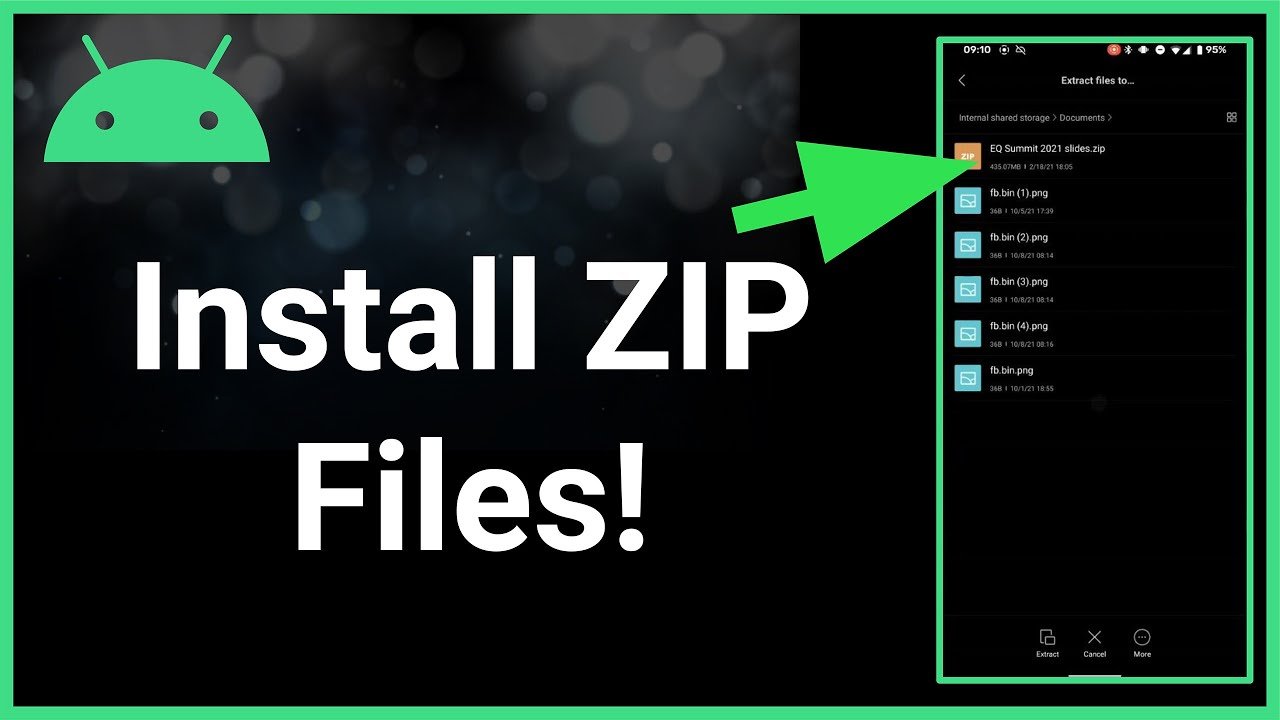
To play a zip file game on Android, you must first extract the game files from the zip archive using a file manager app, and then locate and run the appropriate executable or APK file within the extracted folder.
Ever stumbled upon a cool game compressed in a zip file? You’re not alone, many people download games this way. Figuring out how to play a zip file game on Android can seem daunting at first. However, with a few simple steps, you can get those games up and running on your device. Let’s explore the easy process for getting these games onto your Android device.

How to Play a Zip File Game on Android
So, you’ve stumbled upon a cool-looking game, and it’s in a ZIP file? Don’t worry, you’re not alone! Many awesome games, especially older ones or those made by independent developers, come packaged this way. It might seem a little confusing at first, but playing a game from a ZIP file on your Android phone or tablet is actually pretty simple once you know the steps. This guide will walk you through everything you need to know, making the process a breeze. We’ll cover how to get the necessary files and what tools you’ll need to get started. We’ll also talk about some of the challenges you might encounter and how to fix them. Let’s jump in and get you gaming!
Understanding ZIP Files
Before we dive into the “how-to,” let’s quickly talk about what a ZIP file actually is. Imagine a big box filled with lots of smaller things, like clothes, toys, and books. A ZIP file is kind of like that box, but for computer files. It’s a single container that holds one or more files, like game files, pictures, or documents, and often shrinks them down to save space. It’s a way to bundle everything together so that downloading and sharing them is easier. When you download a game in a ZIP, it’s usually not playable directly, it is the compressed file format, you need to open it first and move the game file in the suitable folder to start playing it. So, let’s learn how to open these boxes on your Android device.
Why Games Come in ZIP Files
Why do game developers use ZIP files? There are a few reasons why they prefer this way of distributing games:
- Convenience: It’s simpler to download one file than several, especially for games with many different components like images, sounds, and scripts.
- Smaller File Sizes: ZIP files can compress data, which can result in faster downloads and save your mobile data.
- Organization: Everything is neatly packed inside the ZIP, reducing the chances of missing a file and ensuring that the game works as intended.
Tools You’ll Need
Before starting, let’s gather the necessary tools for our little adventure. Luckily, you probably already have most of them, but let’s make sure you are prepared.
- A File Manager App: Android devices usually come with a file manager, but if yours is basic, we recommend installing a more feature-rich one. The most famous and the most recommended one are, Solid Explorer, ES File Explorer, or Files by Google, these apps are readily available on Google Playstore. these apps will help you extract the contents of the zip file.
- The Game ZIP File: Of course, you’ll need the ZIP file of the game you wish to play. Make sure you get it from a trusted source to avoid any potential problems or viruses.
- Storage Space: Ensure that you have enough storage space on your device. You will need space for the ZIP file itself and the extracted game files. Game file can vary in the size from some kilobytes to gigabytes, so make sure you have ample space available on your device.
- (Optional) A Game Emulator: Some games, especially older ones designed for different systems, might need an emulator. We’ll talk about these more later.
Step-by-Step Guide to Playing Games from ZIP Files
Alright, with your tools in hand, let’s jump into the process of playing a game from a ZIP file on Android.
Step 1: Download the ZIP File
First, you need to get the ZIP file of the game you want to play. Download the game file from wherever you got it. Usually, it will be a website or from an email attachment. Remember to download from a trusted source. Once you click the download button the download will automatically start, based on your internet speed and game file size, it might take some time to completely download, so wait patiently.
Step 2: Locate the Downloaded ZIP File
Now that you have downloaded the zip file, it is time to find the file you have downloaded. When a file is downloaded, by default it is saved in download folder, but if you download through a specific application, the downloaded file may be saved in a specific folder. But mostly, it is located in downloads folder. You can find it using your file manager app. If your file is not present in the downloads folder, check the location where it is downloaded. If you still find it difficult to find the downloaded file, just type the file name in the file manager’s search bar, and you should find the downloaded file.
Step 3: Extract the ZIP File
Once you have located the zip file, it’s time to get its contents out. This process is often called “extracting” or “unzipping.” Here’s how to do it:
- Tap the ZIP File: Just like you tap on any app to open it, tap on the ZIP file. Your file manager app will recognize it as a ZIP archive.
- Select ‘Extract’ or ‘Unzip’: The app will give you options. Look for something like “Extract,” “Unzip,” or “Decompress.” Tap on it.
- Choose Extraction Location: It might ask you where you want to save the extracted files. You can choose a new folder or the same location as the ZIP file. It’s often best to put it in a new folder so that it’s organized. I prefer making a new folder with same name as of the zip file, so that i can easily find the extracted file.
- Wait for the Extraction: Depending on the size of the ZIP file, this may take a few seconds or a few minutes. A progress bar will usually appear to show you how far along the extraction process is.
Step 4: Identify the Game File
After extracting, you’ll see the actual game files in the folder you created. What to look for depends on the type of game.
- .apk files: If your game is an Android app, it will probably be a file with a .apk extension.
- Executable Files: If your game is a PC type, the extension can be .exe.
- Emulator-Specific Files: For retro games, you might see files with extensions like .rom, .iso, or .bin (we’ll talk about these more in the next section).
Step 5: Install the Game (If Applicable)
If the extracted files include a .apk file, you need to install it like a normal app. Here is how:
- Tap the .apk File: This will usually start the installation process.
- Allow Permissions (If Needed): Android might ask for permission to install apps from unknown sources. Just follow the on-screen instructions to allow it.
- Complete the Installation: Once installed, the game will usually appear on your home screen or in your app drawer, like other apps.
Step 6: Launch and Play!
If the game is installed like a regular app, simply tap on its icon to launch it. You will be able to enjoy the game just like any other app you have installed.
Dealing with Emulator Games
Sometimes, the game inside your zip file might be from an older console or system like the Nintendo, Gameboy or Playstation. In these cases, you will need a special program called an “emulator” to play the game. The emulator will make your Android device act like that old console, allowing you to play the games designed for it. Here’s what you need to know:
Finding the Right Emulator
There are emulators available for almost every older console or system. Popular ones include:
- RetroArch: This is a very powerful emulator that can handle many consoles.
- My Boy!: This is a good one for Game Boy Advance Games.
- PPSSPP: This is used for playing Playstation Portable games.
You can find these emulators on the Google Play Store. Simply search for “emulator” along with the name of the console you need.
How to Use an Emulator
Once you have downloaded and installed the correct emulator for the type of game you have, you will need to load the game in the emulator application. Each emulator has its own specific way of loading a game, but generally the process will be like this:
- Open the Emulator: Open the emulator app on your device.
- Locate your Game File: Usually the emulator will have the option to ‘load game’, ‘find rom’, or ‘browse’. You will need to navigate through your file system and select the extracted rom file.
- Start the Game: After the rom is loaded, the game should automatically launch, you are all set for gaming.
Troubleshooting Common Issues
Sometimes, things might not go as planned. Don’t worry, here are some common issues you might face and how to deal with them:
Issue 1: The ZIP File is Corrupted
Sometimes, the ZIP file you download might be incomplete or damaged. This means the game will not be able to extract successfully. How do you know that the zip file is corrupted? the file manager will show an error message while you try to extract the file. Here’s what you can do:
- Download Again: Try downloading the ZIP file again from the same source.
- Use Different Source: If the issue persists, try downloading the ZIP file from a different source.
Issue 2: “App Not Installed” Error
If you see an “App not installed” error when trying to install an APK file, it might be because of some security or other settings on your device. Here’s how to address that:
- Unknown Sources: You might need to allow installation from unknown sources. You can find this setting in your device’s security settings.
- Conflicting App: If an app with the same name is already installed, you may face this error. Uninstall the old app before installing the new one.
- Corrupted APK: Sometimes the APK file itself may be corrupted, if this is the case, try to download it again.
Issue 3: The Game Isn’t Working
If the game launches, but is not working properly (like very low framerate or some missing elements) there can be multiple reasons behind it. Here are some steps that you can take to rectify it.
- Game Requires Better Hardware: The game might need more processing power than your device has. In this case, there is nothing much that can be done, the game may not work properly on your phone.
- Game Needs Specific Settings: Some emulators may need adjustment before the game works perfectly. Check the emulator’s guide or tutorials for best settings.
- Corrupted Game Files: Sometimes game files can be corrupted too, in that case download the game file again from a trusted source.
Issue 4: Running out of Space
Sometimes you may run out of storage space while extracting the game files. Here are the tips that you can follow:
- Remove Unnecessary Files: Remove some of the unnecesary files from your phone like videos, images etc to free up the space.
- Move to SD Card: If your phone supports SD card, you can try to move some of your large files to external SD card.
- Use Cloud storage: You can use cloud storages like Google drive, or Mega to free up the storage on your device.
A Few Tips for a Smooth Gaming Experience
Here are a few extra tips to make sure your gaming is enjoyable and smooth:
- Always Download from Trusted Sources: To avoid viruses or malware, make sure to only download games from websites you can trust.
- Keep your File Manager Up to Date: Ensure that you always have the latest version of the file manager to get all the features and better performance.
- Join Gaming Communities: If you get stuck, search online communities for the game you are trying to play. You might find many helpful resources.
- Take Breaks: Do not overplay games, take breaks in between to avoid eye strain and exhaustion.
Playing a ZIP file game on Android is not as hard as it may initially appear. You just need the right tools and understanding of the steps. With the knowledge you’ve gained, you are now ready to explore the exciting world of games that are packed inside those ZIP files! Enjoy your gaming adventures!
How To Extract Games On Android Using 7zipper
Final Thoughts
To play a zipped game, you must first extract the files using a file manager app. Find a suitable emulator if needed, as many games require them to run. Open the game files through the emulator and begin playing.
The process for how to play a zip file game on android involves finding the right app, and extracting the game’s content. Remember that emulator compatibility can be crucial for certain games, so research this step. Enjoy your retro gaming experience.

