
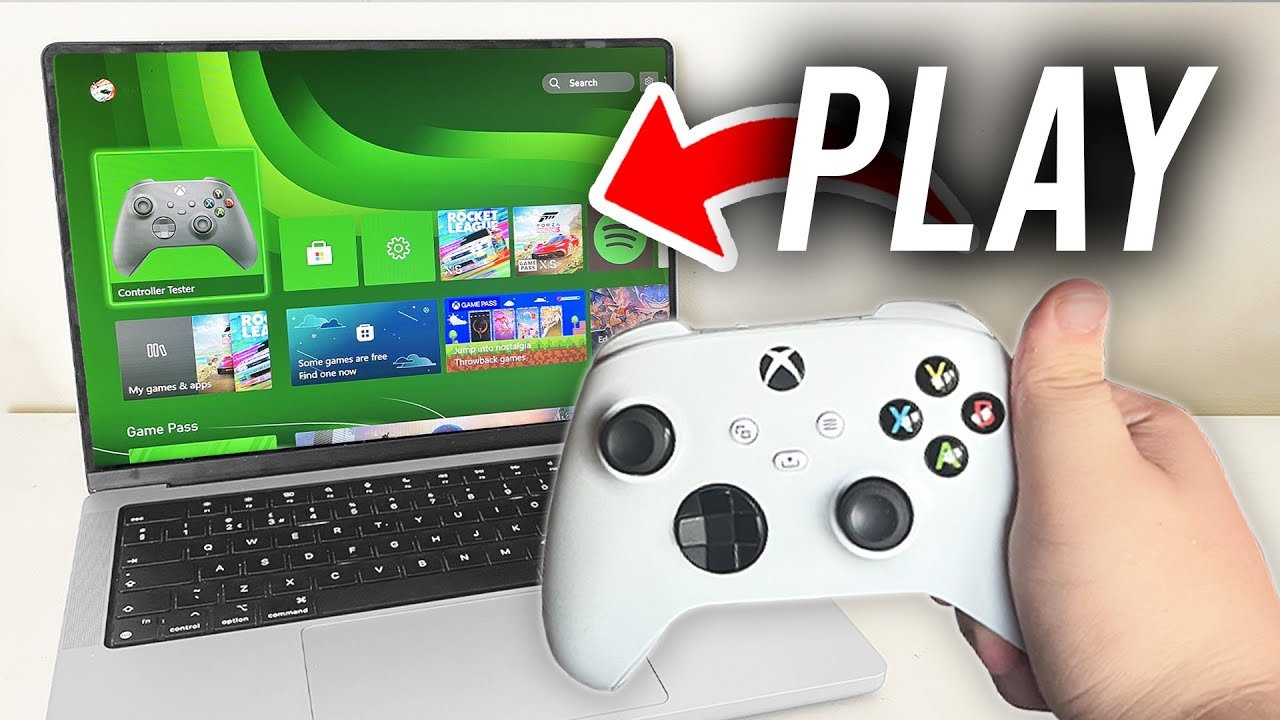
Playing console games on PC generally involves using emulators, which are software programs that mimic the hardware of specific consoles, and legally obtained game ROM files.
Ever wished you could play your favorite Playstation or Xbox titles on your computer? The desire to experience console-exclusive games on a more versatile platform is common. Luckily, achieving this is quite possible.
This article will guide you through the basic steps for understanding how to play console games on pc. We will explore the world of emulators and game ROMs. It is easy to start if you take a little time to understand how it works.

How to Play Console Games on PC
Want to play your favorite PlayStation, Xbox, or Nintendo games on your computer? It might seem like a magic trick, but it’s actually totally doable! Playing console games on your PC opens up a world of possibilities. You can enjoy better graphics, use your keyboard and mouse for some games, and even record your gameplay easily. Let’s explore the different ways you can bring your console gaming to your computer.
Emulation: A Digital Console on Your PC
One of the most popular ways to play console games on your PC is through emulation. Think of an emulator as a special program that makes your computer act like a console. It fools the game into thinking it’s running on its original system. You’ll need two things: the emulator program itself, and the game file, called a ROM. But where do you get these? That’s where things can get a bit tricky, so let’s dig in.
Finding Emulators
Emulators are usually free programs you can find online. Different emulators exist for different consoles. For example, you would use a different emulator for a Nintendo Switch game than for a PlayStation 2 game. A quick search online for “[Console name] emulator” should turn up several options. Be careful where you download them from! Always get them from a reputable source to avoid getting a virus.
- Popular Emulators:
- For Nintendo Switch: Ryujinx, Yuzu
- For PlayStation 2: PCSX2
- For PlayStation 3: RPCS3
- For Xbox: Xemu
- For Wii and Gamecube: Dolphin
Getting Game ROMs
This is where things get a bit more complicated. ROMs are digital copies of console games. Here’s the important part: you should only use ROMs for games you already own physically. Downloading games you don’t own is like shoplifting – it’s illegal and it hurts the people who make those games. If you do own a copy of the game, you can sometimes create a ROM using a special device or software, but this is a bit more advanced. If you’re unsure, it’s best to consult guides online.
Setting up the Emulator
Once you have the emulator downloaded, getting it set up usually involves following some instructions. Each emulator is different, but they often include a wizard or step-by-step guide. You may have to tell the emulator where to find your games. The best way to learn this is usually by following a tutorial specifically for the emulator you’ve chosen. Don’t worry, there are plenty of helpful guides on the internet, especially on YouTube.
Emulator Performance and System Requirements
Playing games on an emulator can be demanding for your PC. Games that push the limits of the original console might also push the limits of your computer. Make sure your PC meets the recommended system requirements of the emulator. If your computer is too old or slow, the games might run slowly or not at all.
- Things to consider:
- CPU (Central Processing Unit) – The brains of your computer, needs to be fast enough
- GPU (Graphics Processing Unit) – The video card for making things look pretty
- RAM (Random Access Memory) – Like a short-term memory bank for your computer
- Storage space – You need room to store the emulator, its files, and the games themselves.
Remote Play: Using Your Console’s Power
Another way to enjoy your console games on your computer is through remote play. This method uses your actual console to run the games and streams the video and audio to your PC. It’s like having your console in your living room, but seeing the games on your computer monitor. This is very helpful when someone else is using the TV or you simply want to play in a different room. Let’s break down how it works:
Setting Up Remote Play
Sony’s PlayStation and Microsoft’s Xbox both offer remote play features. You’ll need to install a special app on your computer. This app allows your PC to communicate with your console over your home network. You’ll usually log in to your console account through the app to connect them. Each console has a different setup, but here’s a general overview:
- PlayStation Remote Play:
- Download the PlayStation Remote Play app on your PC.
- Make sure your PlayStation is connected to the same network as your PC
- Log in with your PlayStation Network account.
- Select your console to begin remote play.
- Xbox Remote Play:
- Install the Xbox app on your Windows PC.
- Connect your Xbox to the same network as your PC.
- Log in with your Microsoft Account.
- Choose your console to play remotely.
Network Requirements for Remote Play
A smooth remote play experience depends on your network. Both your console and computer need to be connected to a fast and stable internet connection. Using a wired Ethernet connection is often better than Wi-Fi for remote play. You’ll notice lagging or lower video quality if your network is not strong enough.
Limitations of Remote Play
Remote play has its limits. You still need your console on and connected to the internet. It only works as long as your console is on. So you can’t play games that are only available on disc if the disc is not already in your console. Also, if your internet goes down, your gaming session is over. This is because the game is actually playing on the console, not your computer, so it needs the connection to send the picture to your screen and relay your button presses back.
Cloud Gaming: The Future of Play?
Another exciting way to play console-quality games on your PC is through cloud gaming services. These services host the games on powerful servers, and then stream the video to your device. It’s like watching a movie, but you get to control what’s happening. No need for a console, just a fast internet connection! Here are some of the popular options:
- Xbox Cloud Gaming:
- Part of the Xbox Game Pass Ultimate subscription, lets you play many Xbox games without installing them on your computer.
- Play on your PC through a web browser or the Xbox app.
- NVIDIA GeForce Now:
- Lets you stream many games you already own on platforms like Steam and Epic Games.
- Offers different membership tiers with varying performance and features.
- PlayStation Plus Premium:
- Part of a higher-tier PlayStation Plus subscription, lets you stream a selection of PlayStation games to your PC.
- Allows you to access a library of classics.
How Cloud Gaming Works
Cloud gaming is like remote play, but instead of connecting to your console, you’re connecting to a powerful computer in a data center somewhere. The game runs on that computer, and the video is sent to your screen. You can play the games as if they were installed on your PC.
Cloud Gaming Requirements
To play games via the cloud, you need a fast and stable internet connection. The faster your connection, the smoother and less laggy the gameplay will be. These services often recommend a minimum internet speed for a good experience. Make sure to check the service’s requirements. It is also recommended to use a wired connection, rather than wireless one, to minimize possible latency.
Benefits and Drawbacks of Cloud Gaming
Cloud gaming offers many great perks, but it also has some drawbacks. Here’s a quick look:
| Benefits | Drawbacks |
|---|---|
| No need to own a console. | Requires a very fast and stable internet connection. |
| Play high-end games even on a lower-powered PC. | Game choice is dependent on what the service offers. |
| Access a vast catalog of games. | Monthly subscription costs can add up. |
| Play your games on multiple devices. | Your game play depends on the server’s speed and stability. |
Controller Support: Using Your Favorite Gamepad
Whether you are emulating a game or streaming it, you want to use the correct controller for the best experience. Many games, especially console ports, play better with a gamepad. The good news is that your PC will often work with different types of controllers.
Connecting Console Controllers to Your PC
Most console controllers can connect to your PC either by using Bluetooth or a USB cable. Here are a few steps:
- PlayStation DualSense/DualShock Controllers:
- Bluetooth: Put the controller into pairing mode, and search for it in your PC’s Bluetooth settings.
- USB: Plug it directly into your PC with a USB cable.
- Xbox Controllers:
- Bluetooth: Use your PC’s Bluetooth settings to pair.
- USB: Plug in via a USB cable.
- Xbox Wireless Adapter: You can also connect via a dedicated Xbox Wireless Adapter for a more robust wireless signal.
- Nintendo Switch Pro Controller:
- Bluetooth: You can pair it in Bluetooth settings.
- USB: Can be connected through a USB cable.
Using Third-Party Controllers
Besides console controllers, many third-party controllers are designed to work with PCs. Some controllers have even been designed with specific games in mind. If you are not a fan of the official controller, there are many other options you can use. Some controllers are very similar to console controllers, while others can offer a more customized experience.
Enhancing Your PC Gaming Experience
Playing console games on your PC can actually allow you to make your experience better. With a PC you have access to different settings and options you might not have had on the console.
Graphics and Performance Settings
One of the benefits of playing games on a PC is the ability to adjust settings. If you use an emulator, you can change many options, including resolution and visual effects. You can also adjust these settings if you are playing via cloud gaming, or through remote play. When you play with settings you can balance graphics, frame rate, and other aspects for the optimal gaming experience. Playing with settings is useful if your PC is not as powerful, or if you have a very powerful PC and want the best visuals possible.
Customizing Control Schemes
Many console games play well with controllers, but you can usually use a keyboard and mouse if you want. Some games have better keyboard and mouse support than others. If you are using an emulator, many of them offer ways to change how your controller is mapped. You can change buttons or remap them to your keyboard. You can adjust your control scheme for your perfect gaming experience.
Recording and Streaming Your Gameplay
PCs are great for recording and streaming your gameplay. There are many free or paid programs that can record your screen and even add a webcam or microphone if you want. If you are playing on an emulator, you will be able to record with software available on your PC, making the experience easy. Many streaming services offer easy-to-use tools, too, to help you share your gameplay with friends, family, or even the entire world.
Playing console games on your PC can feel like a step forward into a new world of gaming. Whether you chose to emulate games, play through remote-play or via a cloud service, there are many ways to enjoy console titles on your computer. Take the time to experiment with settings and enjoy the experience of your favorite console games on your PC. Now you have more control over your game experience and how you play.
How to Play Console Games on PC
Final Thoughts
You can play console games on PC through emulation, requiring a suitable emulator and game ROMs. Another method involves remote play; use your console’s app to play on your PC via the internet. This way you can enjoy your favorite console titles.
Consider game compatibility and your PC’s performance capabilities before you start. These two methods effectively show you how to play console games on pc. Choose the option which suits your technical abilities.

