
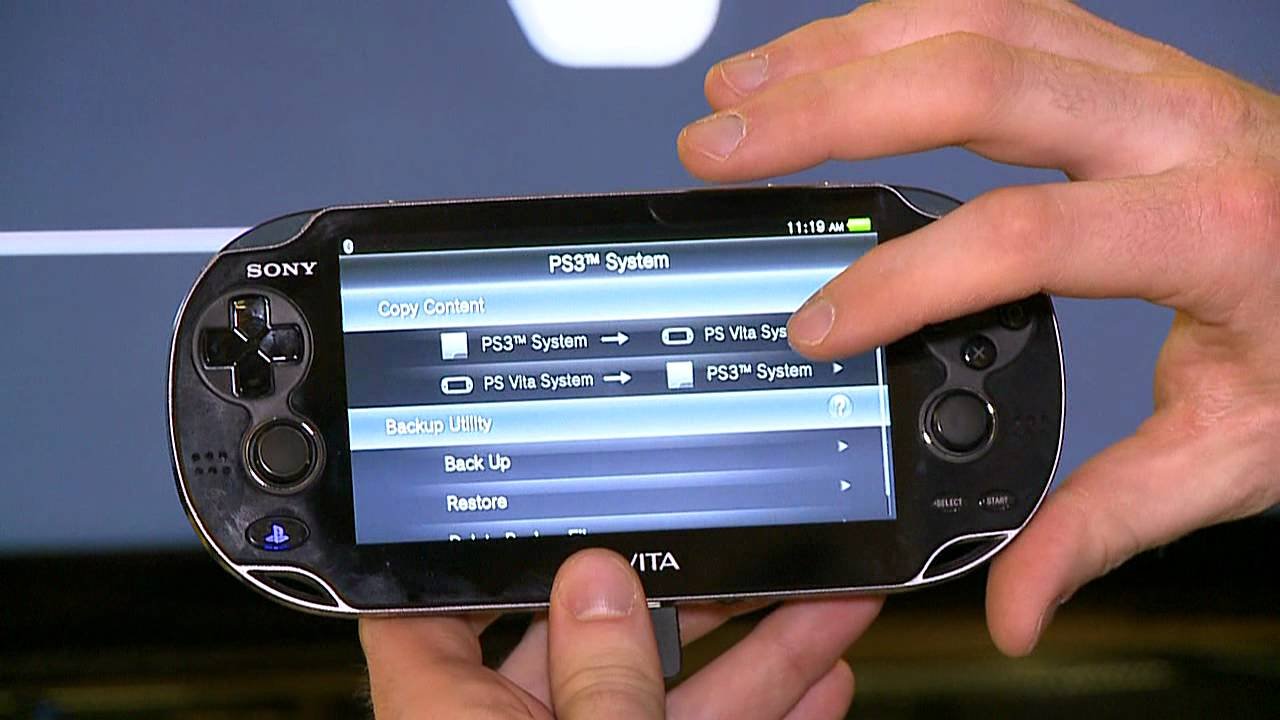
Playing PSP games on PS Vita requires purchasing them digitally from the PlayStation Store, then downloading them directly to your Vita.
Ever wondered how to play psp games on ps vita? The process isn’t as complex as you might think. Sony made it fairly straightforward for Vita owners to enjoy their favorite PSP titles.
Basically, you need to get your games through the digital store. Then, with a few taps, you can start playing those PSP classics. It’s a great way to revisit those older games on a modern handheld.

How to Play PSP Games on PS Vita
So, you’ve got a shiny PlayStation Vita, and you’re itching to play some of those classic PSP games you remember fondly? Well, you’re in luck! The PS Vita is actually quite amazing at playing PSP games. It’s not as simple as popping in a disc, but it’s absolutely possible and pretty cool once you get the hang of it. This article will walk you through all the different ways you can enjoy your PSP favorites on your PS Vita. We will explain the details in an easy-to-understand manner, so you can start playing in no time.
Understanding the PS Vita and PSP Compatibility
First, let’s talk about why this even works. The PS Vita is the successor to the PSP, made by the same company, Sony. Because they’re related, the PS Vita has some built-in features that let it play PSP games. Think of it like your older brother letting you play with some of his old toys. The PS Vita can play digital versions of many PSP games, but it doesn’t use the old PSP game cartridges.
Digital Downloads: The Main Way to Play
The primary way to play PSP games on your PS Vita is through the PlayStation Store. This is the online shop on your PS Vita where you can buy and download games. Many classic PSP titles are available for purchase here, often at reasonable prices. Once you buy a game, it’s linked to your PlayStation Network account, and you can download it directly to your PS Vita.
How to Find and Download PSP Games
Here’s the step-by-step process to find and download PSP games from the PlayStation Store:
- Turn on your PS Vita and make sure it’s connected to the internet.
- Go to the PlayStation Store icon on the home screen. It looks like a shopping bag.
- Tap on the search bar at the top. This looks like a magnifying glass.
- Type in the name of the PSP game you’re looking for. If you don’t know the exact name, try a keyword or part of it.
- Look through the search results. PSP games are usually marked clearly with “PSP” or “PlayStation Portable” in their title or description.
- Select the game you want.
- Tap the “Purchase” button, if you don’t already own it. You’ll need to use a payment method connected to your account.
- Tap the “Download” button after you buy the game. The game will start to download to your PS Vita. You can check on its download progress in the Notifications tab.
- Once downloaded the game will be ready to play on your PS Vita’s Live Area screen.
Remember that not every PSP game is available on the PlayStation Store. Some titles may not be compatible, or simply haven’t been made available for digital download. It’s always a good idea to check the store first to see if the game you want is there.
Using PlayStation Network Account
Your PlayStation Network account is crucial for playing PSP games on the PS Vita. All of the games you buy are linked to this account, and without it, you won’t be able to download them. If you don’t already have one, you’ll need to create a PlayStation Network account. Here’s what you need to know.
Creating an Account
Setting up a PlayStation Network account is simple.
- Turn on your PS Vita and make sure it’s connected to the internet.
- Go to “Settings”. This is usually an icon that looks like a toolbox or gear.
- Scroll down to “PlayStation Network”.
- Select “Sign Up”, if you don’t already have an account. If you have an account already, select sign-in and then enter your credentials.
- Follow the on-screen instructions to create your account. This will involve entering your email address, date of birth, country, and creating a password.
- Verify your account. You’ll likely need to verify your email address. Just follow the instructions given in the email sent to you by PlayStation.
Once you’ve finished setting up your account, you’ll be able to log in and start using the PlayStation store and other features.
Managing Your Digital Library
All your bought PSP games get stored to your digital library. This means you can always download them again on your PS Vita if you need to. This is how you manage your digital library.
- Go to PlayStation Store on the home screen of your PS Vita.
- Find the three dots (…) button located at bottom right corner.
- Tap on “Download List”.
- Look through your list of purchased game to download and install.
Understanding Compatibility and Limitations
While the PS Vita does a pretty great job of playing PSP games, it’s not perfect. Here are some important things to keep in mind.
Not All PSP Games are Compatible
Unfortunately, not every single PSP game works on the PS Vita. This is because the PS Vita uses emulation software to run PSP games. The emulator does not always play every game without any flaws. While a good portion of the library is available, some titles might be missing or not play perfectly. This is typically due to compatibility issues. Some games may experience glitches, slower loading times, or just plain won’t work.
Region Locking
Like the PSP, the PS Vita also has region restrictions. This means that if you buy a PSP game from a store in a region different from your PSN account, that game might not be available for download or play on your Vita. For example, if you have a European PSN account, it may not be able to access or download games from the US PSN store. The safest bet is to stick to buying digital games in your region.
No Physical PSP Cartridges
One of the biggest differences is that the PS Vita does not have a way to play physical PSP game cartridges. This means that you can’t simply insert your old PSP game cartridges to play them on your PS Vita. The PS Vita is designed for digital downloads from the store. However, that also means your games are always ready to download from your account, and you won’t risk losing them.
Save Data Issues
Sometimes your PSP game saves may not work perfectly. This can be an issue if you’re trying to move save files from an actual PSP to a Vita. The digital copy saves the game differently, and this may make it hard to transfer. However, most of the time, save data works great. Generally, you can start new games without any problem.
Tips for a Better PSP Gaming Experience on PS Vita
Now that you understand the basics, here are some extra tips for getting the best experience when playing PSP games on your PS Vita.
Screen Settings
PSP games were designed for a smaller screen resolution. When playing these games on the Vita, they might not fit perfectly on the full screen. You can change how the image is displayed for a more comfortable experience.
Screen Display Options
Here’s how to tweak those settings:
- Start a PSP game on your PS Vita.
- Tap and hold on the Vita screen. This will open the setting menu.
- Look for display options. The menus may vary depending on the game, but you should be able to see some scaling settings.
- Choose between modes like Original Size, Full Screen, or Custom Settings. Full Screen stretches the image to the full screen of Vita. Original Size shows it at the original aspect ratio of the PSP, creating black bars on the sides. Use what looks best for your game and preference.
Sound Options
You can also adjust the sound settings for some PSP games. This can make the music or sound effects sound clearer. These adjustments are in the same menu as the screen settings described above.
Adjusting Audio
Here’s a quick look at where you can find these:
- Open the Settings Menu by tapping and holding the touch screen in a PSP game
- Look for sound options. Here, you might be able to adjust audio modes, volume, and other specific sound setting.
- Experiment with different modes until you find what you like.
Using Headphones
If you have a pair of headphones or earbuds, they will greatly enhance the experience. Using headphones helps you immerse yourself in the games. It can also help if you’re playing in a noisy place. Any standard 3.5mm jack headphones or Bluetooth headphones will work with the PS Vita.
PS Vita Battery Life
Playing games, especially older games, can drain your battery. So, if you are planning a long gaming session, keep a charger nearby. You might also want to adjust the screen brightness to save battery. If you do, it is best to keep the brightness as low as you can and also see the game comfortably.
Using PSP Themes
You can actually change the way your PS Vita looks, like setting up the home screen wallpaper. Some special themes are designed with PSP theme images and icons. This might just add an additional touch of nostalgia to your PSP gaming experience.
PSP Remasters and Enhancements on PS Vita
Some PSP games received special treatment and were remastered with improved graphics and additional content. These games often offer better visuals and other added features. They’re worth looking for when browsing the PlayStation Store.
What are Remasters?
Remasters are upgraded versions of original games. These can feature better graphics, cleaner textures, and sometimes even added content or game modes. If you see a PSP game that has “Remastered” in its name, there’s a good chance it will look much better on your PS Vita screen.
Where to Find Remastered Games
Remastered games are often mixed with the standard PSP games on the store. You can identify them by the word “Remastered” in the title. If you have a game in mind, try searching with the “remastered” keyword to see if it’s available.
Troubleshooting Common Issues
Even though it is simple, sometimes you may run into an issue. Here are some of the common issues with playing PSP games on a PS Vita and how you can fix them.
Game Won’t Download
If a game refuses to download, the problem usually has to do with internet connectivity, or that the game is not supported in your region. If the internet isn’t the issue, verify that the game is downloadable in your region.
- Check your Wi-Fi connection: Make sure you have a stable internet connection.
- Restart your PS Vita: Turn it off and on again. Sometimes that can work.
- Check storage: Verify that you have enough space for the game on your memory card.
- Check for downloads in progress: Make sure it is not still downloading, or stuck in queue.
- Verify the region: Your game region should match with the PSN account region.
Game Won’t Start or Crashes
If a game starts but then crashes or won’t start at all, it might be due to a glitch in the software. Try these steps:
- Restart the Game: Exit the game and try to restart it.
- Restart your PS Vita: Sometimes restarting the system will help resolve software glitches.
- Check for system updates: Install the latest updates to PS Vita, it may fix a compatibility bug.
- Delete and redownload: If all else fails, delete the game from your PS Vita and download it again.
Slow Performance
If a game seems to run slower than it should, this might have to do with how the emulation is working. Here are a few things to try:
- Restart PS Vita: Reboot your PS Vita as this can sometimes help free up memory.
- Close Other Apps: Make sure you are not running several apps in the background.
- Screen Settings: Try changing the display settings to original size to see if the game performs better.
Sound Problems
If the game has no sound or the sound glitches or is otherwise messed up, try these things:
- Check Volume: Make sure your volume is turned up and not on mute.
- Restart the Game: Exit the game and then launch it again.
- Check your headphone jack: If you use headphones, check to see if there is a problem with the connection or with the headphones themselves.
If you try all of the above and the issues persists, contacting the official Playstation support can help in some situations.
Playing PSP games on the PS Vita is a great way to enjoy your favorite classics on a modern handheld system. With the PlayStation Store, you have many options for downloading games, and there are many ways to customize your gaming experience. Now you should be ready to play all those classic games that you remember from your childhood.
Play PSP & PS1 Games On Your Vita With Adrenaline
Final Thoughts
To play PSP games on your PS Vita, simply download them from the PlayStation Store. Your purchased PSP titles are readily available for download. This provides a convenient way to enjoy your classic games.
The process is straightforward; navigate the store, find your games, and download. The PS Vita acts as a fantastic portable device. This feature ensures you can continue enjoying PSP gaming. This is how to play psp games on ps vita.

