
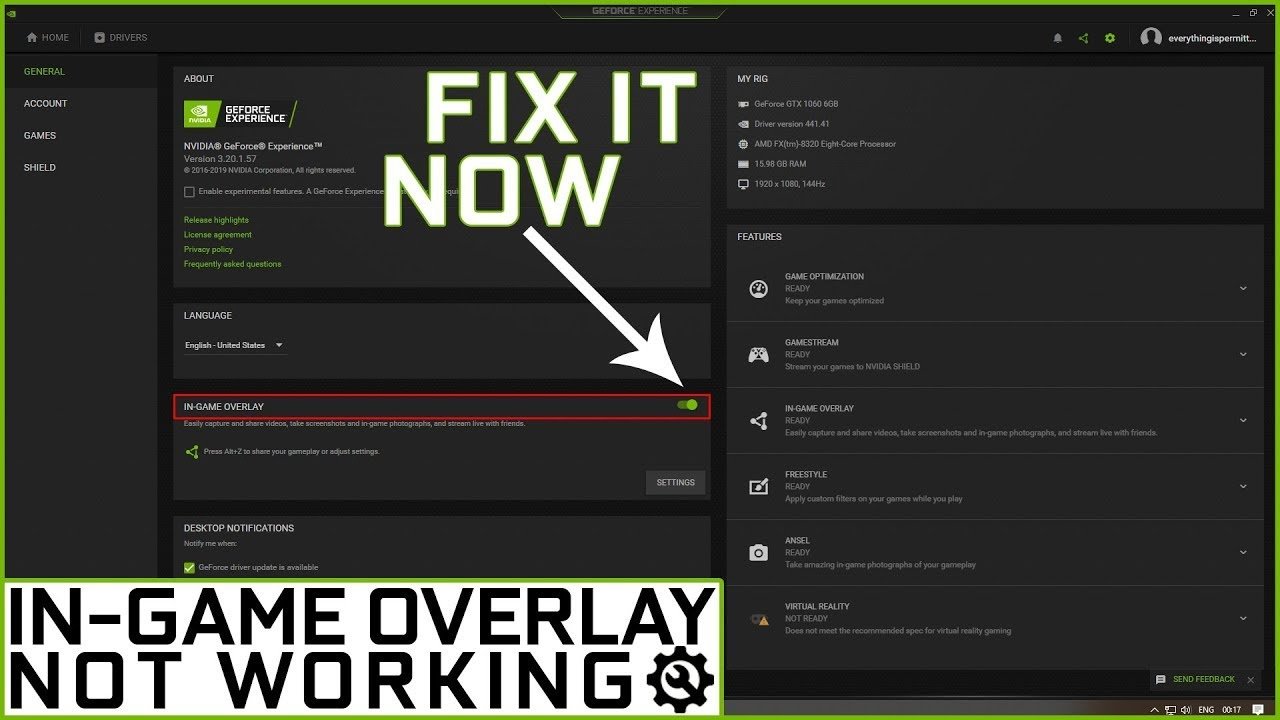
To fix the in-game overlay GeForce, try restarting the GeForce Experience app, checking for updates, ensuring the overlay is enabled in settings, or verifying game compatibility.
Is your GeForce in-game overlay not working as expected? It can be frustrating when you want to record a clip or quickly change settings while playing. Many gamers face this issue, but thankfully, there are several simple solutions. Let’s explore how to fix in game overlay geforce problems.
This overlay is a helpful tool, so we want it running smoothly. I’ll guide you through a few common fixes to get it working again. You’ll be back to recording amazing gameplay soon.

How to Fix In-Game Overlay GeForce
Having trouble with your GeForce Experience in-game overlay? It’s super annoying when you can’t record that awesome gameplay moment or adjust settings mid-game. Don’t worry; you’re not alone! Many gamers face this issue, and luckily, there are several ways to tackle it. Let’s dive into the common problems and how you can fix them, making sure you can use that handy overlay again.
Understanding the GeForce Experience Overlay
Before we start fixing, let’s talk a little about what the GeForce Experience overlay actually does. This neat tool lets you do lots of cool things while you’re playing games. Think of it as a control panel you can access without leaving your game. You can:
- Record your gameplay footage and take screenshots
- Broadcast your gameplay live on Twitch or YouTube
- Change game settings like graphics or frame rate
- Check your system performance
- Access NVIDIA Freestyle filters to change how the game looks
When it’s working well, it’s a great feature. But when it’s not, it can be a real pain. So, let’s get this fixed!
Common Reasons Why the Overlay Might Not Work
Several things can cause the GeForce in-game overlay to stop working. Here are some of the most common culprits:
Outdated NVIDIA Drivers
Just like a car needs regular maintenance, your graphics card needs updated drivers. Outdated drivers are often a primary cause for problems with the overlay. Think of them as the language your graphics card and your computer use to talk to each other. If that language is outdated, miscommunication can happen. This means the overlay doesn’t know what to do.
How to Check for Driver Updates:
- Open the GeForce Experience app. You can usually find this by searching for it in the Windows search bar.
- Click on the “Drivers” tab at the top.
- Click the “Check for Updates” button.
- If an update is available, click “Download.”
- Once downloaded, follow the on-screen prompts to install the new driver.
Make sure to restart your computer after updating. It’s a good idea to keep those drivers updated regularly to avoid issues in the future. Remember, latest drivers are important for performance and smooth running.
Conflicting Applications
Sometimes, other programs running on your computer can clash with the GeForce Experience overlay. These are usually other programs that also want to control your game or monitor your system. These kinds of conflicts often happen, especially if you have other overlays running from different apps.
Examples of Conflicting Apps:
- Discord Overlay
- Steam Overlay
- MSI Afterburner
- RivaTuner Statistics Server (RTSS)
- Other screen recording or streaming programs
How to Disable Conflicting Applications:
- Close each application one by one.
- Test the overlay after closing each app.
- If the overlay works after closing a particular program, that’s your culprit!
- If the overlay starts working then you can try disabling the overlay of the conflicted program, instead of closing the program.
Incorrect Overlay Settings
Sometimes, the overlay itself might be disabled in the GeForce Experience settings. It’s an easy thing to overlook. Double-checking the settings is always a good idea, because sometimes the settings can change unintentionally.
How to Check Overlay Settings:
- Open the GeForce Experience app.
- Click on the “Settings” icon (it looks like a gear).
- Go to the “General” tab.
- Look for “In-Game Overlay” and make sure the toggle is switched on.
Even if the toggle is switched on, try toggling it off and back on again. Sometimes, this simple action can kickstart the overlay.
Game Compatibility Issues
Although GeForce Experience overlay works with most games, there might be a few exceptions. Some older games or those with very specific rendering techniques might not play nicely with the overlay. It’s kind of like trying to fit a square peg in a round hole – it just doesn’t work.
How to Check Game Compatibility
- Try the overlay with a few different games you have. If it works with some but not others, that points to a compatibility issue with those specific games.
- Check online forums or communities dedicated to the specific game where you are having issues. Other users might have found workarounds or can confirm if they are also having the same issue.
If it seems like incompatibility is the issue, there’s unfortunately not much you can do other than not use the overlay for that particular game.
Windows Compatibility Problems
Sometimes Windows itself can cause problems with the overlay, such as incorrect permissions or settings issues within the operating system, that may make the overlay not work correctly.
How to address Windows compatibility issues
- Run the GeForce Experience as administrator. Sometimes this gives the program necessary permissions. To do this right click the GeForce Experience icon and select “Run as administrator”.
- Make sure windows is updated to the latest version.
- Check Windows firewall settings and make sure that the GeForce experience is allowed through the firewall.
- Perform a clean boot. Sometimes some startup programs are the culprits. If the overlay works in clean boot then you can slowly enable startup programs one by one to see which program is causing the issue.
Step-by-Step Troubleshooting Guide
Okay, now that you know the common reasons, let’s get down to fixing it. Here is a step-by-step guide, so it is easier for you to do it correctly, to follow along and hopefully get your in-game overlay running smoothly again.
Restart Your Computer
The first thing you should always do is restart your computer. It may seem simple, but this can often resolve minor glitches and problems. Sometimes a program or system setting gets stuck and a restart can be a quick way to reset everything.
Update NVIDIA Drivers (Again!)
We’ve already discussed driver updates, but it’s so important that it’s worth mentioning again. Make sure that your drivers are completely up-to-date. Sometimes a partial or interrupted driver update can cause problems. Check for updates using the steps mentioned earlier, and if necessary, try manually downloading the latest drivers directly from the NVIDIA website. When manually installing drivers, it is often better to perform a “clean install”, as this can fix many installation issues.
How to Perform a Clean Install
- Download the latest driver from NVIDIA’s website
- Run the installer
- When the options are presented select “Custom (Advanced)”
- Check the “Perform a clean installation” option.
Disable Conflicting Overlays
As previously discussed, other programs’ overlays can interfere with the GeForce Experience overlay. To avoid this, you can disable them. Follow the steps mentioned above to identify and disable these conflicting programs.
Enable the GeForce Overlay
Make sure the in-game overlay setting is enabled in the GeForce Experience app. Go to settings, the general tab and turn the switch on if it’s off. Even if it looks like it’s on try turning it off then back on.
Run GeForce Experience as Administrator
Sometimes, running the app with administrative rights can fix permission issues. To do this, right-click on the GeForce Experience icon and select “Run as administrator”. This will make sure that the program has full access to do what it needs to do. If this works, make sure to run it as administrator every time.
Reinstall GeForce Experience
If the previous steps didn’t work, try uninstalling and then reinstalling the GeForce Experience application. Sometimes, some of the core files get corrupt or something gets installed incorrectly, so a reinstall can fix these issues. This will give you a fresh install.
How to Reinstall GeForce Experience
- Close the GeForce Experience app completely.
- Go to “Add or remove programs” in Windows settings.
- Find “NVIDIA GeForce Experience” and click on it, then select “Uninstall.”
- Follow the on-screen prompts to complete the uninstallation.
- Go to the NVIDIA website and download the latest version of GeForce Experience.
- Run the installer and follow the on-screen instructions to complete the reinstallation.
Check Game Compatibility
If the overlay only refuses to work with some games, check the game specific compatibility guides and forums.
Check Windows Settings and Updates
Make sure windows is up to date and if that doesn’t fix it, check the Windows Firewall, to make sure the GeForce experience isn’t being blocked. Try also a clean boot to check for conflicts with other startup programs.
Contact NVIDIA Support
If you have tried everything and are still facing issues with the overlay then it may be time to contact NVIDIA’s support. They can provide more specific advice and help based on your particular setup and issues. Before contacting them, make sure you have tried all the troubleshooting steps and write down a list of these steps and their results before reaching out to support. This will help NVIDIA’s technical support to give you the best possible assistance.
Additional Tips and Tricks
Here are a few extra tips that might help you keep the in-game overlay working smoothly:
- Keep your system clean: Regularly clean up temporary files and unused programs. This can help prevent conflicts and improve overall system performance, which in turn can help the overlay work better.
- Run a virus scan: Malware and viruses can sometimes cause program conflicts and other issues. It’s always a good idea to run a full virus scan to make sure your system is clean.
- Check your hardware: In some cases, hardware issues such as a faulty graphics card can cause problems. If you suspect a hardware problem, you may need to get your computer checked by a professional.
Following these steps can greatly improve your chance of getting your GeForce Experience in-game overlay working properly. Remember to take your time with each step, and test the overlay after you have completed each fix. It is also important to do each step correctly to avoid making things worse. Having to repeat a fix later on can be avoided, by being patient and working methodically.
Hopefully, now your in-game overlay is working perfectly, letting you record your best gaming moments, fine-tune settings and use all the other cool features it provides. Remember to keep your drivers updated and be mindful of other applications that might conflict with the GeForce Experience. If you keep these things in mind, you should avoid most future problems.
How to Fix Geforce Experience Alt + Z Overlay Not Working 2023
Final Thoughts
To fix the GeForce in-game overlay, restart the application. Also, check for driver updates and install them if needed. Sometimes, conflicting software can cause issues, try disabling other overlays.
Ensuring the overlay is enabled within GeForce Experience settings is important. You might need to run the game and GeForce as administrator. This can often resolve the problem of how to fix in game overlay geforce.

