
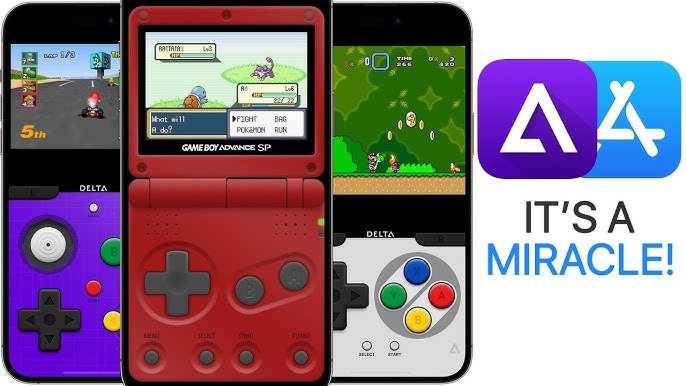
To play DS games on Delta iOS, you need to obtain a DS BIOS file and DS game ROMs, import them into the Delta emulator, and then configure your controls.
Have you ever wished you could relive those classic Nintendo DS gaming moments right on your iPhone? The good news is, you absolutely can! Many users want to know how to play DS games on delta ios, and the process is straightforward once you understand the steps.
With the right emulator setup, your iOS device becomes a portal to your favorite handheld titles. This is possible thanks to Delta, a powerful emulator capable of running DS games.

How to Play DS Games on Delta iOS
So, you love playing Nintendo DS games, but you don’t always have your DS with you? That’s totally understandable! Maybe you’re on the bus, waiting at the doctor’s office, or just chilling at home, and you get that urge to dive into a classic like “Mario Kart DS” or “Pokémon Diamond”. The good news is, you can actually play those amazing games on your iPhone or iPad using an emulator called Delta! It’s like having a DS inside your iOS device. Let’s explore how to make this happen.
Understanding Emulators and Delta
Before we jump into the steps, it’s good to know what an emulator actually is. Think of it as a special program that makes your iPhone or iPad act like a Nintendo DS. It pretends to be a DS so it can run the games. Delta is one of these emulator programs, and it’s a really popular choice for iOS users. It’s well-made, easy to use, and supports different types of games, including Nintendo DS ones.
It’s also important to note that you’ll need to have game files (ROMs) for the DS games you want to play. You can’t just download a game from the App Store like you normally would. We will get into the specifics of obtaining these files later. Just keep in mind that owning the original game is legally necessary to download a ROM.
Getting Delta on Your iPhone or iPad
Now, let’s talk about how to get Delta onto your iOS device. Since Delta isn’t on the regular App Store, we need to use a different method called sideloading. Sideloading is essentially installing an app from outside of the official app store. There are several ways to sideload, let’s go over the most common and easiest methods.
Using AltStore for Sideloading
AltStore is a popular way to sideload apps onto iOS devices. It works by utilizing a feature intended for developers, making it a safe method. Here’s how to get Delta using AltStore:
- Download AltServer: First, you need to download AltServer on your computer. You can find it on the official AltStore website. Be sure to download the version compatible with your operating system (Windows or macOS).
- Install AltServer: Once downloaded, follow the installation instructions for your computer. This process will depend on your OS, but it’s typically straightforward.
- Install AltStore to iOS: Connect your iPhone or iPad to your computer via USB. Then, open AltServer on your computer. There will be an option to install AltStore onto your connected iOS device. Click it, and follow any instructions that pop up. You may need to enter your Apple ID and password.
- Trust the Developer: After installation, you’ll need to go to Settings > General > Device Management (or Profiles & Device Management) on your iPhone or iPad. Find your Apple ID and “trust” it.
- Get Delta: Open AltStore on your iOS device. Go to the “Browse” tab, find Delta, and tap “Free.” The app will download and install onto your device.
- Refresh Apps (Important): To keep your sideloaded apps working, you’ll need to refresh them every 7 days using AltStore. Make sure your computer and iOS device are on the same Wi-Fi network for this process.
Using a Third-Party App Store (Like AppValley or Scarlet)
Another way to sideload Delta is by using a third-party app store. These stores host applications not found on the official app store, including Delta. Be aware that third-party methods can sometimes be less stable or less secure. Do your research on a specific store and its reputation before using. Here’s the general process:
- Choose a Third-Party Store: AppValley and Scarlet are two examples. Do your research to make sure it’s a reliable app store.
- Install the Store: Follow the instructions on the store’s website to install it onto your device. This usually involves going to their website on Safari, and trusting the downloaded profile.
- Search for Delta: Open the third-party store and use the search bar to look for “Delta.”
- Download and Install: Select Delta from the search results and tap the install button. Follow any instructions to allow the app to be installed.
- Trust the Profile: You will likely need to go to your device’s Settings > General > Profiles & Device Management to “trust” the profile associated with the app store or the Delta app, similar to the AltStore method.
Again, remember to be cautious when using third-party app stores and understand the risks involved before proceeding. Some may have pop-up ads, for instance.
Finding and Adding DS Game ROMs
Okay, so you have Delta installed. The next step is adding the actual games. As I mentioned earlier, these are called ROMs. These files contain the information needed for Delta to run the game.
It’s important to say this again: You should only download game ROMs of games that you legally own. Sharing or downloading ROMs of games you do not own can be an infringement of the game’s copyright.
Searching for Game ROMs
Finding the ROMs is sometimes the trickiest part. You can search on the internet for phrases like “[game name] DS ROM,” but be careful where you download from. Some websites can contain viruses or other unwanted software. Make sure to use a reliable source. Some forums dedicated to retro gaming communities may have safe download locations.
How to Add ROMs to Delta
Now you have your game ROMs, usually these come in the .nds file format, it’s time to get them into Delta. Here’s how to do that:
- Get the ROM onto Your Device: The easiest way to do this is usually by transferring it to your device using iCloud Drive, Google Drive, or Dropbox on your computer, and then downloading it via the corresponding app on your iOS device. You can also use the “Files” app on iOS to move it between your device and cloud storage.
- Open Delta: Open the Delta app on your iPhone or iPad.
- Add Game: Tap the “+” button (often located in the upper corner of the screen). Delta should open your Files app for you.
- Find and Select: Navigate to where you saved the ROM file and tap it. Delta will add the game to your library, where it will be playable.
- Play the Game: Tap on the game to start playing.
Configuring Delta for the Best DS Gaming Experience
Once your games are loaded, it’s time to dive in! But, there are some settings you can tweak in Delta to make the experience even better.
Screen Layout
DS games used two screens. Delta will show both screens on your phone screen. You can adjust how these screens are presented in the “Settings” of Delta. You can select if you want the screens to be side-by-side, one above the other, or you can even switch between the screens using a button.
Controller Options
Delta allows for a few ways to control the game. You can use on-screen virtual buttons, or you can pair a Bluetooth controller. A controller like an Xbox or PlayStation controller can make playing more comfortable and responsive.
Saving and Loading Game Progress
Just like a real DS, you can save and load your progress in the game. Delta usually uses save states, which allow you to save the game at any point. Remember to save often so you don’t lose any game progress! It’s usually a menu option in the Delta interface or by using a long-press on the screen.
Troubleshooting Common Delta Issues
Sometimes, things might not go perfectly. Here are some common issues you might encounter and ways to resolve them:
App Crashes or Freezing
- Restart Delta: First, try closing the app completely and reopening it.
- Reinstall Delta: If that doesn’t work, try deleting the app and reinstalling it.
- Check for Updates: Make sure you are using the latest version of Delta by refreshing your apps if you use AltStore, or downloading a new version of Delta if using a 3rd party store.
- iOS Version: Sometimes crashes are caused by conflicts with your iOS version. If you have a very old version, consider updating it.
Game Not Loading
- ROM File Check: Confirm that the ROM file is working properly and isn’t corrupted. Try downloading a different version of the same ROM.
- Emulator Support: Make sure that the game is supported by Delta. Most common games will work just fine.
- Rename Your ROM: Sometimes the ROM may not be loading properly. Rename your ROM, and try again to load it on Delta.
Slow Game Play
- Background Apps: Close any other apps running in the background.
- Device Performance: Older iPhones and iPads might struggle with emulation. Some games are more intensive than others.
- Delta Settings: Try experimenting with the settings in Delta to see if the performance can be improved.
Controller Issues
- Bluetooth Connection: Make sure that your Bluetooth controller is properly paired to your device.
- Battery Level: Ensure that your controller’s battery is charged.
- Delta Settings: Double check the controller settings inside the Delta app.
Tips for the Best Gaming
Here are a few extra tips to make playing DS games on Delta even more enjoyable:
- Use Headphones: Headphones make the game sound better and more immersive.
- Screen Protector: Having a screen protector on your iOS device can help prevent scratches when using the touch controls.
- Save Often: Use Delta’s save states often so you can easily pick up where you left off.
- Explore Settings: Don’t be afraid to explore all the different settings in Delta. You can adjust things like the speed of the game, audio, and more.
- Find a Good Controller: If you’re serious about playing DS games on your iOS device, a quality Bluetooth controller is a worthwhile investment.
Playing Nintendo DS games on your iPhone or iPad with Delta is a really neat way to enjoy classic games on the go. Even though it takes a little bit of effort to set up, the feeling of having a full DS library in your pocket makes it all worth it. Just remember to only download ROMs of games you own and to be cautious when using third party app stores.
How to Play ANY Retro Game on iPhone! (Delta Emulator)
Final Thoughts
To play DS games on Delta iOS, you first need to install the Delta emulator. Then, obtain DS game ROMs which is a must. Import these ROMs into Delta, and you can begin playing right away.
The emulator offers various features, such as customizable controls and save states. This makes how to play ds games on delta ios enjoyable and convenient. Explore different settings to optimize your gaming experience.

