
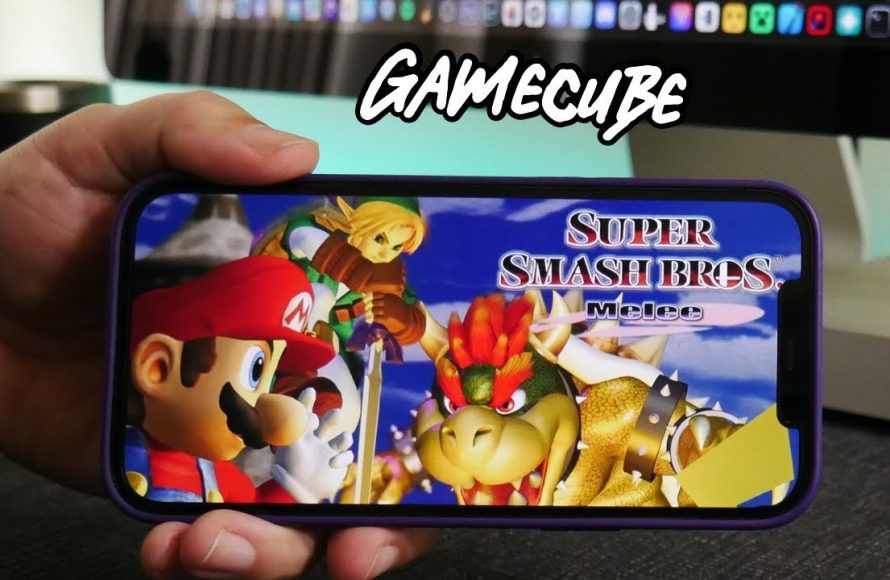
Playing GameCube games on an iPhone requires using a third-party emulator application and legally obtained game ROM files.
Ever dreamt of playing those classic GameCube titles on your phone? Well, that dream can become reality. Many people are curious about how to play GameCube games on iPhone. It’s not as straightforward as downloading an app from the App Store but is definitely achievable with the right methods.
The process involves finding a suitable emulator and game files, both requiring careful research. You’ll need to explore options outside the official App Store. Be aware that this process may require some technical know-how and care to avoid any potential security issues.

How to Play GameCube Games on iPhone
Ready to play your favorite GameCube games on your iPhone? It might sound like a dream, but it’s totally possible! While Nintendo hasn’t officially released GameCube games for iPhones, we can use special tools called emulators to get the job done. It’s like having a GameCube right in your pocket! This guide will walk you through everything you need to know to experience classic GameCube adventures on your iPhone.
Understanding Emulation
Before we jump in, let’s talk about emulation. Emulation is like pretending to be a different machine. In our case, we’re using software to make your iPhone act like a GameCube. This software, called an emulator, lets you run GameCube game files, known as ROMs or ISOs. Think of it as a translator, allowing your iPhone to understand and play GameCube games.
What is a GameCube Emulator?
A GameCube emulator is a special program designed to recreate the environment of a GameCube console on your iPhone. It interprets the game’s instructions and translates them into something your phone’s hardware can understand. This lets you play games designed for the GameCube, right on your smartphone screen. Emulators make it possible to experience these games in a new way, on a different device. These tools are essential if you wish to play GameCube games on your iPhone.
Where do GameCube ROMs/ISOs come from?
GameCube ROMs or ISOs are digital copies of your actual GameCube game discs. Think of them like a backup of your game, but in a file format that an emulator can use. It’s important to remember that downloading ROMs of games you don’t own is generally against copyright laws. So, to be safe and follow the rules, you should only use ROMs of games that you already have a physical copy of. You can make your own backups from your original game discs. This will allow you to legally play your games on your iPhone.
Preparing Your iPhone
Getting ready to play GameCube games on your iPhone isn’t too tough, but there are a few things you’ll need to do before we start. This section covers everything you need to know to get your iPhone ready for GameCube emulation.
Is Jailbreaking Required?
You might have heard about jailbreaking your iPhone, which involves making changes to the phone’s software. For some older methods of emulation, it might have been required, but this is usually not the case with modern solutions. Nowadays, you can often play GameCube games on your iPhone without jailbreaking, which makes the process safer and easier for everyone.
However, while jailbreaking isn’t usually required, it’s worth noting that things change quickly in tech. It’s always a good idea to double-check the specific emulator’s instructions or community forums for the latest methods for optimal gaming on your iOS devices. In general, modern emulators try to work without jailbreaking because it’s easier for most people to use.
Storage Space
GameCube games can take up a decent amount of space, so make sure your iPhone has enough room! Each game file, whether a ROM or ISO, can be anywhere from a few hundred megabytes to several gigabytes. If you are planning to play several games, you need to have at least 10-20 gigabytes of storage to store all of them properly. Check your iPhone’s storage settings to see how much space you have available, and delete any unwanted files or apps to free up space as necessary.
Battery Considerations
Emulating games can use a lot of battery power. Be ready for your battery to drain faster than usual when you’re playing GameCube games on your iPhone. To make sure you can keep playing for as long as possible, you might want to charge your device before you start. Consider reducing your screen’s brightness or turning off any unnecessary apps running in the background. These tips will help you keep playing games without needing to charge your phone constantly.
Choosing an Emulator
Now we come to the exciting part! Selecting the right emulator is very important for your gameplay experience. We will go through the most popular GameCube emulators for iPhones, as well as discuss their advantages and drawbacks. Remember that the emulator you choose can impact how well your games will play. Here’s what you need to know:
Dolphin Emulator
Dolphin is a popular and generally well-regarded emulator for GameCube and Wii games. It’s known for its performance and compatibility with a wide range of games. Dolphin is frequently updated by a great development team, which means the emulator keeps improving over time. In the past, you would have to jailbreak your iPhone to install Dolphin, but now, with the method we talked about earlier, it can often be done without jailbreaking. However, using Dolphin on iOS is still not very straightforward. You might need to use other tools to get it to run on your phone, and not all iPhones can support Dolphin. You’ll need to check if your phone model and software version is compatible with it. Also, you may need a separate iOS app store, or an app installer service. In addition, because of its hardware requirements, older iPhones may experience issues with running it.
Key Features of Dolphin:
- High game compatibility.
- Good performance on compatible devices.
- Frequent updates.
- Adjustable graphics and performance settings.
Cons:
- Can be complex to install.
- Demanding on phone hardware.
- May need external app installers.
RetroArch
RetroArch is a very interesting option for gamers who want to play lots of different older consoles’ games on their iPhone. It is more like a single hub for emulators, and includes support for the GameCube. You use a “core” inside of RetroArch that acts like a GameCube emulator. RetroArch has many options that let you adjust the game and your experience. However, setting it up can be a bit trickier than using a standalone emulator. Also, the performance may not be as great as it is in a dedicated emulator like Dolphin. RetroArch’s strength lies in its ability to offer various emulators in a single program, giving you a central place for lots of different games. However, that also means it’s more complex to use.
Key Features of RetroArch:
- Supports multiple emulators.
- Lots of customization options.
- A single app for different console’s games.
Cons:
- Can be tricky to set up.
- Performance may not be as good as standalone emulators.
- May require some technical knowledge.
Finding and Transferring ROMs
Now that we’ve got our emulator sorted out, it’s time to find your GameCube game files. Here’s what you need to know about obtaining and transferring game files.
Legally Obtaining GameCube ROMs
Remember, it’s generally illegal to download games that you do not own. The best approach is to create digital copies of the games you already have. You can do this by using a specific disc reader on your computer and software designed to copy your games. If you own the original disc, you have the right to make a copy for personal use. Using a physical disc on an emulator is difficult, so making backups is the only choice for playing on your iPhone. When you back up your games, make sure to store the files safely. Store them where you can find them easily when you need to transfer them to your iPhone.
How to Transfer ROMs to Your iPhone
Once you have your game files, you need to transfer them to your iPhone. How you do this depends on the emulator you are using and your setup. Here’s a common way:
- Connect your iPhone to your computer: Use a USB cable or WiFi transfer.
- Use a file-sharing app: Some emulators have built-in options, or you can use a service like iCloud Drive, Google Drive, or other file transfer apps.
- Transfer the ROMs/ISOs: Copy the game files into a folder that’s easy to access from within the emulator.
- Open the emulator: Start your emulator on your iPhone.
- Navigate to the ROMs folder: Look for your game files within the emulator’s user interface.
Remember that the steps for each emulator and setup may differ slightly. Make sure that your files are transferred properly, and that the emulator is set up to access the files.
Setting Up Your Emulator
After downloading the emulator, you must set it up properly. This usually involves choosing settings for graphics, sound, and controls. It also usually involves configuring the paths for the game files to be located by the emulator. Let’s explore the main things you should know.
Configuring Graphics Settings
To make the games look good on your iPhone’s screen, you will need to adjust the graphics settings. Here are some common options:
- Resolution: You can choose how detailed the images are. A higher resolution can look better, but it also needs more power from your iPhone.
- Texture Filtering: This makes textures smoother.
- Anti-aliasing: This makes edges look less jagged.
Experiment with these settings to find the best balance between looks and how smoothly the game runs. Start with default settings, and adjust from there based on your preferences and how your games are running.
Configuring Sound Settings
You also need to make sure the sound in your games is set up correctly. Here are some sound options you should check:
- Audio Output: Choose if the sound should come from your iPhone’s speakers or headphones.
- Volume: Change how loud the game is.
- Latency: Adjust this setting to avoid sound delays, especially if the sound seems out of sync with the game.
If you are using headphones, make sure the settings are adjusted to make the audio clear and crisp. Good sound is very important for making games feel more immersive and enjoyable.
Setting Up Controls
Setting up controls can be a bit different when playing a game on a touchscreen instead of using a GameCube controller. The main options here are:
- Touchscreen Controls: Many emulators provide onscreen buttons and sticks for you to use by touching the screen.
- Bluetooth Controllers: You can connect a Bluetooth game controller to your iPhone for better control.
- Keyboard and Mouse: Sometimes you can connect a keyboard or a mouse to your iPhone to control the emulator. This is typically the less ideal way to control gamecube games, though.
Test out the different options to find what you like best. Most people find Bluetooth controllers to be very comfortable, while some prefer playing with touchscreen controls if they do not have access to a controller.
Optimizing Performance
Once you start playing, you might find that some games run slowly or have other issues. Here are some tips to make your games run better:
Adjusting Emulator Settings
Go back into the emulator’s settings to try changing different options. Reduce the graphics quality if the game is running too slow. You might also need to change the emulator’s performance settings to help it run more smoothly.
Closing Unnecessary Apps
Make sure to close any other apps running in the background on your iPhone. These can use up phone resources and make your games run slower. Closing background apps frees up your phone’s processing power for your game, which can make a big difference in performance.
Keep Your iPhone Cool
If your iPhone gets too hot, it might run games slower. Avoid playing games in hot places, and give your phone a break if it gets too warm. Letting your device cool down can prevent problems during gameplay. Avoid putting your iPhone under direct sunlight, because this can heat it up a lot.
Common Issues and Troubleshooting
Sometimes, things may not go as planned, and you might run into issues. Here are some common problems and how to fix them:
Game Crashes
If a game keeps crashing, try updating your emulator to the latest version. If the problem continues, it may be that your game files are not working properly. In this situation, you should try to get a new copy of the game’s ROM. You should also ensure that your iPhone meets all the minimum requirements of the emulator.
Slow Gameplay
If your game is running slowly, try turning down the graphics or closing unnecessary apps. Also, make sure that your phone is not overheating. You might also need to try a different emulator or find one that’s optimized to run on your particular phone model.
Sound Problems
If the sound is distorted or missing, try changing the emulator’s audio settings. In some cases, restarting your phone and opening the emulator again can resolve sound problems. If the problem continues, you may need to update the emulator.
Controller Issues
If your Bluetooth controller isn’t working, make sure it’s properly connected to your iPhone. If you continue to have controller problems, restart both your iPhone and your controller. Make sure that the controller is compatible with your iOS device and the emulator you are using. It may also help if you check the instructions of your specific controller, to confirm that it is properly configured.
Playing GameCube games on your iPhone is a very fun way to experience these classic titles, but it requires some patience and research. By carefully selecting the emulator, optimizing your device, and troubleshooting common issues, you can have a fantastic gaming experience. Always make sure to download the proper emulator and get the ROMs from a legal source. This will make sure your emulation experience is safe, enjoyable, and within the rules. Now you can enjoy playing your favorite GameCube games wherever you go!
PLAY GameCube & Wii on Your iPhone WITHOUT Dolphin JIT in 2024!
Final Thoughts
Playing GameCube games on your iPhone involves using emulators. You must first locate a reliable emulator app, often outside the App Store. Then, you’ll need to acquire GameCube ROM files.
After setting up the emulator, import your game ROMs. Configure the emulator’s settings for optimal performance on your iPhone. This process is how to play gamecube games on iphone. Have a fun time gaming!

