
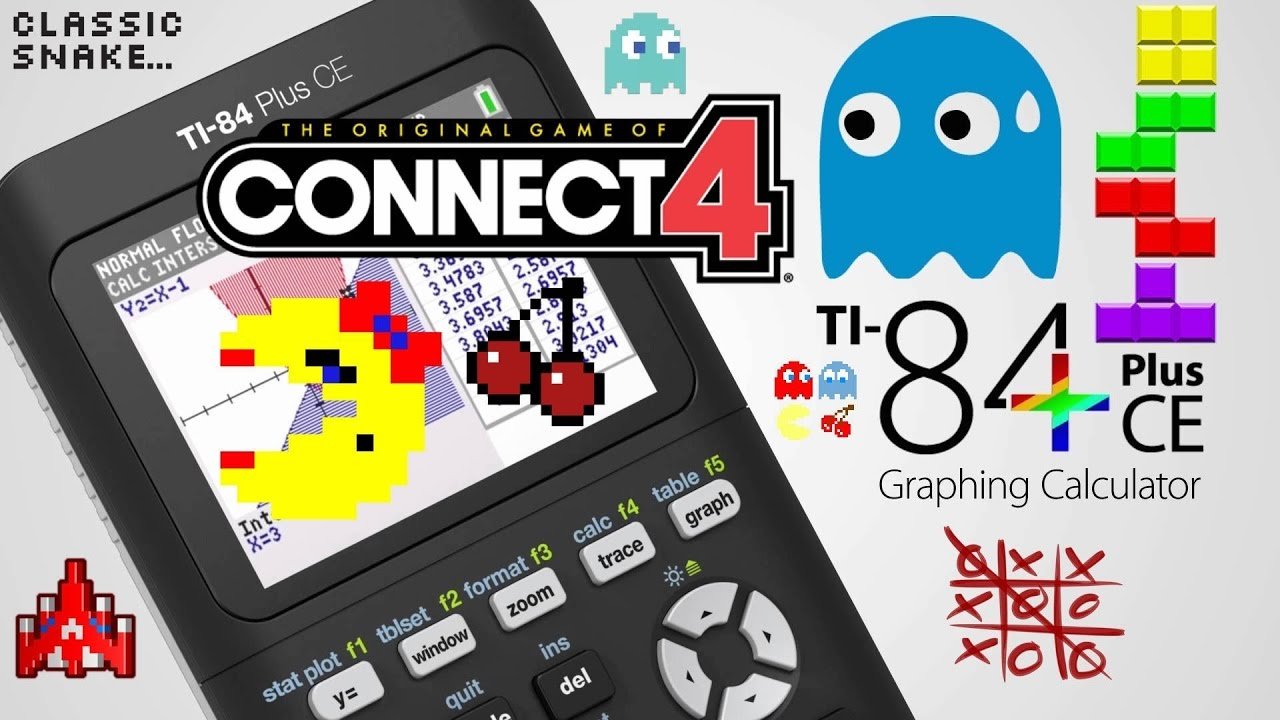
To play games on a TI-84 Plus, you typically transfer game files to the calculator using a computer and then run them from the calculator’s program menu.
Ever wondered if that trusty TI-84 Plus you use for math can do more? It absolutely can! Many people are surprised to learn they can actually play games on a TI-84 plus, turning a study tool into a fun distraction.
The process of transferring these game files isn’t too complicated. It involves a computer and a special cable, but once it is done, the game will run straight from the program menu of your calculator.

How to Play Games on a TI 84 Plus
The TI-84 Plus calculator isn’t just for math class anymore! Did you know you can actually play games on it? It’s true! While it might not have the super fancy graphics of your phone or game console, it’s a fun way to pass the time and challenge your friends. Let’s dive into the exciting world of TI-84 Plus gaming.
Finding Games for Your TI-84 Plus
The first step to gaming on your calculator is finding the games themselves. Unlike your phone where you go to an app store, games for the TI-84 Plus are usually found on websites or shared by other students. Here are some common ways to get games:
- Online Forums and Websites: Many websites dedicated to TI-84 Plus programming have sections where users share games they’ve created. A quick search for “TI-84 Plus games” will bring up many options. Be careful to only download files from trusted sources.
- Friends: Your friends might have some cool games on their calculators! You can ask them to share the files using a link cable.
- Teacher Resources: Sometimes, teachers who use TI calculators in their classroom may have some games for educational purpose.
Remember, these games are not official, they are usually created by students or enthusiasts who are into programming.
Understanding TI-84 Plus Game File Types
Before you start downloading random files, it’s good to know what type of files you’re looking for. Here are the most common types:
- .8xp files: These are the most common game files for the TI-84 Plus. They are executable program files.
- .8xv files: These are variable files, which may contain data needed for the game.
Always double-check the file extensions before you download anything to make sure you’re getting the correct type of game file.
Connecting Your Calculator to Your Computer
To get games onto your TI-84 Plus, you’ll likely need to connect it to your computer. Here’s how:
What You Need
- A TI-84 Plus Calculator: Make sure it’s charged!
- A USB Cable: This is the special cable that came with your calculator.
- TI Connect Software: You’ll need to download this software from the Texas Instruments website. It allows your computer to talk to your calculator. This is free software.
How to Connect
- Install TI Connect: Download and install TI Connect on your computer.
- Connect the Calculator: Plug the USB cable into your computer and the other end into your calculator.
- Turn on the Calculator: Your calculator should power on when plugged in.
- Launch TI Connect: Open the TI Connect software on your computer.
- Recognize the Calculator: The software should recognize your calculator. If it doesn’t, make sure the connection is secure and try again.
If the computer isn’t recognising your calculator even after doing all above steps, then make sure you have installed the USB driver. It is available on TI website along with the software.
Transferring Games to Your TI-84 Plus
Once your calculator is connected to your computer, you’re ready to transfer those game files!
Using TI Connect
- Open TI Connect CE: Open the application on your computer.
- Select the Calculator Explorer: This tool lets you browse your calculator’s memory.
- Drag and Drop: Locate the game files (.8xp or .8xv) on your computer. Drag and drop them into the Calculator Explorer window. This transfers the files onto your calculator.
- Send Files Button: There’s also a “Send Files” button in the software. You can use this to find and select files and send to the calculator.
After transferring the files, you can disconnect the cable. Your game files are now on your calculator, ready to play!
Playing Games on Your TI-84 Plus
Okay, the games are on your calculator. Now, the fun part – actually playing them! Here’s how:
Accessing Your Programs
- Press the [PRGM] Button: This button is located on the left side of your calculator.
- Select Your Game: A list of programs will show up. Use the up and down arrow keys to navigate to the game you want to play.
- Press [ENTER]: Once the game is highlighted, press the [ENTER] key.
- Press [ENTER] Again: You’ll see the name of the game and a colon (:). Press [ENTER] again to start the game!
Navigating the Game
The controls for games vary, but here are some typical ones:
- Arrow Keys: The up, down, left, and right arrow keys are used to move your character or navigate through the game.
- [ENTER] Key: This is usually used to select something or perform an action.
- [CLEAR] Key: Sometimes, this is used to go back or cancel an action.
- Number Keys: Some games use the number keys for special actions.
Check if the game provides any instructions on what keys to use. They might show up on the screen of your calculator for a few seconds after starting the game, or in the instructions when you downloaded the game.
Common TI-84 Plus Games
There are so many games you can play on your TI-84 Plus. Here are some popular ones:
- Tetris: The classic block-stacking game.
- Snake: Guide a snake to eat the food and avoid hitting the walls or its own body.
- Mario: A side-scrolling platformer game.
- Pac-Man: Run through mazes, eat pellets and avoid ghosts.
- Puzzle Games: Many versions of puzzles where you need to arrange the blocks in the right order.
There are also text-based adventure games, which rely on reading text and typing commands to progress. These are often a fun challenge to play.
Troubleshooting Game Issues
Sometimes things might not go perfectly. Here are some issues you might encounter and how to handle them:
Game Doesn’t Load
- Check Compatibility: Make sure the game is meant for your exact TI-84 Plus model. Some games may not work on all versions of the calculator.
- Insufficient Memory: Your calculator might not have enough space to store the game. Try deleting old games or programs you no longer need.
- Corrupted File: The game file might have gotten corrupted during the download process. Try downloading the game again from a trusted source.
Game is Lagging
- Calculator Overload: Sometimes the game uses a lot of calculator power to run, and that can cause it to slow down. Close other programs before launching the game.
- Low Battery: Make sure your calculator is fully charged for best performance.
Game is Frozen
- Wait: Sometimes the game might just be processing something and needs a moment. Try waiting a few seconds.
- Press [ON] Key: If the game is completely frozen, try pressing the [ON] key, which may force the calculator to stop the game.
- Restart Calculator: If all else fails, try restarting the calculator by removing and reinserting the battery or using the restart button at the back of the calculator.
Tips for a Better Gaming Experience
- Keep your calculator charged: A low battery can cause lag or other issues. Always make sure it’s charged before a long gaming session.
- Download from trusted sources: This will keep your calculator safe from any potential viruses.
- Manage your memory: Delete games that you’re no longer playing. This frees up space for new ones.
- Practice: Some games might be tough at first. Keep practicing, and you’ll get better!
- Be patient: Remember, this is a calculator, not a gaming system. The games are not going to be super fancy, but that’s part of their charm.
The Educational Value of TI-84 Plus Gaming
While playing games on a TI-84 Plus calculator may seem like just a fun distraction, there’s also an educational side to it.
Learning Basic Programming
The process of finding, downloading, and transferring games can introduce you to basic programming concepts. The games themselves are often written in a language called TI-BASIC, which, though simple, teaches the basics of creating code.
Problem-Solving Skills
Troubleshooting the calculator when games don’t work correctly helps develop problem-solving skills. These skills can be valuable in math class and in life. It encourages a hands on approach with technology, and gives the user a better grasp of their electronic devices.
Understanding Hardware
Working with a TI-84 Plus, and getting to transfer and play games can increase a user’s understanding of electronic devices and the way files can be transferred.
So, while having fun playing games, you can also be learning new things!
Creating Your Own Games
Feeling adventurous? You can also try making your own games! Although it requires some understanding of programming using TI-BASIC, there are a lot of great resources available to help you get started. You can find tutorials, online communities, and sample codes to help you. It is certainly a challenging and rewarding experience.
Playing games on your TI-84 Plus calculator is a great way to add some fun to your math class. It’s a unique way to use a tool that you might only think about for solving equations. So go ahead, try some games, and impress your friends with your hidden gaming skills!
How to Play Games Within Your Calculator #shorts
Final Thoughts
So, you want to know how to play games on a ti 84 plus? It’s simple: transfer compatible game files (.8xg or .8xp) using a computer and TI Connect CE software. Then, navigate to the program menu on your calculator and select the game to start playing.
Remember that some games require specific libraries you must load beforehand. This way you can have fun with games on your calculator.

