
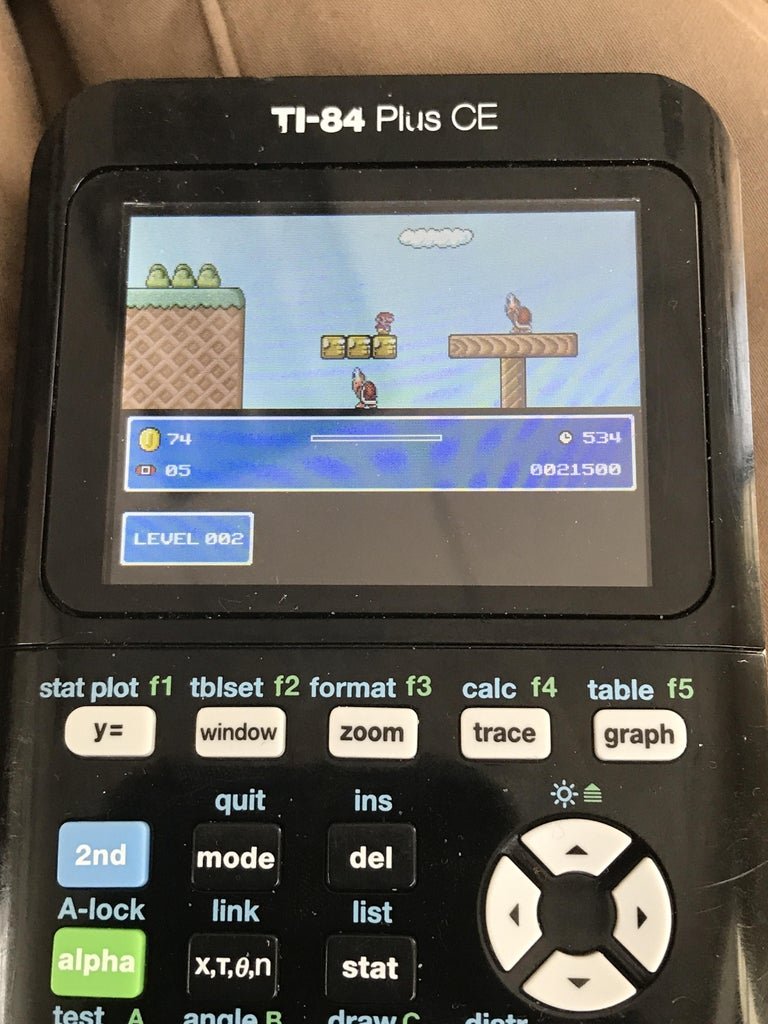
To play games on a TI-84 Plus, you typically transfer compatible game files using a computer and a USB cable, then access them through the calculator’s program menu.
Ever thought your trusty TI-84 Plus calculator was only for math? You’d be wrong! Many students and tech enthusiasts enjoy finding out how to play games on a ti-84 plus. It’s actually quite simple.
You just need the right files and a way to get them on the calculator. After transferring, the games can bring some fun between or after math classes.

How to Play Games on a TI-84 Plus
Okay, so you’ve got your trusty TI-84 Plus calculator and you’re wondering if it can do more than just math problems. Good news! It absolutely can. Your calculator is not only a powerful math tool, but it can also be a mini game console. Let’s take a look at how to turn your TI-84 Plus into a fun zone.
Why Games on a Calculator?
Before we get started on the ‘how-to,’ let’s talk about the ‘why.’ Why bother playing games on a calculator when we have phones, computers, and consoles? Well, there are a few good reasons:
Boredom Buster: Let’s face it, sometimes math class can drag. Having a game on your calculator is a super secret way to pass the time (just don’t let your teacher catch you!).
Unique Challenge: Calculator games are often simple, but that’s part of the charm. They make you think in different ways and find fun in unexpected places.
Accessibility: You already have it! No need to download apps or buy expensive new gadgets.
Nostalgia: For some, these games bring back a lot of fun memories, and you’ll create some new ones too!
Finding Games for Your TI-84 Plus
Alright, let’s get down to business. Where do you get these magical games? There are a few main places to look:
Online Archives and Websites
The internet is a treasure trove for TI-84 games. Many websites and forums dedicated to calculator enthusiasts have libraries full of games that people have created. Some popular places to start include:
ticalc.org: This site is a classic. It’s got tons of games, tools, and programs for TI calculators. You can find almost anything here.
cemetech.net: Another excellent resource with lots of community-made content and tutorials.
Omnimaga.org: A great community forum where you can ask questions and share games.
When searching these sites, you’ll want to look for files that end in .8xp or .8xg. These are the file types that your TI-84 Plus can understand.
Ask Your Friends or Classmates
Chances are, someone you know might already have a few games on their calculator. Ask around! It’s a great way to find games and maybe even discover some hidden gems.
Be Cautious with Downloads
Just like downloading anything from the internet, it is important to be safe. Only download files from trusted websites. A good tip is to look for sites or forums that are known within the community to share verified and safe content. If something looks suspicious, it’s better to avoid it.
Preparing Your TI-84 Plus for Games
Before you can start playing, you may need to prep your calculator. Here are the key steps:
Checking Your Calculator’s OS
Sometimes you may want to update your calculator’s operating system (OS). Make sure you know what OS version your calculator is running because some games are optimized for specific OS versions. To check your OS, press the 2nd button, then MEM (the + button), and then select 1: About. There you’ll see your OS version.
Using TI Connect Software
You’ll need a way to get the game files from your computer to your calculator. The best way to do this is with TI Connect. It’s a free software provided by Texas Instruments. You can download it from the Texas Instruments website. TI Connect allows your calculator to communicate with your computer.
Here’s a basic explanation of how it works:
1. Install TI Connect: Download and install the software on your computer.
2. Connect your Calculator: Use a USB cable to connect your TI-84 Plus to your computer.
3. Start TI Connect: Open the software on your computer.
4. Transfer the Files: Use TI Connect to send .8xp or .8xg files from your computer to your calculator.
Using a TI Connectivity Cable
Make sure you are using the correct cable. The proper cable will have a small USB end for your computer and a round end for the top of your calculator. It is usually a USB-A to Mini-USB cable.
Making Sure You Have Enough Memory
Keep in mind that your calculator has limited memory. If you try to store too many games, you may run out of space. Periodically removing programs will help you keep your calculator running smoothly. You can delete programs you no longer use through the MEM menu.
Step-by-Step Guide to Transferring Games
Okay, let’s dive into the specifics of getting a game onto your TI-84 Plus.
1. Download the Game: Find a game you like from one of the websites. Save the .8xp or .8xg file to your computer.
2. Connect Your Calculator: Plug the mini-USB cable into your TI-84 Plus and then into your computer.
3. Launch TI Connect: Open the TI Connect software on your computer.
4. Drag and Drop: In TI Connect, you should be able to see the storage of your calculator. Locate the game file you just downloaded on your computer. Drag it over to your calculator’s area in the TI Connect window. Alternatively, you can find a send to device button.
5. Wait for Transfer: Let the transfer finish. You’ll probably see a progress bar on your computer.
6. Disconnect: When the transfer is complete, it’s safe to unplug your calculator.
If your computer says the device wasn’t found, you might need to restart the TI connect software with the calculator plugged in. If that still doesn’t work, double check all of your cable connections.
Playing the Games on Your TI-84 Plus
Now for the best part! Here’s how to actually play the games you transferred:
1. Turn on Your Calculator: Press the ON button to turn on your TI-84 Plus.
2. Access the Program Menu: Press the PRGM button.
3. Select the Game: You’ll see a list of all the programs you’ve stored on your calculator, which will include the game you just transferred. Use the arrow keys to highlight the game and press ENTER.
4. Run the Program: When the name of the program is highlighted, press ENTER again. This will run the game.
5. Play: Most games use the arrow keys for movement and the ENTER button for actions. Each game is different, so play around with the different buttons to get the hang of the controls.
Troubleshooting
Sometimes things don’t go exactly as planned. Here are some common issues and how to deal with them:
Game won’t run: This could be because the game isn’t compatible with your calculator’s OS, or the game might be corrupted. Make sure the file type is a .8xp or .8xg file. It may also be a good idea to re-download the game and try again.
“Error: Invalid” message: This can also indicate a compatibility issue. This could also be due to the game needing a shell program to be loaded first, or you may have sent the wrong type of file to the calculator.
Calculator freezes: If your calculator freezes during the transfer, unplug the cable. Restart the calculator and try again. If it freezes during a game, remove the batteries and put them back in. Be sure to save any current math you’re working on before playing a game!
Not enough memory: If you can’t transfer a game to your calculator because of low memory, go to the MEM menu and delete some old programs you aren’t using anymore. You can always transfer them again later if you want.
Different Types of Games You Can Play
There are a surprising variety of games you can play on a TI-84 Plus. Some popular types include:
Text-Based Adventures
These games often involve reading text descriptions and making choices that affect the storyline. They’re like interactive books.
Puzzle Games
Games like Sudoku, Tetris, and number puzzles can challenge your brain and provide hours of fun. These games are very popular because they’re usually straightforward to control, and they are very engaging.
Simple Arcade Games
Think of simple versions of classic arcade games like Snake, Pac-Man, and Pong. These are great for quick bursts of fun.
Platformers
Some games manage to create platforming experiences despite the calculator’s limitations. They are often very visually basic, but they still require a lot of player skill to complete.
Programming Your Own Games
If you’re feeling adventurous, you can try your hand at programming your own games using TI-BASIC, the built-in programming language for your calculator. It’s not as hard as it sounds and there are a lot of tutorials online. If you are trying to teach programming, this is an excellent way to get students engaged.
Keeping Your Calculator Clean and Safe
It is important to take good care of your TI-84 Plus. Here are a few tips to keep it safe and clean:
Don’t expose your calculator to extreme temperatures. Don’t leave it in a hot car or in direct sunlight. The heat can damage the screen and cause damage to the components.
Keep it away from liquids. Don’t use it around water or other liquids, as this can cause damage.
Wipe the screen gently with a soft cloth. This will help keep the screen free of dust and smudges.
Avoid dropping it. Your calculator is a delicate piece of technology. Try your best to keep it protected from accidental drops.
Beyond Games: Exploring Your TI-84 Plus
Playing games is just one way to make the most of your TI-84 Plus. Here are some other cool things your calculator can do:
Advanced Math: Of course, it’s great for algebra, calculus, statistics, and more.
Graphing: Create detailed graphs to visualize mathematical functions and equations.
Programming: Learn to write code for math problems, games, or other programs.
Data Analysis: Collect, store, and analyze data for school projects and experiments.
By exploring all these features, you can turn your TI-84 Plus into a real learning companion.
Remember, your TI-84 Plus calculator is more than just a tool for math class; it’s a powerful piece of technology that can also provide entertainment and learning opportunities. By following these steps, you can easily explore the fun world of calculator games. Have fun, and happy gaming!
How to Play Games Within Your Calculator #shorts
Final Thoughts
Playing games on a TI-84 Plus requires loading compatible programs. You must first transfer game files from your computer using TI-Connect CE software. Then, navigate to the program menu on your calculator.
Select and run your desired game. Remember that these games are simple due to calculator limitations. This is the essential process for how to play games on a TI-84 Plus.

