
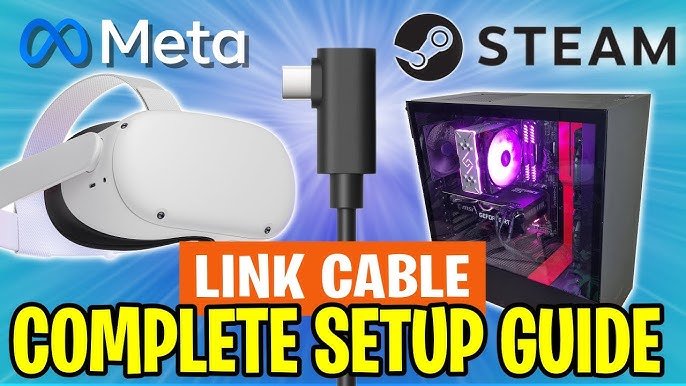
Playing games on a VR headset involves putting on the headset, using controllers for interaction, and selecting games through the virtual interface.
Ever wondered what it feels like to actually be in the game? That’s the promise of virtual reality, and it’s easier than you might think. Many people ask about how to play games on a vr headset, and the experience is truly unique.
We’ll guide you through the basic steps so you can jump into your favorite virtual worlds. Prepare for immersive adventures where you’re not just watching the action, but a part of it. It’s a fun, accessible form of gaming.

How to Play Games on a VR Headset
Getting into the world of virtual reality (VR) gaming can feel like stepping into the future! It’s an amazing way to play games, putting you right in the middle of the action. But, if you’ve never used a VR headset before, it might seem a little tricky at first. Don’t worry; it’s much easier than you think. This guide will walk you through everything you need to know to start playing games in VR.
Choosing Your VR Headset
Before you can jump into VR games, you need a VR headset! There are a few different types, and they each have their own special features. Let’s look at some of the most common types:
Standalone VR Headsets
These are like the superheroes of the VR world – they don’t need any help from a computer or game console! Everything is built right into the headset. This means they are super portable and easy to set up. Popular examples include the Meta Quest 3 and Meta Quest 2. They are great for beginners because they are simple to use and don’t require extra equipment.
- Pros: No computer or console needed, easy setup, portable.
- Cons: Might not have the same power as other types for very complex games, battery life might need charging.
PC-Powered VR Headsets
These headsets plug into a computer to work. They can create some of the most detailed and realistic VR experiences because they use the power of a gaming computer. Examples include the Valve Index, HTC Vive Pro series, and some of the Oculus Rift headsets. If you’re looking for the best graphics and performance, this is usually the way to go.
- Pros: High graphics quality, access to a large library of PC VR games.
- Cons: Requires a powerful gaming computer, can be less portable than standalone headsets.
Console VR Headsets
These headsets are designed to work with gaming consoles, such as the PlayStation VR2 for the PlayStation 5. They offer a good middle ground between ease of use and good performance. They are great for console gamers who want to try VR without needing a PC.
- Pros: Good balance of performance and simplicity, works with existing gaming consoles.
- Cons: Limited to the game library of the specific console.
Setting Up Your VR Headset
Once you have your headset, it’s time to set it up. The steps will vary slightly depending on which headset you have, but here’s a general idea of what you’ll need to do:
Unboxing and Charging
First things first, carefully take everything out of the box. You should have the headset itself, controllers, and any cords or adapters. Before you start, make sure your headset and controllers are fully charged. This will help you avoid any interruptions while playing your game. Follow the user guide provided by the manufacturer to charge the devices correctly, because this might be vary for different headsets.
Creating a Play Area
VR can be a very engaging experience. You might be moving around a lot, so make sure you have enough space around you to move without hitting anything. Most VR headsets will ask you to set up a play area. This involves using your controllers to draw a border around the space you’ll be using. This boundary keeps you safe and prevents you from bumping into walls or furniture.
Tips for a good play area:
- Make sure there is no fragile or valuable things in your play area.
- Clear up any obstacles, such as wires or toys.
- Make sure that you can freely move around in your play area.
- Consider using a play mat to provide extra cushioning on the floor.
Connecting to Wi-Fi (if needed)
Standalone headsets will need to connect to your Wi-Fi network to download games and other content. The headset will typically guide you through this process. Follow the on-screen instructions or refer to your headset’s user guide if needed.
Connecting to a Computer or Console (if needed)
If you’re using a PC-powered or console VR headset, you’ll need to connect it to your computer or console. Usually, this involves plugging in some cables and maybe installing some software. The instructions that come with your headset will show you exactly how to connect everything.
Installing and Updating Software
Your VR headset will have its own software or apps that you need to install and update. This software is how you’ll access the games and manage your headset. Make sure your headset is up to date to get the best experience.
Key things to do during setup:
- Read the instruction manual.
- Make sure that the headset and controllers are properly charged.
- Download and install the appropriate software.
- Set up your play area.
Navigating the VR World
Once you’ve got your headset set up, it’s time to enter the VR world! At first, moving around and using the controllers might feel a little strange, but you’ll get used to it quickly. Most headsets use motion controllers that you hold in your hands. These controllers let you interact with the VR world. Here’s how they generally work:
Using Motion Controllers
Motion controllers have buttons, triggers, and sometimes joysticks. These are used for actions in your VR game. For example, the trigger button might be used to pick up objects, and the joysticks can be used for movement. When you’re playing a game, the controller will usually display on screen as a hand in the VR world. Moving the controller will move the hand, giving you a natural way to interact.
- Triggers: Usually for grabbing and interacting with items.
- Buttons: For menu navigation and other game actions.
- Joysticks: For moving in the virtual space.
Each game will have its own controller layout, but the basic concepts will be similar for most VR experiences.
Basic Movement in VR
Moving around in VR can be different from playing normal games. Here are some common movement methods:
- Teleportation: You point to a spot and “teleport” there. It’s a very common method and it can reduce motion sickness because you are not physically moving.
- Smooth Locomotion: This allows you to move around as you would in real life by using the joysticks or other similar controllers, this method may cause motion sickness for some.
- Room-Scale: This is where you can physically walk around in your designated play space. It is the most immersive method, but is limited to the space you’ve set up.
Interacting with the Environment
VR games are all about interaction. You might be picking up objects, solving puzzles, fighting with enemies, or even playing sports. The exact way you do this will depend on the game. Be sure to follow any on-screen instructions or tutorials in the game.
Tips for navigating VR:
- Take your time and don’t be afraid to experiment with the controls.
- Start with simpler games to get used to the way VR works.
- If you feel motion sickness, take a break.
Finding and Installing VR Games
Now that you’ve got the hang of moving around, let’s find some games to play! Each VR platform has its own store or library for downloading games.
VR Game Stores
Here’s a look at some of the places you can find VR games:
- Meta Quest Store: If you have a Meta Quest headset, you can download games directly from their store. It has a wide selection of standalone VR titles.
- SteamVR: This is a great place for PC VR games. It has a massive library of titles and is compatible with most PC-powered headsets.
- PlayStation Store: If you have a PSVR headset, you can find games in the PlayStation store, just like any other PlayStation game.
- Other Platforms: There are other places to find VR games such as Viveport and other dedicated VR gaming sites.
Purchasing Games
VR games usually have a cost. You can purchase them using credit card or online payment. Once purchased the games will appear in your library or download section and they will then be ready to install on your headset.
Installing Games
Once you find a game you like, simply click install, download, or similar wording, and it will download to your headset. The process is generally the same as downloading games on other devices.
Game Recommendations
Here are some popular VR game genres to start with:
- Action: Fast-paced combat and adventure games that will get your heart pumping.
- Puzzle: Games that challenge your mind and problem-solving skills.
- Exploration: Games that let you explore interesting places and stories.
- Sports: Games that allow you to play tennis, golf, boxing, and other sports.
- Fitness: VR experiences that are specifically designed to help you get a workout.
Tips for finding VR games:
- Read reviews to see what others think of the game.
- Start with demo versions to try before buying.
- Check out lists of the best VR games for beginners.
Tips for a Great VR Gaming Experience
VR gaming is so much fun, but here are some tips to make it even better:
Getting Comfortable
Make sure that your headset fits correctly. It shouldn’t be too tight or too loose. A proper fit is important to be comfortable while playing for longer periods.
Taking Breaks
VR can be intense for some people. It is good to take a break every 30 minutes, or when you start to feel fatigued or unwell.
Dealing with Motion Sickness
Some people experience motion sickness in VR. It’s not a big deal, but here are some tips to help:
- Start with short play sessions and gradually increase the time.
- Use games that use teleportation, rather than smooth locomotion.
- Keep your space cool and well ventilated.
- Try over-the-counter motion sickness medication if needed, but please consult with your doctor.
Cleaning and Maintaining Your Headset
Proper care of your VR headset will make it last longer. Use a soft cloth to clean the lenses and other parts of the headset. Also, make sure that you keep the headset away from sunlight when it is not in use.
Other tips:
- Adjust your IPD (interpupillary distance) settings for the best vision.
- Use headphones for a more immersive sound experience.
- Play with friends online for a fun social experience.
Troubleshooting Common VR Issues
Sometimes, things may go wrong in VR and you might need to troubleshoot them. Here are a couple of things to look out for:
Tracking Issues
If your controllers aren’t working correctly or the game isn’t tracking your movements, try these steps:
- Make sure the headset’s cameras are clean.
- Check that the play area is properly lit.
- Make sure that the controller’s batteries are charged.
- Restart the headset or computer.
Connection Issues
If you have problems with your Wi-Fi or connections to your computer/console, try these steps:
- Make sure the headset and the other devices are on the same network.
- Check that cables are firmly plugged in.
- Restart your computer, console or headset.
Game Glitches
Sometimes, the game itself might have issues. If that happens:
- Check for game updates.
- Try restarting the game.
- Consult the game’s support pages.
Tips for troubleshooting:
- Refer to your headset’s manual for further help.
- Search online for solutions or community forums.
- Reach out to the manufacturer support.
Playing games on a VR headset opens up a whole new world of entertainment. From choosing the right headset and setting it up to finding the perfect games, it’s an exciting journey. Take your time, experiment, and most of all, have fun exploring the amazing possibilities of virtual reality gaming!
VR For Beginners | How to get started with Virtual Reality headsets
Final Thoughts
To play games on a VR headset, first set it up correctly. Connect all the cables and install any required software. Then, choose a game from the VR store.
Launch the selected game and put on your headset. You will be immersed in virtual reality. Use the controllers to navigate and interact with the game. How to play games on a vr headset is a fun experience with practice.

