
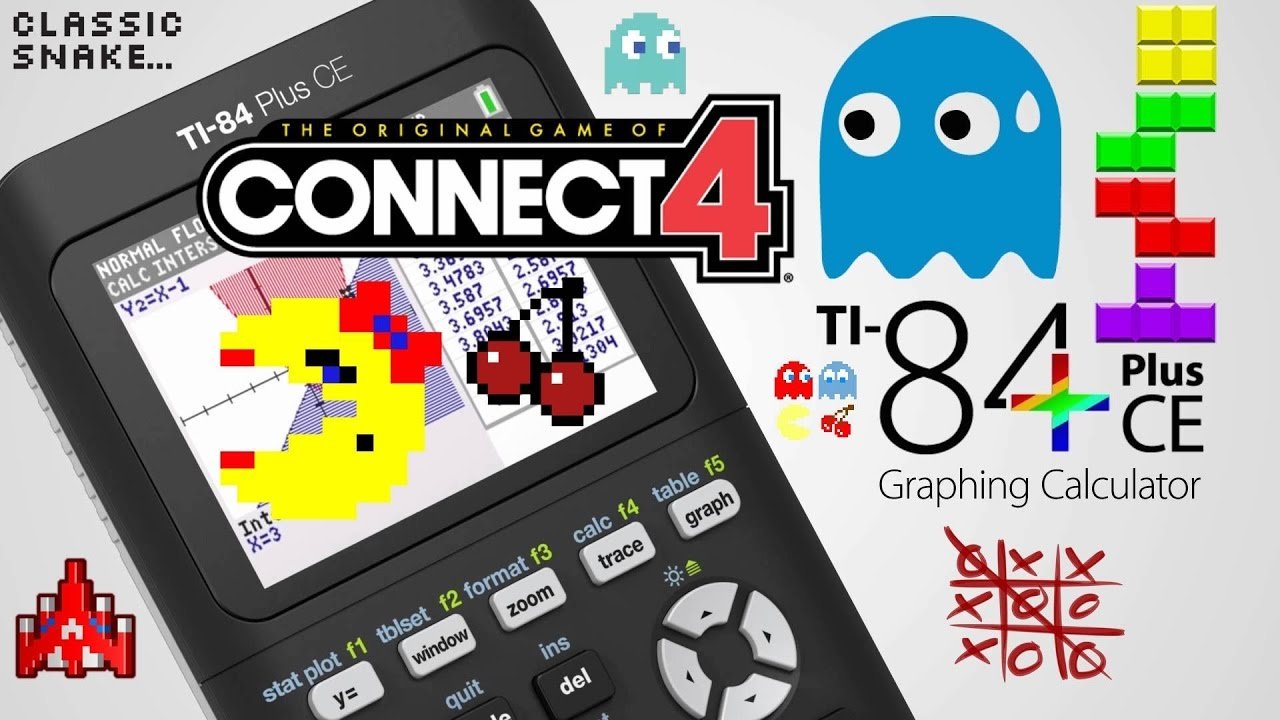
To play games on your TI-84 Plus CE, you’ll need to transfer compatible game files (.8xg or .8xp) from your computer using TI Connect CE software, then run them from the calculator’s program menu.
Did you know your TI-84 Plus CE calculator isn’t just for math class? It has the capability to run fun games too! Many students and enthusiasts enjoy exploring the gaming side of their calculators. This brings us to the main question, how to play games on ti 84 plus ce?
Getting started is simpler than you might think. You first need the necessary files and software. Then it’s just a matter of connecting your calculator and transferring the games.

How to Play Games on TI 84 Plus CE
Want to turn your TI-84 Plus CE calculator into a mini-game console? You’re in the right place! Lots of people don’t realize that their trusty calculator can do more than just math. It can actually play games! In this guide, we will show you how to get started with games on your TI-84 Plus CE, covering everything from finding games to getting them onto your calculator, and how to get them running. It’s easier than you might think and a fun way to pass the time. Let’s dive in and explore the world of TI-84 Plus CE gaming!
Understanding TI-84 Plus CE Games
Before we start loading up games, it’s important to know what kind of games the TI-84 Plus CE can play. These aren’t going to be the high-definition graphics you see on your phone or computer. Instead, TI-84 Plus CE games are usually made with simple, mostly black and white graphics and focus on simple gameplay. Think classic games like Tetris, Snake, or puzzle games. These games are built using the calculator’s programming language, often TI-BASIC or Assembly. This means the games can be small and fast to load and play, perfect for your calculator.
Finding Games for Your TI-84 Plus CE
So, where do you find these games? The internet is your friend! There are many websites dedicated to TI calculator games. When searching online, try these keywords: “TI-84 Plus CE games”, “TI calculator games”, or “TI-BASIC games”. Look for sites that focus on TI calculators. You will usually find games stored as .8xg files, this is the file extension that the TI-84 Plus CE uses to store programs. Here are some common places to start your search:
- TI Calculator Forums: These forums often have threads where users share games they’ve created.
- Community Websites: Sites focused on TI calculators often have a dedicated games or programs section.
- Individual Developer Pages: Some creators have their own websites where they share their game creations.
Always download files from sources that you trust. It’s a good idea to scan any downloaded file with an antivirus program before transferring it to your calculator, though games for the TI-84 Plus CE are generally very safe.
Necessary Tools and Software
To put games on your TI-84 Plus CE, you’ll need a few things:
- TI-84 Plus CE Calculator: Obviously, you will need the calculator!
- TI Connect CE Software: This is free software from Texas Instruments that lets your computer talk to your calculator. You will use this to transfer the games. Download it from the Texas Instruments website.
- USB Mini-B Cable: This is the cable used to connect your calculator to your computer. It’s the same kind used for many older cameras or small electronics.
Make sure you download and install the TI Connect CE software from the official Texas Instruments website. Using the official software is important as it’s specifically designed to work correctly with your calculator.
Setting Up TI Connect CE
Now that you have the software and cable, let’s get things set up. Here is how:
- Install TI Connect CE: Run the installer you downloaded from the Texas Instruments website. Follow the instructions on the screen to install the software on your computer.
- Connect Your Calculator: Use the USB mini-B cable to connect your TI-84 Plus CE to your computer. Turn your calculator on.
- Launch TI Connect CE: Open the TI Connect CE software. It should recognize your calculator. You should see your calculator listed under “Connected Calculators” in the software.
If TI Connect CE doesn’t recognize your calculator, double-check the connection. Make sure the cable is firmly plugged into both the computer and the calculator. If the problem continues, try a different USB port or restart your computer.
Transferring Games to Your TI-84 Plus CE
With TI Connect CE set up and your calculator connected, you are ready to transfer those .8xg game files! Here is the process:
- Locate Game File: Find the .8xg game file that you downloaded earlier.
- Drag and Drop (or Send): In TI Connect CE, you should see your calculator listed. Now, simply drag the .8xg file from your computer to the “Connected Calculators” section of the TI Connect CE software. Alternatively, you can use the “Send” option in the software and select your game file.
- Transfer Confirmation: TI Connect CE will show a progress bar as the game file transfers to your calculator. Once the transfer is complete, you’ll see a notification or a confirmation message.
Be patient while transferring the files. Larger game files might take a little longer to transfer to your TI-84 Plus CE. Avoid disconnecting the cable during the transfer process to prevent errors.
Accessing and Playing Games on Your Calculator
The games are now on your calculator, so let’s get playing. Here is how to access and run your new games:
- Press the [PRGM] Button: On your TI-84 Plus CE, press the [PRGM] button. This button is usually located near the top left of the keypad.
- Select the Game: A list of programs will appear. Use the up and down arrow keys to find the name of the game you transferred.
- Press [ENTER]: Once you have highlighted your game, press the [ENTER] key. The calculator may then show the name of the program or “Execute” as an option. If so, press [ENTER] again to start the game.
The game should now start. Most games will have on-screen instructions for controls. However, most common controls include the arrow keys, the [ENTER] key, and the [2nd] key.
Troubleshooting Common Issues
Sometimes things do not go exactly as planned. Here are some common issues and how to fix them:
Calculator Not Recognized by TI Connect CE
- Check the Cable: Make sure the USB cable is correctly connected to both your computer and calculator. Try a different cable if needed.
- Try Another USB Port: Try plugging into a different USB port on your computer. Some ports can have issues.
- Restart Your Computer/Calculator: Sometimes a simple restart can resolve connection problems.
- Update TI Connect CE: Make sure you have the latest version of TI Connect CE installed. Updates sometimes have bug fixes that can resolve these kinds of issues.
- Check Drivers: If your computer still cannot recognize the calculator, you may need to check if drivers are installed for your device. Usually, Windows or Mac will automatically install them, but in some cases you may need to install them manually, or update your OS.
Game Doesn’t Start or Freezes
- Check Game Compatibility: Not all games will work perfectly on all calculators or OS versions. Make sure you have downloaded games that are compatible with your TI-84 Plus CE model and OS Version.
- Not Enough Memory: Older games may use different methods to allocate memory, if you calculator is low on memory, it can cause a game to not load or freeze. Check your memory by pressing [2nd] then [MEM] button, to clear RAM or archive old programs. Then try loading the game again.
- Corrupted File: Sometimes a game file gets corrupted while downloading. Delete the file from your calculator and computer and try downloading again.
- Reset Calculator: If your calculator freezes, you can press [2nd], [MEM], [7], then [1], and this will reset the calculator. Be warned that it will delete the RAM memory, this should not effect your programs, however always best to copy a backup of any important programs first.
Control Problems
- Read Instructions: Make sure you have read the game’s instructions carefully. Some games use unique controls.
- Check Battery: A low battery can sometimes cause some input issues. Make sure the calculator is charged.
Game Graphics Are Messed Up
- Check Game Compatibility: As previously mentioned, not all games are perfect. Sometimes a game may not be fully compatible and graphics can sometimes be effected.
- Restart Calculator: A quick restart can sometimes resolve issues with the display.
Understanding Different Types of TI-84 Plus CE Games
You will find there are lots of different kinds of games you can play on your TI-84 Plus CE. Most of them fall into a few categories:
Text Based Games
These games are usually interactive stories or puzzles. They use text to describe what’s happening, and you type in commands to interact with the game. They’re often simple but can be quite engaging.
Simple Arcade Games
These games are inspired by old-school arcade classics. You might see games like clones of Space Invaders, Tetris, or Snake. These games often use the arrow keys for movement and are easy to pick up and play.
Puzzle Games
Puzzle games require a little bit of thought. They might be tile-matching games, logic puzzles, or number-based brain teasers. These are a good choice for those who enjoy a bit of a challenge.
Programming Games
There are some interesting programs that let you make your own simple games using the programming language on the calculator, TI-Basic or Assembly. These are more advanced, but they can teach you how to program while having some fun. Using TI-Basic, you can create very basic and simple games. Using Assembly language is far more complex, however, more advanced games, with better graphics can be produced.
Tips for a Better Gaming Experience
To get the most from your TI-84 Plus CE gaming, here are a few extra tips:
- Keep your calculator charged. Playing games can use up battery power quickly. Always make sure your calculator is fully charged, and charging during longer gaming sessions is a good practice.
- Explore different games. There are so many different games out there. Do not be afraid to try out different genres and find the ones you like the most.
- Be patient. Some games might take time to load or may not be as polished as games on your phone or computer. Keep in mind that your calculator is a math tool first and a gaming device second.
- Join communities. TI Calculator gaming communities can be very fun to be a part of. Chat with other people, and find new games from others. Also, ask questions and learn new things.
Most importantly, have fun and enjoy the unique gaming experience that your TI-84 Plus CE can provide.
Playing games on your TI-84 Plus CE is a fantastic way to add some fun and enjoyment to your calculator. It’s a neat way to pass some time, or learn some basic programming. With the steps we’ve provided, you’re now ready to find and play a large selection of games. So connect your calculator, download some games, and get playing!
How to Put Games on the TI 84 Plus CE
Final Thoughts
To play games, you typically transfer files from a computer using the TI Connect CE software. The game files must be compatible with the calculator’s operating system. Ensure your calculator is in the correct mode, often accessing programs through the ‘prgm’ key.
Remember to manage your calculator’s memory, as games can take up significant space. Playing games improves your calculator skills, and it’s fun. This is a basic guide on how to play games on TI 84 Plus CE.

