
‘You can play games on your TI-84 Plus without a computer by transferring pre-made game files from another calculator using a link cable, or by entering game code directly into the calculator’s program editor.’
Ever found yourself bored in math class, wishing for some entertainment beyond equations? You’re not alone! Many TI-84 Plus owners want to know how to play games on ti-84 plus without computer.
This guide will show you the simple methods of transferring games between calculators, and you can begin gaming today! Forget lengthy computer transfers, let’s get right to the fun part.

How to Play Games on TI-84 Plus Without a Computer
Ever felt bored in math class? Or maybe you’re just waiting for the bell to ring? Your TI-84 Plus calculator can be more than just a tool for solving equations – it’s a secret gaming device! Yes, you heard right! You can actually play games right on your calculator without needing a computer to download them. This might sound like magic, but it’s actually quite simple once you know how. Let’s dive into how you can enjoy some fun games directly on your TI-84 Plus.
Understanding the Basics
Before we get into specific games, it’s important to understand a little bit about how your TI-84 Plus works. It’s not like a smartphone; it has a special kind of programming language called TI-BASIC. This is the language that allows you to write basic programs, and many fun games have been created using this language by other students and teachers. So, when we talk about playing games on your calculator without a computer, we’re often talking about using these TI-BASIC programs. Also, the calculator can receive files and program via another TI calculator directly.
TI-Basic Programs: The Key to Games
These programs are just sets of instructions that the calculator follows. Think of it like a recipe for a cake. The recipe tells you what to do, step-by-step, and the calculator does the same with a TI-BASIC program. These instructions include things like moving a dot on the screen, showing text, or creating simple shapes. Games made in TI-BASIC aren’t fancy, like the ones you see on gaming consoles or phones. They are simple but still fun to play on your calculator. A lot of students and teachers have made games with this simple language. You’ll find that the graphics are generally very basic. You will see lines and dots more often than complicated pictures. But for a calculator, it is good enough to have fun while learning math.
Calculator-to-Calculator Sharing
The most important thing about playing games on your TI-84 plus without computer is the ability to send programs and games between calculators. You don’t need a computer to transfer games, all you need is another TI-84 plus calculator which has the game installed in it. This way, two friends sitting together can copy the game from one calculator to another and enjoy. The transferring is done via a connecting cable. This cable is specifically designed to connect two TI-84 plus calculators. Once you are connected using this cable, you can use the ‘link’ menu on the calculator to select and send the games and programs across. This is a fast and effective way to build your game library without the need for a computer.
Finding Games Without a Computer
Now, where do these games come from, if you can’t use a computer to download them? The trick is to find someone who already has them on their calculator. Here’s how you can do it:
- Friends and Classmates: Ask your friends or classmates if they have any fun games on their TI-84 Plus. If they do, they can easily share the games with you using a link cable.
- Teachers: Some teachers might have some games they have created or saved. Ask your teachers whether they have any games. If they do, they may be kind enough to share the same with you.
- Older Students: Upperclassmen often have a collection of games and programs saved on their calculators. If you know an older student, ask if they have any they’d be willing to share with you.
- Calculator Clubs: If your school has a calculator club, that’s a great place to find people who are knowledgeable about games for the TI-84 Plus. Members of such club will likely have some games or know someone who has them.
The Importance of the Link Cable
To share games, you will need a special link cable. This cable plugs into the port at the bottom of each calculator. The calculators use this cable to transfer programs and data. Without this cable, you won’t be able to share games from calculator to calculator. So, if you want to build a nice game collection without a computer, make sure you have a link cable.
How to Share Games: Step by Step
Okay, let’s say you have found someone who has a great game. Here’s how you actually share it from one calculator to another:
- Connect the Calculators: First, make sure both calculators are turned on. Use the link cable to connect the two calculators. Plug one end of the cable into your calculator and the other end into the other person’s calculator.
- Prepare the Sender’s Calculator: On the calculator sending the program (the one with the game), press the “2nd” button, and then press the “LINK” button (which is also the “X,” key). This will bring up the LINK menu.
- Select the Type: From the LINK menu, use the arrow keys to scroll to “SEND” and press the “ENTER” key.
- Select the Programs: Now you need to select the specific program (or game) you want to send. Use the arrow keys to scroll down to “Program” and press ENTER. You should see a list of all the programs on the calculator. Scroll through this list with the arrow keys and find the game you want to send. Press the “ENTER” button on the program you want to send.
- Confirm and Send: You should see a checkmark or dot appear next to the selected programs, meaning they are selected for sending. Then, navigate to the word “TRANSMIT” at the bottom, and press the “ENTER” button again. This sends the program to the connected calculator. The screen will display ‘Sending…’ message.
- Prepare the Receiver’s Calculator: On the receiving calculator, you need to go to the same LINK menu, but select “RECEIVE”. Scroll to “RECEIVE”, and press “ENTER”. The screen will say “Waiting…”. It is now waiting to get the sent program from the sender’s calculator.
- Transfer is Complete: If all goes well, the sending calculator will display “Done” or “Transmitted”, and the receiving calculator should show “Received” and now the game will be part of its memory. You can exit out of the link menu now by pressing “2nd”, then “MODE” buttons.
- Repeat as needed: Repeat the same steps to receive as many programs as you need.
Troubleshooting Transfer Issues
Sometimes things don’t go smoothly. Here are some common problems and how to fix them:
- Check the Cable: Make sure the link cable is properly connected to both calculators. Try unplugging it and plugging it back in to ensure that it is correctly connected.
- Low Batteries: If the batteries are low on either calculator, this may impact the communication between the devices. Always make sure both calculators have enough battery before beginning the transfer process.
- Check the Settings: Make sure you have “SEND” selected on the sending calculator and “RECEIVE” selected on the receiving calculator. If you select wrong options on the calculators, then programs will not transfer between them.
- Too Much Space: Sometimes, if the receiving calculator has too little space, it can’t receive the games. Try to remove unnecessary programs from your calculator if this is the issue.
Playing the Games
Once you’ve received a game, it’s time to play! Here’s how you find and start playing your games:
- Access the Program List: Press the “PRGM” button on your TI-84 Plus. This will take you to a list of all the programs stored on the calculator.
- Find Your Game: Use the up and down arrow keys to scroll through the list until you find the game you want to play.
- Run the Program: Once you’ve found your game’s name, press “ENTER”. The game will start and you will see the first screen of the game. It might be the main menu screen or the start of the actual game itself.
- Follow the On-Screen Prompts: Most games have simple controls, usually using the arrow keys and the “ENTER” button. Instructions for how to play should be displayed on the game screen. Follow the game’s instructions to enjoy.
Popular Game Types on TI-84 Plus
There are lots of types of games you can find on a TI-84 plus. The games are mostly of basic nature. Let us explore some of these categories:
Text Based Adventures
These games tell stories using text. You’ll read descriptions, and make choices that affect how the game unfolds. The game displays a story and asks for user inputs. The story progresses on these user inputs. These types of games use almost no graphics.
Simple Arcade Games
Many popular games are similar to classics like Tetris, Snake, or simple platformers. These games often use simple graphics. They are played on the screen of the calculator using arrow keys. The screen shows lines and dots instead of images, but these are fun to play nevertheless.
Number Games
These games use numbers as part of the game. There may be puzzles that need you to find the correct numbers to win. There are also many math related games you can find on your calculator.
Other Types
You may also find other types of games and programs. Some people have even built musical programs and animations on the calculator. If you find interesting programs, it is good to try them out.
Tips for Having the Best Gaming Experience
- Keep your calculator charged: Games can drain your calculator’s battery. Make sure to have fresh batteries in your calculator or keep it plugged in during long gaming sessions.
- Be patient: TI-BASIC games are simple, so don’t expect amazing graphics. Enjoy the fun in their simplicity.
- Share the Fun: Let your friends discover the games you have found and share the games with them.
- Look for new games: Whenever you get a chance, try to find new games. There are so many out there.
Playing games on your TI-84 Plus calculator without a computer is a fun way to pass the time. It helps you enjoy the power of TI-BASIC programming and the fun you can have with your calculator. By connecting with friends and classmates, you can enjoy a variety of games. Enjoy your gaming on TI-84 plus.
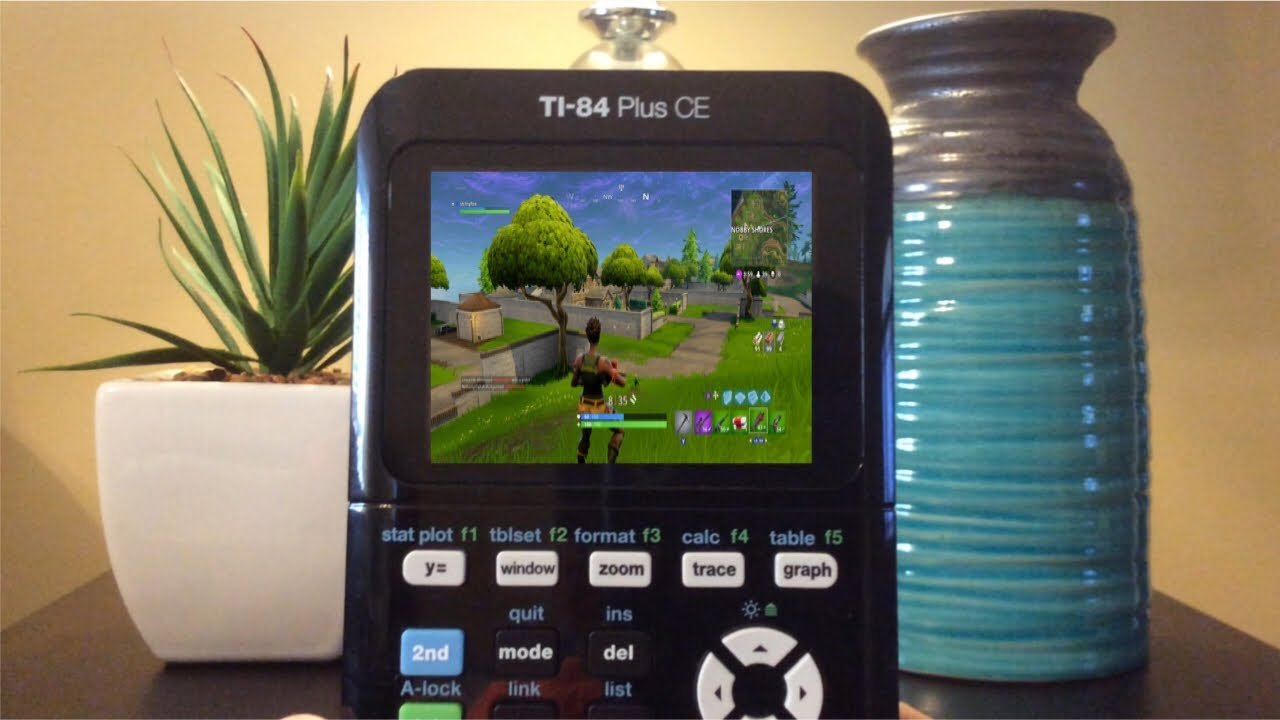
Gaming on a TI-84 Plus CE calculator??? #shorts
Final Thoughts
You can play games directly on your TI-84 Plus using programs transferred via calculator-to-calculator link. No computer is needed for this method. Ensure both calculators are properly connected using the link cable.
Send the game program from one calculator to the other. Then, execute the program on the receiving TI-84 Plus. Playing games is possible with this direct transfer method.
Therefore, how to play games on ti-84 plus without computer is achievable. This process enables fun gaming on your calculator, entirely independent of computer use.

