
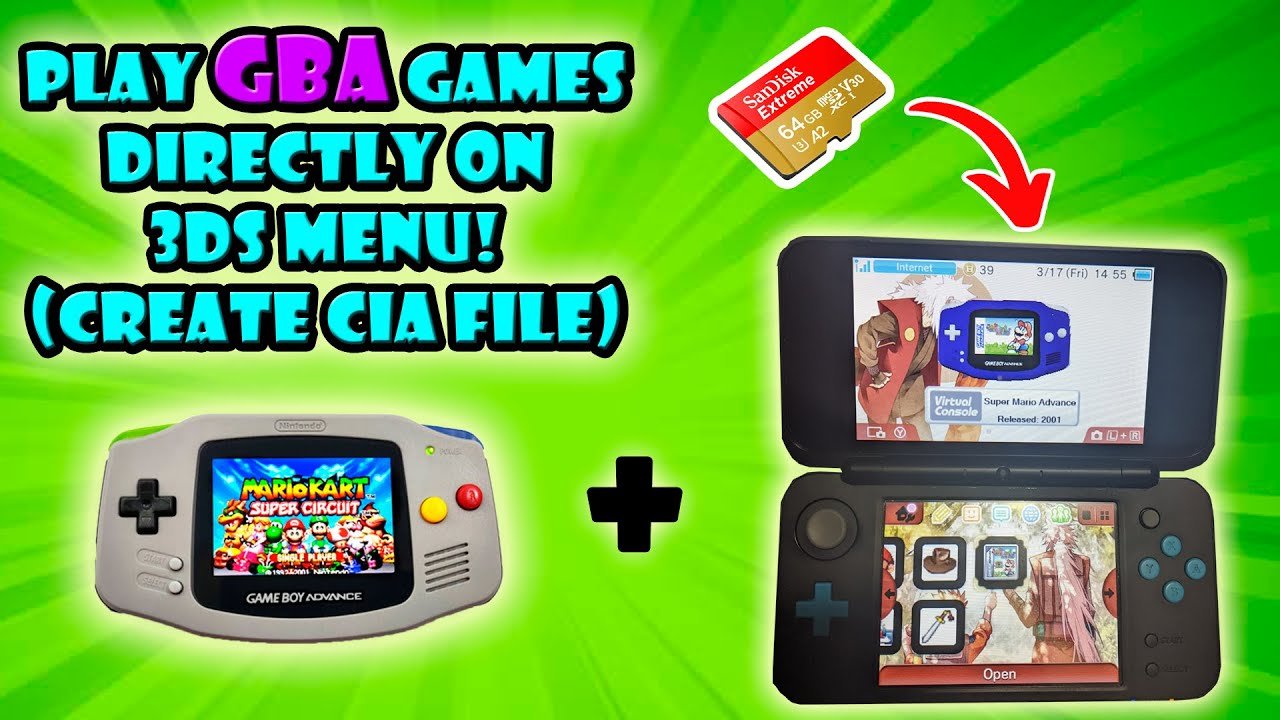
GBA games are not directly compatible with the 3DS; however, certain Ambassador Program games or virtual console titles purchased before a specific date allow you to play GBA games on 3DS.
Do you miss those classic Game Boy Advance titles? Many gamers fondly remember the GBA era. If you’re wondering how to play GBA games on 3DS, the situation is a bit complex. Unfortunately, the 3DS doesn’t natively support GBA cartridges.
Nintendo did offer some GBA titles through the Ambassador Program, for a select group of early 3DS adopters. Additionally, some GBA games became available as Virtual Console releases. These routes are how some users still experience GBA games on the 3DS.

How to Play GBA Games on 3DS
So, you love your Nintendo 3DS, and you also have a soft spot for those classic Game Boy Advance games? That’s awesome! You might be wondering if you can play those old favorites on your 3DS. The short answer is: yes, but it’s not as simple as just popping in a GBA cartridge. Nintendo didn’t design the 3DS to directly read GBA game cartridges. However, there are a couple of cool ways you can enjoy those pixelated adventures on your handheld console. Let’s explore these methods and learn how you can get your GBA gaming fix on your 3DS.
The Official Way: Virtual Console on the Nintendo eShop
The most straightforward and completely legal way to play GBA games on your 3DS is through the Nintendo eShop. Nintendo released a selection of GBA games as part of their Virtual Console service. These games are specially adapted to run on the 3DS hardware and offer a near-perfect retro gaming experience.
What are the benefits of using the Virtual Console?
- Legit and Safe: Buying from the eShop means you’re getting a genuine, authorized copy of the game. You won’t have to worry about anything fishy or violating Nintendo’s terms.
- Easy to Use: Once purchased, the games download and install just like any other 3DS title. You launch them directly from the Home Menu.
- Perfect Compatibility: These games are designed to run flawlessly on the 3DS, with no glitches or compatibility problems.
- Save States: Unlike the original GBA games, the Virtual Console versions let you create save states, allowing you to pick up your game anywhere.
- Screen Options: You can usually choose to display the game in its original pixel size or stretch it to fit the 3DS screen (though some games may look better in their original aspect ratio).
How to access the Virtual Console
- Turn on your 3DS and make sure it’s connected to the internet.
- Go to the eShop icon on your Home Menu (it looks like a shopping bag).
- Tap on the eShop icon to enter the store.
- Use the search function or browse through the ‘Virtual Console’ section to find the GBA games you want.
- Select a game, view its details and then proceed to purchase it. You can use funds already added to your account or make a new purchase using a credit card or eShop card.
- After buying, the game downloads and installs automatically. You can now launch it directly from your Home Menu.
Limitations of the Virtual Console
While the Virtual Console is a fantastic option, it has a few drawbacks:
- Limited Selection: Nintendo hasn’t released every single GBA game on the Virtual Console. You might not find all of your absolute favorite games there.
- No Cartridge Support: You cannot use your old GBA cartridges with the 3DS’s Virtual Console. You have to buy the digital versions again.
- Cost: Each game requires a purchase. While often less than buying a used cartridge, it can still add up if you want to buy many games.
- eShop Closure: Notably, the 3DS eShop has now closed down. This means that you can no longer purchase GBA games directly from the eShop. The only way to play them now is if you previously downloaded them.
The Unofficial Way: Using Homebrew and Emulators
If you’re a bit more adventurous, or if you want to play GBA games that aren’t on the Virtual Console, you can look into using homebrew and emulators. Homebrew refers to custom software and programs that users can run on devices that are not meant for it. With homebrew, you can install a GBA emulator which can then play GBA game files (called ROMs).
Important Note about Legality
Before going further, let’s get something very clear: downloading and using ROMs of games you don’t own is usually illegal. You should only use ROMs if you legally own the corresponding physical cartridge of the game. This guide is purely for informational purposes. How you use the information given is your responsibility.
What is Homebrew?
Homebrew is custom-made software that runs on game consoles, smartphones, and other devices. In the 3DS world, homebrew opens up the ability to run software the console would normally restrict, like emulators and other utilities. You need to modify your 3DS to install homebrew. This involves some level of technical know-how.
Getting Started with Homebrew
The process to set up homebrew can be a bit complex, and it varies depending on your 3DS’s firmware version. However, the general steps are usually similar:
- Check your Firmware: You will need to first identify which firmware version your 3DS is running. This is important because specific homebrew methods are sometimes specific to certain firmware versions.
- Research Exploits: Depending on your 3DS firmware, you’ll need to find an exploit. This is a vulnerability in the system software that you use to install custom firmware. There are many guides online – use a search engine to find the guide for your specific firmware.
- Back up your 3DS NAND: Before doing anything major, it’s very important to create a backup of your system’s memory (NAND). This backup will be essential if anything goes wrong.
- Install Custom Firmware: This is the software that will allow you to install and run homebrew apps. It is sometimes called ‘CFW’ for short.
- Install a GBA Emulator: Once you have CFW, you can now download and install a GBA emulator application.
The process for installing homebrew can be tricky and may require careful following of online tutorials. There are many guides available online that provide step-by-step instructions. Follow them carefully. Be cautious and do your research before beginning. A mistake could potentially brick your device.
Finding a Good GBA Emulator
There are a couple of popular GBA emulators for the 3DS homebrew scene, such as “mGBA”. Do your research and pick one that has good reviews and user feedback.
Using the Emulator
Once you’ve got everything set up, using an emulator is pretty simple:
- Transfer your GBA game files (ROMs) to your 3DS using its SD card.
- Launch the GBA emulator from your 3DS Home Menu.
- In the emulator’s menu, navigate to the location of your ROM file and then launch the game.
- Start enjoying those retro adventures!
Benefits of using Emulators
- Play almost any GBA game: You can play games not available on the Virtual Console.
- More customization: Many emulators offer additional options, like screen filters, save states, and control customization.
Drawbacks of Using Emulators
- Complicated Process: Setting up homebrew and emulators requires technical know-how. It’s not very user friendly.
- Potential Risks: Modifying your 3DS may void your warranty and can sometimes lead to software errors or hardware damage if not done correctly.
- Legal and Ethical Concerns: As mentioned earlier, using game ROMs you don’t own is not usually legal.
- Compatibility: Not all emulators can perfectly play all games. You may find occasional glitches, slowdowns, or other issues with certain games.
- No Official Support: You won’t get any help from Nintendo if you have problems with homebrew.
Comparing the Two Methods
To help you decide which method suits you best, here’s a quick comparison table:
| Feature | Virtual Console (Official) | Homebrew & Emulators (Unofficial) |
|---|---|---|
| Legality | Completely Legal | Potentially Illegal if using ROMs of games you do not own |
| Ease of Use | Very Easy | Complex |
| Setup | Just a Purchase | Requires Modification |
| Compatibility | Perfect Compatibility | May experience Issues |
| Game Selection | Limited | Almost All GBA Games |
| Additional Features | Save States, Screen Options | Many Extra Customization Features |
| Risk | None | Potential for Problems and voiding Warranty |
| Support | Nintendo Support | No Official Support |
| Cost | Cost for Each Game | Primarily Free once CFW installed |
Playing GBA games on your 3DS can be a very fun way to revisit classic games on a handheld you already own. The official Nintendo Virtual Console offered a simple and safe method, though it is no longer available for purchase. Homebrew and emulators can offer a wider selection of games, but come with a higher risk and requires a greater technical skill. Whichever method you choose, you will be able to experience all of the great GBA titles that you love.
How to Play GBA Games on 3DS
Final Thoughts
To play GBA games on 3DS, you need custom firmware. This process lets you install software that runs Game Boy Advance titles. You can then transfer your game files.
Another method is using official Virtual Console releases, when available. Nintendo sometimes releases GBA games via the eShop. These are straightforward to use.
So, the main takeaway is that achieving ‘how to play gba games on 3ds’ involves either a custom firmware approach or utilizing official releases for the best experience.

