
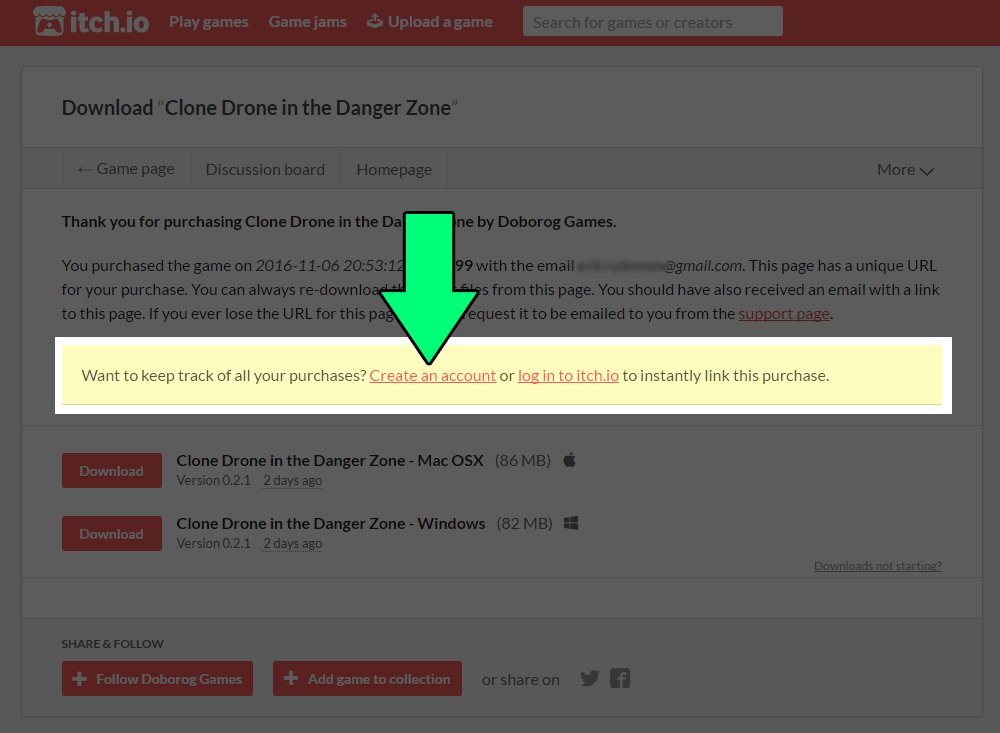
To play itch.io games, you typically download the game files from the game’s page and then run the executable or use the provided web player if available.
Ever stumbled upon a captivating indie game on itch.io and wondered how to play it? It’s simpler than you might think! The platform offers a fantastic array of unique experiences.
Most often, playing involves a quick download, or sometimes, you get to play right in your browser. Knowing how to play itch.io games opens up a world of fun and creative games.

How to Play Itchio Games: A Beginner’s Guide
So, you’ve heard about itch.io, a cool place to find tons of awesome indie games. Maybe you’re tired of the same old big-name games and want something different. That’s great! itch.io is a treasure trove of creative and unique games, and learning how to play them is easier than you might think. This guide will walk you through everything you need to know, from finding the perfect game to getting it running on your computer or device. Let’s jump right in!
Finding Games on Itch.io
The first step, of course, is finding games you want to play! Itch.io is packed with titles, so it’s good to know how to navigate. Here’s a look at the key ways to find your next favorite game:
Using the Search Bar
The easiest way to start is by using the search bar at the top of the itch.io website. If you know a game’s name or maybe the name of the game developer, type it here. For example, if you want to play a puzzle game, you could type “puzzle games”.
Browsing by Category
itch.io has categories that help you narrow your search. You’ll find categories like:
- Genres: Action, Adventure, Puzzle, RPG, Strategy, Simulation, and many more!
- Platforms: Windows, Mac, Linux, Android, iOS, or even browser-based games.
- Tools: These are like game-making tools, which can be fun to experiment with.
- Assets: These include things like graphics and sound, but that’s not what you want if you are only looking for games.
- Jam Games: These are created during special game development competitions called game jams. They are often very unique.
Take some time to browse these categories to see what catches your eye. You might find something completely unexpected that you end up loving!
Using Tags
Many games on itch.io use tags that describe the game’s themes, gameplay style, or art style. You can use these tags to refine your search. For example, you might search for games tagged as “pixel art,” “co-op,” or “horror”.
Here is how to use tags on Itch.io:
- Go to any game page or main browse section: Look for a bunch of words separated by commas.
- Click on the tags: When you click on a tag like “pixel art”, it will take you to another page which contains games with same tags.
- Explore: See all games with the particular tag you selected, it helps you narrow the games based on your interest.
Filtering Your Search
After searching, you can see the filters options just below the search box. You can filter by:
- Price: Free, Pay what you want, or Paid games.
- Release Date: Newest, Oldest.
- Number of ratings: Most popular.
Checking out Popular Games
Itch.io sometimes shows a “Popular” section, often on the homepage. This can be a good place to start if you’re not sure where to begin. These games are usually popular among other itch.io users, so you might discover a gem there.
Reading Game Descriptions
Before downloading any game, be sure to read the game description carefully! The description will tell you what the game is about, what kind of gameplay to expect, and if there are any special requirements.
Looking at Ratings and Comments
After reading the description, look at what other players are saying. You can see how many stars other people have given the game, and you can usually read their comments. This can help you decide if the game is worth your time.
Understanding Game Pages
When you find a game that interests you, clicking on it will take you to its dedicated page. These pages have a lot of important information, so it’s good to know what everything means. Here’s a breakdown of common elements you’ll see:
Game Title and Developer
At the very top, you’ll see the name of the game and the name of the person or team who made it. Clicking on the developer’s name will take you to their itch.io profile, where you can see other games they’ve made.
Game Images and Videos
Most game pages include images and sometimes videos of the game. Look at these to get a better feel for what the game looks like and how it plays. Do you like the art style? Does the game look fun? These are good questions to think about!
The Game Description
The game description usually includes detailed information about the game, such as:
- The story or premise of the game
- How to play (controls, gameplay mechanics)
- Who the game is for (age range, skill level)
- Any important information you need to know before playing
Reading this carefully will make sure you know what to expect.
Download/Purchase Options
This is where you can get the game. You may see one or more of the following options:
- Download: The game is free, and you can download it right away.
- Pay what you want: You can choose to download the game for free or pay any amount you want to support the developer.
- Purchase: The game has a set price.
When you are paying for a game on Itch.io, you can generally choose the payment method that best suits you, such as a credit card, debit card, or PayPal, depending on the options set by the game developer.
System Requirements
It’s super important to check the system requirements! This tells you what kind of computer or device you need to run the game. Look for information like:
- Operating System: Windows, Mac, Linux, Android, etc.
- Processor: How fast your computer’s brain needs to be.
- Memory (RAM): How much short-term memory your computer needs.
- Graphics Card: What kind of graphics card you need.
- Storage: How much space the game takes up on your hard drive.
Make sure your computer or device meets the minimum requirements, otherwise, the game might not run well.
Comments and Reviews
Look for the comments section below the game description. Here you will see user comments and reviews which can be very useful before downloading the game. Some of the comments might have tips on how to play the game. Or some people might mention a bug or problem with the game, which can be useful information. If there are too many bad comments, it might not be a good game to download.
Downloading and Installing Games
Once you’ve found a game you want to play and you’ve made sure your computer or device can handle it, it’s time to download it. Here’s what that process usually looks like:
Clicking the Download Button
On the game page, you’ll find a button to download the game. This button usually has the word “Download” or something similar. Click this button to start the download.
Choosing the Correct Version
Sometimes, a game might have multiple download options, such as a Windows version, a Mac version, or a Linux version. Make sure you pick the right one for your operating system. You may also find different versions based on the architecture of your computer, for example, 32 bit or 64 bit. Choose the version appropriate for your computer.
File Formats
Games on itch.io come in different file formats. Some common ones include:
- .zip: A compressed archive. You’ll need to extract the game from the zip file before you can play it.
- .exe: An executable file for Windows. You can usually just double-click this to run the game.
- .dmg: An installer for Mac. You usually mount the .dmg file and drag the game to your Applications folder.
- .apk: An installer for Android. This is usually done directly on your Android device.
Extracting ZIP Files
If you downloaded a .zip file, you’ll need to extract it before you can play the game. Here’s how:
- Find the .zip file: It’s usually in your downloads folder.
- Right-click: Right-click on the .zip file.
- Select “Extract All” or “Extract here”: This option will create a new folder that contains the game files.
- Open the extracted folder: Look inside this folder for the game executable file (usually an .exe on Windows, an app on Mac).
Installing and Running the Game
Once you’ve downloaded and extracted (if necessary), you can run the game. Here’s what to do:
- Windows: Double-click on the .exe file to run the game.
- Mac: Double-click on the app to run the game. You might need to drag the game from the .dmg file to your Applications folder first.
- Linux: This can vary depending on the game and your Linux setup, but often it involves marking the game file as executable and then running it from the terminal. If the game has an install instruction, it is good to follow those instructions carefully.
- Android: Open the .apk file, and your device will guide you through the installation.
Dealing with Game Problems
Sometimes, a game might not work perfectly right away. Here are a few things you can try:
- Check system requirements again: Did you miss something?
- Restart your computer: Sometimes, a simple restart can fix problems.
- Update your graphics drivers: Outdated graphics drivers can cause issues.
- Look for help on the game page: Sometimes, other users have posted solutions in the comments.
- Contact the developer: If you’re still stuck, you can try contacting the game developer for help.
Playing Browser Games
Many itch.io games are designed to be played directly in your web browser. This means you don’t need to download or install anything. It’s super convenient!
Identifying Browser Games
On the game page, you’ll usually see a button that says “Run in browser” or something similar. This means it’s a browser game. You can also tell by the lack of download options. Instead, you’ll often see the game directly displayed below or near the download or purchase options.
Playing Browser Games
To play a browser game, just click the “Run in browser” button or click on the game screen. The game will load right in your browser window, and you can start playing. Make sure your browser is updated, for better performance.
Browser games can have controls that use your keyboard, mouse, or gamepad. Most will provide a control guide within the game or on the game page.
Advantages of Browser Games
Browser games are fantastic because:
- You don’t need to download or install anything.
- They can be played on any device with a web browser.
- They are often quick and easy to start playing.
Understanding Game Controls
How you control a game varies from title to title. Here’s an overview of the main control methods you will find on Itchio games:
Keyboard Controls
Most games use the keyboard for movement and actions. Common keys include:
- Arrow keys: For movement (up, down, left, right).
- WASD keys: For alternative movement controls.
- Spacebar: For jumping, interacting, or selecting options.
- Shift key: For running, sprinting, or special moves.
- Ctrl or Alt keys: For secondary actions or abilities.
- Escape key: For pausing or going to the main menu.
Pay attention to instructions on screen or the game page, most games will tell you the control in their instructions or menus.
Mouse Controls
Mouse controls are common in games, especially for:
- Pointing: For selecting items on the screen or moving a cursor.
- Clicking: For actions, interactions, and using menus.
- Scrolling: For zooming or navigating menus.
Sometimes, a combination of keyboard and mouse is required to play a game.
Gamepad Controls
Some games support gamepad controllers (like Xbox or PlayStation controllers). If the game supports a gamepad, it will usually tell you on the game page, and there may be settings in the game to change control schemes.
Checking the Game Instructions
Always, always, always check the game page or the in-game instructions to find out the game controls. It is common for games to have different control schemes than the standard ones.
Supporting Indie Developers
Itchio is a place for indie game developers, and you have multiple ways to support them while playing their amazing creations!
Paying What You Want
Many games on itch.io use the “Pay what you want” model. This means you can download the game for free or pay any amount you want to support the developer. Even if a game is offered for free, consider paying something if you enjoyed it. Every little bit helps indie developers!
Purchasing Games
If you like a game, you can buy a copy to support the developer. It shows your support by letting them know that their game is valuable and worth playing. Many games only have the option to purchase the game.
Leaving Reviews
Leaving positive reviews and helpful comments on a game page is a great way to show your appreciation. It lets the developer know that you enjoyed their game and can give them ideas on how to improve their creations.
Following Developers
If you really like a developer’s games, you can follow their itch.io profile. That way, you’ll be notified when they release new games. This helps you stay up-to-date on their creations and provides consistent support.
Sharing Games
If you find a great game on itch.io, tell your friends about it! Sharing games helps more people see the amazing work of indie developers. You can share on social media or any other online platform.
Joining Discord Servers or Developer Communities
Many game developers have Discord servers or online communities dedicated to their games. Joining these groups can help you find answers to your questions, or just communicate with the developers and other fans. Look for the links at the bottom or on the itch.io game page itself.
Exploring itch.io can bring you many new adventures through a vast library of games. Remember to always read the game descriptions, comments, and system requirements before downloading and installing, and have fun!
How to install Itch.io games on WINDOWS 11-9 (and play them)
Final Thoughts
To play itch.io games, you generally download the game files from the game’s page. After downloading, extract the files if needed and then launch the game executable. Sometimes you may need to use specific operating systems.
Many itch.io games are browser-based. These games play directly on the website. Just visit the game page, and you can start playing right away.
Understanding the download and play methods is crucial for how to play itch.io games. Different games have different ways to engage.

