
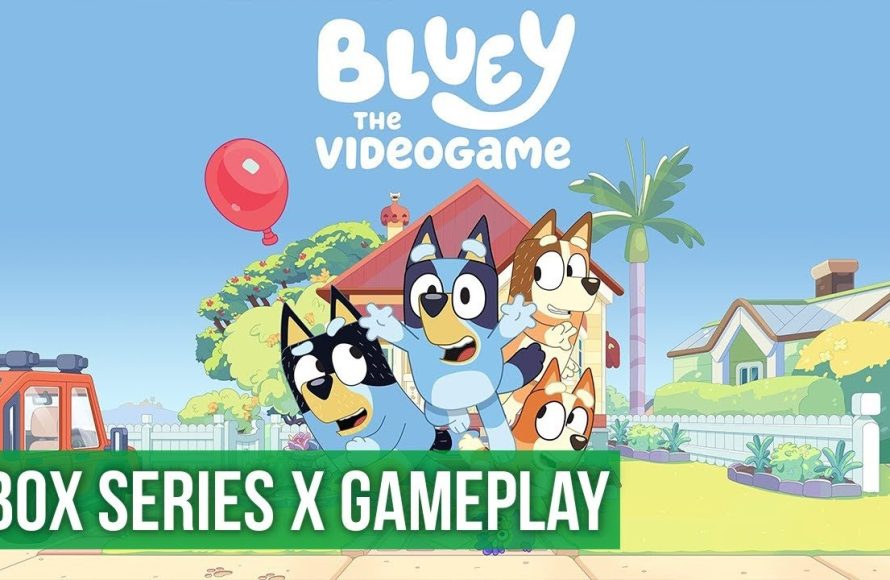
To play multiplayer on the Bluey game, you’ll need to select the ‘Party’ option from the main menu, then have each player join using their own controller.
Want to share the fun of Bluey with friends and family? Learning how to play multiplayer on the Bluey game is simpler than you might think.
It allows everyone to experience the delightful world together. Imagine the laughter as you and your loved ones complete mini-games.
Playing together enhances the experience and makes the game even more enjoyable. Let’s dive into the easy steps.

How to Play Multiplayer on Bluey Game
So, you’ve got your copy of the Bluey video game, and you’re ready for some fun with friends or family? That’s awesome! Playing together is one of the best parts of any game, and the Bluey game is no exception. It’s all about imaginative play and cooperation, just like in the show. This article is here to walk you through every step of getting that multiplayer action going. Whether you’re playing on a Nintendo Switch, PlayStation, Xbox, or PC, we’ve got you covered. Let’s dive in!
Understanding Local Multiplayer
The Bluey video game offers local multiplayer, which means you can play with people who are in the same room as you. This is different from online multiplayer where you play with people over the internet. For Bluey, it’s all about sitting on the couch together, sharing snacks, and having some laughs while you play. The game supports up to four players, which is perfect for family game nights or playdates with friends. This local focus allows for spontaneous fun and easy gameplay without worrying about internet connections or finding online matches.
What You Need for Local Multiplayer
Before you jump into playing, let’s make sure you’ve got everything you need:
- The Bluey Video Game: Obviously, you’ll need a copy of the game.
- A Gaming Console or PC: The Bluey game is available on Nintendo Switch, PlayStation (PS4 and PS5), Xbox (Xbox One and Xbox Series X/S), and PC. Make sure you are playing on one of these systems.
- Extra Controllers: You’ll need at least one extra controller for each additional player. For four players, you’ll need four controllers.
- A Screen: A TV or computer monitor so everyone can see the game.
Setting Up Multiplayer on Different Platforms
The way you set up multiplayer is pretty similar across different platforms, but there might be slight variations. Here’s a platform-by-platform guide to help you get started:
Nintendo Switch
The Nintendo Switch is a great console for multiplayer games. Here’s how to set up multiplayer on the Switch:
- Make sure your controllers are synced: If you’re using Joy-Con controllers, detach them from the sides of the Switch and press the sync button on each. If you’re using Pro Controllers, ensure they are paired to the Switch.
- Start the Bluey Game: Launch the Bluey game from the Switch home screen.
- Follow the on-screen prompts: Once in the game menu, look for options related to multiplayer or joining a game. Usually, the game will prompt you to press a button to “join” or “add a player”.
- Select your characters: Once the other players have joined, you’ll get to choose which character each person plays – Bluey, Bingo, Chilli, or Bandit!
- Start the Adventure: Now you’re all set to play the game together!
PlayStation (PS4 and PS5)
Setting up multiplayer on PlayStation is also straightforward:
- Turn on your controllers: Make sure all your DualShock 4 (PS4) or DualSense (PS5) controllers are turned on and connected to your console. You might need to press the PlayStation button in the center of the controller to turn it on.
- Start the Bluey Game: Navigate to the game in your PlayStation library and start it.
- Look for the multiplayer option: In the main menu, find the option to start a multiplayer game or add players.
- Add players: When prompted, other players should press any button on their controllers to join.
- Choose your characters: Each player can select which Bluey family member they will play as.
- Play Together: And that’s all! Get ready for some cooperative fun.
Xbox (Xbox One and Xbox Series X/S)
Xbox users, here’s how to get your multiplayer game started:
- Turn on Xbox controllers: Power on all your Xbox controllers. If they are not already paired, you might need to press the sync button on the console and on each controller.
- Start the Bluey Game: Open the Bluey game from your Xbox home screen.
- Access the multiplayer options: Check the game menu for multiplayer options or add player prompts.
- Join the game: Other players will need to press any button on their controllers when prompted to join the game.
- Pick your characters: Each person gets to choose their Bluey family character.
- Start playing: Now all you have to do is play the game together!
PC
Playing on PC is slightly different as it involves controller support. Make sure you have multiple controllers that your PC recognizes.
- Connect your controllers: Connect all the controllers to your PC via USB or Bluetooth. Make sure your computer recognizes each controller.
- Start the Bluey Game: Launch the game through Steam, Epic Games, or other game launcher that you are using.
- Find the multiplayer prompt: In the main menu of the game, you will find the prompts to add another player.
- Add players: Other players should press any button on their controllers when prompted to join.
- Select your characters: Each person gets to pick which Bluey family member they want to play.
- Play the Game: And now, have fun playing together!
Tips for a Great Multiplayer Experience
Getting the game started is just the first step. Here are some tips to make sure everyone has a great time while playing:
Communicate and Cooperate
The Bluey game is designed to encourage teamwork. Talk to each other about what you’re doing, share ideas, and help each other solve puzzles. Good communication is key for a fun gaming session!
Be Patient
It’s not always going to be smooth sailing. Sometimes, someone might take a wrong turn or struggle with a particular puzzle. Be patient with each other, offer encouragement, and remember, it’s about having fun together, not being the best player.
Take Breaks
Gaming can be tiring, especially for little ones. Make sure to take breaks to stretch, grab a snack, and recharge. A short break can make the next round even more enjoyable.
Share the Controller
If you have more players than controllers, try sharing! You can pass the controller around or take turns playing different sections of the game. This keeps everyone involved even if they aren’t playing continuously.
Encourage Imaginative Play
Just like in the Bluey show, the game promotes imaginative play. Don’t be afraid to create your own stories, rules, and silly scenarios while playing. It can make the experience even more engaging and fun!
What to Do if You Have Trouble
Sometimes, things don’t go as planned. Here are some common issues you might encounter and how to solve them:
Controller Not Connecting
If a controller isn’t connecting, try these steps:
- Make sure the controller has power and is charged.
- Try turning the controller off and back on.
- Double-check if the controller is synced to the console/PC.
- Consult the manual of your gaming console/PC for specifics on controller connections.
Game Not Recognizing All Players
Sometimes, the game may not pick up all the controllers. If this happens, try these steps:
- Restart the game.
- Make sure all controllers are properly synced.
- Check that your platform supports the number of controllers you are trying to use.
Players Can’t Select Characters
If players are unable to choose their characters:
- Restart the game.
- Make sure all controllers are properly synced.
- Follow the on-screen prompts to ensure every player makes their selection.
Game is Glitching
Sometimes games might glitch. Try these solutions:
- Restart your console or PC.
- Check if there is a pending update for the game and install it.
- Verify the game’s files (if on PC).
Enjoying the Bluey Multiplayer Experience
The Bluey video game is more than just a game; it’s a tool for imaginative play and bonding. By understanding how to set up multiplayer, you’re opening up a world of cooperative fun for your family and friends. So gather your loved ones, grab those controllers, and prepare to laugh, play, and make some wonderful memories together. Remember, the best part of the game is not winning or losing, but the shared experience and the joy it brings. The Bluey game offers a chance to step into the playful world of Bluey and her family, and with multiplayer, you can share that world with everyone around you. Have a fantastic time exploring, solving puzzles, and engaging in all sorts of imaginative adventures!
Setting up multiplayer on the Bluey game might seem like a lot, but once you get the hang of it, it’s easy! With some careful preparation, you and your family or friends can enjoy hours of fun together. Be sure to practice good communication, be patient with each other, and don’t be afraid to add your own imaginative twists. The Bluey game promotes teamwork and creativity, providing a great platform to build lasting memories. From the simple joy of exploring the neighborhood to the more complex challenges of solving puzzles, every moment is filled with opportunities for fun. So, gather your controllers, start the game, and get ready to have an amazing multiplayer experience with Bluey and her family!
How to play this Bluey game with friends
Final Thoughts
To play multiplayer on Bluey, gather your friends and family around. Ensure each player has their own controller. Select the multiplayer option from the main menu. Now, you can choose a character and explore the game together.
The game supports up to four players locally, making it a fantastic option for group fun. Coordinating your actions will be essential for completing mini-games and tasks. Remember, how to play multiplayer on bluey game is all about teamwork and shared adventure.

