
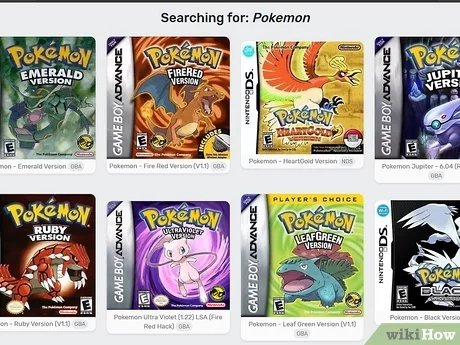
To play old Pokemon games on PC, you’ll primarily use emulators, which are programs designed to mimic the original game consoles, along with ROM files that contain the game data.
Do you yearn for the simpler days of pixelated adventures and classic Pokemon battles? Many of us do! The charm of the early Pokemon games is undeniable. You can revisit these beloved titles easily, actually.
The process of learning how to play old Pokemon games on PC might seem intimidating, but it’s quite straightforward. With the correct tools and resources, you’ll be exploring the Kanto region, Johto, and beyond in no time. Get ready to relive those nostalgic journeys.

How to Play Old Pokémon Games on PC
Want to revisit the good old days of Pokémon? Maybe you missed out on some classic adventures and want to experience them now. Playing old Pokémon games on your PC is totally doable, and it’s easier than you might think! Let’s jump right into how you can make this happen. We’ll cover everything from finding the right tools to setting everything up so you can start catching ’em all on your computer screen.
Understanding Emulators
First, you need to know about emulators. What are these, you ask? Think of an emulator like a special program that makes your computer pretend to be an older gaming system, like a Game Boy or Nintendo DS. This allows you to play games designed for those systems on your computer. It’s a bit like having a time machine for video games!
How Emulators Work
Emulators work by mimicking the hardware of the original console. They read the game files (called ROMs) and translate the instructions so your computer can understand them. This involves complex programming, but thankfully, there are many free and user-friendly emulators available. The emulation process is actually a kind of simulation, where your PC is taking on all the actions that were originally handled by the older Nintendo device. This even includes how the graphics are displayed and how the sound is produced, so it feels and sounds like you’re playing on the real thing.
Think of it like this: if you had a friend who spoke a language you didn’t understand, an emulator would be the translator, making everything clear for you. It lets your PC understand the game and present it to you in a way you can interact with.
Finding the Right Emulator
Choosing the right emulator can feel a bit overwhelming because there are many choices. Here’s a breakdown of the most common emulators for different Pokémon games, so you can find the perfect match:
For Game Boy and Game Boy Color Games
If you’re looking to play the earliest Pokémon titles like Red, Blue, Yellow, Gold, Silver, or Crystal, you’ll want a Game Boy or Game Boy Color emulator. Here are a few popular options:
- VisualBoyAdvance (VBA): A classic and reliable choice for both Game Boy and Game Boy Color games. It’s known for its ease of use and good compatibility. VBA is a stable platform which is still used and widely praised.
- mGBA: A more modern emulator that works well on all kinds of computers. It’s lightweight, but it offers many options for customizing your game and it has high-performance abilities.
Both are free and easy to set up. For most users, these two provide all the necessary features and work well for classic Pokémon titles.
For Game Boy Advance Games
For games like Pokémon Ruby, Sapphire, Emerald, FireRed, and LeafGreen, you’ll need a Game Boy Advance (GBA) emulator. Here are some good choices:
- VisualBoyAdvance (VBA): The same VBA emulator that works for Game Boy and Game Boy Color games also works for Game Boy Advance games. So, if you already have this downloaded, you’re in luck!
- mGBA: As mentioned above, mGBA supports GBA games too. This makes it a good all-rounder if you plan on playing games from multiple platforms.
Both work wonderfully and are easy to configure. If you use Windows, Mac or Linux, you can play gba games very easily.
For Nintendo DS Games
If you want to play the Nintendo DS Pokémon games like Diamond, Pearl, Platinum, HeartGold, SoulSilver, Black, and White (or Black 2 and White 2), you will need a Nintendo DS emulator. Here’s a top recommendation:
- DeSmuME: This is the most common and reliable DS emulator for PC. It’s compatible with almost all DS games, and you will find tutorials and helpful forums online for help if you get stuck.
Desmume works well and it is free and its community support makes it easier to use, even if you are new to emulators. It is regularly updated which is good for stability and for fixing any bugs.
For 3DS Games
Playing 3DS Pokémon games like X, Y, Omega Ruby, Alpha Sapphire, Sun, Moon, Ultra Sun, and Ultra Moon is a bit more complicated because they are more modern. But it is still doable with a 3DS Emulator.
- Citra: This is the best 3DS emulator for PC. Citra is still under development so there may be some issues, but it’s the best option for playing 3DS Pokémon games.
Citra can be more demanding on your computer than other emulators, so it is advisable to check if your PC meets the requirements before installing Citra. With Citra, you may need to experiment with a few settings for perfect playback.
Finding Pokémon ROMs
Now, where do you get the actual Pokémon games? You’ll need what are called ROMs. A ROM is like a digital copy of the game cartridge. It’s the actual game file that the emulator uses to play the game. Important: Downloading ROMs of games you don’t own is illegal, as these are copyrighted. The most ethical way to do this is to back up your own games if you have them, but we are not encouraging that here. Please research local laws regarding this topic before engaging.
Legally Obtaining ROMs
If you own a physical copy of a Pokémon game, you can, in most cases, create your own ROM backup for personal use. There are hardware devices designed for this purpose. However, the process can be tricky, so be sure to do your research and follow instructions carefully.
Searching the Web for ROMs
Many websites offer ROMs. However, be very cautious because these sites often have ads or even malicious software. It’s important to be vigilant. If a site seems too good to be true, it probably is. Here’s a safe way to approach ROM downloads:
- Use trusted sources: Look for reputable forums, or download from sites that other users have confirmed are safe.
- Check user comments: See if other users have successfully downloaded games from that site.
- Scan downloaded files: Always use your computer’s security system (like virus software) to scan the downloaded file for viruses before you start the game.
Even though finding ROMs online can be easy, it’s important to be aware of the risks and ensure you do everything possible to be safe.
Setting Up Your Emulator
Once you have downloaded your emulator and ROM, it is time to set everything up. Here is how it will go:
Installation
Usually, emulators are downloaded as a ZIP file. Extract the contents of this ZIP file into a folder on your computer. You typically don’t have to ‘install’ the emulator in a normal way. You simply run the program by opening the .exe file (if you are using windows).
Loading a ROM
Open the emulator program. Look for a ‘Load ROM’ or ‘Open ROM’ menu option. Then, choose the ROM file of the game you downloaded. The game should then load in the emulator. Sometimes, you may need to set up the controller settings or adjust the graphics settings. Most of these options are user-friendly and have a basic explanation of how to use them, so don’t worry if the terms seem complex.
Configuration
Let’s talk about some ways you can adjust the settings to improve your playing experience:
- Controller Settings: You can use your keyboard or an external gamepad. Go to settings and choose which buttons will do what. Usually, A, B, Start, and Select buttons are essential.
- Graphics Settings: You can change display resolution or filters for visuals. This can improve the look of the game on your computer screen.
- Speed Settings: Some emulators offer features to speed up the gameplay or slow it down. This is helpful if you are doing something like grinding for a Pokemon.
- Sound Settings: You can tweak the audio settings to customize the game sounds.
Adjust these settings according to your personal preferences so you can have the very best experience.
Playing the Game
Now that your emulator is set up and your ROM is loaded, you are ready to start playing! It will feel like you’re playing on the original console. You will see the old-style graphics, and hear the nostalgic music. You’re all set to revisit your favorite Pokémon regions or experience them for the first time.
Tips for a Smooth Experience
- Save Frequently: Emulators allow you to save in different spots in the game rather than only in the normal save spots. Be sure to use these ‘save states’ often, just in case anything goes wrong, or if you want to experiment with a certain part of the game.
- Experiment with Settings: Try playing with different graphic or sound options if you are having issues. Every computer system works differently, so what works for one person might not work for you.
- Join Online Communities: Forums and online communities can give you tips and advice if you are having trouble. Don’t be afraid to look for some help from those who have already figured things out.
By using these tips, you will be set for a more pleasurable playing experience.
Troubleshooting Common Issues
Sometimes things don’t go as planned. Let’s talk about some common issues and how you can fix them:
Game Not Loading
If a game doesn’t load, first, make sure your ROM file is not corrupted or broken. Try downloading it again from a different source to see if that helps. Make sure that you have the right emulator for your specific game format and your file format is supported by your emulator.
Game Freezing or Crashing
If your game is freezing or crashing, try adjusting the graphics and sound settings on your emulator. Sometimes, lowering the quality can help the game to run better. Also, check to see if your computer has enough memory to run the game smoothly. Close any unnecessary programs on your computer when you are trying to play your game.
Controls Not Working
If the controls are not working, double-check the controller settings. Make sure the buttons are assigned correctly, and if using a gamepad, be sure it’s properly connected and recognized by your PC. Try to re-map the controls in case of some conflicts with default settings.
Audio Issues
If you are not hearing sound, or the audio sounds wrong, check the sound settings within the emulator. Ensure the correct sound output device is selected and that the sound is not turned off or muted. Some audio issues can also be due to hardware or software problems on your computer, so it’s good to make sure everything is in working order.
By understanding and addressing these issues, you will be able to overcome any common challenges you might face and have a great experience.
Playing old Pokémon games on your computer can be a wonderful trip down memory lane, or a great way to catch up on classics that you’ve missed. Now that you know all the steps involved, you are ready to start your adventure. From finding the right emulator and ROMs to setting everything up, you will be able to catch all the Pokémon on your computer! So take a deep breath and get ready for some great fun playing the classic Pokémon titles.
How to play #Pokemon on your desktop BROWSER??! #shorts #tutorial #pokémon
Final Thoughts
To play old Pokemon games on pc, you’ll primarily need emulators and ROMs. Emulators simulate the original consoles, while ROMs are the game files. Find reliable sources for both to ensure safe downloads.
Setting up an emulator is usually straightforward. You download, install, and then load your ROM file. Controls can be configured for your keyboard or gamepad. How to play old pokemon games on pc is quite simple.
Enjoy your retro Pokemon experience. Have fun reliving classic adventures! Remember to explore different emulator options and find one that suits you best.

