
To play PC game ISO, you need to mount the ISO image using virtual drive software, then run the game installer.
Ever downloaded a game and found it in the form of an ISO file? It can seem confusing, but playing your favorite games this way is quite simple. You might be wondering, how to play PC game ISO files.
The process involves a few key steps that we will go through. You need a specific program to mount the ISO image, making it appear as if you’ve inserted a disc.
This makes the game setup process exactly like using a physical disc, giving you access to install and play your game.

How to Play PC Game ISO Files: A Step-by-Step Guide
So, you’ve got your hands on a PC game ISO file and you’re eager to play? Great! But what exactly is an ISO file, and how do you get it to work like a regular game? Don’t worry; it’s not as complicated as it might seem. Think of an ISO file as a perfect digital copy of a game disc, like a CD or DVD. It’s a big file that contains all the information needed to install and play the game. This guide will walk you through everything you need to know, from understanding what an ISO is to getting your game up and running.
Understanding ISO Files
Before we dive into the how-to, let’s clarify what an ISO file really is. Imagine you have a game CD. It contains all the game data, like pictures, sounds, and code. An ISO file is a single file that holds an exact, bit-for-bit copy of all that information. It’s like taking a snapshot of the entire disc. This is why it’s often called a “disc image.” Instead of using the physical disc to install the game, you can use the ISO file.
Why Use ISO Files?
There are a few reasons why you might encounter an ISO file:
- Digital Downloads: Many older games are no longer sold in stores, but you can often find them as ISO files online.
- Backups: Creating an ISO image of a physical game disc is a way to make a backup, so you don’t need to worry about scratching or losing the original disc.
- Convenience: ISO files allow you to play games without needing to constantly insert and remove physical discs.
Tools You’ll Need
To play a game from an ISO file, you’ll need a couple of things:
- A Disk Image Mounting Software: This software makes your computer think the ISO file is an actual disc, allowing you to access it as if it were inserted into a disc drive.
- Enough Hard Drive Space: The ISO file itself will take up space, and you’ll need extra space to install the game.
- The Game ISO File: Of course, you need the actual ISO file of the game you want to play.
Popular Disk Image Mounting Software
There are many options for mounting disk images. Here are some of the more popular and free choices:
- WinCDEmu: A very small and simple program that gets the job done. It’s great if you want something basic and easy to use.
- Virtual CloneDrive: A user-friendly option with a clean interface. It’s easy to configure and works smoothly.
- DAEMON Tools Lite: A well-known tool that offers a few extra features. It may include ads in the free version.
- PowerISO: A good overall choice with many functions, but the free version has limited features.
For this guide, we’ll focus on using WinCDEmu because it’s free, lightweight, and simple to use. However, the general steps will be similar for other mounting programs.
Step-by-Step Guide: Mounting and Playing Your Game ISO
Alright, let’s get to the fun part – actually playing your game. Here’s a detailed step-by-step guide using WinCDEmu:
Step 1: Download and Install WinCDEmu
- Go to the WinCDEmu website: Open your web browser and search for “WinCDEmu download.” You can typically find it on the developer’s SourceForge page.
- Download the Installer: Click on the download link to get the installation file.
- Run the Installer: Open the downloaded file (it will usually end in .exe) and follow the on-screen instructions. Usually, you just need to keep clicking “Next” and then “Install.”
- Finish Installation: Once the installation is complete, you can click “Finish.” You probably won’t need to restart your computer.
Step 2: Mount the ISO File
- Find Your ISO File: Locate the game ISO file on your computer. It might be in your “Downloads” folder or wherever you saved it. It will have a .iso file extension.
- Right-Click the ISO File: Right-click on the game ISO file.
- Select “Mount”: In the context menu that appears, click the “Mount” option. If you’re using a different mounting program, it will have a similar option, such as “Mount to drive” or “Mount image.”
- Virtual Drive is Ready: A new window may briefly open and close. WinCDEmu will mount the ISO file and create a virtual disc drive. This virtual drive will appear in your “This PC” or “Computer” window. It will look like a regular disc drive, except it has the game’s name as the disc name. You’ll see a drive letter assigned to it (e.g., D:, E:, F:).
Step 3: Install the Game
- Open the Virtual Drive: Go to “This PC” or “Computer” and find the virtual drive with your game’s disc.
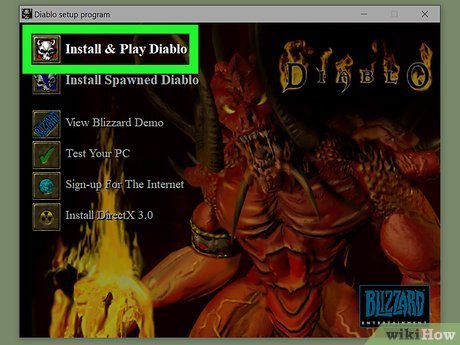
- Run the Setup File: Double-click on the virtual drive to open it. Look for the game’s setup file. This will often be named “setup.exe”, “install.exe”, or something similar. If you have a game that installs automatically, setup may start on its own.
- Follow the Installer Instructions: Follow the on-screen instructions to install the game. Usually, you’ll just click “Next” a few times, choose an install location on your hard drive, and then click “Install.”
- Wait for Installation: The game might take some time to install, depending on the size. You might see a progress bar and other prompts. Be patient while it works.
Step 4: Play Your Game
- Find the Game Shortcut: After the installation is complete, you should have a game shortcut on your desktop or in the start menu.
- Launch the Game: Double-click the game shortcut to start playing.
- Enjoy Your Game: Have fun! You are now playing the game installed from the ISO.
Step 5: Unmount the ISO File
After you’re done playing and you don’t need the virtual disc drive anymore, you can unmount the ISO file. Here’s how:
- Find the Virtual Drive: Go to “This PC” or “Computer” and locate the virtual drive with your game disc again.
- Right-Click the Virtual Drive: Right-click on the virtual drive.
- Select “Eject” or “Unmount”: In the context menu, click “Eject” or “Unmount.” If you are using a different software, it will likely say ‘Unmount’. WinCDEmu will remove the virtual disc.
This frees up the drive letter and prepares for the next ISO file you want to use. Remember, you can always mount the game disc again to play later.
Troubleshooting Common Issues
Sometimes, things don’t go exactly as planned. Here are some common problems and what to do about them:
Game Doesn’t Start
- Check Minimum Requirements: Make sure your computer meets the minimum requirements for the game. These requirements are usually found on the game’s packaging or online.
- Driver Updates: Make sure your graphics card drivers are up to date. Outdated drivers can cause games to not work or crash.
- Administrator Rights: Try running the game as an administrator. Right-click the game shortcut and select “Run as administrator.”
- Compatibility Mode: If it’s an older game, try running it in compatibility mode. Right-click the game shortcut, go to “Properties,” then “Compatibility,” and select an older Windows version.
- DirectX Installation: Some games may need an older version of DirectX to run. Search online for the correct DirectX for your game.
Errors During Installation
- Not Enough Disk Space: Check if you have enough free space on your hard drive. The game needs room to install all of its files.
- Antivirus Interference: Sometimes, antivirus programs can interfere with game installations. Try temporarily disabling your antivirus while you install the game.
- Damaged ISO: The ISO file might be damaged or corrupted. Try downloading a fresh copy from a trusted source.
- Admin rights : Make sure you have admin rights to install the game
Mounting Software Issues
- Program Conflicts: If you have more than one mounting program installed, they may conflict with each other. Try uninstalling all but the one you want to use.
- Software Errors: Sometimes the mounting software itself might have issues. Try reinstalling it or use a different mounting software.
- Virtual Drive Not Appearing: If the virtual drive doesn’t appear, check your software settings or restart your computer.
Important Considerations
Before downloading and playing games from ISO files, remember a few important things:
Legality
Downloading and playing games from ISO files is legal if you own a legitimate copy of the game. Downloading games that you do not own is illegal and could have serious consequences. Always be respectful of copyright laws.
Safety
Be very careful where you download ISO files from. Some websites may contain viruses or other malware. Always use reputable websites and check for any warnings from your antivirus software. Make sure to scan any file with your antivirus software before you start to use it.
Resource Usage
Running games, especially newer ones, can be demanding on your computer’s resources. Make sure your computer has enough power for the game you want to play. Monitor your CPU and GPU temperature while playing games. Overheating can cause performance issues.
A Final Few Words
Playing PC games from ISO files is a great way to experience old favorites or try new adventures. Using disk image mounting software, it’s not a complicated process, but if you encounter issues, remember to check the troubleshooting tips. With a little patience and the right tools, you can get your game up and running in no time. Always be aware of the legal and safety factors when using ISO files. Most importantly, have fun!
How To Install and play .iso games on a Windows PC
Final Thoughts
To play a PC game ISO, you will first need to mount it using software like Daemon Tools or Virtual CloneDrive. These programs create a virtual disc drive. Once mounted, run the setup or install file contained within the virtual disc.
The game will then install like it would from a physical disc. After installation, you can often play, provided you have necessary patches or fixes. This is how to play pc game iso, a common method for older games.

