
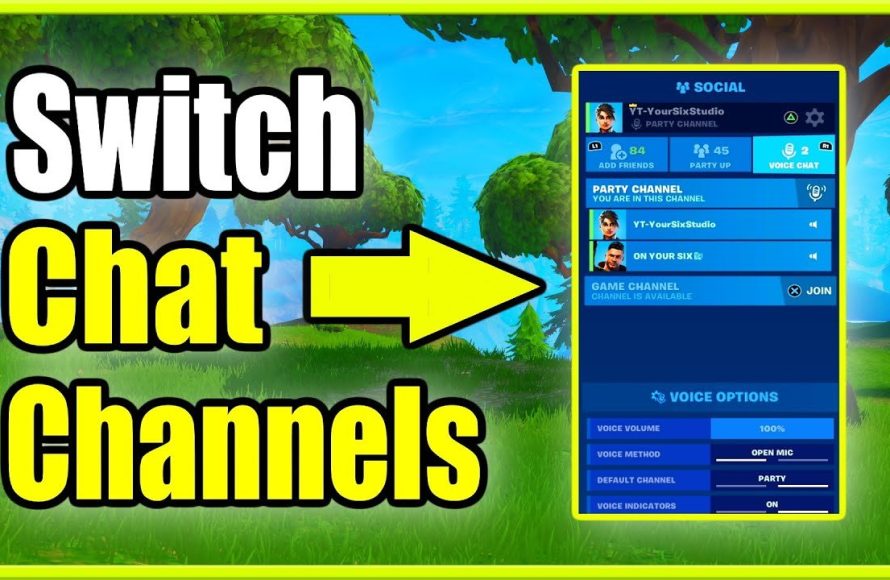
To turn on game chat in Fortnite, navigate to the game’s settings menu, then select the audio tab, and enable the voice chat option.
Want to coordinate better with your squad? Communication is key in Fortnite, and knowing how to turn on game chat in fortnite is essential for team play. Many players dive in, eager for action, yet can’t hear their teammates. This can be frustrating, especially in crucial moments.
Don’t worry, enabling voice chat is a quick process. We’ll walk you through the simple steps, making sure you can chat with friends. Get ready to improve your coordination and enjoy a better overall Fortnite experience.

How to Turn on Game Chat in Fortnite
Fortnite is a super fun game, right? You get to build forts, battle other players, and even drive cars! But sometimes, it’s even more fun when you can talk to your teammates and friends. That’s where game chat comes in. It lets you talk and strategize during the game, making it way easier to win. If you’re having trouble getting your voice to be heard in Fortnite, don’t worry! This guide will show you exactly how to turn on game chat and fix any issues you might encounter. We’ll go through it step-by-step, so you’ll be chatting with your squad in no time!
Understanding Fortnite’s Voice Chat System
Before we dive into the “how-to,” let’s understand a little bit about how Fortnite’s voice chat system works. Fortnite uses what’s called “voice over internet protocol,” or VoIP, to let you talk to other players. Basically, your voice travels over the internet to other players in your match. This means you’ll need a good internet connection for your voice to be heard loud and clear. Also, having a headset with a microphone is a must, though some modern headphones and earbuds have built-in microphones.
Types of Voice Chat in Fortnite
Fortnite offers different types of voice chat so you can choose the way you want to communicate.
- Party Chat: This is where you talk to the people who are in your party before you join a match. It’s great for planning and hanging out with your squad before the game starts.
- Game Chat: This is where you talk to all the players on your team once you’re actually in a match. This chat is essential for coordination and teamwork.
You can even change which type of chat you are using within the game settings. We will get into this soon!
Step-by-Step Guide to Enabling Voice Chat
Okay, now for the good stuff! Let’s get that chat working. Here’s what you need to do:
Accessing the Settings Menu
The very first thing you have to do is to go into the Fortnite settings menu. Here’s how:
- Start by launching Fortnite on your device whether that’s your console, PC, or mobile.
- Once you’re in the main lobby screen, look for the menu icon. It usually looks like three horizontal lines in the top-right corner of the screen. Click on this menu button.
- In the menu that appears, select the “Settings” option. It looks like a gear icon.
Navigating to Voice Chat Settings
Now that you’re in the settings, you’ll need to find the voice chat settings. Follow these steps:
- At the top of the screen, you will see several tabs. Click on the tab that says “Audio.”
- Scroll down until you see the “Voice Chat” section. This is where all the magic happens!
Configuring Voice Chat Options
Alright, you’ve found the voice chat area! Here are the important settings you’ll want to pay attention to:
- Voice Chat: This is the master switch! If it says “Off,” click it to change it to “On.” This is the most important step in getting your voice chat working.
- Voice Chat Method: This setting lets you choose whether your mic is always on or if you have to push a button to talk.
- Open Mic: This lets your mic pick up your voice automatically. Be careful with this option, especially if you have a lot of background noise.
- Push-to-Talk: With this option, your mic is only on when you press and hold a specific key or button. This is a good option if you want to control when your mic is active and cut down on background noise. You’ll also see a setting to set which button you press for push-to-talk.
- Voice Chat Input Device: This selects which microphone Fortnite should use if you have more than one. Make sure the correct microphone is selected here (like your headset mic).
- Voice Chat Output Device: This selects where you will hear other players’ voices. Make sure your headphones or speakers are selected here.
- Voice Chat Volume: This controls the loudness of other players’ voices. Adjust this until you can hear your teammates well.
- Voice Chat Quality: Usually, this setting is on High by default. However, if you’re having problems with low audio or you’re on an unstable internet connection, try lowering this setting to Medium or Low.
Once you’ve made the changes you want, make sure you hit “Apply” at the bottom to save them. If you want to start again, you can hit the “Reset to Default” button.
Advanced Tips and Troubleshooting
Sometimes, things don’t work exactly as planned. Here are a few common issues and how to fix them:
My Voice Chat Still Isn’t Working!
If you followed the steps, and voice chat still isn’t working, here are some troubleshooting steps:
- Check Your Internet Connection: Voice chat needs a stable internet connection. Make sure you have a good signal and that other internet-related programs and apps aren’t causing issues. If you’re on Wi-Fi, try moving closer to the router, or using an ethernet cable. You can test your internet speed by searching online for “internet speed test.”
- Restart Fortnite: Sometimes just restarting Fortnite can fix things. Close the game completely and reopen it.
- Restart Your Device: Try completely turning off your gaming device, and turning it back on. This can solve some underlying problems that might be affecting your game chat.
- Check your Microphone and Headset: Double-check that your microphone is plugged in correctly, and make sure that it works with other applications on your computer/device. Try another microphone if you have one. If your headset has a mute button, make sure that’s not activated.
- Update your Audio Drivers: For PC users, make sure your audio drivers are up to date. You can usually find the latest drivers from your sound card manufacturer’s website.
- Fortnite Server Issues: Sometimes the issue isn’t on your end, but with Fortnite’s servers. You can check the Epic Games server status to see if there are any problems.
- Privacy Settings: Double-check your console or PC’s privacy settings to make sure that voice chat is allowed. There could be a setting that blocks communication with other players that needs to be adjusted.
- Update Fortnite: Make sure you have the latest version of Fortnite. New updates include bug fixes that can improve voice chat stability.
Dealing with Audio Issues
Is your voice chat too quiet, too loud, or echo-y? Here’s how to manage those issues:
- Adjust Volume Settings: Use the voice chat volume settings within Fortnite to adjust the level of other players’ voices.
- Adjust Microphone Sensitivity: If your mic is too quiet or loud, you can find the settings for microphone sensitivity within the device settings of your PC or Console. Be sure to turn down the sensitivity if other players say they can hear echo.
- Reduce Background Noise: Make sure you’re in a quiet place when you’re playing. If that’s not possible, use headphones with good noise cancellation.
- Check for Loose Connections: Make sure your microphone is securely connected to your device and that the cord is in good condition. If your headphones have a detachable microphone, try reattaching it.
Mute and Block Players
If you come across players who are causing issues with their voice chat, you can mute them. Here’s how:
- In the game, bring up the player list. Usually, there is a button to press to bring this up.
- Find the player you want to mute.
- Select the mute option (usually, it is shown as a speaker with a line through it).
If a player is harassing you, you can also block them, which will completely block that player from chatting with you.
Platform Specific Considerations
The settings in Fortnite are generally the same across platforms, but there can be subtle differences. Let’s explore a few platform specific tips:
Playing on PC
If you’re playing on PC, ensure that your sound settings in Windows are correct. You might have to specify a default device for recording and playback. Also, make sure any third-party software that might use your microphone isn’t interfering with Fortnite.
Playing on Consoles (PlayStation, Xbox, Nintendo Switch)
On consoles, be sure to use the device settings to select your headset. Consoles have built-in voice chat capabilities, so make sure those are enabled, and there are not other applications or settings causing an issue. Also, be sure that your controller is connected correctly. If using a wireless controller, ensure the battery has sufficient charge.
Playing on Mobile (Android, iOS)
If you’re using a mobile device, ensure that Fortnite has permission to use your microphone. You can generally change these permissions in the settings app on your phone. Also, make sure that other apps that might use your microphone, like social media, don’t cause any conflicts.
In short, whether you’re a beginner or a seasoned Fortnite veteran, knowing how to use voice chat can really change your game. Take the time to check your settings, your gear, and your internet connection, and you’ll be talking with your squad, making new friends, and winning more games in no time!
How to Turn On Fortnite Voice Chat – PS4, PS5, Xbox & PC
Final Thoughts
In essence, to turn on game chat in Fortnite, access the game’s settings. Navigate to the audio section and locate the voice chat option. Make sure voice chat is enabled and the correct input/output devices are selected.
Double check your privacy settings to ensure voice communication is permitted. You must also confirm your microphone works properly. Adjust volumes to your preferences for optimal communication.
This will help you use the voice chat feature effectively. Following these steps explains how to turn on game chat in fortnite, ensuring clear communication with teammates during gameplay.

