
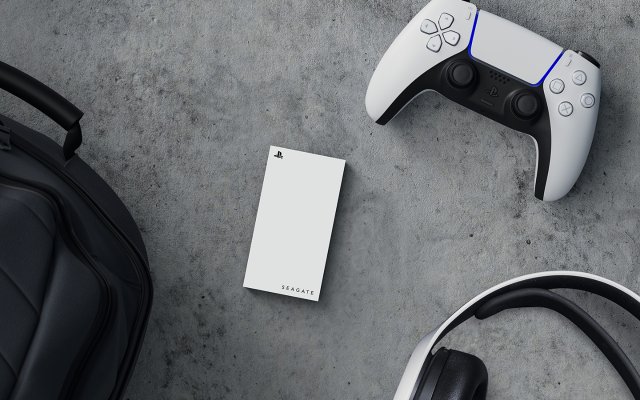
You cannot directly play PS5 games from an external hard drive; you can only store them there. You must transfer them to the PS5’s internal storage to play.
Are you running out of space on your PS5? It’s a common issue with today’s large game sizes. Many gamers are curious about how to play PS5 games on external hard drive, and it’s a good question.
The truth is, the PS5’s architecture doesn’t allow for direct play from external storage. This limitation means while you can move games to and from an external drive, you’ll always need to move them back to the console’s main drive to enjoy them. This process is an essential part of managing your game library.

How to Play PS5 Games on External Hard Drive
So, you’ve got a PlayStation 5, and you’re loving the amazing games, right? But, if you’re like many gamers, you’ve probably noticed that the PS5’s storage can fill up pretty quickly. That’s where external hard drives come in! Using an external hard drive is a great way to keep all your favorite games ready to play without having to constantly delete and reinstall them. But how exactly do you play PS5 games from an external drive? It’s not quite as simple as plugging it in and going. Let’s dive into everything you need to know, making it easy for anyone to expand their PS5 game library.
Understanding PS5 Storage Limitations
The PS5 has a fast internal SSD (Solid State Drive), which is one of the reasons games load so quickly. However, this fast storage is limited. The standard PS5 comes with around 825GB, but after system software and other files, you’re left with a bit less than that for your games. Modern games are big, sometimes more than 100GB each! This means you can fill up your storage in no time. The good news is, the PS5 allows you to use external storage devices, but there are some rules we need to follow. You can’t directly play PS5 games from a normal external hard drive, but there’s a way around this.
Why You Can’t Play PS5 Games Directly from External HDDs
The PS5 uses a super-fast SSD to make games load super fast. Regular external hard drives (HDDs) aren’t as quick. If you tried to play a PS5 game directly from an external HDD, it would be slow, and the game might not work very well. The PS5 needs that fast SSD speed to run games smoothly. Because of this, Sony has designed the system so that you can store PS5 games on an external HDD, but not play them directly from there. Instead, the external HDD acts as storage space, allowing you to move games back and forth between your external drive and the PS5’s internal SSD.
What Type of External Storage Can You Use?
Okay, so we know regular external HDDs can’t play games. What can we use then? The PS5 is compatible with certain kinds of USB storage devices. Here’s a breakdown:
- USB External Hard Drives (HDD): These are the most common and usually more affordable. You can use these to store PS5 games, but you cannot play them directly from the HDD. Instead, you must transfer them back to the internal SSD to play them. However, you can play PS4 games from an external HDD.
- USB External Solid State Drives (SSD): These are faster than HDDs, but they are also more expensive. Like HDDs, you cannot directly play PS5 games from an external SSD, but they are great for storage and faster game transfers. You can also play PS4 games from an external SSD.
Both HDDs and SSDs need to be a certain specification to work with the PS5. Here are the requirements:
- USB Connection Type: The external drive must connect using a USB 3.0 or a faster connection (like USB 3.1 or USB 3.2).
- Storage Capacity: The external drive must have a capacity between 250GB and 8TB. Drives smaller or larger than this will not work with the PS5.
Choosing Between HDD and SSD
When selecting your external storage device, consider your priorities.
- If cost is your main concern and you just need extra space for PS5 games you don’t play often, a regular HDD is a good choice.
- If speed is important and you want the fastest transfer times when moving games between the external storage and your PS5 internal SSD, an external SSD is a better choice.
For PS4 games, if you are going to play them directly from an external device, an SSD will load them much faster than an HDD. The game will play normally from either type of drive, but load times will be faster on an SSD. Let’s now look at setting everything up.
Setting Up Your External Hard Drive for PS5
Before you can use your external drive, you need to set it up on your PS5. It’s very simple, and you will be done in minutes. Just follow these steps:
- Plug it in: Connect your external hard drive to one of the USB ports on the back of your PS5. It is recommended to use the USB ports on the back, rather than the one on the front.
- Format the Drive: When you plug it in, your PS5 will usually prompt you to format the drive for use. If it doesn’t, you can do this manually by going to Settings, then Storage, and then selecting your external drive under Extended Storage. Then, select Format as Extended Storage.
- Follow the Instructions: The PS5 will guide you through the formatting process. This process will erase anything on the drive, so make sure you have backed up any important files.
Formatting Warning
It’s super important to know that formatting a drive will delete all of the files on it. So make a backup of all of your important files before you connect it to your PS5. After formatting, the drive can only be used with the PS5, not with other devices such as your PC, unless you reformat it again, which will erase any game data.
Moving PS5 Games to External Storage
Once your external drive is ready to go, you can start moving games to it. Here’s how to do it:
- Go to Storage: Go back to the Settings menu, then select Storage.
- Select Console Storage: Choose Console Storage, which will display the games currently installed on the internal drive.
- Choose Games to Move: Select the games you want to move to the external drive.
- Move the Games: Select the “Move” option. The PS5 will copy these games to the external drive.
Important Note About Transfers
Transferring games from your console to the external drive, or back again, can take some time. The speed of the transfer depends on the size of the game and whether you are using an HDD or SSD. It is much faster using an SSD. You can do other things on your PS5 while it’s transferring, or just go do something else for a few minutes while it finishes.
Playing PS4 Games from an External Hard Drive
Unlike PS5 games, you can play PS4 games directly from an external HDD or SSD on your PS5. This is a great way to free up space on your PS5’s internal drive without giving up the ability to play them.
How to Install PS4 Games on the External Drive
When you download a new PS4 game from the PlayStation Store, or install a PS4 game disc, the PS5 will give you the option of where to install it: the internal storage or your external storage. Make sure you choose your external hard drive. If you’ve already installed PS4 games on your PS5’s internal storage, you can move them to the external hard drive using the same method you would use to move PS5 games, as described above.
The Benefits of Playing PS4 Games From External Storage
There are two big benefits to playing PS4 games from external storage. Firstly, they won’t take up any of your fast internal SSD storage. Secondly, it makes the games more accessible since you don’t have to move them between internal and external storage to play them. Keep in mind that while the game will play normally, load times can be slower on an HDD than an SSD.
Managing Your Storage Efficiently
With a little planning, you can keep your PS5’s storage organized and keep all of your games ready to play. Here are some extra tips.
Keep Frequently Played Games on the Internal SSD
Keep the PS5 games you play most often on the internal SSD. This is where they will load and play the fastest, making sure you don’t have to wait long to get into the action. Move PS5 games that you are not currently playing to the external drive, or simply delete them. Remember that deleting is usually quicker than transferring.
Using the Game Library
Your game library keeps track of all the games you’ve purchased, whether they’re installed or not. This helps you manage your game collection. If you want to play a game that’s currently on the external drive, you can easily move it back to your PS5’s internal storage from this menu. You can see a game’s location on the games menu and start the transfer right away from there.
Using the Storage Options Effectively
The PS5 has many tools to help you manage storage. You can go to settings and look at how much storage you have left, or view the installed games and applications. Use these options to stay on top of what you have installed and where it is located.
Organizing Your Physical Games
If you have a lot of physical games, it can be helpful to organize them so you know what you want to install and play next. For games you don’t play often, consider storing the discs away to save space around your gaming area. This will help you keep your gaming area tidy.
Troubleshooting Common Problems
Sometimes things might not go as planned. Here are a few common problems and how to fix them.
Drive Not Recognized
If your PS5 doesn’t recognize your external drive, try the following:
- Check the Connection: Make sure the USB cable is properly connected to both the drive and the PS5.
- Use a Different Port: Try connecting the drive to a different USB port on your PS5.
- Check the Cable: Try a different USB cable. Sometimes the cable itself can be faulty.
- Reformat the Drive: As a last resort, try reformatting the drive. Remember, this will erase all the data on it.
Slow Transfer Speeds
If transferring games seems very slow, consider the following:
- Check the USB Speed: Make sure the external drive is using a USB 3.0 or faster connection.
- Use an SSD: If you are using an HDD, it will be slower. An SSD will give you the fastest transfer speeds.
- Minimize Background Activity: Close any games that are running while you are transferring files.
Game Freezing or Crashing
If you are playing a PS4 game from an external drive and it keeps freezing or crashing, there are some things to try:
- Check the Drive for Damage: If the drive has been dropped or damaged, that could affect how it works.
- Try a Different USB Cable: Sometimes this can be a cable problem.
- Try a Different Drive: If you have another external drive, see if the problem persists when playing the game from it.
The Future of PS5 Storage
Sony may enable playing PS5 games from external storage in the future. Currently, they require the games to be played from the internal SSD due to the speed. As technology continues to progress, external SSDs might eventually be fast enough to directly run PS5 games. So, stay tuned for updates from Sony.
Having an external hard drive for your PS5 games is really useful, especially if you have lots of games. You now understand how to set up and use your external storage, how to manage your game collection, and how to address the common problems that can arise. By following these steps, you can keep all of your games in one place and spend less time managing storage and more time gaming!
How to Move Games on PS5 to External Drive or M.2 SSD (Fast Tutorial)
Final Thoughts
To play PS5 games from an external hard drive, first format the drive as extended storage. Then move your desired games from the console’s storage. It’s important to note that you can’t play PS5 titles directly from the external drive, only PS4 games are playable that way. You must transfer the PS5 games back to the console’s storage to play them.
Therefore, while external drives offer space, understanding these limitations is key for efficient usage. This detailed information outlines exactly how to play ps5 games on external hard drive effectively and clarifies their specific function.

