
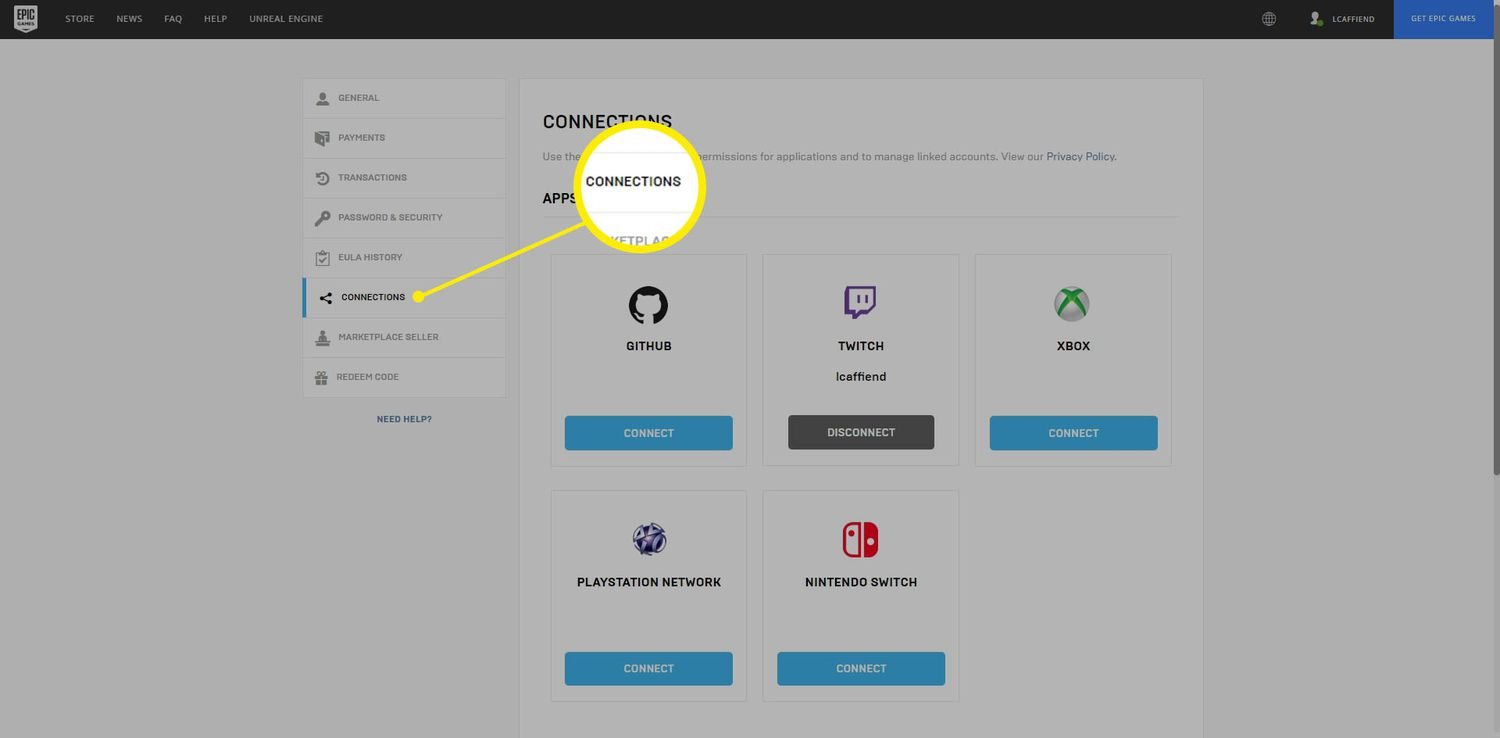
To unlink your Epic Games account, you must navigate to the “Connections” section within your account settings, find the linked account, and then select the option to unlink it.
Ever find yourself needing to separate your Epic Games account from a connected platform? It happens quite often, whether it’s a console, another gaming service, or a social media profile. You might wonder how to unlink epic games account when a connection is no longer necessary. It’s a simple process that we will help you with, so keep reading!
We understand that maintaining control over your linked accounts is important. This guide provides clear steps to manage these connections. Let’s dive right into how you can get this done with minimal effort.

How to Unlink Epic Games Account
Okay, so you’re looking to figure out how to unlink your Epic Games account from something else, like your PlayStation, Xbox, Nintendo, or even another platform. It’s totally understandable! Maybe you accidentally connected the wrong account, or you just want a fresh start. Whatever the reason, we’ll walk through all the steps you need to know to successfully disconnect your Epic Games account. It’s not super complicated, but you need to be careful to make sure you don’t lose anything important. We’ll break down the process for different situations to make sure everything is clear for you.
Why You Might Need to Unlink
Before we jump into the “how,” let’s talk about the “why.” There are many reasons why someone might want to unlink their Epic Games account. Here are a few common ones:
Linked the Wrong Account: Sometimes we’re in a hurry and connect the wrong PlayStation, Xbox, Nintendo, or social media account. Oops! It happens.
Selling or Giving Away a Console: If you’re getting rid of a console, you’ll probably want to unlink your Epic Games account to prevent someone else from accessing your stuff.
Account Security: If you think your account may have been hacked, unlinking can be an important step to take to protect your account.
Wanting a Fresh Start: Maybe you just want to start over with a new Epic Games account, and you need to disconnect your old one first.
Troubleshooting Connection Issues: Occasionally, there may be connection problems with a linked platform, and unlinking and re-linking can help.
Account Consolidation: If you have multiple Epic Games accounts, you might be trying to consolidate your purchases or progress into a single, main account.
Cross-Platform Progress Problems: If you’re not seeing your game progress or purchased items across platforms, sometimes unlinking and relinking can resolve the issue.
Understanding your reason helps you approach the unlinking process more carefully and makes sure that you don’t make a mistake.
The Basics of Unlinking from the Epic Games Website
The main place where you’ll manage your linked accounts is through the Epic Games website. Here’s a general guide on how to begin the unlinking process:
1. Go to the Epic Games Website: Open your web browser and go to the Epic Games official site.
2. Sign In: Sign in using the email address and password associated with the Epic Games account you want to unlink.
3. Account Settings: Once you’re logged in, look for the “Account” section. Usually, this is found by clicking on your profile name or icon. It’s often in a drop-down menu at the top right of the screen, next to your user name.
4. Connections Option Next, you need to find the “Connections” or “Connected Accounts” tab. This is where you will manage all your linked accounts. You might find it as a tab within the account settings page or as a separate link on the left side of the page.
5. Linked Accounts: You will see a list of all the accounts that are linked to your Epic Games account. This includes social accounts and gaming platform accounts.
6. Find the Account to Unlink: Look for the account that you wish to unlink and there will be an “Unlink” button next to it.
7. Confirm the Unlink: Click the “Unlink” button next to the account you want to disconnect. A pop-up window might appear, asking you to confirm that you really want to unlink the account. Carefully read any messages or warnings that are displayed.
8. Follow the Steps: Follow the instructions displayed in the window. For some platforms, you may be asked to sign into that account to confirm the unlinking process.
Remember, it’s important to read all warnings and messages carefully during the unlinking process to make sure you understand the changes being made to your accounts.
Unlinking from PlayStation
Unlinking your PlayStation Network account from your Epic Games account is a fairly straightforward process, but you’ll want to make sure you’re taking the right steps.
Start on the Epic Games Website: You can’t unlink from your PlayStation directly, you have to go to the Epic Games website. Follow the basic steps above to get to your connected accounts list.
Find PlayStation Network: Look for “PlayStation Network” on the list.
Unlink: Click on the “Unlink” button.
Confirm: A pop-up will come up asking you to confirm.
Potential Issues: If you are facing any error or problem try to go to the playstation network support for help.
After you’ve completed these steps, your PlayStation Network account will be disconnected from your Epic Games account. You can re-link to a different account if you choose.
Unlinking from Xbox
The process for unlinking your Xbox account is similar to that of PlayStation. Again, it’s done through the Epic Games website.
Epic Games Website: Go to the Epic Games website and log in.
Account Settings: Access your account settings and find the “Connections” page as described in the basic unlinking instructions.
Find Xbox: Look for “Xbox” or “Xbox Network” on the list of connected accounts.
Unlink: Click on the “Unlink” button.
Confirm: A confirmation message will appear. Make sure to read it carefully.
Double check: After unlinking try to sign into your epic account on different platform to make sure you have done everything correctly.
After completing these steps, your Xbox account will no longer be linked to your Epic Games account.
Unlinking from Nintendo Switch
Unlinking your Nintendo account is very similar to unlinking your PlayStation and Xbox accounts. You’ll need to use the Epic Games website.
Epic Games Website: Start by going to the Epic Games website and logging into your account.
Account Settings: Navigate to your account settings and find the “Connections” or “Connected Accounts” page.
Find Nintendo: Look for “Nintendo” or “Nintendo Account” on the list of linked accounts.
Unlink: Click on the “Unlink” button next to the Nintendo account.
Confirmation: A window will pop up to make sure you’re really ready to unlink.
Important note: Make sure you read the confirmation information so you don’t have any issue in future.
Your Nintendo account will now be unlinked from your Epic Games account after taking these steps.
Unlinking from Social Media Accounts
Sometimes you might need to unlink your social media accounts, like Facebook or Google, from your Epic Games account. This is also done via the Epic Games website.
Epic Games Website: Login to your Epic Games account on the website.
Account Settings: Go to account settings and then find the “Connections” or “Connected Accounts” tab.
Find Social Account: Locate the social media account you want to unlink (e.g., Facebook or Google).
Unlink: Select the “Unlink” button next to the account.
Confirm: A prompt will show to verify your action. Read it carefully and confirm.
Unlinking social media accounts can be helpful if you are trying to switch login methods or want to avoid linking your personal accounts to your gaming account.
What Happens After Unlinking?
It’s important to understand what happens after you unlink an account:
Game Progress: Generally, your game progress and purchased items are stored with your Epic Games account, not with the linked platform accounts. This means that unlinking your platform account should not delete your game saves or items.
Login Changes: After unlinking, you will no longer be able to log into your Epic Games account using the unlinked platform. You will need to use your Epic Games email address and password or another linked account.
Relinking: You can always relink the accounts later, but sometimes, if there are complications, it might be a good idea to contact support.
Data Security: When you unlink an account, your data is generally still safe. It’s just no longer connected to that specific account. If you are worried about any security issues try contacting Epic Games support.
Potential Problems: In rare cases, there may be some small issues if you are changing platforms frequently. It’s always a good idea to relink carefully.
Different accounts same platform: You can’t link two different Epic Game accounts to the same PlayStation account, for example. That can cause problems.
Knowing what to expect can help you go through this process with confidence. Always remember to take your time and double-check everything as you go.
Troubleshooting Common Unlinking Issues
Sometimes things don’t go exactly as planned. Here are some common problems and how you can try to fix them:
“Unlink” Button is Greyed Out: If the “Unlink” button is greyed out, it might mean that that specific account is the primary account you use to log in. You would have to link a different account first or change your primary email login on the Epic Games Account.
Error Messages: If you see an error message, read it carefully. It usually tells you what went wrong. Common errors include problems with your internet connection or the platform’s servers.
Can’t Access Account After Unlinking: If you can’t log in after unlinking, make sure you are using the correct email and password. If you don’t remember them you should be able to reset your password through Epic Games.
Incorrect Account Linked: If you accidentally linked the wrong account, repeat the unlinking process for the incorrect account and then link the correct account.
Lost Progress: If you think you lost your progress due to unlinking, there may be some other issue. Generally, your progress is tied to your Epic Games account. It is best to contact Epic Games support for help.
Support Assistance: If you’re still stuck, don’t hesitate to contact Epic Games support. They have experts who can walk you through any issue you might have.
Check Your Internet Connection: Sometimes a poor internet connection can cause errors. Make sure your internet is working properly and stable before trying again.
By understanding and addressing the common problems, you can smoothly tackle your Epic Games unlinking needs.
Special Situations: Child Accounts
If you have a child’s Epic Games account, the process might be slightly different:
Parental Controls: Parental controls on linked consoles may prevent account unlinking. You might have to adjust those controls first.
Adult Supervision: Sometimes a parent or guardian will need to assist with the unlinking process to verify their permission.
Data Privacy: If you have any questions about data privacy for child accounts, review the Epic Games privacy policies or contact customer support for help.
Extra Confirmation: The unlinking process for a child account might need more confirmation steps compared to adult accounts.
Security: Extra security might be required when dealing with child accounts, making sure that their accounts and game content is safe.
When dealing with child accounts, it is important to take extra care to ensure all of their data and information is safe.
Tips for a Successful Unlinking
Here are some useful tips to help ensure your unlinking goes smoothly:
Take Your Time: Rushing can lead to mistakes. Read every warning and instruction carefully.
Double-Check: Make sure you’re unlinking the correct account.
Write It Down: Write down the email addresses and passwords for all linked accounts in case you need them.
Good Internet: Ensure you have a good, reliable internet connection before starting the unlinking process.
Contact Support: If you have any trouble, do not hesitate to reach out to Epic Games support for help.
Review Confirmation: After unlinking, make sure to check that everything is correct and that you can still access your Epic Games account properly.
Keep Track of changes: Keep track of any changes you make to your account, this helps prevent any problems with your accounts in future.
Following these steps should greatly improve your chances of a safe and successful unlinking experience.
Remember, unlinking your Epic Games account from a platform isn’t permanent. You can always relink your account in the future if you want to. It’s important to be careful and understand the steps, but if you follow the instructions you should be fine.
How to Unlink Epic Games Account From PS4, PS5, Xbox, Switch, & PC
Final Thoughts
To unlink your Epic Games account, access your account settings. Find the “Connections” section; it shows linked accounts. Choose the specific platform you wish to disconnect, then confirm your decision.
The process is simple, but be sure it’s truly what you intend, as linking again may require some extra steps. Therefore, carefully consider before you proceed with ‘how to unlink epic games account’. Remember this action impacts your game progress on connected platforms.

