
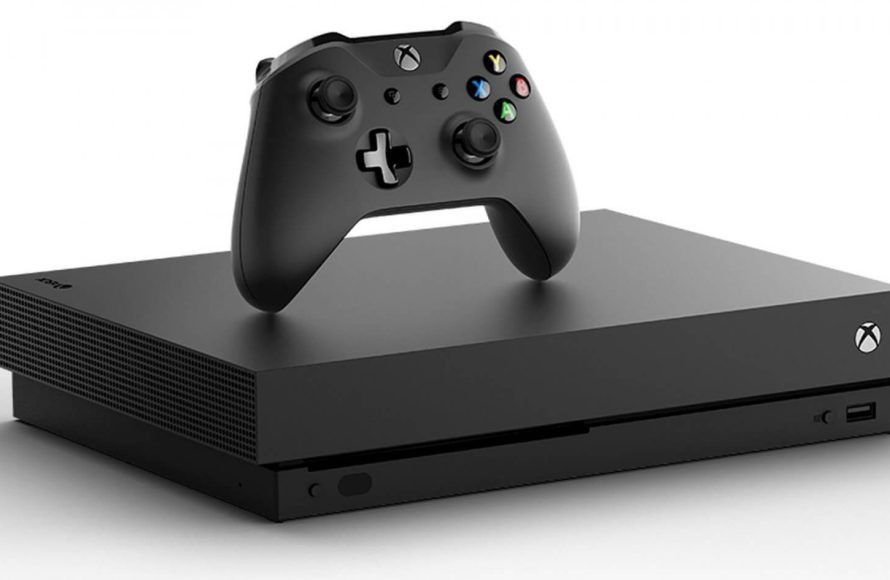
Unfortunately, you cannot directly play Steam games on an Xbox One without using a PC as an intermediary.
Many gamers dream of a world where console boundaries blur. They imagine effortlessly accessing their entire game library, no matter the platform. The question, ‘how to play steam games on xbox one without pc’ comes up frequently.
It is a very popular request, as people wish to enjoy Steam games on their Xbox. Xbox One consoles lack the native ability to run games from other platforms like Steam, due to their different ecosystems.

How to Play Steam Games on Xbox One Without a PC
Okay, so you’ve got an Xbox One and a bunch of awesome games on Steam, and you’re thinking, “Wouldn’t it be amazing if I could play those Steam games right here on my Xbox?” We totally get it! The idea of jumping into your favorite PC games on the big screen with your Xbox controller sounds fantastic. Unfortunately, directly playing Steam games on your Xbox One isn’t as simple as pressing a button. They are built for different platforms and are not directly compatible. But don’t worry, we’re going to explore all the ways you can bring those PC gaming experiences closer to your Xbox, even without a powerful gaming computer.
Understanding the Challenge: Why Direct Play Isn’t Possible
Before we dive into solutions, let’s quickly understand why it’s not straightforward to play Steam games directly on your Xbox One. Think of it like trying to play a Blu-ray disc in a DVD player – it just won’t work because the technologies and formats are different. Here’s a breakdown:
- Different Architectures: Xbox One runs on a system designed specifically for console gaming. Steam games are designed to work on PCs using Windows operating system. These systems are built on different “languages” that don’t directly understand each other.
- Operating Systems: Xbox uses its own operating system, while Steam games run on Windows, macOS, or Linux. These operating systems handle things like graphics, inputs, and storage in different ways.
- Hardware Limitations: The Xbox One has specific hardware components built for its games. PC games often require more powerful graphics cards and processors that aren’t built into your Xbox.
So, that explains why a simple “plug-and-play” method won’t work for Steam games on Xbox One. But, we’re not giving up! Let’s look at alternative routes.
The Power of Xbox Cloud Gaming: Your Cloud Connection to PC Games
One way to play games that were initially designed for PC on your Xbox is through Xbox Cloud Gaming (formerly known as xCloud). This service uses powerful servers to run the game and then streams it to your Xbox. It’s like having a really powerful PC in the cloud.
How Xbox Cloud Gaming Works
Xbox Cloud Gaming runs games on Microsoft’s high-powered servers and then streams video and audio back to your device. Here’s what happens behind the scenes:
- You choose a game from the Xbox Game Pass Ultimate library that supports Cloud Gaming.
- The game runs on a powerful server in Microsoft’s data center.
- The server sends the game’s visuals and sounds as a live video stream to your Xbox One.
- Your Xbox sends your controller commands back to the server.
Accessing Cloud Games on Xbox
You will need Xbox Game Pass Ultimate to use the Xbox Cloud Gaming. Then, you can access cloud games like this:
- From the Xbox dashboard, navigate to the “Game Pass” tab.
- Look for games with the “cloud” icon (it looks like a small cloud).
- Select the game and choose “Play on Cloud.”
It is important to make sure that you have a good, stable internet connection, as cloud gaming depends heavily on streaming. If your internet is slow, or unstable, you may experience lags, stutters, and disconnects.
What Games are Available on Cloud Gaming?
The library of games available through Xbox Cloud Gaming is always changing, but it includes many titles that were originally PC games. You can usually find a variety of game genres, like:
- Simulation Games
- Strategy Games
- Adventure Games
- Fighting Games
- Indie Games
Check the Xbox Game Pass app frequently to see what new games are added. While the games in the Xbox Game Pass are not exactly the steam library you might be looking for, it includes various PC games that you can enjoy on the Xbox without needing a separate PC.
Remote Play from Your PC to Your Xbox: Bringing Your Steam Library Closer
Another method that brings some aspects of Steam gameplay onto your Xbox without needing cloud servers is by using a remote play application. This needs to be set up on your PC, but it then allows you to stream games from that PC directly onto your Xbox. It isn’t the same as directly running Steam, but it uses the power of your PC to display your games on your Xbox.
How Remote Play Works
Remote play essentially mirrors the display of your PC onto your Xbox. Here is the process:
- Your PC runs the game.
- Your PC sends a video of that game to your Xbox.
- Your controller commands from Xbox are sent back to your PC.
Think of it like watching a live video stream of your computer screen on your TV, and you get to control the game through your Xbox controller. A good, stable connection in the local network is crucial for good gameplay.
Setting up Remote Play with an Application
To achieve this, you’ll need to install a specific application that can handle streaming of your games from PC to your Xbox. One such app is called “Xbox Play Anywhere” however, this program is only compatible with Microsoft games which you can access through the Microsoft Store, but not with the Steam Library. There are other third party apps on the market, you need to make sure that it supports PC to Xbox streaming to make it happen.
The basic steps to set up remote play using such an application are:
- Install the remote play application on your PC.
- Follow the application’s instructions on setting up the Xbox connection.
- Ensure both your PC and Xbox are connected to the same home network.
- Launch the remote play application on your Xbox.
- Select your PC from the list of available devices.
After establishing a connection, you will be able to see your computer display on your Xbox. You can then start your Steam games on the computer, and they will display on the Xbox.
Limitations of Remote Play
Keep in mind that there are some limitations to remote play:
- PC Dependency: Your PC needs to be powered on and connected to the network while you play.
- Network Performance: A strong and stable network is needed for the best performance. You might get lag or stutters if the connection is unstable.
- Not True “Playing on Xbox”: The game still runs on your PC, which means that you will need a good PC to play demanding games, and if the PC struggles with a game, the remote play will also suffer.
- Application compatibility: Some applications may have compatibility issues with Steam games, or may not be as stable for remote play. You need to do some research about which application is best for you.
Using A Steam Deck (Handheld PC) or Other PC Handhelds
While not a way to play Steam games directly on your Xbox One console, owning a Steam Deck or a similar PC handheld device opens up another pathway to play your Steam games while also using your Xbox as a display. This method involves using the handheld device as the ‘PC’ that runs your Steam games, then connecting it to your Xbox.
Steam Deck as a PC
The Steam Deck is like a portable gaming PC that runs SteamOS. It can play many Steam games and allows you to connect to external displays.
How the Connection Works
To connect your Steam Deck or other similar handhelds to your Xbox setup for playing games, you will need an adapter to connect the handheld output to your Xbox HDMI input. The steps are:
- Connect your Steam Deck to an HDMI cable, using an appropriate adapter if needed.
- Plug the HDMI cable into your Xbox One’s HDMI IN port.
- Turn on your Xbox One, and set the input source to HDMI IN in settings or with a button on your TV.
Things to consider with handhelds as a ‘PC’
When using Steam Deck or other PC handhelds in this way, some things are worth considering.
- Double-edged sword: While you can play Steam games on your TV through your Xbox this way, the main drawback is you’re not utilizing the Xbox as a gaming device. Instead, you are using it as an input to your TV.
- Control schemes: You will need to use your handheld’s controller, as the Xbox controller is not used in this setup.
- Performance: Performance depends on the handheld’s hardware capabilities. If your handheld device isn’t very powerful, it will not be able to run intensive games.
Future Possibilities and Speculations
While we don’t have a magic button to play Steam games directly on Xbox One today, the tech world is always changing. There’s always the possibility of new developments that could make this more attainable in the future.
Potential for New Streaming Options
Cloud gaming and remote play technology is evolving quickly. It’s possible that future updates and better internet connections might enable smoother and more seamless ways to play PC games on Xbox One. This could include official integration with more services.
Microsoft and Steam Partnership Possibilities
Although it’s speculative, many gamers dream of a future where Microsoft and Valve (the company behind Steam) collaborate more directly. It is not unheard of for large companies to collaborate to improve the gaming experience. A closer partnership could create more direct ways to play Steam games on Xbox. However, it is just a speculation.
While directly playing Steam games on your Xbox One is not possible at the moment, we do have other options that get pretty close. Through Xbox Cloud Gaming, remote play, or by connecting handheld PCs to your Xbox, you can bring many of your favorite PC gaming experiences onto the big screen using your Xbox. Remember to choose the method that suits you best, considering the hardware, network capabilities, and overall gaming experience you are looking for.
Play ANY steam game on ANY console 2024
Final Thoughts
Cloud gaming services are your main key for accessing Steam games on your Xbox. Services like GeForce Now allow you to play games from your Steam library directly on your console.
These services eliminate the need for a personal computer to run the games. You will need a good internet connection to have a smooth gaming experience.
So, in conclusion, you can play steam games on xbox one without pc using cloud gaming. Remember, a stable internet connection is essential for this approach.

