
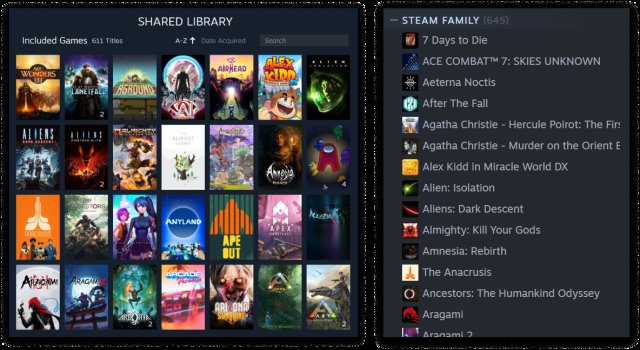
The shared library owner must be offline or not playing the specific game for another user to play the same game on Steam family share.
Want to dive into a game someone else in your family owns, but they’re already playing it? It can be a bit of a puzzle figuring out how to play the same game on steam family share, especially when you both want to play simultaneously. The simple answer to the query is what mentioned above, but there are a few things to understand.
Steam’s family sharing is designed for different people to play different games from the same library at the same time. But they’ve included a mechanism where playing the same game simultaneously is not possible, requiring a bit of coordination. Remember, only one person can access a particular game at any given moment.

How to Play the Same Game on Steam Family Share
Steam Family Sharing is a cool feature that lets you share your games with friends and family. It’s like borrowing a book from a library, but instead of books, it’s video games! But what happens when you and a friend both want to play the same game at the same time? It seems like a simple question, but it’s one that many people wonder about. Don’t worry, we’re going to break it down step-by-step, so you know exactly what to expect when using Steam Family Sharing and how to deal with playing the same game.
Understanding the Basics of Steam Family Sharing
Before we dive into playing the same game, let’s make sure we all understand how Steam Family Sharing works in general. Think of it like this: One person (the “sharer”) allows other Steam accounts (the “borrowers”) to access their game library. The borrower can then download and play those games, but there are some important rules.
How Game Sharing Actually Works
Here’s the basic flow:
- Authorization: The game owner needs to authorize other Steam accounts to access their games. This is done through the Steam settings.
- Access Granted: Once authorized, borrowers can see the shared games in their Steam library, but there is one big caveat, they can only play them when the owner is not playing them.
- Playing the Games: Borrowers can download and play the shared games as if they owned them, with some important limitations which we will see later.
Key Restrictions of Family Sharing
These restrictions are important for playing the same game:
- One Person at a Time: Only one person can play a game from a shared library at any given time. This means if the owner of the game starts playing, anyone else using family sharing will be kicked off.
- Library Access: The person sharing their games has control over which accounts have access. They can revoke access at any time.
- Region Restrictions: Some games can be region locked, so if there are region issues, sharing will not work.
- Offline Mode: Borrowers can play shared games offline after they’ve been launched while online, but if the owner plays online, the borrower is kicked off.
These rules help ensure that sharing is fair and that people don’t abuse the system. But these also highlight the challenge when two users want to play the same shared game at the same time.
The Core Problem: Simultaneous Play is Limited
The central problem with playing the same game on Steam Family Sharing is the restriction that only one user can access a shared game at a time. This prevents two users from enjoying the same shared game simultaneously. This is because, Steam treats the shared library like it’s a single user account. If the owner plays anything in their library it will automatically interrupt play of the shared game by another user. So, if you try to jump into a game, while your friend (the owner) is playing any of their library games, you get locked out. This is a built in protection to stop the family sharing feature from being abused.
Why This Restriction Exists
Steam implemented this restriction to protect game developers and publishers. Without such a limitation, multiple people could effectively share a single copy of a game, greatly reducing the number of copies sold. By preventing simultaneous play, Steam encourages each user to purchase a copy of the game.
Scenarios When You Might Encounter This Issue
It’s helpful to understand specific scenarios where this limitation comes into play. Let’s imagine some real-life examples:
- The Co-op Couple: Let’s say you and your partner want to play a co-op game together from the same shared library. If one of you starts playing, the other will be kicked out.
- The Sibling Saga: If a brother or sister is using your shared library, and you try to play any game from the shared account, their game will instantly close.
- The Friend Group: Imagine a friend group where everyone shares their library to expand their gaming options. If two or more friends want to enjoy the same title at the same time, someone will get shut out.
These situations demonstrate the common challenges when multiple users want to play games at the same time from a single shared library. So it is fair to say, while the feature allows players to share their library with friends and family members, it does not allow simultaneous access.
Workarounds and Solutions: How to Get Around the Limit
While Steam Family Sharing has some hard limits, there are some things you can do to get around them and play with your friends or family that is sharing games. Although they’re not perfect, these options can offer ways for more than one person to play the same game.
Option 1: Purchase Another Copy
The most direct solution, and the one that Steam intends for you to do, is to purchase a separate copy of the game. It’s often the most practical if you are going to play a game together frequently. Here’s how purchasing a new copy helps:
- No Conflicts: You will have your copy that you own and the other person has their copy they own, so no more interruptions or being kicked out of game.
- Independent Play: You can play at any time without worrying about the other user.
- Support Developers: This supports game developers who made the game.
While purchasing another copy might seem like an obvious answer, it’s the only way to avoid all the conflicts of family sharing limitations. This is particularly relevant for games you and your friends plan to play together often.
Option 2: Coordinate Play Times
Another option, particularly if you can’t or don’t want to buy a copy, is to coordinate your play times. This involves a little more planning and communication. Here’s how to make it work:
- Create a Schedule: Agree on specific times when each person can play a game.
- Communicate: Talk before starting a game. Check if anyone else is currently playing or planning to play.
- Be Considerate: Understand that sometimes plans change, but be polite and communicate if you need to adjust the time you play.
This method works best if you and your friend or family member play games occasionally and have flexible schedules. It requires more planning but can allow you to avoid purchasing a new copy.
Option 3: Use a Different Account
If the game you want to play has the option to create a game character in-game, you could consider using a different account on your PC or game console to play. For instance, if one person is playing on the main account, another could log in with a separate profile if available. However, keep in mind that not all games allow local play or multiple game profiles, and the shared family account cannot be used for this. This method can have benefits, such as:
- Two Players: If you can access the game on different profiles within the game itself, you can potentially play at the same time.
- Avoid Restrictions: It’s not always guaranteed but it can bypass the Steam family sharing restriction.
This option may have limitations, it is worth checking your specific game to see if this solution works.
Option 4: Consider Offline Mode (With Limitations)
Another option is to use offline mode, however this works with some limitations, if one person goes into offline mode, the other person will still not be able to play the game at the same time. Here’s how this works:
- Launch Online First: You can only enter offline mode after the game has been launched while online.
- One User Offline: Once you are in offline mode, that person can play, but the game owner cannot start any of their own games.
- Limited Access: Only one person can access offline mode and the owner cannot start any games.
This approach is not a solution for simultaneous gameplay, but it does allow for playing shared games without an internet connection, making it good for trips or if your internet goes down.
Step-by-Step Guide to Sharing Your Library
To ensure you can actually share your games, here’s a quick step-by-step guide on how to set up Steam Family Sharing:
Step 1: Enable Steam Guard
Before you can share games, you must have Steam Guard enabled on your account. This adds an extra layer of security to your account. Here’s how to do it:
- Open Steam: Open the Steam client on your computer.
- Click on Steam: In the top left, click on “Steam” and then select “Settings.”
- Go to Account: Click on the “Account” tab.
- Steam Guard Security: Click the “Manage Steam Guard Security” button.
- Follow Instructions: Choose “Get Steam Guard codes from my phone,” or “Get Steam Guard codes by email.” Then follow the on-screen instructions to enable it.
Step 2: Authorize Shared Computers and Accounts
The next step is to set up sharing with specific computers or accounts. Follow these instructions:
- Go to Settings: In the Steam client, click on “Steam” then select “Settings”.
- Go to Family: Click on the “Family” tab.
- Authorize Library Sharing: Check the box that says “Authorize Library Sharing on this computer.”
- Select Accounts: A list of the Steam accounts that have logged in on that computer will appear. Pick the accounts that you want to share your game library with.
- Confirm: Click “OK” to save your settings.
Step 3: Access Shared Games
Once you’ve authorized a computer and accounts, any shared library will be accessible by other users. Here’s how to access them:
- Log In: Have the authorized user log in to their Steam account on the shared computer.
- Find the Games: In the game library, they’ll now see the shared games under a new “Games” tab.
- Start Playing: The authorized user can then download and play games that the owner of the shared library has.
Important Considerations When Using Steam Family Sharing
Beyond the limitations of playing the same game, there are other things you need to be aware of when using Steam Family Sharing. These are important for a good sharing experience:
- Game Specific Restrictions: Some games are not eligible for family sharing due to technical reasons, publishers’ requirements, or specific anti-cheat requirements.
- Limited Number of Accounts: You can only authorize sharing with a limited number of accounts, and you will need to remove one in order to add another.
- Security Risks: Shared accounts are not risk-free, make sure to share your Steam account to trusted users only.
- Account Bans: If a user cheats or misbehaves while playing your games, both accounts could receive bans or other penalties.
It’s important to share with responsible users, because their actions can have an impact on your account.
Troubleshooting Common Issues
Sometimes you might run into problems with Family Sharing. Here are a few of the most common and how to deal with them:
- Games Not Appearing: If shared games are not showing up, restart Steam on all devices.
- Game Kicks You Out: If you get kicked out of a game, check if the owner of the shared library is starting any game on their account.
- Sharing Issues: If you face a sharing issue, make sure you’ve set up authorization correctly and have the accounts and computers authorized.
Often restarting Steam can resolve these issues, if not check you have not made a mistake when setting up Steam sharing and that the people using the shared account are trusted users.
Steam Family Sharing is a great way to share your games with friends and family but it isn’t perfect. It has a hard limit, and a game cannot be played by multiple users at the same time. While there are ways around this with separate purchases, coordination and different user accounts, they all come with limitations. The most important things to consider is that the rules are in place to benefit the developers of games and to make sure that this feature isn’t abused by users. Hopefully with our article you have learnt how Steam Family Sharing works and you can make the best choice for the future when it comes to playing games with family and friends.
How to Share Games on Steam 2024 – Steam Family
Final Thoughts
To play the same game via Steam Family Share, only one user can access the library at a time. The game must not be currently used by the primary account holder. This limitation is fundamental to family sharing.
You cannot play simultaneously. Check if the game is available to borrow, and then you can download and enjoy it. This method explains how to play the same game on steam family share successfully.

