
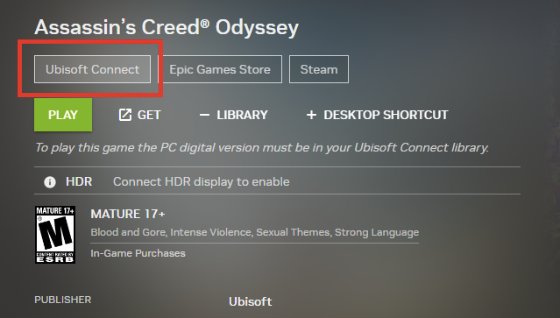
To play Ubisoft games on GeForce Now, you must own the games on a compatible platform (like Ubisoft Connect), have an active GeForce Now subscription, and then link your Ubisoft account within the GeForce Now application.
Ever wanted to jump into the worlds of Assassin’s Creed or Far Cry without needing a powerful gaming PC? Well, you can! Playing Ubisoft games through GeForce Now opens up a world of possibilities. It lets you experience your favorite titles on almost any device with a decent internet connection.
The process is quite straightforward; you just need to connect your existing game libraries. So, you can enjoy your purchased games anywhere. Ready to learn exactly how to play Ubisoft games on GeForce Now? Let’s get started!

How to Play Ubisoft Games on GeForce Now
Want to play awesome Ubisoft games like Assassin’s Creed or Far Cry without needing a super powerful computer? You’re in luck! GeForce Now lets you play games that are stored on powerful computers in the cloud. This means you can play top-notch games even on a basic laptop or tablet. Let’s explore how to get those Ubisoft adventures going on GeForce Now.
What is GeForce Now and How Does it Work?
GeForce Now is like a video game streaming service. Instead of downloading and running a game on your own computer, you play it on a powerful computer somewhere else. The video of the game is streamed to your screen, and your button presses are sent back to that computer. It’s like watching a movie but you get to control the main character! This is great because you don’t need to worry about if your computer can handle a game’s heavy requirements. The “heavy lifting” is done on NVIDIA’s powerful servers.
Key Benefits of Using GeForce Now:
- Play Anywhere: As long as you have a good internet connection, you can play on almost any device.
- No Expensive Hardware Needed: You don’t have to spend lots of money on a gaming PC.
- Access to a Wide Range of Games: You can play lots of different games.
- Automatic Updates: Games are always up to date without you needing to download anything.
- Instant Play: Dive into your game much quicker because you’re not waiting for downloads or updates.
Checking if Your Ubisoft Game is Supported
Not every game is available on GeForce Now. Before you get too excited, you need to check if your favorite Ubisoft game is supported. Here is how you do this. It is quick and easy!
How to Check for Game Support
- Go to the GeForce Now website or app: Open your browser and visit the official GeForce Now site or open the application if you have already downloaded it.
- Search for your game: Use the search bar to look for the name of your Ubisoft game.
- Check the results: If your game appears in the search, it means that it is supported by the service. If your game doesn’t show, it’s unfortunately not playable on GeForce Now at this time.
Pro Tip: The game library can change as new games are added and some games are sometimes removed, so keep checking regularly!
Creating a GeForce Now Account and Choosing a Plan
Before playing your games, you’ll need a GeForce Now account. There are different plans to choose from, including a free option. Let’s take a peek at each of these plans:
Available GeForce Now Plans
| Plan Name | Price | Session Length | Game Graphics |
|---|---|---|---|
| Free | Free | 1 Hour | Basic |
| Priority | Paid Monthly Fee | 6 Hours | Good |
| Ultimate | Paid Monthly Fee | 8 Hours | Best |
The free plan is great for trying out the service, but the paid plans offer longer play times and better graphics. Choose a plan that fits your gaming needs and budget.
Steps to Sign Up
- Visit the GeForce Now Website: Go to the GeForce Now official webpage.
- Click on “Join Now” or “Sign Up”: You will see a button or link that will start the account creation.
- Choose a Plan: Select the desired plan.
- Create an Account: You can create one using your email or an existing account, such as Google or Facebook.
- Complete Registration: Follow the instructions on the screen to set up your account, confirm your email address, and provide payment information if necessary.
Connecting Your Ubisoft Account
Once you have a GeForce Now account, you need to connect it to your Ubisoft account. This lets GeForce Now access your Ubisoft games. Here’s how:
Connecting Your Ubisoft Account:
- Launch GeForce Now: Open the GeForce Now app or web page.
- Go to Settings: Find the settings menu and look for options related to connected accounts.
- Select Ubisoft: You will see an option to link with your Ubisoft account.
- Log In: Log in to your Ubisoft account by following the prompts.
- Allow Access: Give GeForce Now access to your Ubisoft account.
This will link both accounts and let GeForce Now see all the Ubisoft games you own. This only needs to be done once.
Starting Your Ubisoft Game on GeForce Now
Everything is setup! Now, it is time to start playing your games. Here are the easy steps to begin enjoying your Ubisoft adventures:
Steps to Launch a Game
- Open GeForce Now: Launch the application or use your web browser.
- Search for your game: Look for your Ubisoft game in the library.
- Click Play: Once you have found your game, press the “Play” button.
- Wait for the Game to Load: GeForce Now will prepare your game session which might take a few moments.
- Enjoy Playing: When the game is ready, you’ll be able to dive into your gaming adventure.
Optimizing Your Gaming Experience
To make sure you have the best experience, it’s important to have a good internet connection and correct settings. Here are some things you should look into:
Important Factors to Keep in Mind
- Stable Internet Connection: A fast and stable internet connection is the most important thing for streaming games. Use an Ethernet cable rather than Wi-Fi if possible to reduce lag and interruptions.
- Test Your Internet Speed: Check your internet speeds using an online speed test. The ideal is at least 25 Mbps for streaming. If the speeds aren’t adequate, then you can reach out to your internet provider to see if an upgrade is possible.
- Adjust Graphics Settings: Lower graphics if you encounter lag or poor performance. It is better to have smooth game play rather than the best graphical settings.
- Select Correct Servers: Select a server that is located nearest to you for the best latency.
- Use an ethernet connection: If possible, you should try to use an Ethernet connection rather than wifi. Wi-Fi is prone to interference.
Troubleshooting Common Issues
Sometimes, you might encounter some problems while using GeForce Now. Don’t worry; most issues can be solved with a little troubleshooting.
Common Problems and How to Fix Them
- Lag or Stuttering:
- Check your internet speed.
- Try using an Ethernet cable.
- Lower graphics settings in the game.
- Restart your router and modem.
- Connection Problems:
- Make sure that your internet connection is stable.
- Restart your device and the GeForce Now App.
- Check if there are any issues with the GeForce Now servers on the NVIDIA website.
- Games Not Loading:
- Make sure that your game is supported by GeForce Now.
- Verify that your Ubisoft account is linked correctly.
- Check if there are any updates needed for the GeForce Now App.
- Audio Issues:
- Make sure that your audio output is properly selected on your device.
- Check the in-game audio settings.
- Restart your game session.
If you continue to face problems, check the GeForce Now support or ask for assistance in forums.
Playing Ubisoft games on GeForce Now is a great way to enjoy high-quality games without needing a pricey gaming computer. By creating a GeForce Now account, linking your Ubisoft account, and optimizing your settings, you can have a fantastic gaming experience. With the steps outlined, you’re all set to jump into the exciting worlds Ubisoft has to offer.
GAME PASS Games on GeForce NOW w/ UBISOFT Connect Tutorial
Final Thoughts
To play Ubisoft games on GeForce Now, first own the game through a compatible platform like Ubisoft Connect. Then, link your Ubisoft account to your GeForce Now account.
After linking, search for the desired Ubisoft game within the GeForce Now app. You will then play the game directly from the cloud.
Finally, ensure you have a stable internet connection for optimal gameplay. That’s how to play Ubisoft games on GeForce Now and enjoy your favorite titles.

