
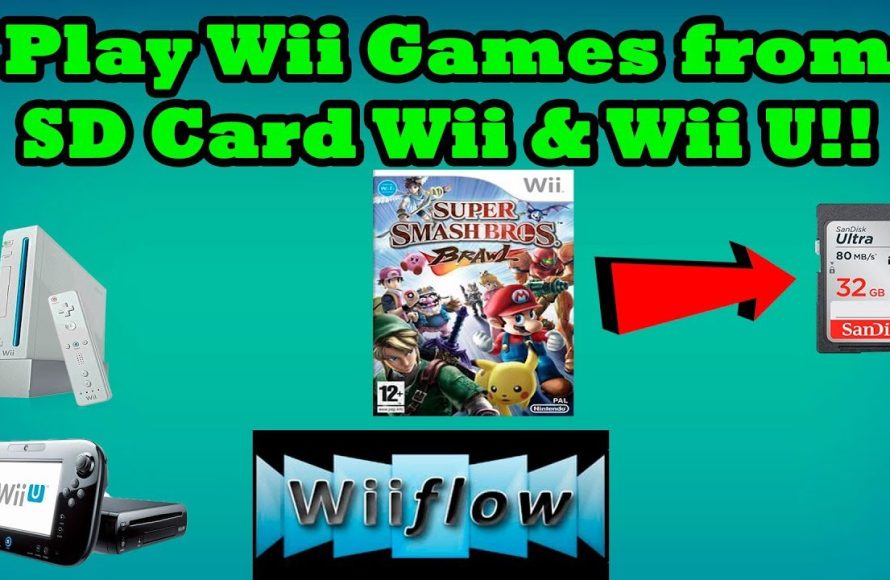
To play Wii games from an SD card, you must first install the Homebrew Channel and a USB loader application on your Wii console. Then, you can copy your game ISO files to the SD card, and the loader will allow you to select and play them.
Want to revisit your favorite Wii games without using discs? It’s easier than you might think. Learning how to play Wii games from SD card lets you keep your collection organized and accessible. This process involves a bit of setup, but it is very beneficial. We will show you how to set this up.

How to Play Wii Games From SD Card
So, you’ve got a Wii and a bunch of games you want to play. But maybe your disc drive is acting up, or you just want to avoid the hassle of switching discs all the time. Good news! You can play your Wii games right from an SD card. It’s like having all your games in one handy place, ready to go whenever you are. But how do you do it? Don’t worry, it’s not as complicated as it sounds. Let’s break it down, step by step, making it easy for even young gamers to understand.
Why Play Wii Games from an SD Card?
Before we jump into the “how,” let’s talk about the “why.” Why would you want to play games from an SD card instead of using the game discs? Well, there are several good reasons:
- Protect Your Discs: Discs can get scratched, making them unplayable. Playing from an SD card keeps your precious games safe.
- Faster Loading: Games sometimes load a little quicker from an SD card. No more waiting a long time for your game to start!
- Convenience: Imagine having all your games on one little card. No more switching discs or finding the right game case.
- Extend the Life of Your Wii: Using the disc drive less can actually help your Wii console last longer.
- Travel-Friendly Gaming: When you take your Wii on the go, your games are already packed safely on the SD card.
What You’ll Need
Before you start, gather everything you’ll need. It’s like preparing all the ingredients before you start cooking.
- A Wii Console: Obviously! Make sure it’s working properly.
- An SD Card: You will need a standard SD card, not a micro SD unless you have a standard adapter. An SDHC card is the best type to use and should be formatted as FAT32, capacity of at least 8GB but you can use cards with up to 32GB of storage capacity.
- A Computer: This can be a laptop or a desktop. You will use this to copy the game files to your SD card.
- A Wii Homebrew Application: This is a special program you will need to install on your Wii. We’ll talk about this more in detail.
- Wii Games (ISO/WBFS files): You will need digital copies of your games, which we will explain how to create. It’s important to own the original game discs for any game you plan to play digitally.
Understanding the Homebrew Channel
Okay, let’s talk about the “special program” we mentioned: the Homebrew Channel. The Homebrew Channel is like a secret menu for your Wii. It lets you run programs that weren’t officially made by Nintendo. This is what allows you to play games from your SD card. It is essential to understand that you will need to “mod” or “hack” your Wii, but it’s a safe process when following trusted guides.
Installing the Homebrew Channel
Installing the Homebrew Channel might sound scary, but there are many user-friendly guides available online. This is the first and most important step and it allows you to run other apps including your game loader.
Typically, the process involves:
- Downloading the necessary files: You’ll need to download a few files onto your SD card using your computer. These files allow you to install the Homebrew Channel on your Wii.
- Copying the files to your SD Card: Take your SD card to your computer. Move the downloaded files and the boot.elf file to the root of the SD Card
- Running an exploit: On your Wii, you run a specific program or a system exploit through the Wii’s system menu. The most common method is “Letterbomb” exploit. You will then need to insert the SD card into the Wii, go to the Wii Message Board and find a red letter with a bomb icon. You will click on this.
- Installing the Homebrew Channel: Once the exploit is loaded, you’ll follow the steps on the screen to install the Homebrew Channel. It’s generally very straightforward. You will need to click on “Install the Homebrew Channel” and then click “Continue”.
The exact steps can vary depending on your Wii’s system firmware, so it’s important to follow a reliable and up-to-date tutorial. There are several of these available on YouTube. When searching for tutorials, be sure to look for ones that are up to date. The older tutorials might not work correctly or could be harmful to your Wii.
Understanding the Risks
While using homebrew software is generally considered safe, there are some things you should know. Make sure you are using up to date and reliable tutorials. Don’t be afraid to consult several guides, so you get a full understanding of what you are doing. Here are some things to consider before installing and using the homebrew software.
- Risk of Bricking: If done incorrectly, there is a small risk that your Wii could become unusable. This is often called “bricking” your Wii. This is rare if you follow the instructions exactly from an up-to-date tutorial.
- Voiding Your Warranty: Nintendo does not support the use of homebrew software. Adding this to your Wii will void your warranty.
- Security Risks: Make sure you use the homebrew apps from trusted and up-to-date sources. Apps from unknown sources could contain malicious software or viruses.
Choosing a Wii Game Loader
Once you have the Homebrew Channel installed, you will need a game loader. A game loader is an app that lets you play games stored on your SD card. There are a few popular choices, but USB Loader GX and WiiFlow are very popular with a large community for support and updates.
Installing a Game Loader
Installing a game loader is very similar to how you installed the Homebrew Channel. You will download the game loader files to your computer and then transfer them to the SD Card. Once you have the files copied to the SD card, open your Wii and access the Homebrew Channel. There, you can run the installer from the SD card and load the game loader onto your Wii.
- Download the Game Loader: Download the files for your preferred game loader, such as USB Loader GX or WiiFlow. Make sure you get these files from trusted websites.
- Copy files to your SD card: Once you have the .zip files downloaded to your computer, copy the apps folder from inside the .zip file into the root of the SD card.
- Load the Game Loader through the Homebrew Channel: From the Homebrew Channel, click on the new game loader app and load it on your Wii.
Using a Game Loader
Once you have the game loader open, you will need to transfer your Wii games. Once you have the game loader open, this is how you navigate through the loader.
- Navigation: The main menu of most loaders shows a list of all your game files. You can navigate this with your Wii remote.
- Selecting a game: Select your desired game and click the A button to load.
- Settings: Most loaders have a settings menu where you can adjust game settings, such as controller configurations or screen settings.
- Troubleshooting: If you have issues loading a game, check the game loader’s settings, and also make sure you are using the correct game file.
Transferring Wii Games to your SD Card
Now that you have the game loader setup, it’s time to get your games onto your SD card. You can not just drag and drop Wii game discs onto your SD card; you need special game files. These are usually in ISO or WBFS file format. Let’s understand the process of creating these files.
Dumping Your Games
This is where you take your physical game discs and convert them into digital files. You can use your modded Wii to “dump” games and convert them into ISO or WBFS files. You can use the game loader applications or other apps like Wii Backup Manager to create these files.
This process generally includes the following steps:
- Open your Game Loader: Using the Wii Menu, open the Homebrew Channel and then your Game Loader.
- Insert a game Disc: Place your disc into the Wii disc slot.
- Select the Dump Feature: Navigate to a “dump” option within the game loader.
- Select Your Output: choose whether to output ISO or WBFS files. ISO files are exact copies of the disc, and WBFS files are compressed copies. WBFS files take up less space but need to be uncompressed before the game is loaded.
- Wait: This will take some time, usually 10-20 minutes, depending on the game.
You can also do this using a computer with a special disc reader, but it’s often easier to use the Wii to dump and transfer games directly to the SD Card.
Understanding ISO and WBFS Files
As we just mentioned, there are two main file formats you will use. ISO and WBFS files. Each has its own advantages and disadvantages.
| File Type | Description | Advantages | Disadvantages |
|---|---|---|---|
| ISO | Exact copy of the game disc | No data loss, easy to use | Larger file sizes take up more space on your SD card |
| WBFS | Compressed file format | Smaller file sizes, saves space on your SD card | Can take longer to load or require specific software to manage or use. |
Most people will choose to dump their games as WBFS files to save space on their SD card, especially for larger games.
Organizing Your Games
Once you start transferring a lot of games, things can get a little messy. Here are some tips to keep everything organized:
- Use Folders: You can create folders on your SD card for each game. This helps to keep games organized so that you can easily find what you are looking for.
- Consistent File Names: Give your game files clear names, so you know which game it is. A good rule is to name the game with the game title and region code. Example: “Super Mario Galaxy [USA]”
- Game Covers: Some game loaders will allow you to display cover art for your games. This makes it easy to visually identify each game. These covers can usually be downloaded through the game loader.
Common Issues and Troubleshooting
Sometimes, things don’t go as planned. Here are some common issues you might encounter and how to fix them:
Game Won’t Load
- Check File Format: Make sure your game files are in the correct format (ISO or WBFS).
- Corrupted File: Redump the game disc again if the file appears corrupted.
- Game Compatibility: Some games may not be compatible with certain loaders or may require special configuration. Check online forums or tutorials for any troubleshooting information.
SD Card Not Recognized
- Check Formatting: Make sure your SD card is formatted as FAT32.
- Try Another SD Card: If possible, try using another SD card to see if the problem is with your SD card.
- Check SD Card Reader: Ensure your Wii’s SD card reader is working correctly and not damaged.
Game Loader Won’t Start
- Check Installation: Make sure the game loader is installed correctly in the “apps” folder on the SD card.
- Reinstall: If that doesn’t work, try reinstalling the game loader through the Homebrew Channel.
- Homebrew Channel Issue: Make sure your Homebrew Channel is updated and working correctly.
Freezing or Glitches During Gameplay
- Try a Different Loader: Different game loaders can behave differently. Try switching game loaders.
- Check SD Card Speed: Some older SD cards might be too slow. Use a fast card like SDHC card.
- System Issues: Your Wii may be running into an issue. Make sure your Wii is up to date.
Playing Wii games from an SD card opens up a world of possibilities, allowing you to enjoy your favorite games more conveniently. While the setup process takes a little time, the payoff is worth it. With all your games in one place, your Wii gaming experience can be much simpler. By understanding the necessary steps, you can transform your gaming experience. Remember to always keep your Wii and homebrew software up to date. This will help you to have the most stable setup possible. Happy gaming!
USB Loader GX SD Card Update! (Play Downloaded Wii games from SD Card with USB Loader GX)
Final Thoughts
Playing Wii games from an SD card involves a few steps. You need to install the Homebrew Channel first. Then, download a USB loader application.
Move your game backups to your SD card. Select the game from the loader menu. The process allows you to enjoy your collection quickly.
Therefore, how to play wii games from sd card becomes simple once you understand the method. This method is a good way to organize and access your games.

