
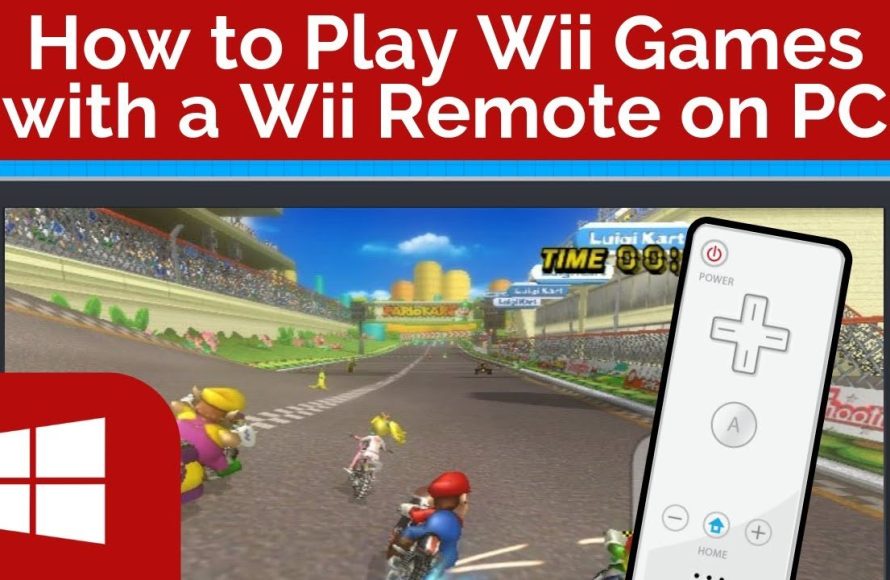
To play Wii games on Dolphin, you need to obtain the Dolphin emulator, get the Wii game ROMs, and then configure the emulator’s settings before loading and playing the game.
Ever wished you could revisit your favorite Wii games with enhanced graphics? You absolutely can! Many players are now using emulators to experience these titles on their computers. But how to play Wii games on Dolphin? It’s a question that sparks interest in many retro gaming enthusiasts.
Getting started might seem complex, but the process is actually quite straightforward. With just a few steps, you can easily be playing all your classic titles.

How to Play Wii Games on Dolphin: A Complete Guide
Ready to dive into the world of Wii games, but without the actual console? You’ve come to the right place! Dolphin Emulator is a fantastic program that lets you play your favorite Wii (and GameCube) games right on your computer. It’s like having a whole library of classic Nintendo games at your fingertips. This guide will show you step-by-step how to get started, so you can enjoy those fun adventures again (or for the first time!). We will explore everything from downloading the emulator and games, to setting up your controllers and adjusting settings for the best experience.
Understanding Dolphin Emulator
Before we get into the nitty-gritty, let’s talk about what Dolphin Emulator actually is. Think of it as a special key that unlocks your computer to play Wii and GameCube games. It’s not a magic trick, it’s a piece of software that carefully imitates the way those consoles work. This allows your computer to read the game files and show them on your screen, just like they would appear on your TV with the real console. It’s free to use, which is awesome, and it’s constantly being updated, so it gets better all the time.
What You’ll Need
To get started with Dolphin Emulator, you’ll need a few things:
- A computer: This needs to be a fairly modern computer, with enough power to run the games smoothly. Think of it like this: the more complicated a game is, the more power your computer needs. A computer with a good graphics card is highly recommended, especially if you plan to play graphically demanding games like Metroid Prime 3: Corruption. A modern Windows PC, Mac, or Linux computer should be suitable.
- Dolphin Emulator: We’ll show you how to download this in the next section.
- Wii game files (ISOs or WBFS files): These are digital copies of your Wii games. You can get them from your own game discs (legally you should only use the games that you personally own, we do not condone any sort of piracy).
- A Controller: While you can use a keyboard, a proper gamepad is way better for most games. A real Wii remote with a sensor bar is ideal for motion controls, but a generic gamepad or even a PlayStation/Xbox controller works well for many games.
Downloading and Installing Dolphin Emulator
Now, let’s get the program itself. It’s very easy, so don’t worry!
Getting the Emulator
- Go to the Official Website: Open your web browser and head to the official Dolphin Emulator website. Search for “Dolphin Emulator” on any search engine to find it or simply type dolphin-emu.org in your search bar.
- Navigate to Downloads: Look for the “Download” button or link, usually at the top of the page.
- Choose your Operating System: You’ll see options for Windows, macOS, and Linux. Click on the one that matches the type of computer you’re using.
- Download the Emulator: Choose the latest stable version of the Dolphin emulator. The development versions are also available but those can be a little unstable and might not work so well so its better to go with stable version. It will start downloading to your computer.
Installing the Emulator
- Find the Downloaded File: Once the download is done, find the file on your computer (it’s usually in your Downloads folder). It will be a compressed file, probably in a ‘.zip’ or ‘.7z’ format.
- Extract the Files: You’ll need to extract the files from the archive. Right click on the file, and select “Extract All” (or a similar option). This will create a new folder with the Dolphin files. If you don’t see the option to extract, you may need to install a program such as 7zip.
- Open the Dolphin Application: Inside the extracted folder, find the Dolphin application, it will look like a blue dolphin icon, and run it by double clicking on it.
- Complete! You are all done with downloading and installation part, now lets move on to game files and controllers.
That’s it! Dolphin Emulator is now ready on your computer. You don’t need to install anything more.
Obtaining Wii Game Files (Legally)
This is a crucial part, and it’s important to do it the right way. Remember, it’s illegal to download game files that you don’t own. You need to have the original disc of the game to make a legal copy.
How to Create a Game Backup
The process of making a backup of your Wii game discs involves using a special Wii disc drive on your computer or the Wii console itself, to rip the game data into a file format. The file extension can be ISO, WBFS or RVZ, depending on the tool you use to make the back up. If you are a beginner we recommend to use the WBFS file format, as this format is compressed and takes less storage space in your computer. Let’s look at the methods you can use to rip your game files to use on dolphin emulator:
- Using a Wii Console: You’ll need a Homebrew enabled Wii console, and some specific software to dump the game data from the disc to a USB drive or SD card. This can be done with homebrew applications such as CleanRip.
- Using a Computer: Some computer drives are capable of reading Wii discs. You would need software such as RawDump or ImgBurn to dump the game data to ISO, WBFS or RVZ file format.
You can find many resources on the internet which can teach you how to do this, you can check out some Youtube videos for visual guide if you prefer. Remember we are doing this to play games that we already own, we do not support piracy, and using game files that you do not own is illegal.
Setting Up Your Controller
Having a good controller setup can significantly affect your gameplay. Let’s take a look at some options:
Types of Controllers
- Wii Remote and Nunchuck: This is the most authentic way to play Wii games. You’ll need a real Wii Remote, a Nunchuck and a sensor bar. If your computer does not have Bluetooth built-in you need a Bluetooth adapter that can handle Wii remote connection with the computer. The official sensor bar of Wii connects to the console and is not usable with computers, so you need an alternative sensor bar, like a USB based sensor bar.
- Generic Gamepad: A USB gamepad, like ones from Xbox or PlayStation, work well for many games. They are easy to set up and require no extra hardware, also they are great for platforming and adventure games.
- Keyboard: While not ideal, the keyboard can be used if you don’t have a controller. It will feel clunky with some games, but it is suitable for games which don’t require analog controls.
Configuring Your Controller in Dolphin
Now that you have a controller, its time to configure it in the dolphin emulator, so that your commands work with the games. Here are the steps on how to configure the controllers with dolphin emulator:
- Connect Your Controller: Plug your controller into your computer (if using USB) or connect via Bluetooth.
- Open Dolphin Settings: Open the Dolphin emulator and go to “Controllers” (usually on the menu bar at the top).
- Choose your controller type: In the “Controllers” menu you will see a list of options, from here you need to choose the controller type that you are going to use.
- Configure Buttons: Now click on the configure button, after choosing your controller type, and you will see a new screen pop up. This screen is for mapping your controller buttons to the controller layout of Wii console. Now you will click on the button in the layout of Wii controller and click your desired button on your actual controller. For example if you are setting up a gamepad, you will click on the ‘A’ button and then click the A button of your controller. This way you will continue mapping all the buttons.
- Save your profile: Once you are done with button mapping, click on ‘Save’ and name your profile, so that you can load it every time you want to use the same controller.
Loading and Playing Games
Everything is set up, now you are about to play the games. Here is how to load and play games in dolphin emulator:
Adding Your Games to Dolphin
- Open Dolphin: Open the Dolphin Emulator.
- Add Game Folder: Click on “Config” and go to the “Paths” tab. Click on “Add” and select the folder where you store your Wii game files. This tells the emulator where to look for your games.
- See Your Game List: After adding the folder, you will see your games populating in the main window of the emulator.
Starting a Game
- Select a Game: Click on the game you want to play from the list.
- Click “Play”: Double click the game and it will start to load.
- Enjoy!: You will start seeing the game, the in-game screens, and you will be able to play the game.
If the game is lagging or the performance is not good, don’t worry, we have a full section below dedicated for this.
Optimizing Dolphin Performance
Sometimes, the games might not run perfectly the first time. This is normal. Here’s how to fine-tune the emulator for better performance.
Graphics Settings
These settings affect the look of the game and its performance. The right settings can help you have a good balance between both.
- Backend: This determines how your computer draws graphics. “Direct3D 12” or “Vulkan” are good options for Windows, while macOS might use “Metal.”
- Resolution: Start with the native resolution of the game and work your way up. Higher resolutions will look better, but can be harder on your computer.
- Enhancements: Settings such as “Anti-Aliasing” and “Anisotropic Filtering” can make the game look smoother, but use these with caution as they can also impact performance.
Speed Hacks
These tweaks help improve the game speed.
- CPU Emulation Clock Speed: If the game is running slow you can set this up to a higher value. If your computer can’t handle it, you may start to see artifacts or graphical bugs.
- Frame Skip: If your computer is struggling, enabling this may help.
- Audio Settings: Sometimes lag is caused due to audio issues, switching to “DSP LLE” or “DSP HLE” and experimenting can help with performance.
Experiment
The best approach is to experiment with these settings. Start by slightly tweaking the settings, testing the game to see how it works, and change the values if you see any problems or performance issues.
Troubleshooting Common Issues
Sometimes things can go wrong, don’t worry we got you. Let’s tackle some typical problems.
Game Not Loading
If the game is not loading, check these few things to see if the problem goes away:
- Game File is Correct: Make sure that the game file is not corrupt, and it matches the correct file extension which are ISO, WBFS or RVZ.
- Correct Paths Set: Make sure that you have correctly added the game folder to the Dolphin emulator, from the “config” -> “paths” option.
- Restart Dolphin: Sometimes the simplest solution is to close and re-open the emulator.
Game Runs Slowly
If the game is running slow and is lagging or stuttering, follow the tips from the previous section to solve this. Also you can try lowering the graphics settings, and closing other apps running on your computer.
Controller Issues
If your controller is not working, or is acting weird, check the controller settings again and re-map the controller from scratch.
Audio Problems
For audio problems, try playing with the audio settings from the configuration screen. Also make sure that your speaker settings in your computer are correctly set.
By doing this, you’ll be well on your way to enjoying the magical world of Wii games on your computer. Remember to be patient, try out different things, and most importantly, have fun!
Dolphin Emulator Full Setup Guide in 2024
Final Thoughts
You must configure Dolphin correctly, obtaining game ROMs is also necessary. To play Wii games on Dolphin, download the emulator and relevant files.
Then, properly set up your controller. Ensure the emulator recognizes your input device for smooth gameplay.
Finally, load your game. Playing Wii games on Dolphin requires patience with initial setup, but it’s worth the effort.

