
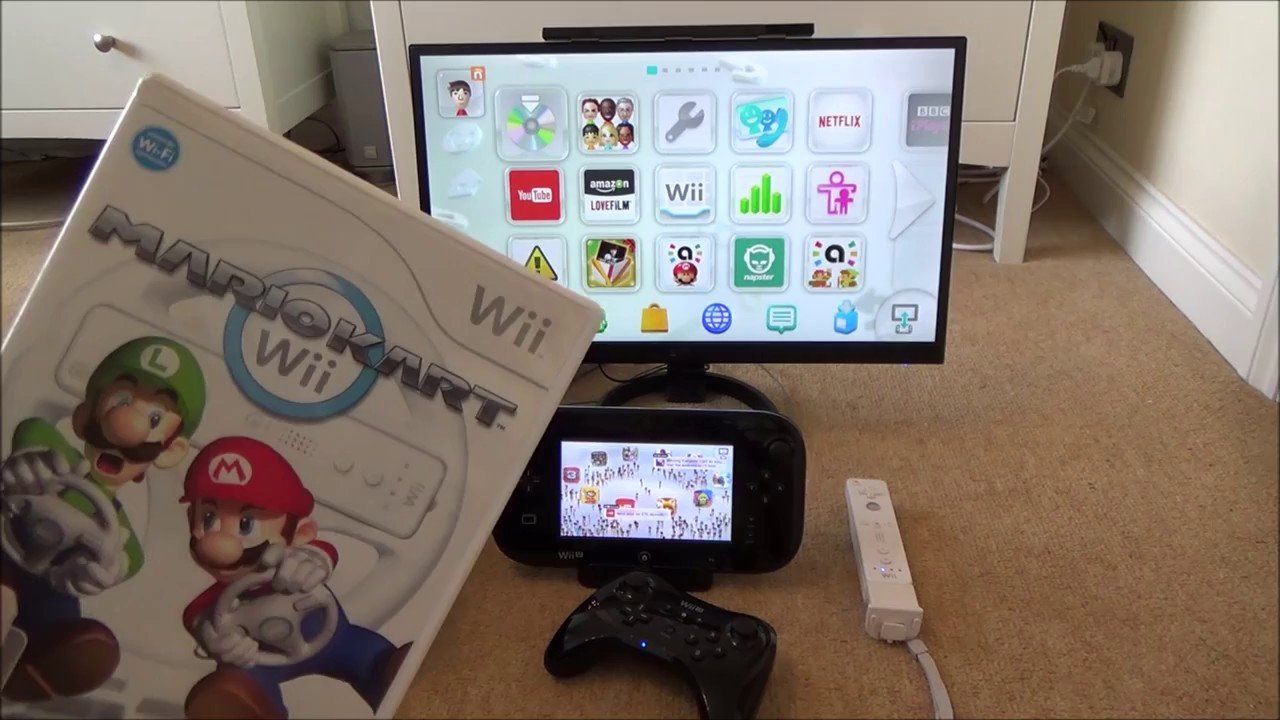
To play Wii games on the Wii U, simply insert the Wii game disc into the Wii U console. Then navigate to the Wii menu from the Wii U home screen.
Ever wondered how to play Wii games on the Wii U? It’s simpler than you might think! Nintendo designed the Wii U to be backwards compatible, allowing you to enjoy your old favorites.
You don’t need special equipment or software. The Wii U console can easily handle Wii games. Just follow a few straightforward steps.

How to Play Wii Games on the Wii U
So you’ve got a Wii U and a stack of your favorite Wii games gathering dust? Good news! Your Wii U isn’t just for its own games; it’s also backward compatible, which means it can play almost all of your old Wii games. This is super cool because you don’t need two consoles cluttering up your entertainment area. You can enjoy both new and classic games all in one place. Let’s jump right in and explore how to get your Wii games running on your Wii U.
Understanding the Wii Mode
The Wii U has a special feature called “Wii Mode.” It’s like having a complete Wii system built inside your Wii U. When you want to play Wii games, you’re actually switching to this different operating system. It might feel a little different at first, but it’s how your Wii U can play all of those amazing older titles. This is not an emulator; the Wii U actually has the Wii hardware inside it.
Accessing Wii Mode
Getting into Wii Mode is pretty simple. When you power on your Wii U, you’ll land on the Wii U menu. You won’t find your Wii games listed here. Look for the “Wii Menu” icon, it looks like a small disc icon with the “Wii” logo below it on the Wii U menu screen. It is usually on the bottom left of the screen. Click on that, and your Wii U will restart. This restart doesn’t mean your system is broken. It means the system is switching to Wii mode. You’ll see the familiar Wii startup screen with the Wii music. Now, you are in Wii mode and can use your Wii games.
Setting Up Your Wii Peripherals
Before you start playing, it’s important to make sure you have the right controllers and accessories for your Wii games. The Wii U uses different controllers for its own games, but your Wii games still use Wii peripherals.
Wii Remote (Wiimote)
The main controller for Wii games is the Wii Remote, or Wiimote for short. You will need at least one Wiimote to play most Wii games. These controllers are different from the Wii U GamePad. You can use original Wii Remotes or Wiimotes designed for the Wii U. To use them with your Wii U in Wii Mode, ensure you have inserted the batteries correctly into your Wii Remote. If you have a Wii Remote Plus, it’s already ready to go. If you have an older Wii Remote, you’ll need to connect the Wii MotionPlus accessory to the base of the remote.
Nunchuck
Many Wii games use the Nunchuck, which connects to the Wiimote via a short cable. Make sure that the Nunchuck is connected to your Wiimote before starting a game that requires it. The Nunchuck adds more buttons and an analog stick, opening up more control options. It’s not required for all Wii games, but it’s often used in games like action and adventure titles.
Sensor Bar
The Sensor Bar is another critical piece. The Wii Remotes use it to know where you’re pointing on the screen. If you have a Wii U, you already have a Sensor Bar. Your Wii U comes with a wired sensor bar, and it’s likely attached to your console. If you don’t have one, your TV’s built-in sensor bar might work, or you can buy a new one. Make sure the Sensor Bar is placed correctly, usually above or below your TV screen, to ensure your Wiimotes track correctly.
Other Wii Accessories
Some games might use other specific accessories, like the Wii Balance Board for games like Wii Fit, or the Wii Wheel for racing games. Make sure you have these if you want to play games that need them. The Wii U fully supports all of these accessories when in Wii mode, so dust them off and get ready for the game.
Playing Wii Games from Discs
If you have your Wii games on physical discs, the good news is they work exactly as they did on the Wii. Just insert the disc into the disc slot on your Wii U console, and then head to Wii mode.
Inserting the Disc
Make sure the Wii U is powered off and insert the Wii game disc into the disc drive of your Wii U. You’ll see that the Wii U disc slot is compatible with Wii game discs. Once the disc is correctly in the disc slot, power on your console, and get into Wii mode.
Starting the Game
Once you’re in Wii mode, the game should start like it would on the regular Wii. The Wii system menu is very similar to the original Wii menu. Find the channel for the inserted disc. It usually says “Disc Channel” and will show the game disc’s name. Click on it using your Wii remote, and your game will start playing. It is a simple and easy process.
Playing Downloaded Wii Games
If you had a Wii and downloaded games from the Wii Shop, you can likely transfer them to your Wii U. This is super handy for enjoying old favorites without needing the discs.
Transferring Data from Wii to Wii U
To get your downloaded Wii games to your Wii U, you need to perform a Wii System Transfer. For the transfer, you will need your original Wii, Wii U, internet connection, and an SD Card of at least 512MB. The SD card is important because that’s how the data gets from one console to another.
Here’s the process:
-
First, make sure that both your Wii and Wii U are connected to the internet.
-
On your original Wii, go to the Wii Shop Channel, and download the “Wii System Transfer” tool. This tool is free to download.
-
Next, on your Wii U, go to the Wii Menu and click on the system transfer icon.
-
Follow the instructions on both screens. The transfer tool will ask you to put the SD card in the Wii, and copy the data from the Wii to the SD card.
-
Next, take out the SD card, and insert it in the Wii U. On your Wii U, it will begin to transfer the data from the SD card to the console.
-
The transfer can take a bit of time depending on how much you’re moving, so be patient.
Accessing Downloaded Games on Wii U
After the transfer, your downloaded games will appear in the Wii Menu on your Wii U. This is a great way to have all your digital content ready to play on the Wii U, and you don’t have to keep your old Wii around to play these downloaded games.
Understanding Wii Menu on Wii U
The Wii Menu on the Wii U is almost exactly like the original Wii menu. You’ll see all of the familiar channels, like the Mii Channel, Weather Channel, Photo Channel, etc. You can customize your Wii menu experience, add different channels, and make it feel just like your old Wii.
Navigating the Wii Menu
Using the Wiimote to select your options is key to moving around in the Wii menu. The Wii Menu on your Wii U is almost the same as on your original Wii. Everything functions the same, so you don’t need to learn anything new. You can access games, change system settings, and customize your experience, all from the Wii menu.
Wii Shop Channel
The Wii Shop Channel was where you would download Wii games on your original Wii. However, the Wii Shop Channel is now closed. You cannot buy and download any new games from Wii Shop Channel on your Wii U. However, if you had previously downloaded games on your old Wii, and you transferred the data to your Wii U, you will still be able to play them.
Important Considerations When Playing Wii Games on Wii U
While playing Wii games on the Wii U is easy, there are a couple of important things to keep in mind.
Wii U GamePad Limitations
The Wii U GamePad is not compatible with Wii games. It is specifically for playing Wii U games, but it will not work in Wii Mode. You have to use a Wii Remote as we talked about earlier. When you switch to Wii Mode, you can’t use the GamePad’s screen to see or play the game. You have to use a TV screen, so make sure your TV is connected properly and is turned on.
No HD Graphics Improvement
While the Wii U is a more powerful system than the Wii, it does not make Wii games look better. Wii games will display in the same resolution as they did on the original Wii. So, don’t expect high definition graphics for your Wii games on your Wii U. However, the games should play smoothly and you can enjoy your favorite titles like before.
Wii U save data with Wii Games
Your Wii U data will not be affected by the Wii games that you are playing. For example, save data for Super Mario Bros. U is completely separate from save data of New Super Mario Bros. Wii. Each mode saves separately so you don’t have to worry about them interfering with each other.
Updating Your Wii U
Before you start, it’s a good idea to ensure your Wii U is running the latest system software. Keeping your system up-to-date can help to avoid errors and problems when switching between Wii mode and Wii U mode. Go to the system settings menu to see if you have a new update available for the Wii U, and download it if you do.
Troubleshooting
Sometimes, things may not work as smoothly as they should. If you’re having trouble getting your Wii games to work on your Wii U, here are a few things you can try.
Controller Not Syncing
If your Wii Remote isn’t connecting, make sure it has working batteries. Check that the sensor bar is positioned properly and make sure that nothing is blocking the infrared signal between the remote and the sensor bar. To sync your Wii remote, you can open the battery case, and press the red sync button. Then press the sync button on the Wii U. The controller should start blinking, and sync with the system.
Game Disc Not Reading
If your game disc isn’t being read by your Wii U, try cleaning the disc with a soft, lint-free cloth. If cleaning doesn’t work, try using a different game disc to test if it is a problem with that particular disc or the console. If other games are working, that means your disc is likely dirty or scratched and you need a new one. If no discs are working, you might have a problem with your console and may need professional repair.
Game Freezing or Crashing
If a game keeps freezing or crashing, try restarting your console. Ensure that the disc isn’t scratched or dirty, and try a different game. Sometimes, the console needs to be turned off completely, wait a minute or two, and then turned on again. If this happens often, there could be an internal system problem, and you may need to get your system looked at by a professional repair technician.
Screen Display Issues
If you are getting black screen or bad display, check to make sure all the video cables are plugged in correctly. Make sure the TV you are using is on the right channel/input. Try using a different video cable to see if that will fix the screen issue. It’s always a good idea to check the cables first, and make sure they are properly connected.
In short, you can enjoy your favourite Wii games on your Wii U. Just remember to switch to Wii mode, make sure your controllers and accessories are connected, and have fun!
Playing your Wii games on the Wii U is an excellent way to experience your old favorites on a modern console. It saves space, money, and keeps all your games in one convenient place. By following the above steps, you can easily switch between Wii U games and Wii games without any confusion. So, go ahead and enjoy all the classic titles that you remember and love. Now you can happily enjoy both Wii U games and Wii games on your Wii U console.
How to play Wii Games on a Wii U
Final Thoughts
Playing Wii games on the Wii U is simple. Just insert your Wii game disc into the Wii U console. Then, navigate to the Wii Menu from the Wii U menu screen.
This action starts the Wii mode, allowing you to play your favorite Wii titles. Remember, you must use a Wii Remote and Nunchuck for playing. Now you know how to play wii games on the wii u easily.

