
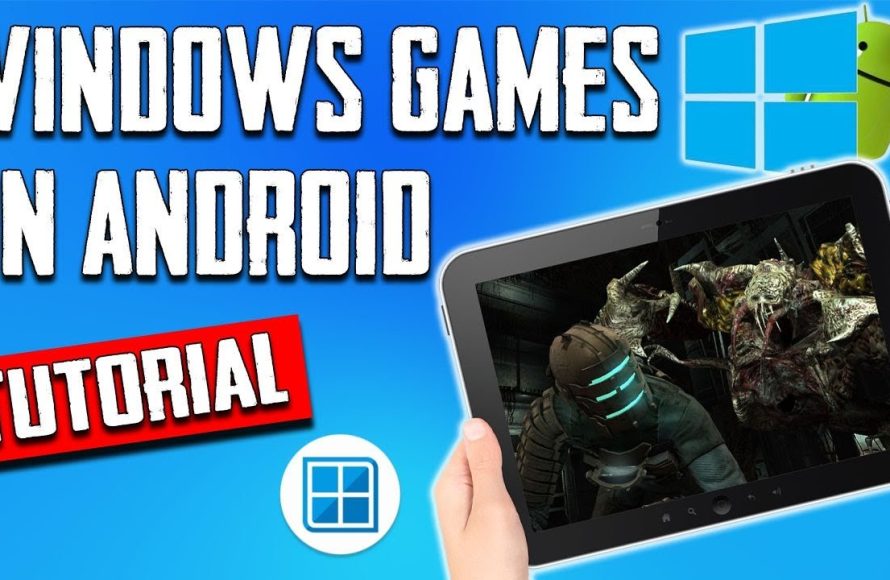
Playing Windows games on Android typically involves using a cloud gaming service or a virtualization app that emulates a Windows environment.
Ever wished you could enjoy your favorite PC games while on the go? Well, the dream of how to play windows games on android is becoming a reality. It’s now possible to access those cherished titles right on your mobile device, opening up a world of portable gaming.
Many exciting solutions allow us to bring Windows games to the Android platform, bridging the gap between PC and mobile gaming. Cloud gaming services and emulator apps can create a wonderful gaming experience, offering a wide range of possibilities.

How to Play Windows Games on Android
Have you ever wished you could play your favorite computer games on your phone or tablet? Imagine playing awesome Windows games like “Minecraft,” “Stardew Valley,” or even older classics right on your Android device. Well, it’s totally possible, and we’re going to show you how! This might seem like magic, but it’s really about using some cool technology and apps. We’ll explore a few different ways you can enjoy your PC games on your Android, from streaming games to using special software. Let’s get started!
Understanding the Challenge: Why Can’t We Just Install Windows Games on Android?
Before we dive into the how, let’s understand the why. Android and Windows are like two different languages. They’re built on completely different foundations. Windows uses a different operating system and software that’s designed for PCs, while Android is made for phones and tablets. Think of it like trying to put a puzzle piece from one box into a puzzle from another box – they just don’t fit! Windows games are typically built to run on Windows machines, relying on specific hardware and software libraries (like DirectX) that aren’t present in Android. So, we need some clever methods to bridge this gap.
Method 1: Cloud Gaming – Playing Games Remotely
One fantastic way to play Windows games on your Android is through cloud gaming. Cloud gaming is like watching a movie online, but instead of video, you’re playing a game. The game actually runs on a powerful computer somewhere else (a server), and what you see on your phone is a video stream of the game. Your commands, like pressing buttons or moving the joystick, are sent back to the server, and the server responds instantly. This lets you play demanding PC games on your phone, even if your phone isn’t that powerful!
How Cloud Gaming Works
Here’s a breakdown of what happens when you play using cloud gaming:
- Game is on a Server: The actual game runs on a computer in a data center, which is a building full of servers.
- Video Streaming: The game’s visuals are sent to your phone as a video stream.
- Input from Your Phone: Your button presses and joystick movements are sent back to the server.
- Instant Feedback: The server processes your commands, updates the game, and sends the updated video to your phone, making it feel like you’re playing the game locally.
Popular Cloud Gaming Services for Android
Several services allow you to play Windows games on your Android using cloud gaming:
Xbox Cloud Gaming
Xbox Cloud Gaming is part of the Xbox Game Pass Ultimate subscription. If you have Game Pass Ultimate, you can play many Xbox and PC games on your Android phone or tablet. You need a good internet connection and sometimes a controller for the best experience. It’s easy to set up and use. You just download the Xbox app from the Google Play Store, sign in, and start playing. Xbox Cloud Gaming offers many great titles, so there’s lots to enjoy.
NVIDIA GeForce NOW
GeForce NOW is another solid cloud gaming option. It lets you stream games from your own game libraries from services like Steam and Epic Games Store. You might have to buy some of the games yourself first, but it’s perfect if you want to play the specific games you already own on your Android. They offer a free tier to test it out, but the paid options give you access to more powerful machines and longer play sessions. It’s especially good for PC gamers.
Google Stadia (Discontinued, but worth noting)
While Google Stadia is no longer operational, it serves as a great example of how cloud gaming works. Stadia also allowed you to stream games without any high end hardware and was a popular example of Cloud Gaming.
Things to Consider with Cloud Gaming
- Internet Connection: A fast and stable internet connection (WiFi or 5G/4G) is crucial. Cloud gaming requires a lot of data, and if your connection isn’t good, you’ll experience lag and interruptions.
- Subscription Fees: Most cloud gaming services require a monthly subscription. This is something you should factor into the cost.
- Game Availability: Make sure that the games you want to play are available on the cloud gaming service you choose.
- Controller: While some games support touch controls, a Bluetooth controller can provide a more enjoyable experience, especially for games that need more precise inputs.
Method 2: Remote Desktop – Control Your PC from Your Android
Another way to play Windows games on your Android is by using remote desktop software. This approach lets you take control of your computer from your Android device, just as if you were sitting right in front of it. This isn’t like cloud gaming, where the games are played on another computer; the game runs on your own home PC, and you’re just seeing and controlling it on your phone.
How Remote Desktop Works
Here’s how it works:
- PC as the Host: Your Windows computer is the main computer that runs the game.
- Android as the Viewer: Your Android device acts as a remote monitor and controller for your PC.
- Screen Sharing: Your PC’s screen is displayed on your Android device in real-time.
- Remote Control: Your mouse, keyboard and controller inputs from your Android are sent to your PC.
Popular Remote Desktop Apps for Gaming
There are several remote desktop apps you can use, such as:
Parsec
Parsec is very popular amongst gamers. It is primarily used for gaming and has low latency (meaning there’s very little delay between your input and what happens on the screen). It is a great choice for gaming on your Android.
Chrome Remote Desktop
Chrome Remote Desktop is a free tool from Google. It’s a simple app that you can set up to access your computer. Although designed for general use, it can be used to play games, though you might see more lag than with something dedicated for gaming, like Parsec.
TeamViewer
TeamViewer is another popular option for remote control. Like Chrome Remote Desktop, its main purpose isn’t gaming, but you can use it to play games from your phone if you are okay with higher latency.
Microsoft Remote Desktop
Microsoft Remote Desktop app provides remote access to your windows computer. You can connect to your PC using this app from android devices.
Setting Up Remote Desktop
The setup process might vary slightly between apps, but here’s a general idea:
- Install on PC: Install the remote desktop app on your Windows PC, and install its counterpart android app on your Android.
- Configure PC: Set up the app on your PC by following the directions in the app. You often need to create an account or enable remote access.
- Install on Android: Install the corresponding app on your Android phone or tablet.
- Connect: Follow the app’s instructions to connect from your Android device to your PC. Usually, you’ll be asked to enter a code or login details.
- Start Gaming: Once connected, you can control your PC and start your games.
Things to Consider with Remote Desktop
- PC Performance: Your gaming experience will be limited by the power of your PC. It will be the computer that’s doing all the hard work, so you should be playing the games that it can handle.
- Internet Speeds: You need a decent internet connection for both your PC and Android device. If your internet is slow, you might see lag and pixelation on the stream, even if you are connected to your local wifi.
- Network Setup: If you have a firewall, you might have to make some adjustments in it to let the app access your PC from other devices.
- Control Issues: You may have to configure your control settings for the remote control software. Sometimes using the touchscreen on your phone is difficult. You will need to configure the input mode on the remote desktop application, and may also need to setup a game controller for better gameplay.
Method 3: Using Emulators – Running Older Games
Another less common approach for playing Windows games on Android involves using emulators. An emulator is software that pretends to be another device. In this case, an emulator would allow you to run older Windows software on your Android device, especially for very old PC games that might have been released for Windows 95, 98, or XP. This method isn’t good for newer games because there is no practical emulator for newer windows games. However, if you are interested in some older games, this might be for you.
How Emulators Work
Here is how they work:
- Mimicking the System: The emulator acts like a vintage PC, tricking the game into thinking it’s running on the older system for which it was designed.
- Translate Instructions: It translates the Windows commands into commands that Android can understand.
- Running the Game: The game runs within the emulated environment.
Emulators for Older Windows Games
There aren’t many emulators that are fully functional for Windows, and the ones that are are mainly for older operating systems. Some common examples include:
DOSBox
DOSBox is an emulator that is very useful for running older games made for MS-DOS. Many of the older PC games that you might want to play from the 90’s run on DOS.
Winulator
Winulator is an Android emulator specifically for games. It does not support all the games, and there may be compatibility issues. However, it’s definitely worth checking out if you want to play a game that was made for older versions of Windows.
Things to Consider with Emulators
- Limited Compatibility: Emulators often have issues with some games, especially newer ones. You might have to make adjustments to the configuration and settings. Don’t expect it to run every game seamlessly.
- Setup Complexities: Setting up and using emulators can be complex. It might require you to download files such as ROMs and configuration files from third-party websites.
- Legality: Make sure that you own the rights to the software you are trying to emulate. Using illegal ROMs could get you in trouble.
- Performance Issues: Emulators are resource-intensive, and the performance will vary depending on your Android device.
- Game controls: You may need to use on screen emulated controls, or connect your android to a controller for best experience.
Choosing the Right Method
So, which method should you choose? Here’s a quick guide:
| Method | Best For | Pros | Cons |
|---|---|---|---|
| Cloud Gaming | Playing newer, demanding games | Can play high-end games on most Android devices; minimal setup. | Needs strong internet; monthly fees; limited game availability. |
| Remote Desktop | Using your own PC’s games | Plays games directly from your PC; you own the games; good for using desktop apps | Requires a good PC; needs internet for both devices; can have lag. |
| Emulators | Older PC games | Can play classic games on your phone | Complex setup; limited game support; some performance issues. |
Ultimately, the best way to play Windows games on Android depends on your individual preference, internet connection, and type of games you wish to play. If you desire to play the latest games on your phone, then Cloud Gaming is a better choice. If you are interested in playing games that you own and is installed on your PC then Remote Desktop is a much better option. If you are interested in classic PC titles, then emulators may be the right option for you.
Playing Windows games on your Android can seem daunting, but with cloud gaming, remote desktop apps, and some clever emulators, it’s certainly possible. Try out the methods to see which one works best for you. Have fun, and enjoy playing your favorite computer games wherever you go! Remember to make sure you have the right to the games you play!
Run PC Games On Android Easily With Winlator! Fallout 3, Oblivion And More!
Final Thoughts
Playing Windows games on your Android device is achievable through cloud gaming services. These platforms let you access and play PC titles remotely. The process involves a subscription, stable internet connection, and compatible Android hardware.
Several apps offer this functionality, each with slightly varying performance and game libraries. Choose a service that best matches your needs and preferred games. Learning how to play windows games on android is easier now than ever, thanks to such advancements.

