
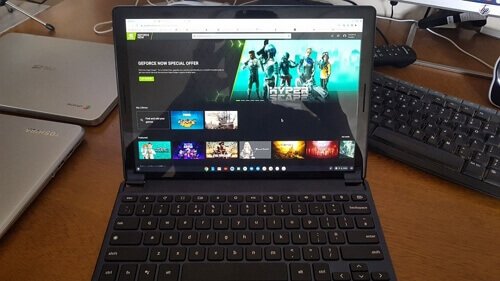
Playing Windows games on a Chromebook primarily involves using cloud gaming services or running a virtual machine with Windows.
Dreaming of playing your favorite PC games but only have a Chromebook? You aren’t alone. Many users wonder how to play Windows games on Chromebook. The good news is that it’s definitely possible, although it requires a little workaround.
This guide will explore different methods allowing you to access and play those games you crave. Forget limitations, we will help you enjoy your favorite titles on your Chromebook!

How to Play Windows Games on Chromebook
Chromebooks are awesome for schoolwork, browsing the internet, and watching videos. But what if you want to play your favorite Windows games? It might seem impossible, but it’s not! There are several ways to get your gaming fix on a Chromebook, and we’re here to show you how. Let’s dive into the exciting world of playing Windows games on a Chromebook.
Understanding the Challenge
The main reason you can’t just install Windows games on a Chromebook is that they use different operating systems. Chromebooks run on Chrome OS, which is based on Linux, while Windows games are designed for Microsoft’s Windows operating system. Think of it like trying to put a square peg in a round hole – it just doesn’t fit. But don’t worry, we have solutions to bridge this gap!
Before we jump into the “how,” it’s important to understand the general strategies. We won’t be changing the Chromebook’s operating system. Instead, we will use methods that either let the game run on a server somewhere else or that allow the Chromebook to temporarily act like a Windows computer. This is why understanding the basics is so crucial. Now, let’s look at the methods.
Cloud Gaming: Your First Stop
Cloud gaming is a really popular way to play games that normally need a beefy computer, right on your Chromebook. Think of it like streaming a movie, but instead of a video, it’s a game! The game actually runs on a powerful computer in a data center, and you’re just seeing the screen and sending your commands (like moving your character or clicking buttons) through the internet.
How Cloud Gaming Works
Here’s the lowdown on cloud gaming: You need a good internet connection because the game’s video is sent to your screen and your controls are sent back to the server constantly. These services usually require a subscription fee. It’s like renting a super gaming computer that you can access using your Chromebook.
- Subscription: You sign up for a service, and they give you access to their games.
- Streaming: The games run on their computers, not yours.
- Control: Your keyboard, mouse, or gamepad send your instructions to their servers, and the video of the game is streamed back to your Chromebook.
Popular Cloud Gaming Services
There are many cloud gaming services that work really well on Chromebooks. Here are a few of the most popular ones:
- NVIDIA GeForce NOW: This service lets you play your own games you have already purchased from stores like Steam.
- Xbox Cloud Gaming (via Xbox Game Pass Ultimate): This service provides access to a massive library of games that you can stream on a Chromebook using your Xbox Game Pass subscription.
- Amazon Luna: This service lets you play games from different channels or groups of games.
Setting Up Cloud Gaming on a Chromebook
Setting up these services is normally straightforward:
- Sign Up: Go to the website of your chosen cloud gaming service and sign up for an account.
- Install the App (If Needed): Some services have a web app; others may prompt you to install a Chrome OS app. Follow their instructions.
- Link Your Accounts: You may need to link your accounts from game stores like Steam, Microsoft, or Epic Games.
- Start Playing: Choose a game from their library, and start playing!
Pro Tip: Before subscribing to any service, look for free trials to test them out to make sure your internet connection is fast enough, and the games you like are available. Also, a good quality internet connection is very important for playing smoothly.
Using a Virtual Machine: A Deeper Dive
A virtual machine (VM) allows you to run an entire different operating system, like Windows, inside of your Chrome OS. It’s like having a computer inside your computer. With this method, you actually have a Windows environment where you can install and play Windows games.
How Virtual Machines Work
Virtual machines use software to create an artificial computer environment within your Chrome OS. The VM uses a portion of your Chromebook’s resources (like memory and processor). This virtual system can then run Windows, and you can install Windows applications and games on it. You may need a more powerful Chromebook for this method to run well.
- Virtualization Software: You install software on your Chromebook that can create the VM.
- Windows Installation: You install Windows on the VM, just like you would on a normal computer.
- Game Installation: Once Windows is set up, you can install your Windows games into the virtual machine.
Popular Virtual Machine Options
Although it might seem complex, it’s actually easier than you might think. Here are the most common ways to use a virtual machine on a Chromebook.
- VMWare Workstation Player (Via Linux): You can run Linux in your Chromebook and use a program called VMWare to set up a Windows VM
- VirtualBox (Via Linux): VirtualBox works like VMWare, allowing you to create a Windows VM.
Important Note: Setting up a virtual machine is more complicated than using cloud gaming. It requires technical knowledge, and the performance will depend on your Chromebook’s processing power.
Setting Up a Virtual Machine
Here’s a very simplified overview of how to set up a VM, it is generally very technical and requires some Linux and command line knowledge:
- Enable Linux on your Chromebook: Go to your Chromebook’s settings and turn on the Linux environment. This allows you to run special programs to help set up your VM
- Install the Virtual Machine Software: Use Linux commands to install your chosen VM software (VMware or VirtualBox).
- Download a Windows ISO: You’ll need a Windows ISO file from Microsoft’s website. You may need to buy a Windows license too.
- Create the VM: In the software, follow instructions to set up a new VM with your Windows ISO file.
- Install Windows in the VM: Follow the on-screen steps to install Windows in the virtual machine.
- Install Games: After Windows is ready, you can install your Windows games.
This process is detailed and requires some tech skills. You might need to search online for specific guides on setting up each type of VM.
Using Steam Link: Stream from Your PC
If you already have a Windows computer at home with Steam, you can stream games from it to your Chromebook using Steam Link. This method is great because it uses your home computer’s resources to play the games.
How Steam Link Works
Steam Link works by sending the video and audio from your Windows PC to your Chromebook, while your controls are sent back to your PC. This is similar to cloud gaming, but instead of using a server somewhere else, you are using your own computer.
- PC Setup: You need a computer at home running Steam and the games you want to play.
- Chromebook Setup: Install the Steam Link app on your Chromebook.
- Connection: Connect the Chromebook to your PC on the same network.
- Streaming: Start the game on your PC, and stream it to your Chromebook.
Setting up Steam Link
The setup process is pretty easy:
- Install Steam on Your PC: Make sure Steam is installed and running on your Windows computer. You may need to log in to your Steam account.
- Install Steam Link on Your Chromebook: Install the Steam Link app from the Google Play Store on your Chromebook.
- Pair Your Devices: Open Steam Link on your Chromebook, and it will scan for your PC on the network. Click your PC and enter a code shown on the Chromebook screen.
- Start Playing: Now you can select a game in your Steam library to stream and play it.
Things to keep in Mind: Both your PC and Chromebook need to be connected to the same network for this to work. Your home network also needs to be fast enough for good quality streaming. Make sure your PC is turned on when you try to play.
Linux Gaming: A Sneak Peek
Remember how we said Chrome OS is based on Linux? Well, that means you can potentially play some games designed for Linux directly on your Chromebook, sometimes these are not Windows games, but similar titles. This can be an option if you’re okay with not playing Windows specific games. This option may require more technical skills than the options we have gone over already.
How Linux Gaming Works
Many games are developed for Linux. When you enable the Linux environment on your Chromebook, you can then install these games by either downloading them directly or by using a game management tool for Linux.
- Enable Linux: Go to your Chromebook’s settings and enable the Linux feature.
- Find Linux Games: Look for games that are designed for Linux.
- Installation: Install games using Linux commands or applications such as Steam for Linux.
Finding and Installing Linux Games
Many free and paid games work on Linux. You can find them on sites like GOG or Steam. Here are some basic steps:
- Enable Linux on Chromebook: Make sure you have set up Linux on your Chrome OS
- Open the Terminal: You can find this app in your Chromebook’s app list.
- Install Steam or other launchers: If you want to use Steam for Linux, you can install it.
- Download or Install Games: You can search for the game files directly, and install them, or you can browse on the Steam (or other launcher) app and install the games.
This method will only work for Linux games, but there are a lot of great choices available that may be fun for you to explore.
Troubleshooting Common Issues
Sometimes, things don’t go as planned. Let’s look at some typical problems and how to fix them:
Lagging or Stuttering
If your game is lagging or stuttering, it’s usually because of your internet connection. Here are things to check:
- Internet Speed: Make sure your internet is fast enough for streaming. Try testing your speed with an online tool.
- Wi-Fi Signal: Make sure your Chromebook is connected to a good Wi-Fi signal. Try moving it closer to your router.
- Other Devices: Try to minimize other devices that are using your internet at the same time.
Game Compatibility
Not all games work the same on a Chromebook with cloud gaming or virtual machines. Some games may have graphical or control issues. Do your research:
- Check Compatibility Lists: Look for user or official lists of compatible games for your chosen cloud gaming service or VM
- Try Demos or Free Trials: Use the demo or free trial of games or services to test before you buy.
Control Issues
If your keyboard or mouse isn’t working properly in a game, try the following:
- Update Chrome OS: Ensure that your Chrome OS is up to date.
- Try another Controller: If you are using a gamepad, try a different controller
- Check App Settings: Look in the app settings of the cloud gaming service or VM to make sure your controls are correctly setup.
Graphics and Performance
If your games look blurry or performance is very slow, try these adjustments:
- Adjust Settings: Cloud gaming services usually have settings that allow you to change the quality of the stream. Try a lower setting if your games are slow.
- Close Background Apps: Close other programs running on your Chromebook to free up resources.
If nothing seems to help, try to search the internet for the specific error message you may have encountered. You may find users with similar issues who have found solutions.
Playing Windows games on a Chromebook can be a bit tricky, but it’s definitely possible. From the simplicity of cloud gaming to the deeper dive of virtual machines, there are options for all types of gamers. Remember, each method has its own pros and cons, so pick the one that fits you the best. Have fun exploring the world of Chromebook gaming, and we wish you happy gaming!
HOW TO RUN .EXE FILES ON CHROMEBOOK!
Final Thoughts
In conclusion, several methods allow you to play Windows games on Chromebook. You can use cloud gaming services or install a Linux environment with Wine. These options offer different levels of performance. Choose the method that best fits your needs and technical abilities.
Therefore, ‘how to play windows games on chromebook’ is now achievable with several viable options. Experiment with different approaches to find what works best for your desired games. This opens up a whole new world for Chromebook users.

