
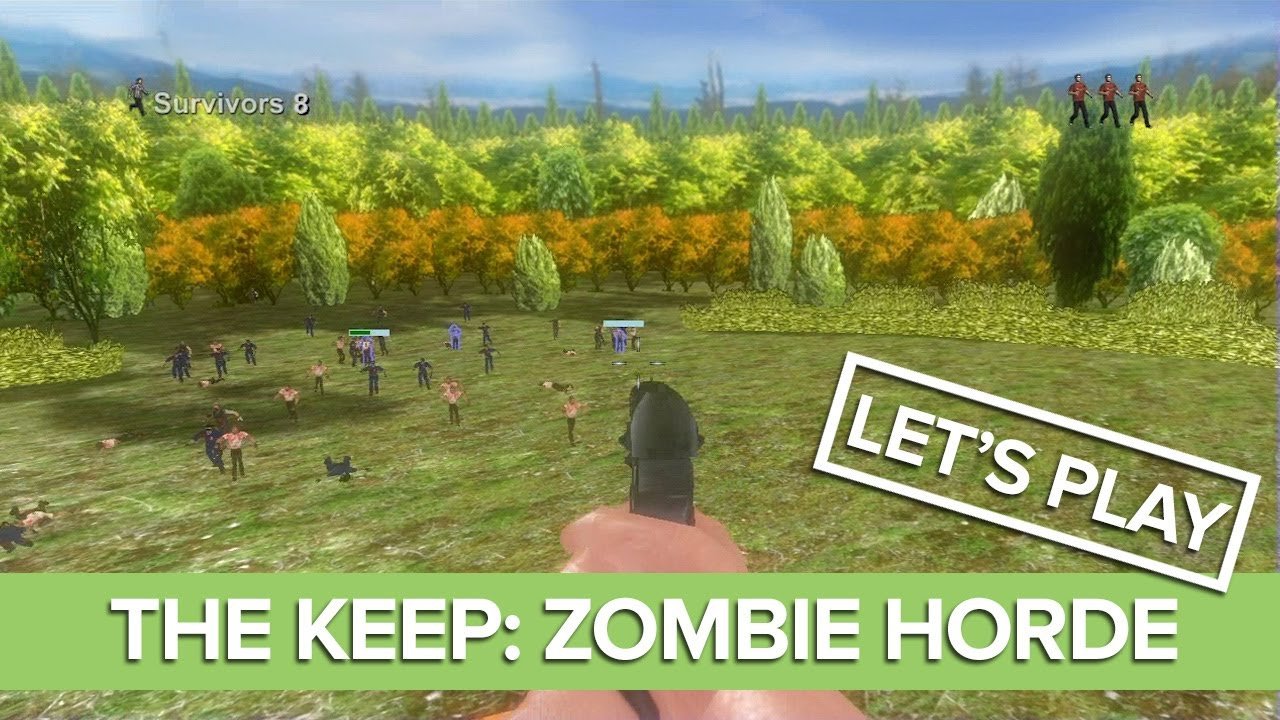
Unfortunately, directly playing Xbox 360 indie games on a PC is not possible through official means. These games are designed for the console’s architecture.
Ever wondered if you could experience those quirky Xbox 360 indie titles on your computer? Many gamers cherish these unique creations and naturally wonder about ‘how to play xbox 360 indie games on pc’.
The answer isn’t straightforward, but we’ll explore the technical barriers that keep those console treasures locked away. We need to delve into why direct emulation isn’t usually a viable option currently.

How to Play Xbox 360 Indie Games on PC
Have you ever wanted to play those cool, unique Xbox 360 indie games on your computer? Maybe you remember a specific game from back in the day that you wish you could play again. Well, you’re in luck! While it’s not as simple as downloading a game from Steam, it is possible to get some of those awesome indie titles running on your PC. This guide will walk you through the steps you need to take so you can enjoy these games. Let’s explore the world of Xbox 360 indie gaming on your PC!
Understanding the Challenge
Before we jump into the “how,” it’s important to understand why playing Xbox 360 indie games on PC isn’t straightforward. Unlike regular PC games, Xbox 360 games are designed for the console’s specific hardware and operating system. They’re not built to just run on Windows. The “indie” aspect further complicates things because these games are often made with different tools and techniques, adding another layer of compatibility issues.
The Xbox 360 used a special system for running games, and your PC uses a completely different system. To get these games running on your computer, you need a special program called an emulator. An emulator tricks your PC into thinking it’s an Xbox 360, which allows you to play the games. Think of it as a translator that lets your PC understand the Xbox 360 language.
Why Emulation Is Necessary
Emulation is the only practical method for playing Xbox 360 games on PC. Without it, the game’s code simply can’t run on your system. This process involves recreating the Xbox 360’s hardware and software environment within your PC. It’s a complex process, and not all games will work perfectly, but it’s the best way to play those indie classics.
The Main Tool: Xenia Emulator
The key to playing Xbox 360 indie games on your PC is using an emulator. The primary emulator we’ll focus on is called Xenia. Xenia is a free, open-source emulator that is specifically designed for running Xbox 360 games on Windows, Linux, and macOS. It is still in active development, but it has come a long way and can run a large number of games, including many indie titles. Please note that while we will explain Xenia, other emulators may also exist but might have a different set of features and level of support.
Getting Xenia
First, you need to get Xenia. Here’s how:
- Visit the official Xenia website: Start by going to the official Xenia website to make sure you’re getting the most up-to-date, secure version. Just search for “Xenia Xbox 360 emulator” on your favorite search engine.
- Download the appropriate build: Look for the download section of the website. Choose the version that’s right for your computer. Most of you will want the Windows version. The files are usually in a .zip format.
- Extract the files: After downloading, you’ll need to extract the files from the zip folder. You can do this by right-clicking the file and selecting “Extract All.” Choose a location to save the files, such as a new folder on your desktop.
Finding Xbox 360 Indie Games
Now that you have the emulator, you’ll need to get some Xbox 360 indie games. Here’s where it gets a little tricky. You can’t just download games from the Xbox Store like you usually would. You need to have the game files, usually in the form of ISO or GOD files, and you need to obtain these files legally.
Where to Look for Game Files
- Your own discs: If you own any physical copies of Xbox 360 indie games, you might be able to rip those to create the image files. This is the most legal way of getting the games. You will likely need a special disc reader for your computer that is able to extract games from your game discs.
- Your Xbox 360 hard drive: If you own an Xbox 360, it is also possible to copy over the files of the games you purchased onto a USB drive.
- Online Marketplaces: Some gamers sell their legally obtained, personal copies of games online, and these are usually in the form of game disc or console.
Important Note: Downloading games from unofficial sources is illegal and can put your computer at risk. It’s best to only use the game files you own to protect yourself and support the game creators. If you don’t have any legal way to get the files, you may have to miss out. Always ensure you are following all copyright laws when getting game files.
Preparing Your Game Files
Once you have your game files, you might need to make sure they’re in the right format for Xenia. Generally, Xenia can use .iso, .xex or .god files. If you have game files in another format, you might need to convert them. The process depends on the files you have, but here is the general outline:
Converting Game Files
- ISO files: If you have ISO files, you usually don’t need to do anything. These are like digital copies of the whole game disc. Xenia can usually read these.
- GOD files: Games on Demand files, or GOD files, are also usually fine. They are the files that are stored on the hard drive of your Xbox 360. Xenia can usually use these files without any issues.
- XEX files: These are the executable files for Xbox 360 games. If you have these, make sure they are not located inside a zip file or another archive. Xenia can directly use these files.
Setting Up Xenia
With Xenia downloaded and your games ready, it’s time to get everything set up. Here’s a step-by-step process.
Running Xenia for the First Time
- Locate the Xenia executable file: Go to the folder where you extracted the Xenia files. Find the .exe file, it will likely be called xenia.exe, and double click it to open the emulator.
- Optional controller setup: If you plan to use a gamepad, now is a good time to connect it. Xenia works with many types of controllers, including Xbox controllers, which may be the most compatible, but also controllers from other brands.
Configuring Xenia
While Xenia mostly works out of the box, some options can enhance performance and compatibility. Here are a few things you can tweak, although usually these settings are not needed for most users:
- Graphics settings: In the configuration file, you can adjust the graphics options if you are experiencing issues with the graphics. You might want to test out different graphics adapters in the advanced settings.
- Resolution: You can set the resolution of the games using the ini configuration file. Keep in mind that setting higher resolution than your system can handle can cause stuttering.
- Advanced settings: You might want to tweak the advanced settings only if you are experiencing specific issues with the game you are running. Do not make changes if you don’t know what they do.
Loading and Playing Games
Finally, we’re at the fun part – playing the games! Here’s how you load and play Xbox 360 indie games in Xenia.
Loading a Game
- Open Xenia: Launch the Xenia emulator.
- Select the game: Click “File” and then select “Open” in the top menu. Use the file explorer to navigate to where you saved the game file (ISO, GOD or XEX). Select it and Xenia will load the game.
- Wait: Give it a moment to load. Some games might take longer than others.
Playing Your Game
Once your game is loaded, you can control it with your keyboard or gamepad, depending on what you have set up. Some games might run perfectly, and some may have issues. The best way to find out is to just try them. You might experience various issues like graphics glitches, lag, stuttering, or sometimes the game might even crash. All this depends on your computer specifications and the game itself.
Troubleshooting Common Issues
You may run into some problems when trying to play games. Don’t worry, here are some common issues and how to deal with them:
- Game won’t start: If a game won’t start, try restarting Xenia or see if there is a newer version available.
- Slow performance: If the game is running slowly, try lowering the resolution settings in Xenia or checking if your PC meets the minimum system requirements. If your computer is old, it may not be able to play these games correctly.
- Graphics glitches: Some games might have graphics problems, like missing textures or flickering. Try different graphics settings in Xenia. If the issue continues, it might just be the game and you can’t do much about it, because Xenia is still in development.
- Controller Issues: Make sure your controller is recognized. Some controllers might need additional drivers to work correctly on your computer. Make sure to download the drivers from the controller manufacturer’s website.
Enjoying the Experience
Playing Xbox 360 indie games on your PC can be a fun way to revisit old favorites or try some hidden gems. While it might require a little setup, the experience of playing these games on a modern PC is rewarding. Remember that the emulation is still in development, so some games may not work perfectly. Don’t give up if you run into problems, try different settings, and see if the game works eventually. Keep in mind that the games that had more developers, are more likely to run smoothly than the games with few or one developer.
A Few Extra Tips
- Stay Updated: Keep Xenia up to date. The developers are always working to make improvements and add compatibility for more games. You will want to check the Xenia website regularly to see if there is a newer version to download.
- Join the Community: Check online forums and communities about Xenia. Other players might have found solutions to some common issues and can offer useful advice.
- Be Patient: Emulation can be challenging. Not all games will run perfectly, and some may not work at all. Be patient and try different settings and games.
Enjoy revisiting those old indie favorites, and exploring games you might have missed back in the day! This is an exciting way to give these games another go on a new platform. With the help of an emulator, you can bring these gems back to life and have an enjoyable time.
How To Emulate Xbox 360 Games On PC (Xenia Tutorial)
Final Thoughts
In short, you can play Xbox 360 indie games on PC using Xenia emulator. Setting it up requires downloading Xenia, and then finding game files. The process takes some technical know-how.
Remember that obtaining game files legally is crucial. You need to get the files yourself from your purchased Xbox 360 games, or from other legal means. This is the main way how to play xbox 360 indie games on pc.
Enjoying these indie titles on your computer is totally possible now. Just follow the steps, and you can relive those gaming moments.

