
To play zip games on Android, you’ll typically need an emulator app designed for the specific game system and a game file (ROM) in a compatible zip format.
Ever stumbled upon a retro gem compressed into a zip file and wondered how to play zip games on Android? It’s a common question for those wanting to revisit classics. The good news is that playing these old favorites on your phone or tablet is actually quite simple.
You’ll need a suitable emulator app for your device. Next step involves locating the zip files that contain the actual game ROMs. With the right steps, you will be enjoying those nostalgic games right away.

How to Play Zip Games on Android
Okay, so you’ve got a zip file filled with fun games and you’re itching to play them on your Android phone or tablet. That’s awesome! But wait, zip files aren’t like regular apps. You can’t just tap them and start playing. They’re like a treasure chest, and we need the right key to open them up. This guide will show you exactly how to get those games running on your Android device.
Understanding Zip Files
First things first, let’s talk about what a zip file actually is. Think of it like a special folder that holds many files and folders, all compressed into one smaller package. This makes it easier to share things online. Game developers often use zip files to pack their games and any extra files needed like sound effects, images, or game data. So, instead of sending you a bunch of separate files, they put them all into one convenient zip.
Why Use Zip Files for Games?
There are some good reasons to bundle games up in zip files:
- Keeps things organized: Imagine having to download 50 different files for one game. Yikes! Zip files put everything in one place.
- Saves space: Zip files compress data, making the overall file size smaller. This helps with download speeds and saves space on your device.
- Easier sharing: It’s much simpler to share a single zip file instead of multiple files.
Now that you know what zip files are for, let’s look at how to use them to play games.
The Key: Unzipping Your Games
To play a game inside a zip file, you have to “unzip” it. This means taking all the files inside the zip and putting them into a regular folder so your Android device can read them. Luckily, there are a bunch of apps that can do this for you.
Choosing a File Manager App
You will need a file manager app that supports zip extraction. There are many great options available for free on the Google Play Store. Some popular choices include:
- Files by Google: A simple and free file manager app.
- Solid Explorer: A feature-rich option with great zip handling.
- Amaze File Manager: A clean, open-source file explorer.
- X-plore File Manager: A powerful, dual-pane file manager.
Pick one that looks good to you, download it from the Play Store, and let’s get started!
Step-by-Step Guide: Unzipping and Playing
Let’s go through the process step-by-step. I’ll use a general file manager as an example, but most apps will work in a similar way. For example, let’s assume you have a zip file named “MyAwesomeGame.zip” on your phone.
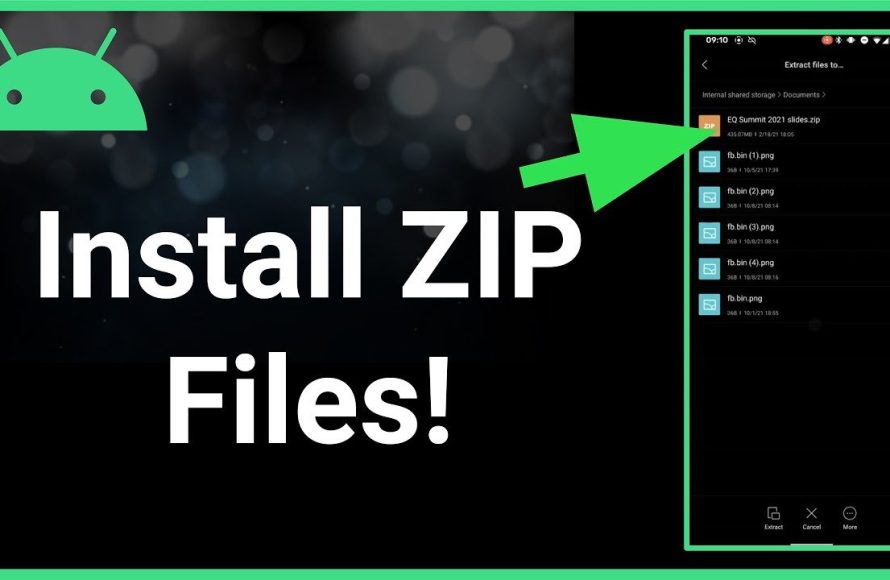
- Find the Zip File: Open your file manager app. Navigate to the folder where your zip file is located (probably the “Downloads” folder, or where you save your downloaded content).
- Select the Zip File: Tap on your zip file (“MyAwesomeGame.zip”). Many file managers will recognize zip files and might show a “Extract” or “Unzip” option automatically.
- Choose the Extraction Location: When you select extract, a dialog might appear asking where to put the extracted files. You can either use the default folder or pick a new one. I recommend creating a new folder specifically for the game (e.g., a folder named “MyAwesomeGame” so things stay organized). You can do this by creating a new folder from inside the file manager, often through a menu button (like three dots or a plus icon), selecting the option to create a new folder and naming it, then tapping it as the destination folder.
- Extract the Files: Tap the “Extract” or “Unzip” button. The file manager will now extract the contents of the zip file to the location you selected. This might take a few seconds, depending on the size of the zip file.
- Find the Game Folder: After extraction, go to the folder where you saved the files, (e.g., “MyAwesomeGame” folder). Inside, you will see the files that were in the zip file. You’ll likely find one or more files for the game.
- Run the Game: Now, this is where it gets a little tricky. It depends on what kind of game you have downloaded. Here’s the lowdown on the most common types you might find:
Types of Games in Zip Files
Android APK Files
Often, the zip will contain an APK file. An APK file is an Android application package, which is basically how Android apps are distributed. If you find an APK, you’re in luck! Here’s what you need to do:
- Locate the APK file: Look for a file with a name like “MyAwesomeGame.apk”.
- Tap the APK file: Your Android device might ask for permission to install apps from “unknown sources”. Don’t worry, this is normal.
- Allow installation: Follow the on-screen instructions to allow the installation. You might need to go to your device’s settings and look for the “Install Unknown Apps” settings. This varies slightly depending on your Android version, it’s often found under Security settings or Privacy settings.
- Install the App: After allowing installation, tap “Install”. The game will now be installed on your Android device like any other app.
- Play the game: Once the installation is finished, you can find the game icon in your app drawer and start playing.
Important Safety Note: Always download games from trusted sources. Installing apps from untrusted places can be risky, as they could contain harmful software (malware). Only install APK files from developers you know and trust.
Emulator Games (ROMs)
Many zip files contain game ROMs. These aren’t directly playable on Android. They are copies of games from older consoles like the Game Boy, SNES, or PlayStation. To play them, you need an emulator, which is an app that pretends to be an older console.
- Download an emulator: Find an emulator app on the Google Play Store that matches the console of the game you are trying to play. Search the Play Store for “[Console Name] Emulator”. For example, “SNES Emulator” or “GBA Emulator”. Make sure you read the reviews before installing, as some emulators are better than others.
- Install the emulator: Install the emulator app just like any other app from the Play Store.
- Open the emulator: Launch the emulator app. The app will ask you to locate the game files.
- Locate the ROM file: Navigate to the folder where you unzipped your game. Look for files with specific extensions that identify game ROMs such as “.nes” (Nintendo Entertainment System), “.smc” (Super Nintendo), “.gba” (Game Boy Advance), “.gb” (Game Boy), or “.iso” (PlayStation).
- Select the ROM: Tap on the ROM file. The game should now start up inside the emulator.
- Configure emulator settings (optional): You can customize the settings of most emulators, such as the graphics, controls and saving the game. Some emulators are very powerful, allowing you to make the games look and play even better than on their original console.
Important Note: Using ROMs of games you do not own can be a grey area legally. Always consider the legality of downloading and using ROMs.
HTML5 Games
Sometimes, a zip file will hold an HTML5 game, which is designed to run in a web browser. These types of games typically use files with the extensions “.html”, “.js” and “.css”. Here’s how to play them:
- Locate the HTML file: Look for a file with a name like “index.html” or a similar file with .html extension.
- Open the HTML file: Tap the HTML file. Usually your device will give you an option to open this with a web browser app, like Google Chrome, Samsung Internet, or Firefox. Select a browser app.
- Play the Game: The game will now load and play directly in your browser window.
Java Games (Jar Files)
You might also encounter a Java-based game (.jar file). These require a Java emulator or the J2ME emulator app.
- Download and install the J2ME emulator: Search for “J2ME emulator” on the Google Play Store and install the app.
- Launch the emulator: Open the J2ME emulator app.
- Select the jar file: Navigate to the folder where the jar file is located and select the jar file.
- Play the game: The game should now start in the J2ME emulator app.
Other Game Types
Sometimes, you may encounter games using other files and special formats, and will often require a specific app to play it. Please always refer to the documentation or developer info provided with your game for specific instructions.
Troubleshooting Common Issues
Sometimes, things don’t go as planned. Here are some common problems you might face and how to fix them:
Game doesn’t install or start
- Check permissions: Make sure you allowed the app to install from unknown sources if you are using an APK.
- Check compatibility: Not all games will work on all Android devices. Check for minimum system requirements of the game.
- Restart your device: Sometimes a simple restart can fix a lot of problems.
- Clear app cache: Try clearing the cache of the app you are using. You can do this in your Android device settings, under “Apps”. Find the app, and select the option to clear the app cache.
Game crashes or has errors
- Check for game updates: If the game is an app, check for updates on the Play Store, or from the game’s official website, and install the update.
- Re-extract the files: A bad zip download can sometimes cause corruption, try re-downloading and re-extracting the file.
- Try a different emulator: If you are having trouble with an emulator, try another one.
- Free up storage space: Having low storage on your device can sometimes cause problems, try deleting some files and see if it helps.
- Close unnecessary apps: Having many apps open at the same time can cause crashes. Close all the other running apps and try again.
Controls don’t work properly
- Check the emulator settings: Many emulators allow you to customize the controls. Go through the emulator’s settings and make sure the controls are set up correctly.
- Try a different controller mapping: Some emulators may have more than one controller mapping options. Try each to find which is comfortable to you.
Tips for a Better Gaming Experience
- Keep your games organized: Create separate folders for each game to avoid confusion.
- Use a good quality file manager: A reliable file manager makes the whole process easier.
- Backup your game data: If possible, make backups of your game saves so you don’t lose your progress.
- Use a gamepad: If you find touch controls uncomfortable, connect a Bluetooth gamepad for a more console-like experience.
- Explore emulator options: Each emulator has its own unique features. Take time to learn about them and customize the settings to get the best gaming experience.
Playing zip games on Android may seem a little complex at first, but with the right tools and steps, it can be very easy and rewarding. Enjoying a vast library of games on your phone has never been simpler. Keep in mind the types of games you’re working with, and you’ll quickly become a pro at playing zip games on your Android device. Have fun gaming!
How To Extract Games On Android Using 7zipper
Final Thoughts
To play zip games on Android, you’ll first need a compatible emulator application. Download the emulator from a trusted source, then locate your game’s zip file.
Next, use the emulator’s interface to open or import that zip. The emulator will then process the game, allowing you to play it. Remember to check emulator settings for optimal performance.
In summary, how to play zip games on android involves installing an emulator, locating a game zip, and using the emulator to open it. Enjoy your games!

