
Playing zip file games on Android requires extracting the game files from the zip archive using a file manager app, then installing the game’s APK file if present, or using an emulator if needed.
Ever stumbled upon a cool game tucked away in a zip file and wondered how to play zip file games on android? It’s a common situation, and the process is simpler than it might initially seem. Don’t worry, this guide will walk you through the steps to get those zipped games running on your phone. We’ll cover the necessary tools and techniques to get you playing in no time.

How to Play Zip File Games on Android
Have you ever found a cool game online, only to see it comes as a .zip file? It might seem tricky to play, but don’t worry! It’s actually not that hard to get those games running on your Android phone or tablet. This guide will show you, step-by-step, how to play those awesome games hiding inside zip files.
Understanding Zip Files
Before we start, let’s talk a little about what a zip file actually is. Imagine you have a box filled with toys. Instead of carrying each toy separately, you put them all in one box to make it easier to carry. A zip file is like that box, but for computer files. It takes different files, like game files, pictures, and text, and squishes them down into one single package. This makes it smaller and easier to share and download. You can’t use the files inside a zip file directly until you take them out, or as we call it, “extract” them.
Why Are Games Sometimes in Zip Files?
Game developers often put their games in zip files for a few key reasons:
- Smaller Download Sizes: Zip files make the download process faster because the file size is reduced. This saves you time and data.
- Keeps Files Organized: Games sometimes have many different files, like game data, images, and sounds. Putting them in a zip file keeps them all together and avoids them getting lost or mixed up.
- Easy Sharing: Zipping makes it much easier to share games with friends, either through online downloads or by transferring files.
Now that we understand what zip files are for, let’s get to the fun part – playing the games!
Preparing Your Android Device
Before we dive into extracting the files, we need to make sure your device is ready. Here’s what you will likely need:
File Manager App
Your Android phone or tablet should have a file manager app, sometimes called “Files” or “My Files.” This app lets you see all the different files on your device. If you don’t see one, you can easily download a free one from the Google Play Store. Some good file manager app options include:
- Files by Google
- Solid Explorer
- Astro File Manager
- ES File Explorer (note: make sure you download the correct one, as there are older versions that might have issues)
Pick one that looks easy to use and install it on your device.
Storage Space
Make sure you have enough free storage space on your device for the game files. If your phone or tablet is almost full, you might need to remove some unused apps or files to make room for the game. It’s generally good to have at least double the file size of your zip file free for the extraction to work correctly. If the zip file is 500mb, it’s best to have at least 1gb free, just in case. You can check your storage by going to Settings on your device, then look for “Storage” or “Memory.”
Extracting the Zip File
Now it’s time to take the game files out of the zip file!
Locating the Zip File
First, use your file manager app to find where you saved the zip file. Usually, it will be in your “Downloads” folder. But if you moved it, make sure you know where you put it.
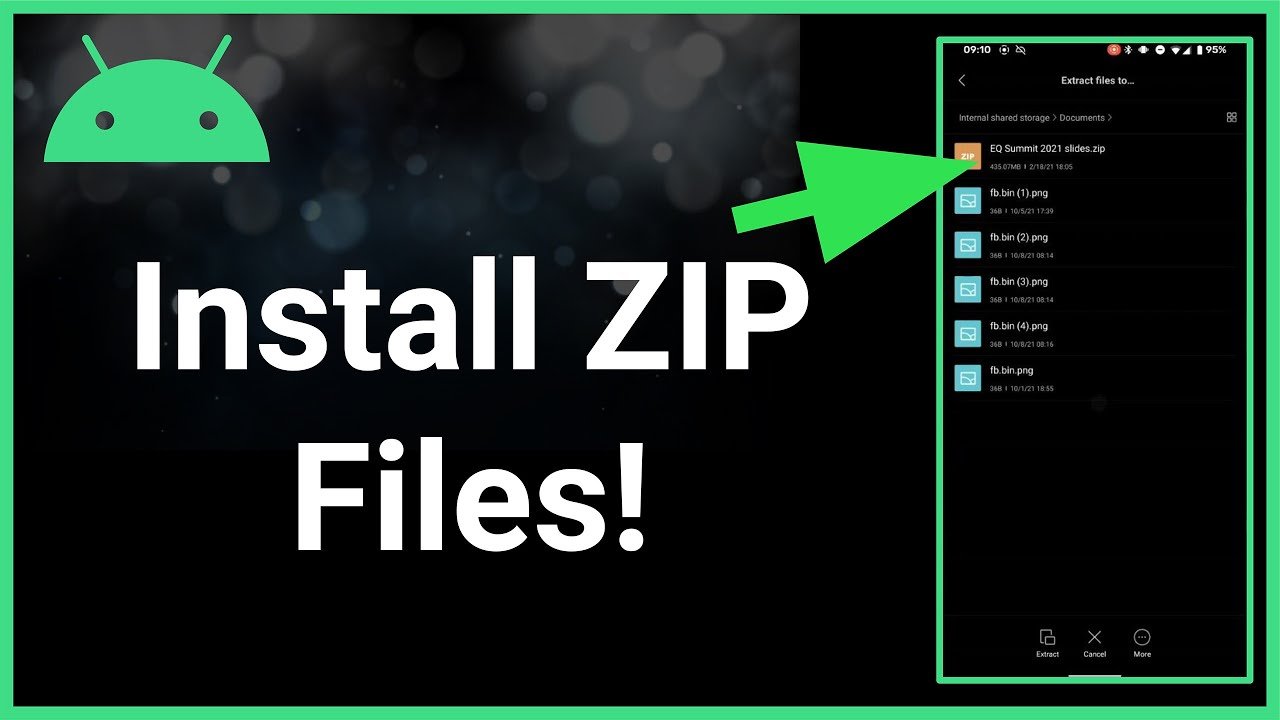
Using the File Manager to Extract
Here’s the general process for extracting the zip file. The exact steps might be slightly different, based on which file manager app you use. However, they all have similar basic functionality:
- Tap the Zip File: When you find the zip file, tap on it.
- Look for Extraction Options: You’ll usually see some options appear when you tap the file, such as “Extract,” “Unzip,” or “Decompress”. If it doesn’t automatically show you the options, there might be a three dot menu (…) where you can find these.
- Choose a Destination: The app will probably ask where you want to put the extracted files. It’s easiest to create a new folder to keep all the game files together. You can choose any location, such as on your device’s main memory or on an SD card (if your phone or tablet has one).
- Start the Extraction: Tap the “Extract” or “Decompress” button. The app will then get to work taking the files out of the zip. This might take a little while, especially if the game is large.
After the extraction is done, you’ll see a new folder with the same name as the zip file or the name you chose during the extraction process. This folder will now contain all the files that were inside the zip file.
Troubleshooting Extraction Problems
Sometimes, things might not go as planned. If you run into problems, here are a few tips to try:
- Make Sure the File Isn’t Damaged: If the extraction fails, the zip file may be corrupted or incomplete. Try downloading the zip file again. Make sure you are downloading from a reliable source.
- Storage Space: If you don’t have enough space, the extraction will fail. Make some space on your device.
- Update Your File Manager: Try updating your file manager app to the latest version. Outdated apps might have some bugs.
- Try a Different File Manager: If one app isn’t working, try a different file manager app from the list above.
If you still have problems, you might want to do some online searches for the particular game or file you are having problems with, as there might be other things going on.
Finding the Game Executable
Once the extraction is done, you need to find the game’s main file. This file is like the key that starts the game. The file will often have an extension such as .exe, .apk or .jar
Types of Game Files
Here are some common types of game files you might find inside a zip file and how to deal with them:
.APK Files
If you see a file ending in .apk, it’s an Android Application Package. This is a file for Android apps and games. To play it, you can usually just tap it, and it will start the installation process. You’ll probably have to give your phone permission to install apps from “unknown sources” if you haven’t already. Here’s how you usually do that (the exact wording might be slightly different on your phone):
- Go to your phone’s Settings.
- Look for “Security” or “Privacy” settings.
- Find the “Install Unknown Apps” or a similar setting and turn it on for the file manager you are using.
Once the .apk is installed, the game should be available in your app drawer and you can play it like any other game.
.EXE Files
If you find a file ending in .exe, it is an executable file typically used on computers that run Windows. Android phones don’t run .exe files directly. This means you’ll need a special app to run these types of games. It’s like using a translator to understand a different language.
Using Emulators
To run .exe games on Android, you’ll need an emulator. An emulator is an app that makes your phone act like a computer or a different type of gaming console. Here are some popular options:
- Winlator: Winlator is designed to emulate a Windows environment on Android. This is a great option if you want to run many different PC games.
- Exagear: Exagear is a more advanced Windows emulator that can run more demanding Windows games. However, it can be a bit complicated to setup.
Using emulators can be tricky and sometimes require some additional steps and research. You often need to install these emulators, then also install the specific game in the emulated environment. There might also be some setup to configure controls and game settings. It’s good to look for guides on using the specific emulator for a game, to help you along. Also make sure your phone is powerful enough to handle the emulator and game together!
.JAR Files
If the game file ends in .jar, it is a Java Archive file. It is like a special file type for programs written in the Java language. To run this kind of game, you usually need an app that can run Java files, like a J2ME emulator.
- J2ME Loader: This is a very popular emulator that allows you to run many older mobile games written in the Java language.
Using emulators for .jar games is usually simpler than with .exe games. Just install the emulator app and then open your .jar file with the emulator and it should launch, if the game is compatible.
Other File Types
Sometimes, you might find other file types, such as .bin, .iso, or folders that have game files in them. These are often for games for older consoles, like PlayStation, Nintendo or Sega consoles. To play these, you’ll need an emulator designed for those consoles.
- RetroArch: This app is an all-in-one emulator that supports many different consoles like NES, SNES, Gameboy, PlayStation, and many others.
- PPSSPP: PPSSPP is an emulator specifically for the PlayStation Portable.
- Dolphin Emulator: Dolphin is an emulator for Nintendo GameCube and Wii.
Using emulators, you often need to load the game file directly from within the emulator itself. Each emulator has slightly different instructions so check online guides on how to use them.
Important note: Always download game files and emulators from trusted sources to avoid getting viruses on your device.
Playing the Game
Once you have the game up and running, take some time to learn the controls. Each game is different and the controls may be different.
For games that need an emulator you’ll likely have the option to re-map controller buttons to touchscreen buttons.
If you are having trouble, you might find help on a community forum for that specific emulator or game.
Tips for a Better Gaming Experience
Here are a few tips to make your gameplay on Android even better:
- Use headphones: Headphones can make the game audio sound better and help you get more immersed in the game.
- Try a gamepad: If you like playing games on consoles, you can connect a Bluetooth gamepad to your phone. It will make the controls easier to use and make it feel more like a gaming console.
- Adjust screen brightness: Adjust your screen’s brightness to reduce strain on your eyes.
- Close other apps: Close all your other apps when you are playing a game to make sure your device’s resources are used for the game instead.
And that’s it! You’re now ready to play those zip file games on your Android device! You’ve become an expert in file extraction and a real emulator pro!
This process may seem complex at first, but once you’ve done it a couple of times, it becomes much easier. You can now enjoy a variety of retro and indie games right on your Android device. Remember to always stay safe and download your games and apps from sources you trust. Happy Gaming!
How To Extract Games On Android Using 7zipper
Final Thoughts
To play zip file games on Android, you first need to extract the game files using a file manager app that supports zip archives. Once extracted, locate the game’s executable file or APK, then install it. Lastly, run the game normally like any other application.
Sometimes, you might need an emulator app for older games. Carefully choose one compatible with your game type. Following these steps enables you to play zip file games on android successfully.

