
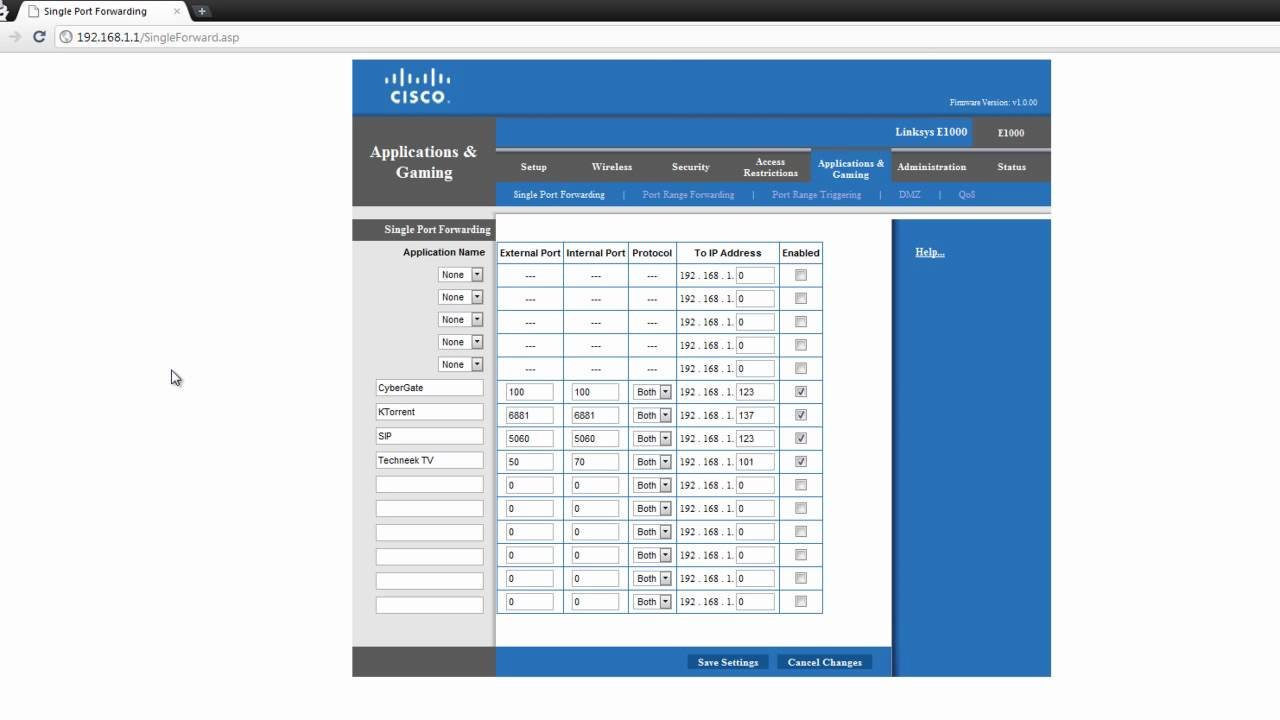
To port forward for games on a Reyee router, access your router’s settings, find the port forwarding section, and then enter the specific game’s port numbers, your device’s IP address, and select the correct protocol.
Struggling with lag and connection issues while gaming? Many times, the problem is not your internet speed, but how your router is managing connections. Learning how to port forward for games on a Reyee router can significantly improve your gaming experience by directly opening communication channels for your games. This will reduce latency and improve overall performance.
We understand that navigating router settings can be daunting, especially with all the tech jargon involved, but it is actually simpler than it seems. We have created this simple guide to walk you through all the necessary steps to get you back in the game with smoother, more stable connections.

How to Port Forward for Games on a Reyee Router
Ever tried playing your favorite game online, only to be met with lag, disconnects, or the dreaded “can’t connect to server” message? One common reason for these issues is that your router isn’t letting the game’s data pass through correctly. This is where port forwarding comes in. Think of your router like a gatekeeper for your home network, and port forwarding is like telling that gatekeeper to open specific doors for your games. If you want to learn how to get your Reyee router playing nice with your games, you’ve come to the right place. Let’s get started!
Understanding Port Forwarding Basics
Before we dive into the specifics for your Reyee router, let’s make sure you understand the core concepts. Imagine your home network as a city, and your router is the main post office. Every piece of information sent to and from your internet connection needs to go through that post office. Port forwarding is like having specific mail slots at the post office, each leading to a specific address (like your gaming PC or console) within your city (your network).
What are Ports?
Ports are numerical labels assigned to different types of network traffic. They tell your router where to send the information. Games use specific ports for communication with game servers and other players. For example, a game might use port 27015 for its main connection. Without forwarding these ports, the game data might be blocked, leading to connection problems. Ports are often specified as a range as well, for example 27015 to 27030. These ranges are common, and your router needs to be configured to let this range of traffic through.
Why is Port Forwarding Important for Gaming?
Many games use specific ports to communicate with their servers, and if these ports are blocked by your router’s firewall, you might experience issues like:
- Inability to join online games
- Lag or slow gameplay
- Disconnects from servers
- Trouble connecting with friends
By forwarding the correct ports to your gaming device (PC, Xbox, PlayStation, Nintendo Switch, etc.), you enable direct communication between your game and the game server. This can help reduce lag, prevent disconnects, and improve overall online performance.
Identifying Your Reyee Router Model
Reyee makes a variety of routers, and while the core principles of port forwarding remain the same, the menus and interface might look a little different depending on your model. To be more precise, you should find the specific model number of your router. It is commonly found on a sticker on the bottom or back of the router. Make a note of the model name or number to help you find specific tutorials or manuals for your specific router online. This will help when you access your router’s interface.
Finding Your Router’s IP Address
To access your router’s settings, you’ll need its IP address. This is like the address of the post office in our city analogy. Here’s how to find it:
On Windows:
- Press the Windows key, type “cmd”, and press Enter to open the Command Prompt.
- Type ipconfig and press Enter.
- Look for “Default Gateway.” The number next to it is your router’s IP address (usually something like 192.168.1.1 or 192.168.0.1).
On macOS:
- Click the Apple icon, select “System Preferences,” and then click “Network.”
- Select your active network connection (Wi-Fi or Ethernet).
- Click “Advanced…” and then select the “TCP/IP” tab.
- You’ll find your router’s IP address listed next to “Router.”
On mobile devices:
The process varies slightly depending on your device and operating system. Typically you need to go into your Wi-Fi settings, find your connected network and then select more details. Somewhere in these details your router IP address should be listed.
Accessing Your Reyee Router’s Configuration Page
Now that you have your router’s IP address, you can access its settings:
- Open your favorite web browser (like Chrome, Firefox, or Safari).
- Type your router’s IP address into the address bar and press Enter.
- A login page will appear. You’ll need your router’s username and password. If you haven’t changed it before, you can usually find the default username and password on a sticker on your router or in its manual. Some common defaults are admin/admin or admin/password. If you changed it and forgot it, you may need to reset your router to its factory settings, losing all your settings. Be sure to consult your router manual for how to reset your router and find the default credentials.
Finding the Port Forwarding Settings on Your Reyee Router
Every router has slightly different menus, but generally you should look for settings related to “port forwarding,” “NAT,” or “virtual servers.” Here’s how it might look on a typical Reyee interface:
- After logging in, look for a section named “Network,” “Advanced,” or “Internet.”
- Within that section, you may see an option called “Port Forwarding,” “Virtual Server,” “NAT Forwarding,” or similar.
- Click on this option to open the port forwarding settings.
If you’re having trouble finding the settings, check your router’s manual. You can usually find a digital copy of the manual on Reyee’s website by searching for your router’s model number.
Setting Up Port Forwarding
Once you’ve found the port forwarding settings, you’ll need to input some specific information. Let’s break down the different fields you’ll typically encounter:
Service Name/Description:
This is just a way to label the rule you’re creating. Give it a name that helps you remember what it’s for, like “Game X Port 1” or “Xbox Live.” This is for you and it has no functional significance.
Protocol:
Most games use either TCP (Transmission Control Protocol), UDP (User Datagram Protocol), or both. You’ll need to know which protocol your game uses, the game instructions should indicate this, or a quick internet search for the specific game should reveal the answer. When creating a rule, your router will either have a drop down menu for the protocol, or specific rules to create for either TCP or UDP. Create rules for both if the game uses both protocols.
External Port/Public Port:
This is the port that your router will listen on for incoming data from the internet. The value should match the one specified for the game you want to port forward, or the start of a range. If the game uses a port range enter the range here, or if you have to enter a start and end port, use this port as the starting number.
Internal Port/Private Port:
This is the port number that your router will forward the data to once received from the internet. In most cases this is the same value as the public port, or the start of the range.
IP Address/Internal IP:
This is the IP address of the device on your local network that is running the game (the gaming PC, Xbox, or Playstation, etc). This is not your router’s IP address, but the IP address that the gaming device uses on your home network. To find this, see the section titled “Finding Your Device’s Local IP Address” below.
Enable/Active:
Make sure this box is checked to activate the port forwarding rule you have set. Without this, the rule you configured will not work.
Here’s a sample of how you might fill the fields for a hypothetical game called “Space Warriors” which uses TCP port 3074, with your gaming PC’s local IP address of 192.168.1.100:
| Field | Value |
|---|---|
| Service Name | Space Warriors TCP |
| Protocol | TCP |
| External Port | 3074 |
| Internal Port | 3074 |
| IP Address | 192.168.1.100 |
| Enable | Checked |
If Space Warriors also used UDP on port 3074, you would create another entry, changing the “Protocol” to “UDP” and all other fields remaining the same.
If Space Warriors used a range of TCP ports between 3074 and 3080, the entry will look like this:
| Field | Value |
|---|---|
| Service Name | Space Warriors TCP Range |
| Protocol | TCP |
| External Port | 3074-3080 |
| Internal Port | 3074-3080 |
| IP Address | 192.168.1.100 |
| Enable | Checked |
Some router interfaces may require start and end ports for ranges, in that case you would enter the start port as 3074 and the end port as 3080.
Finding Your Device’s Local IP Address
You need to know the internal IP address of your gaming device to correctly forward the ports to the device you want. Here’s how to find the device’s IP address.
On Windows:
- Open the Command Prompt (same as before).
- Type ipconfig and press Enter.
- Look for “IPv4 Address” under your active connection. This is your PC’s internal IP address.
On macOS:
- Go to System Preferences > Network.
- Select your active network connection.
- Click “Advanced…” and then the “TCP/IP” tab.
- You’ll find your device’s IP address next to “IPv4 Address”.
On gaming consoles:
On each console type, you can find the IP address within the network settings. Below are common methods:
- Xbox: Go to Settings > Network > Network Settings > Advanced Settings.
- PlayStation: Go to Settings > Network > View Connection Status.
- Nintendo Switch: Go to System Settings > Internet > Network Status.
Consult your console manuals for the most specific instructions.
Static IP Address
It’s recommended to set a static IP address on your gaming device. Your router assigns IP addresses dynamically and there is no guarantee that your gaming device will receive the same IP address each time it connects to the network. If it receives a new IP address, the port forward rule you created will not apply. To avoid this, you can assign a static IP address to your gaming device. This can be done in two ways:
- On the router: Some routers allow you to assign a static IP to a device based on its MAC address, this is found in the network or DHCP settings. Look for a section called “DHCP reservation”, “static DHCP”, or similar, and here you can assign an IP address to a device based on it’s MAC address. This method prevents you from having to access settings on the device you want to assign the static IP address to, and can be set directly in the router configuration.
- On the device: You can also manually set the static IP address in the network settings on your gaming device. This means you manually enter an IP address, subnet mask, gateway, and DNS settings. These are all shown when you check your device’s IP address in the steps above. Consult the specific device’s manual for guidance on manually setting the IP address.
Setting a static IP address can help ensure your port forwarding settings consistently work.
Saving and Applying Your Settings
After adding all the port forwarding rules, make sure to save your changes. Look for a “Save,” “Apply,” or “Submit” button on the router’s configuration page. Some routers may require you to reboot after applying the port forwarding settings.
Testing Your Port Forwarding
After you configured the port forwarding rules, it’s best to verify the port forwarding is actually working.
Online Port Checker Tools
There are many websites that offer port checking tools. These tools can check if specific ports are open on your network. Simply enter your router’s public IP address, the port you want to test, and the tool will tell you if it is open or closed. If the tool indicates your ports are closed after creating the port forward rules, you need to recheck that the rules are correctly configured and enabled, and your gaming device has the correct IP address set.
Testing in Game
The best way to verify your ports are forwarded is to play your game and see if it works as intended. If you still have trouble connecting to other players or servers, you may have entered the wrong ports, or there is another configuration issue.
Remember to double-check all your settings if the tests are unsuccessful. If you are still having difficulty, try searching online for information on that specific game’s recommended port forwards, as there might be an additional port that is not documented in the games official documentation.
Firewall Conflicts
Sometimes, the firewall on your computer, in addition to the firewall in your router, can interfere with port forwarding. For best results, add firewall rules to your devices to allow the games traffic through the firewall, or temporarily disable your device’s firewall while testing. Remember to enable it again once finished with testing.
Port forwarding can seem confusing at first, but by understanding the concepts and following the steps, you can create rules on your Reyee router to get your games working better. If you encounter trouble, review all the steps and ensure the settings are correct, and if needed search online for help relating to your specific game and router model. Happy gaming!
Maximize Your Internet Router: Understanding Ports
Final Thoughts
Port forwarding games on your Reyee router involves accessing the router’s interface, finding the port forwarding section, and entering the game’s specific port numbers and your device’s IP address. Save the settings, and the forwarding should work.
Remember to always check your game’s documentation for the correct port numbers. ‘how to port forward for games on reyee router’ requires accurate information and careful application of the steps outlined above for successful connection.

