
To prioritize a game on PC, use Task Manager (Ctrl+Shift+Esc), go to Details, find the game’s .exe, right-click, choose “Set priority,” and select “High.”
Is your favorite game lagging? It’s frustrating when your PC doesn’t give games the resources they need. Many users struggle with this and wonder how to prioritize a game on pc. The good news is it’s simpler than you might think.
By making just a few adjustments in windows, you can give your game more system resources. This can lead to a smoother gaming experience. The steps are easy to follow for any user.

How to Prioritize a Game on PC
Have you ever been in the middle of an awesome game, just about to win, when suddenly everything slows down? The screen freezes, the sound glitches, and your character moves like they’re walking through mud. It’s frustrating, right? Well, this often happens when your computer is trying to do too many things at once. The good news is that you can tell your computer to focus more on your game. This is called prioritizing a game, and it can make a big difference in how smoothly your game runs.
Why Prioritizing Your Game is Important
Imagine your computer is like a busy kitchen. It has a lot of things cooking at the same time: your game, maybe a web browser, music player, and some programs running in the background. If you don’t tell the kitchen what’s most important, it might spend too much effort on other tasks, making your game suffer. Prioritizing your game is like telling the kitchen to focus on making sure your main dish (the game!) is cooked perfectly, before focusing on the side dishes. It helps your computer give more of its power (CPU, memory, and graphics) to your game, which results in smoother gameplay, less lag, and a more enjoyable experience.
What Happens When You Don’t Prioritize?
When you don’t prioritize your game, the system does its own balancing act. It tries to give a little bit of power to everything. This can lead to problems like:
- Lag and Stuttering: The game freezes or moves choppily.
- Low FPS (Frames Per Second): The game doesn’t look as smooth as it should, making it feel like a slideshow.
- Input Lag: The time it takes for your actions to show up in the game is delayed. You press a button, but your character reacts much later.
- Game Crashes: Sometimes, if the system doesn’t have enough power to run the game properly, it can crash and close unexpectedly.
How to Prioritize Your Game: Different Methods
There are several ways to prioritize a game on your PC. Some methods are built right into Windows, while others use third-party software. Let’s explore some of the most common and effective techniques.
Using Task Manager (A Basic Method)
Task Manager is a tool that comes with Windows. It shows you what’s running on your computer and how much power each program is using. You can use it to give your game more importance. Here’s how:
- Start your game.
- Press Ctrl + Shift + Esc to open the Task Manager.
- Click on the “Details” tab.
- Find the game’s executable file (it usually has the .exe extension). For example, if you’re playing Minecraft, look for something like javaw.exe or Minecraft.exe. If you are playing Valorant, look for Valorant.exe or anything related to the riot client.
- Right-click on the game’s process.
- Select “Set priority”.
- Choose “High” or “Realtime.” Note: Realtime should be used carefully as it can cause other processes to struggle. Usually, High priority is sufficient.
Important Notes about Task Manager Prioritization:
- This change is temporary. When you close the game, the priority goes back to normal.
- Setting priority to “Realtime” can sometimes cause problems with other software. It’s often better to use “High” instead.
- If you make a mistake and your system becomes unstable, restart your PC.
Using the Windows Game Mode
Windows has a feature called “Game Mode,” which helps to optimize your PC for gaming. When Game Mode is enabled, Windows will try to reduce background tasks and focus resources on your game. Here’s how you can enable it:
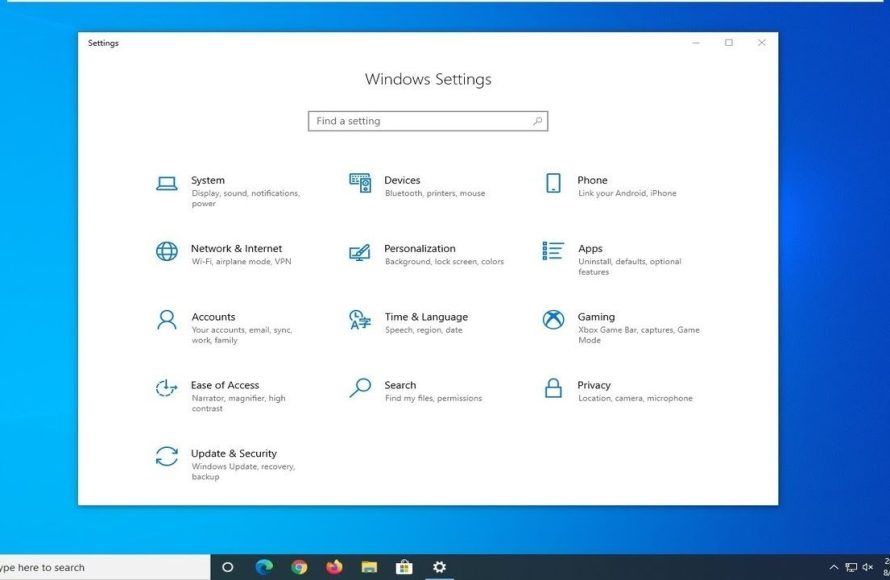
- Click on the Start button and then click the Settings icon. (It looks like a gear).
- Click on “Gaming”.
- On the left, click on “Game Mode”.
- Toggle the “Game Mode” switch to “On.”
Game Mode Notes:
- Game Mode automatically detects when you are playing a game.
- It works in the background, so you don’t have to do anything special once it’s on.
- It can improve the performance of some games.
Adjusting Graphics Settings in Game
Sometimes, the game itself has settings that can greatly affect how well it runs on your computer. Lowering graphics settings can reduce the strain on your PC and make your game faster and smoother.
- Lower the resolution: The resolution of the game is the size of the picture on your screen. A higher resolution makes the game look more detailed, but also requires more power to render. If your game is lagging, try reducing the resolution to something lower than your monitor’s standard resolution. Usually, the resolution options are in the video or graphics settings menu of the game.
- Turn down texture quality: Textures are the details of surfaces in the game. Low texture quality reduces the level of detail on these surfaces. This can reduce the load on the graphics card.
- Reduce shadow quality: Shadows can be demanding on computer resources, especially if they are very detailed or are displayed across large areas. Turning down shadows or disabling them completely can improve game performance.
- Disable motion blur: Motion blur is a graphical effect that creates a sense of movement, but it can sometimes make the game look blurry and use more processing power. Try turning it off to see if it helps.
- Turn off anti-aliasing: Anti-aliasing smoothes out jagged edges of objects, but it can also use a lot of processing power. If you are having performance issues, reducing or disabling anti-aliasing can help.
- Turn off or reduce other graphical settings: Depending on the game, you may be able to turn off other graphical features such as ambient occlusion or V-sync that can also help improve performance.
Closing Unnecessary Programs
When a lot of programs are running at the same time, they compete for your computer’s resources. Closing programs you’re not currently using frees up resources for the game. Here’s what to do:
- Close browser tabs: Each open web page uses memory and processing power. If you have lots of tabs open, close the ones you’re not using while gaming.
- Close background applications: Applications like discord, spotify or others running in the background use system resources. Before launching a game, consider closing non-essential applications to improve game performance.
- Disable startup applications: Sometimes, many applications automatically launch when you start your computer. You can prevent them from starting up automatically. Here’s how:
- Press Ctrl + Shift + Esc to open Task Manager.
- Go to the “Startup” tab.
- Right-click on the programs you don’t need and select “Disable”.
Updating Graphics Drivers
Graphics drivers are like the instructions that allow your graphics card to work with your computer. Outdated graphics drivers can cause games to lag and not run properly. Keeping your drivers up-to-date will improve game performance and stability. Here’s how you do it:
- Identify your graphics card: If you are not sure, Press Windows key + R then enter dxdiag in run command, and press Enter. Go to “Display” tab and look for the model of your graphics card in the “Device” section. You will see names like NVIDIA GeForce, AMD Radeon, or Intel HD graphics.
- Go to the manufacturer’s website:
- For NVIDIA, go to their website.
- For AMD, go to their website.
- For Intel, go to their website.
- Find your driver: Search for your specific model.
- Download the latest driver: Download the driver from the official page, and follow installation instructions.
Using Third-Party Software for Prioritization
Some third-party software programs can help you with game prioritization and performance. These programs can often give you more control and customization than the built-in Windows tools. Here are some of them:
Process Lasso
Process Lasso is a powerful process optimization tool that allows you to manage process priorities. It has several features designed to improve system performance by controlling how processes utilize your computer’s resources. You can set persistent priorities so that when the game starts it automatically gets the correct priority.
- Persistent Priority: You can set a game to always run at a certain priority.
- CPU Affinity: You can control which processor cores the game uses.
- Auto Game Mode: Process Lasso will automatically boost your game performance when it starts.
Razer Cortex
Razer Cortex is a free application that offers game optimization features. It boosts game performance by closing unnecessary processes and optimizing system settings.
- Game Booster: Razer Cortex is designed to automatically optimize your system by closing unnecessary apps and services when you launch a game.
- System Cleaner: It removes temporary files and other junk data to make space and improve performance.
- Defrag Tool: Helps to improve loading times by defragging the game files.
MSI Afterburner
MSI Afterburner is mainly known for overclocking graphics cards, but it also has features that can help with game performance. While it does not have direct priority settings, adjusting clock speeds and fan speeds can indirectly affect how smoothly games run.
- Graphics Card Overclocking: You can increase the performance of your graphics card to get better frame rates. However, use this with caution as it can cause heat issues.
- Fan Speed Control: Keep your graphics card cooler, which can help in maintaining consistent performance.
- Monitoring: You can monitor real time system metrics like temperatures and clock speed, which can help you troubleshoot performance issues.
Additional Tips for Improving Game Performance
Apart from prioritizing, here are some other useful tips to keep your game running at its best:
- Keep your PC cool: Overheating can cause performance throttling. Ensure that your PC has good airflow. Consider cleaning dust from your PC and heatsinks.
- Increase RAM (Random Access Memory): If your computer does not have enough RAM, your game might not run smoothly. If your system is struggling, increasing RAM may help.
- Use an SSD (Solid State Drive): SSDs are faster than traditional hard drives. Installing games on an SSD can help reduce load times and in some cases improve game performance.
- Check internet connection: Sometimes poor internet connectivity can make a game lag or stutter, especially when you are playing online. Run a speed test, and ensure that you have stable internet.
- Run system scans: Make sure that your PC is free of malware and viruses. Run a complete scan using good antivirus software.
By following these techniques, you can give your favorite game the attention it deserves and make sure you have a great time playing it. Have fun gaming!
Remember that not all games will react the same way to these changes, so you may need to experiment a bit to see what works best for your particular system and game. If you try a method that makes your system unstable, revert to the default setting and restart your computer.
How to Set HIGH Cpu Priority Any App or Games – Quick Tutorial
Final Thoughts
Prioritizing a game is essential for optimal performance. You can achieve this using Task Manager. Set the game’s process priority to “High” or “Realtime”. This allocates more system resources.
Remember to only do this if you must. Misusing process priority can affect other applications. It’s a simple method to help with how to prioritize a game on pc.
Adjusting priority often improves frame rates. It can also reduce stuttering. Use this carefully to enhance your gaming experience.

