
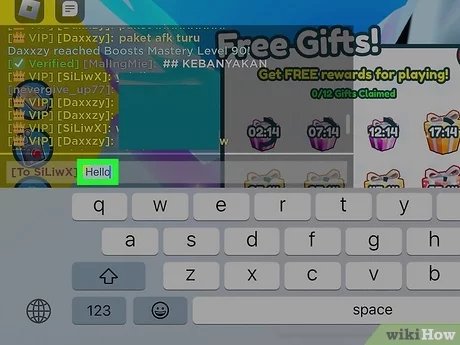
To private message on Roblox in game, you must first click on the player’s name in the player list or chat, then select the ‘Message’ option.
Ever felt the need to chat with a specific friend during a chaotic Roblox game? It can be tricky with all that public chatter filling the screen. Knowing how to private message on Roblox in game can definitely make communication a lot easier.
This guide will show you the simple steps to send those direct messages quickly. No more missed messages or public chats you’d rather keep private. It is very straightforward and efficient when you know how.

How to Private Message on Roblox In Game
Okay, you’re playing a super cool game on Roblox, and you want to chat with your friend privately, away from all the other players. That’s totally normal! Sometimes you need to plan a secret strategy, or maybe just share a funny meme you found. Luckily, Roblox makes it pretty easy to send private messages while you’re in a game. Let’s dive into how you can do it.
Using the In-Game Chat Window
The easiest way to start a private chat on Roblox while you’re playing is by using the in-game chat window. You know, that little box at the top left of your screen where everyone is typing messages? Well, it can be used for more than just general chatter. Here’s a breakdown:
Finding Your Friend’s Username
First things first, you need to know exactly what your friend’s username is. Make sure you spell it correctly! Even one wrong letter will send your message into the digital void. If you’re not sure how to spell their name, you can ask them to say it in the public chat, then double-check it. It helps to be really sure!
Opening a Private Chat
Once you’ve got their username down, follow these steps:
- Look at the top-left of the screen, where the game chat is happening.
- You will see a box where you can type your message.
- To start a private message, you will need to type a special command before the actual message.
- That command is a forward slash “/” followed by “w” and then a space. It looks like this: /w
- After the /w command, you should write your friend’s full username.
- After writing your friend’s username, press the space bar one more time.
- Now, just write what you want to say to your friend.
- Press the ‘enter’ key and your private message is sent.
So, if you want to message a friend named “CoolGamer123,” you would type this into the chat box: /w CoolGamer123 Hey, want to play hide and seek?
How to Know if Your Message Was Private
When you send a private message, you’ll see a small notification that tells you that your message was indeed sent to the specific person. If you just wrote your message into the chat box, everyone in the game would see it. This notification lets you know that this message went only to your friend.
Using the Roblox Menu to Initiate a Chat
There is another way to start a private chat with your friend, and it involves using the main Roblox menu inside the game. This method also has a few steps, but sometimes is easier if you are not sure how to type the commands inside the chat window:
Accessing the Roblox Menu
First, you will need to open the in-game Roblox menu. This can usually be done by pressing the ‘Esc’ key on your keyboard, or by clicking the Roblox logo button in the top-left corner of the game screen. A menu will open, showing you things like your inventory and settings.
Finding Your Friends List
In the Roblox menu you’ve just opened, you’ll need to find the list of your friends. Usually, there will be a button or tab that says “Friends” or shows a picture of people. Click on that and you’ll see all of the friends you have added on Roblox.
Selecting Your Friend
Scroll through the list until you find the friend you want to message. When you find their name, click on their username and a small window will open that gives you few options.
Starting a Chat
In the small window you just opened, you’ll usually find a button that says “Chat” or “Message”. Click that button, and a new window will open where you can type a private message to your friend. Now just type what you want to say and press ‘enter’ and your message will be sent.
Understanding Private Message Indicators
How can you tell if you’re talking in a private message versus in the regular game chat? Roblox makes it pretty clear with a few visual cues.
Different Colors in the Chat
When you send a private message, the text is usually a different color than the regular game chat. This helps you quickly see that you’re talking privately with someone.
Special Icons
You might also see a small icon next to the name of the person you’re chatting with in a private conversation. This makes it very obvious that you are not talking to everyone in the game.
Tips for a Better Chat Experience
Okay, now you know how to send private messages. Here are a few extra tips to make chatting even better:
Keep Usernames Accurate
Double-check your friend’s username to ensure you’re sending the message to the right person. A misspelled name means your message is going nowhere. Pay close attention and ensure you get it right!
Keep it Respectful and Friendly
Even in a private chat, always be kind and respectful. Remember that your words have power, even if they’re not being seen by the whole server.
Be Patient
Sometimes, messages might take a moment to send or receive, especially if your internet is not very good. If your friend is not replying quickly, don’t panic and just be patient.
Using Chat Shortcuts
Sometimes, typing out “/w username” every time you want to send a private message can get a bit tedious. Some Roblox users have been able to use in-game features that allow for shortcuts. This is something that you should test yourself, because not all games allow for this. These shortcuts can make messaging a lot quicker. So experiment with game features and maybe you will find an easier way to message friends privately.
Why Use Private Messages?
There are many reasons why you may want to use private messages in Roblox while in a game. Here are some of the common scenarios:
- Planning Strategies: If you’re playing a game that requires teamwork, you can use private messages to make plans without the other team hearing. For example, if you are playing a game of hide and seek you can plan the hiding places between you and your friend.
- Sharing Secrets: You might have a funny story or a secret to share with a friend that you don’t want everyone else to know about.
- Helping Friends: If a friend needs help in the game, you can use private messages to give them tips and advice without other people butting in.
- Casual Conversation: Sometimes you just want to chat with a friend in the game without cluttering up the main chat window.
Potential Issues and Solutions
Sometimes things may not work as smoothly as you would expect them to. Here are some problems and how to tackle them:
Message Not Sending
If you’re sending a private message and it’s not going through, first make sure you’ve typed the username correctly, and that you have an internet connection. If both seem to be okay, and you still have problems, try closing the game and re-opening it.
User Not Online
If you cannot message your friend privately, it may be that they have left the game or turned off their device. Make sure to see if your friend is actually online, and present inside the game. If their user appears grayed out in your friends list, that means they are not currently online.
Chat Settings
Sometimes, people have their chat settings set to ‘No one’ meaning they can’t receive private messages. If you cannot message your friend, see if they have set their chat settings to allow anyone to message them.
Roblox Updates
Occasionally, Roblox does updates that may change things on the platform. It is possible that, if a new update just took place, there may be changes to some of the old features. If you have problems sending private messages, you can always read patch notes or look online to see if any changes were made by Roblox.
Common Mistakes to Avoid
Here are few mistakes that users often do, when trying to send a private message in Roblox:
- Forgetting the Command: Many people simply forget to type /w before their message.
- Incorrect Usernames: Ensure you are spelling your friend’s username correctly.
- Typing in Wrong Chat Box: Always check to see that you are typing in the in-game chat window and not some other area of the screen.
- Not using a Space After Username: Always use one space bar after you write your friend’s username. For example: /w CoolGamer123 message.
Private messaging on Roblox during a game is a very helpful tool to talk to your friends. Whether you’re making strategies, sharing secrets, or just wanting to say “hi,” knowing how to do this will improve your experience in Roblox. So, go ahead, try it out, and keep on enjoying the game!
How To Private Chat People In ROBLOX!
Final Thoughts
To privately message, you must first locate the player’s name within the game. Click on their avatar or name tag. A menu will appear, usually showing options such as “Profile” or “Send Message”.
Select the “Send Message” option. This opens a new chat window specific to that player. Now, you can directly type and send your private message. You’ve successfully learned how to private message on Roblox in game.

